
Add audio learning activities to your LearnWorlds courses by uploading an MP3 file, linking to an externally hosted MP3 file, or creating audio with AI. Audio activities work well for recorded lessons, interviews, pronunciation exercises, and guided listening.
In this guide, you'll learn how to add an audio activity, choose its audio source, and preview it in the Course Player.
Use cases:
- Use audio clips to explain complex concepts.
- Provide language lessons with pronunciation guides.
- Share recorded lectures or interviews.
- Offer meditation or relaxation sessions.
- Create listening exercises for students.
In this article, we will learn how to create audio learning activities and incorporate audio files in your courses.
Create an audio learning activity
1. Go to the Course outline tab of your created course.
2. Click on Add an Activity under the selected course section.
3. Click on the Audio option in the Multimedia menu.
4. Give a title to your Audio and click on Save or Save & edit to start editing immediately. 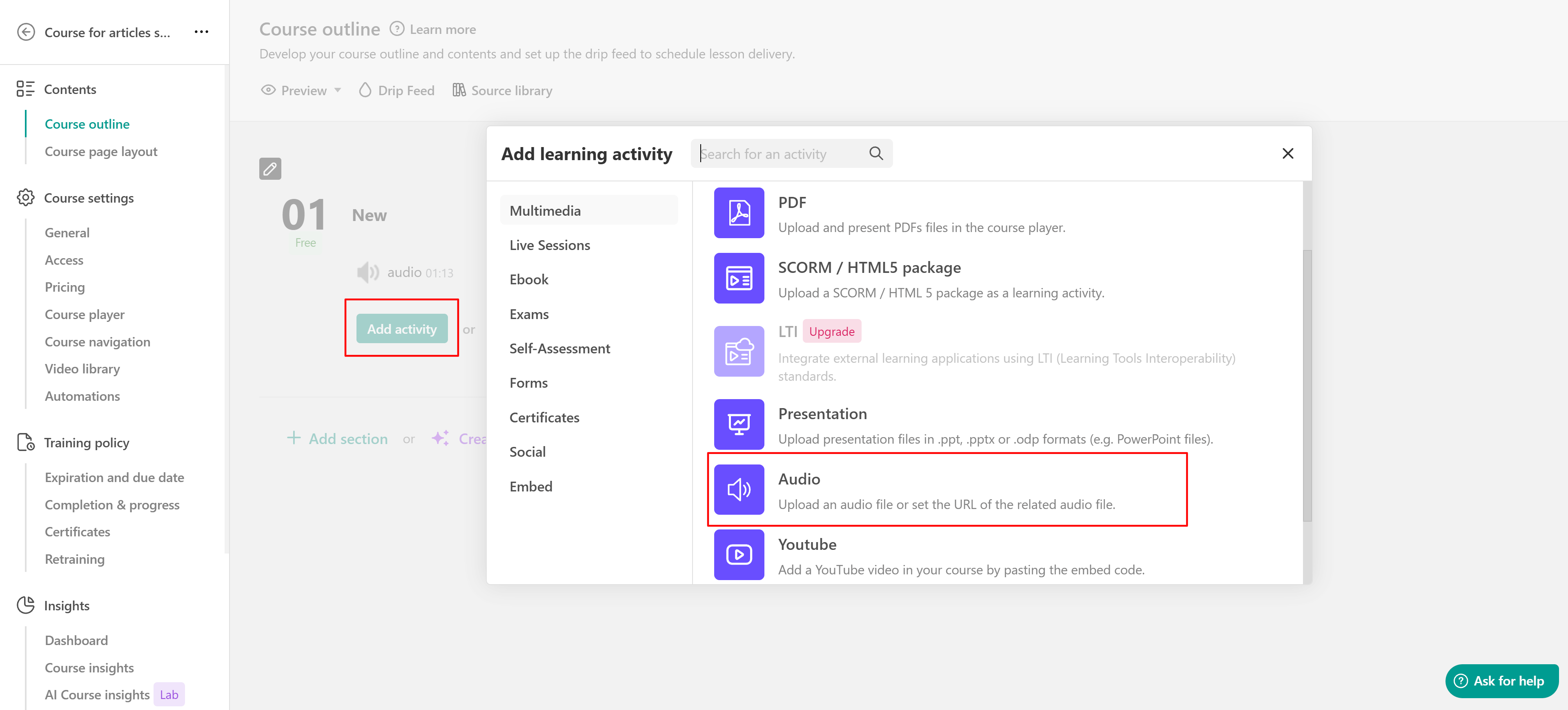
Add audio to your activity
Open the audio activity's Settings. Under Audio file, choose how to add the audio.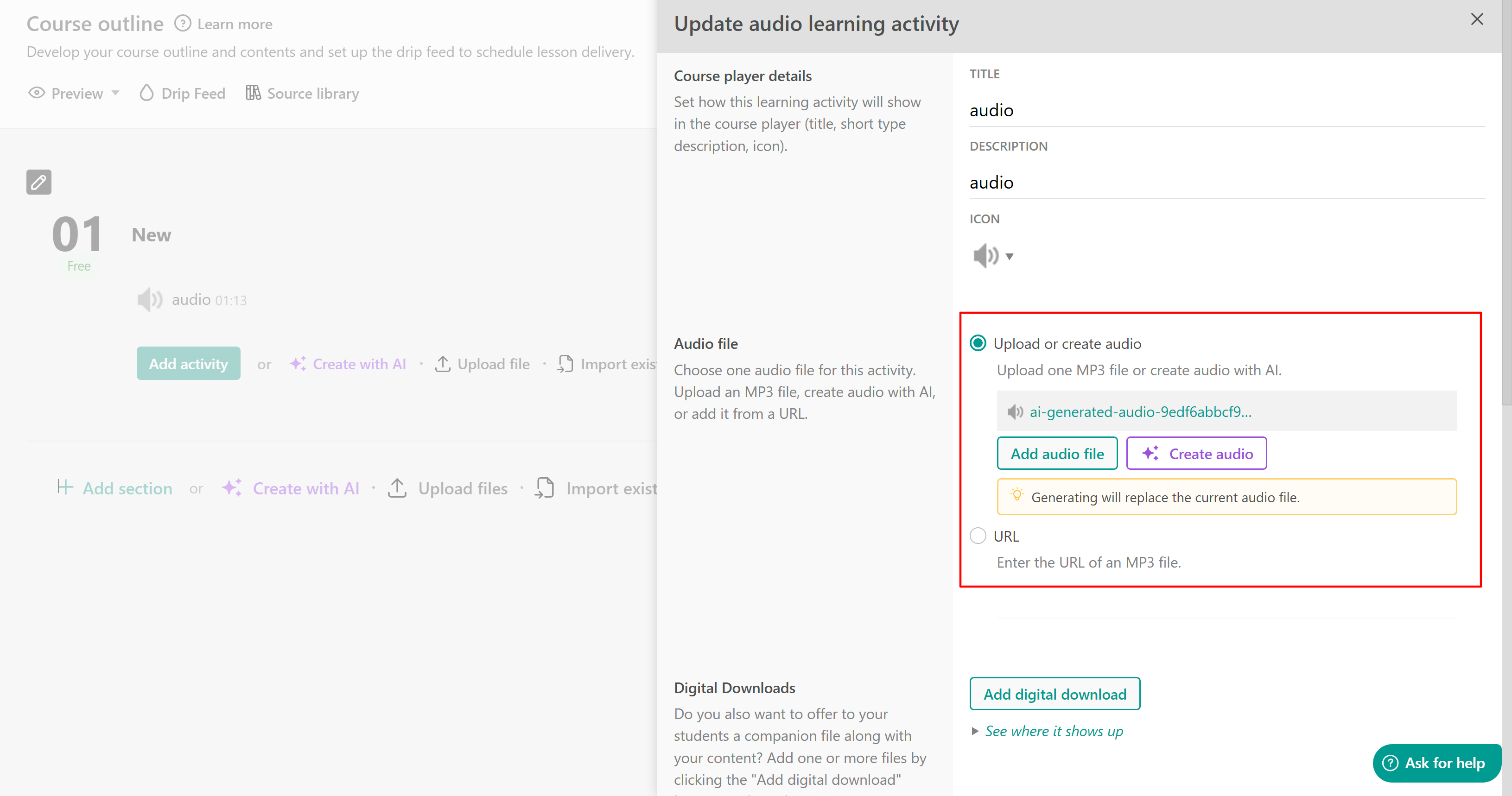
Upload an audio file
Select Upload or create audio and upload an existing MP3 file from your device.
We recommend audio files of up to 20 MB. Avoid special characters in file names, as they may cause playback issues.
Create audio with AI
Under Audio file, click Create audio to open the AI creation interface and describe the audio you want to create. AI generates a script that you can edit before selecting voices and creating the audio.
Audio content can also be generated when creating an entire course or section with AI, provided you choose a content-generation option rather than adding the outline only.
For the full workflow, check this guide.
Add audio using a URL
To use an externally hosted MP3 file, select the URL option under Audio file and paste a direct link to the audio file.
For example, when using Dropbox, copy the file's share link and change the dl=0 parameter at the end to dl=1 so the link requests a download of the file.
 - Avoid using special characters (e.g., &, â, è, ü, +, -, etc.) in the titles of your uploaded audio files, as this may prevent the audio files from playing for users
- It is suggested to add audio files up to 20 MB.
You can Preview the audio learning activity in the Course Player. The audio player automatically takes the color theme of your course player.
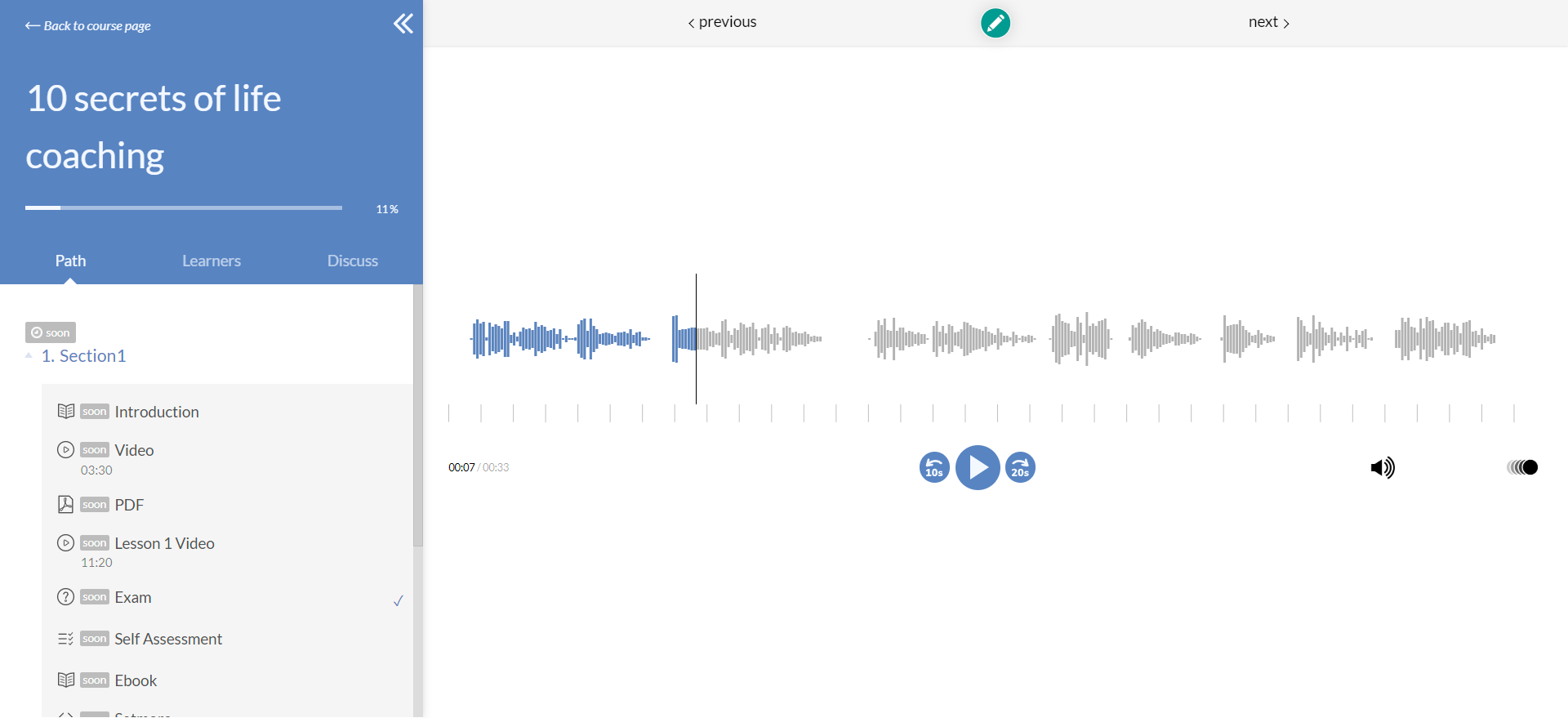
For uploaded audio from the computer, the player provides a waveform of the audio.
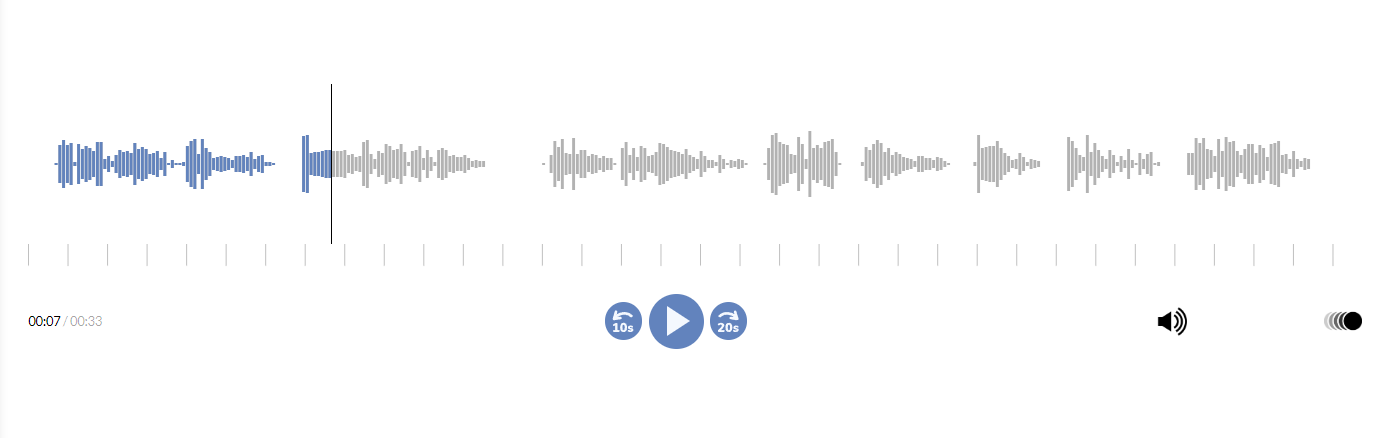 Note that when using a URL link, the audio player may not display the waveform.
You can also Password protect this audio learning activity for users who only have the password.
- Users can use shortcuts in the audio files:
space = play/pause
arrow up/down = volume up/down
arrow left/right = backward 10 sec / forward 20 sec
- If the Dropbox audio link does not play on mobile devices, make sure you replace the "www.dropbox" with "dl.dropboxusercontent". So if your URL is https://www.dropbox.com/s/ismx7sa8cokprwf/1%29%20Week%20%231%3A%20test.mp3?dl=1 you should change it to https://dl.dropboxusercontent.com/s/ismx7sa8cokprwf/1%29%20Week%20%231%3A%20test.mp3?dl=1 and the audio will play.
- When uploading an audio file through the URL option, there might be a chance that the player will have the following format instead of LearnWorlds player skins:

This fallback player is displayed when external websites do not allow their URLs to be fetched in external course players. For example, due to its CORS policy, Google Drive does not allow its files to be fetched (Cross-Origin Resource Sharing). A solution to this is to upload the audio file straight as a file to the learning activity instead of as a URL.