
Expiration settings control how long learners can access a course or learning program. You can set course access to expire after a period from enrollment or on a fixed calendar date. Learning Programs can expire after a set period from enrollment.
When access expires, the learner can no longer open the product unless an admin extends or restores access.
How expiration works
Expiration determines when a learner loses access to a course or learning program.
When expiration is based on enrollment, each learner's expiration date is calculated from their own enrollment date. For example, if access expires one month after enrollment, the period lasts 30 or 31 days depending on the calendar month. February is treated as a 30-day month.
For courses, you can also set a fixed calendar expiration date. Learners with this rule lose access on the date you select, regardless of when they enrolled.
Course expiration and course due dates serve different purposes. Expiration determines when access ends, while a due date sets the expected completion deadline and can mark a course as overdue without removing access.
 Learning Programs do not have a due date setting.
Set an expiration rule for a course
To configure course expiration:
1. Go to Courses & Programs → Courses
2. Select the course you want to update
3. Go to Training policy → Expiration and due date
4. Under Course access expiration, choose one of the following options:
- Never expires: Learners keep access unless it is changed manually
- A set period after enrollment: Access expires after the number of days, weeks, months, or years you configure, starting from each learner's enrollment date
- A fixed calendar date: Access expires for applicable learners on the date you select
5. Click Save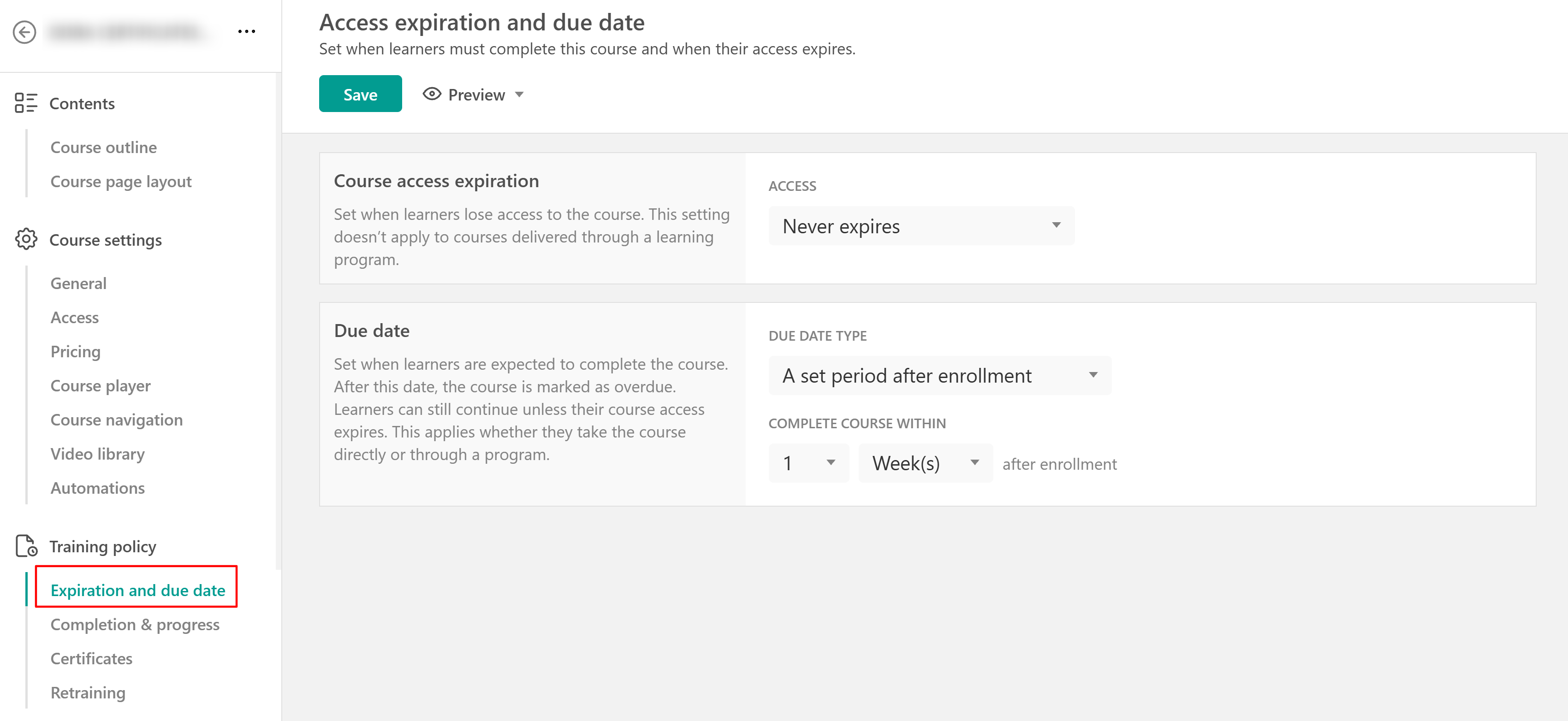
- A course-level expiration rule does not apply when the course is accessed as part of a Learning Program. In that case, the Learning Program's expiration rule applies.
- Changing or adding a course expiration rule affects future expiration assignments. Existing learners keep their current expiration settings unless you change them individually or in bulk.
Set an expiration rule for a Learning Program
1. Go to Courses & Programs and select the Learning Program you want to update
2. Go to Program settings → Access
3. Under Program expiration, choose:
- Does not expire: Learners keep access to the Learning Program
- Expires after a set period: Access expires after the configured period, starting from each learner's enrollment date
4. Click Save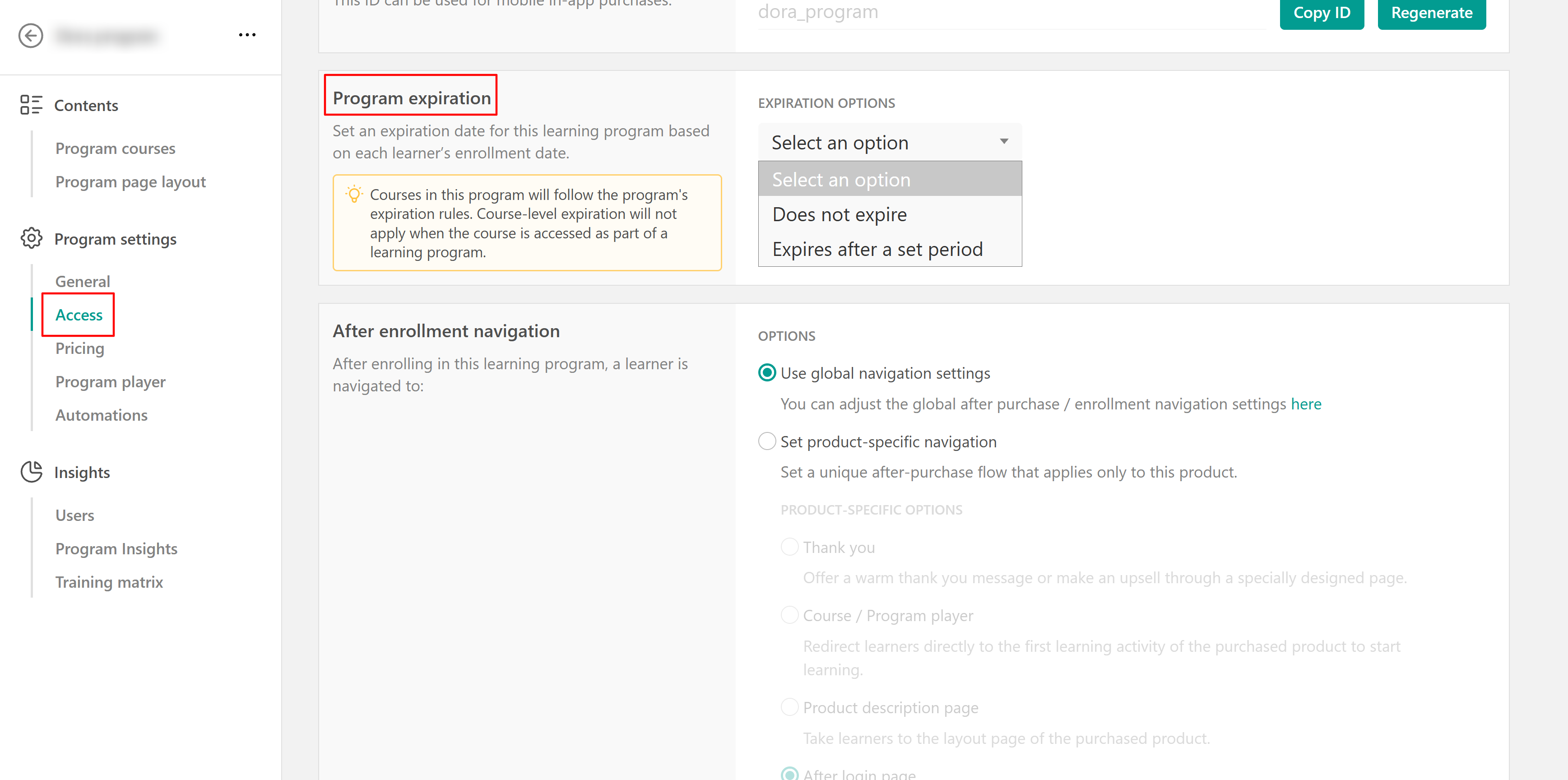
- Expiration period is available only for courses and learning programs. Subscriptions work differently, as they provide access through recurring renewals and payments. Learners retain access for as long as their subscription remains active and successfully renewed, so subscriptions cannot support fixed expiration dates.
- If a course with its own expiration date is included in a Learning Program, the course expiration setting will not apply when users access it through the program. In this case, only the Learning Program expiration date is taken into account, provided that one has been configured.
Change an expiration date for one learner
You can change the expiration date for a specific course or Learning Program enrollment without changing the product-level rule. To edit expiration dates for individual learners navigate to the Users page.
1. Open the user profile and select the Products tab.
2. Locate the course or learning program you want to update.
3. Click the three-dot menu and select Edit expiration date.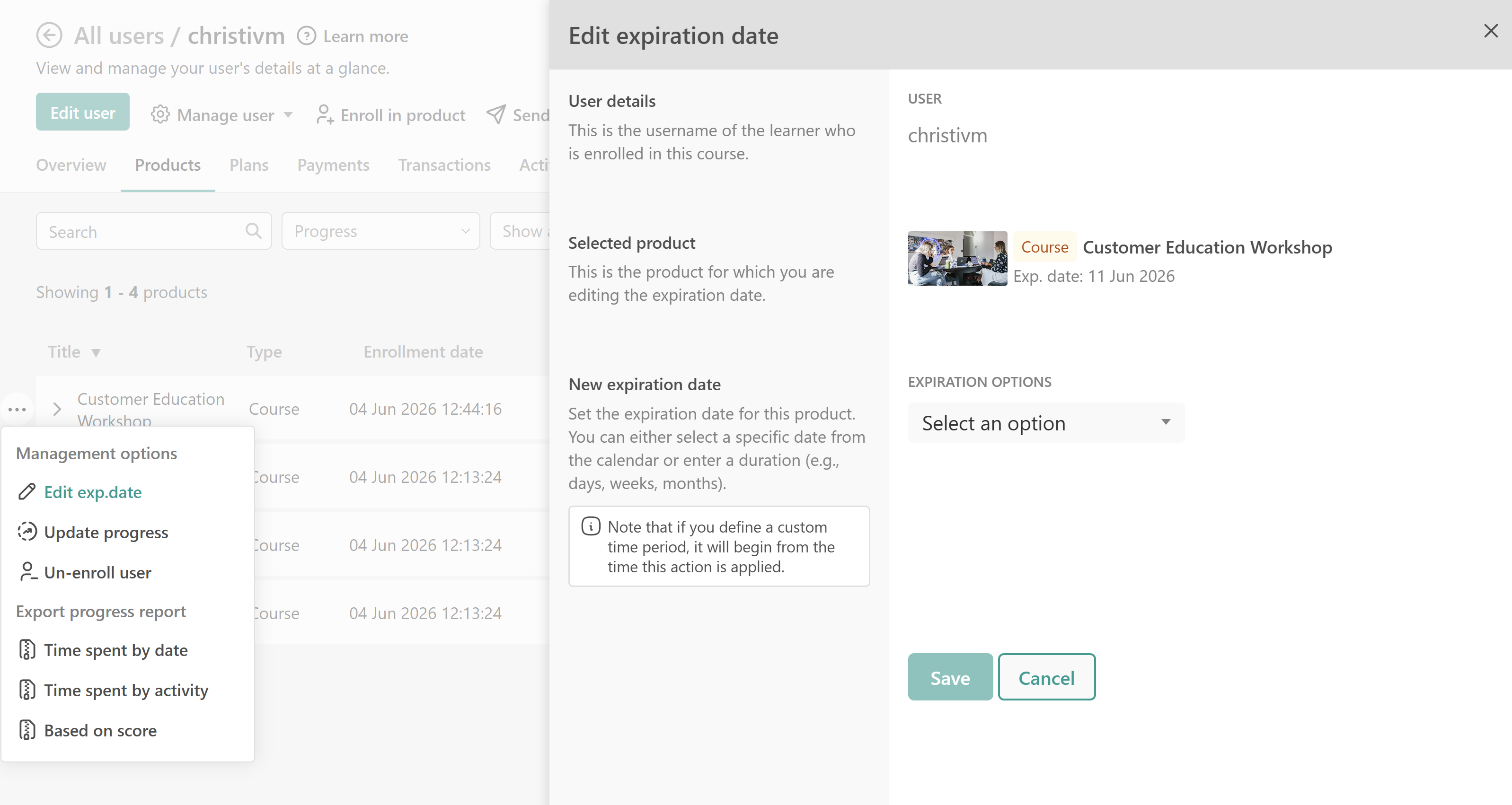
4. Under Expiration options, choose one of the following:
- Does not expire: This removes the expiration date and restores ongoing access.
- Expires after a set period: Sets a new expiration period starting from the date the change is applied. For example, if you set an expiration period of 14 days, the product will expire 14 days from the day you make the change, regardless of any existing expiration date.
- Expires on specific date: This setting sets a fixed expiration date, e.g. 5 June, 2026.
5. Click Save.
- When you define a custom time period, the countdown begins from the moment the change is applied. For example, setting 14 days means access expires 14 days from that day, regardless of the learner's previous expiration date.
- For courses using payment plans, recurring Stripe payments continue even if the learner’s course access expires, unless the payment plan is manually canceled. Since billing and course access are managed separately, it is recommended to review these settings carefully to avoid confusion.
Bulk edit expiration dates for multiple users
You can update expiration dates for several learner enrollments at the same time. Bulk expiration editing is available on the Learning Center plan and above.
1. Navigate to Users → All users.
2. Select one or more users.
3. Click the three dots and select Edit expiration dates.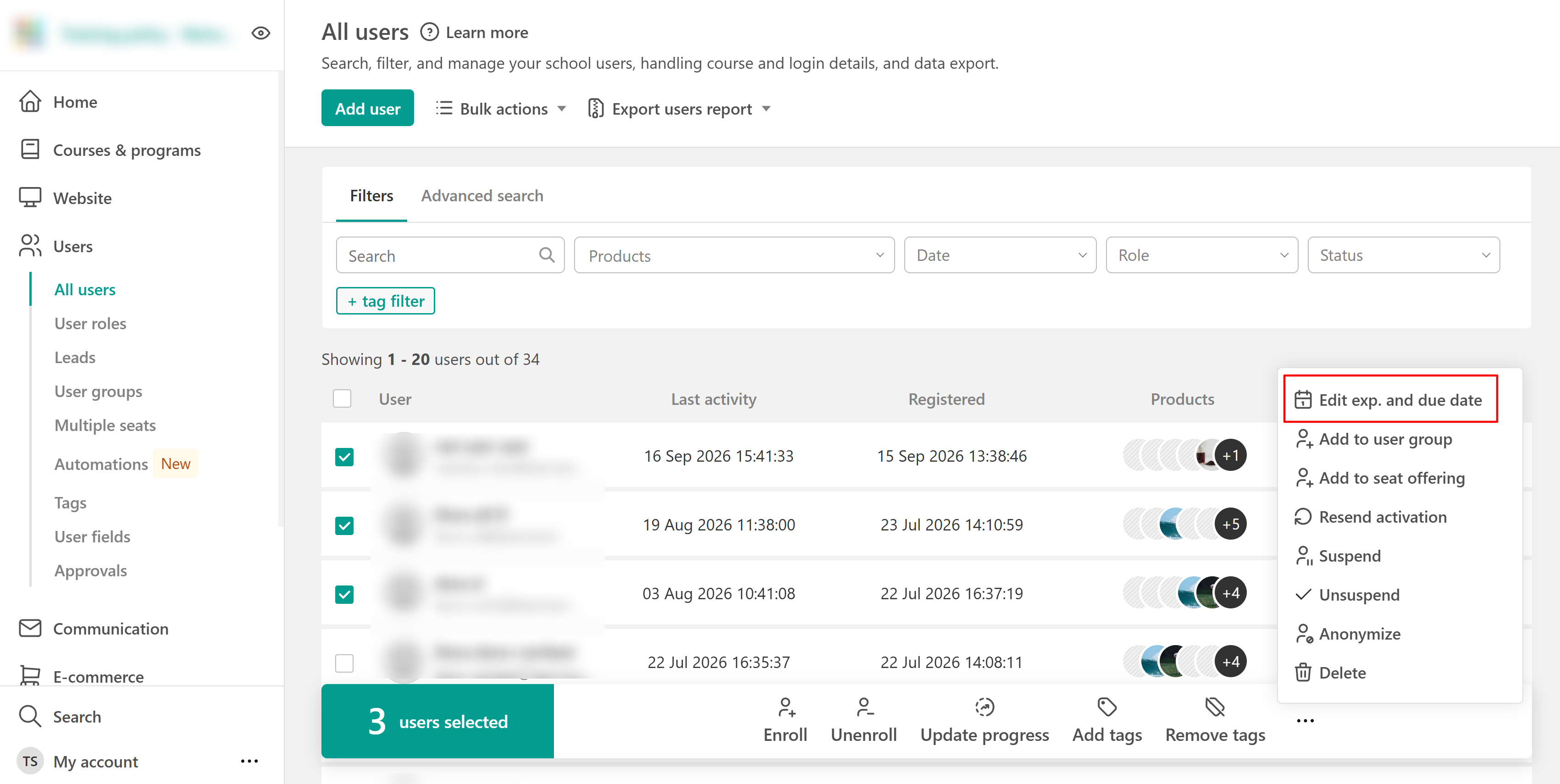
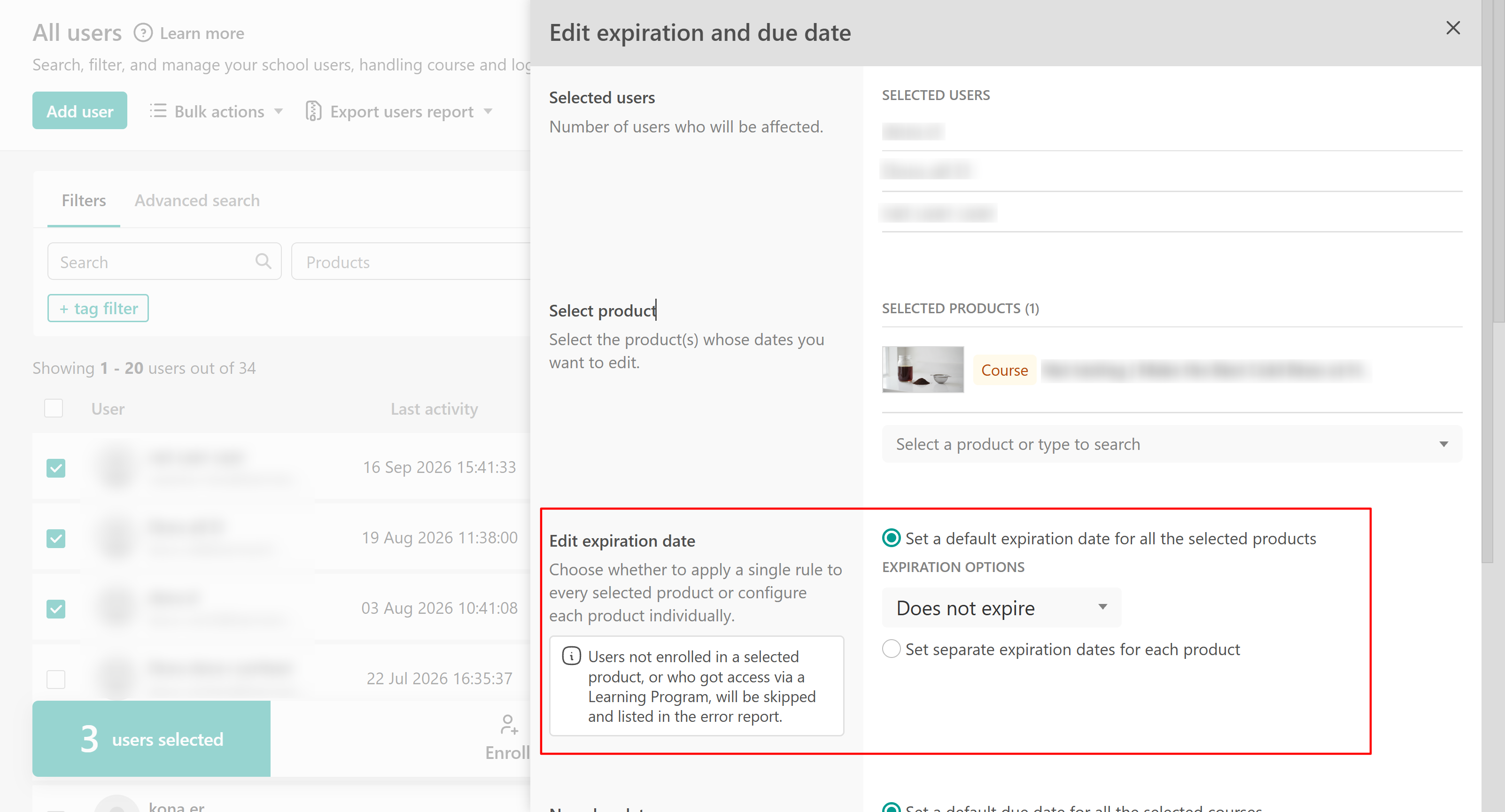
4. Review the list of selected users.
5. Select one or more courses or learning programs.
6. Choose how the expiration settings should be applied:
- Set a default expiration date for all the selected products – applies the same expiration rule to every selected product.
- Set separate expiration dates for each product – allows you to configure a different expiration rule for each selected product.
For each selected product (or for all products if using a default rule), choose one of the following options:
- Does not expire
- On a specific date
- After a period
- Add or subtract time
7. Click Apply.
Users who are not enrolled in a selected product, or who access a course through a Learning Program rather than a direct enrollment, cannot be updated. These users are skippedThe table below outlines the available expiration date options and how each one affects the selected user
| Option | Result |
|---|---|
| Does not expire | If the product has an expiration date, this option removes the expiration date for enrolled users. |
| On a specific date | Sets the expiration date to the selected future date. |
| After a period | Sets a new expiration date based on the date the action is applied, regardless of any existing expiration date. |
| Add or subtract time | Requires an existing expiration date. The specified time is added to or subtracted from the current expiration date. |
What happens when access expires
- After a course or Learning Program expires, the learner can no longer access it. Their existing learning records remain stored.
- For expired courses, progress, scores, and completion data are restored if access is granted again. Expired learners can also appear as Unenrolled due to expiration in reports and filters.
- Admins can restore access by changing the expiration date or re-enrolling the learner. Click here for the steps.
Restore access after expiration
To give access to an expired course while preserving user progress, such as exams and scores, you can use one of the options below:
- Re-enroll the learner to restore access to the course if a learner’s access has expired and they have been unenrolled. Υou can either apply a default expiration date to all included products or configure a different expiration period for each product individually. Further instructions are available here.
- Provide a 100% discount offer so they can re-enroll on their own. Here you can check how to create a URL with a coupon code already applied.
- Extend the expiration date from the user's profile. This change will apply only to that specific user. You can check the steps here .
FAQs
- What is the difference between course expiration and a course due date?
Course expiration determines when the learner loses access to the course. A due date sets an expected completion deadline and can mark the course as overdue without removing access.
- Can I set a course to expire on a specific calendar date?
Yes. Under Training policy → Expiration and due date, choose A fixed calendar date under Course access expiration.
- Can I set a Learning Program to expire on a specific calendar date?
Learning Program expiration is configured as a period from enrollment. You can set a specific expiration date for an individual learner or through bulk expiration actions.
- Does a course's expiration rule apply when the course is part of a Learning Program?
No. When a learner accesses the course through a Learning Program, the program's expiration rule applies instead of the course-level expiration rule.
- Do Learning Programs support due dates?
Learning Programs do not have their own due date setting. Due dates are configured at the course level.
- Does changing a product-level expiration rule update existing learners?
Existing learner expiration settings are preserved unless you update them individually or through the bulk expiration action.