
When you sell licenses or custom deals for courses or learning programs, the experience doesn’t end at checkout. Your clients need visibility into learner progress, completion rates, and overall training impact.
The License reporter role helps you give them this access, without giving full control of your school. This way, you stay in control of your school, while your clients independently monitor their results.
What is the license reporter role?
The license reporter is a dedicated user role you can assign automatically or manually to a user connected to a license purchase.
With this role, users can:
- View learners assigned to their licenses
- Track progress and performance
- Export reports
Access is limited to relevant data only, ensuring a secure and focused reporting experience.
Use cases
- Track employee training: Monitor employee progress and completion in company training.
- Let clients track their results: Give clients access to view their team’s learning progress on their own.
- Reduce reporting requests: Allow clients to access reports themselves without asking you.
- Give access without full control: Share training data with clients while keeping your school secure.
How to assign a license reporter
You can assign this role either automatically or manually.
Automatically assign a license reporter
The first option is to allow every user who buys a license to become a license reporter automatically, the moment they buy the license.
- Go to E-commerce → Licenses.
- Open setup.
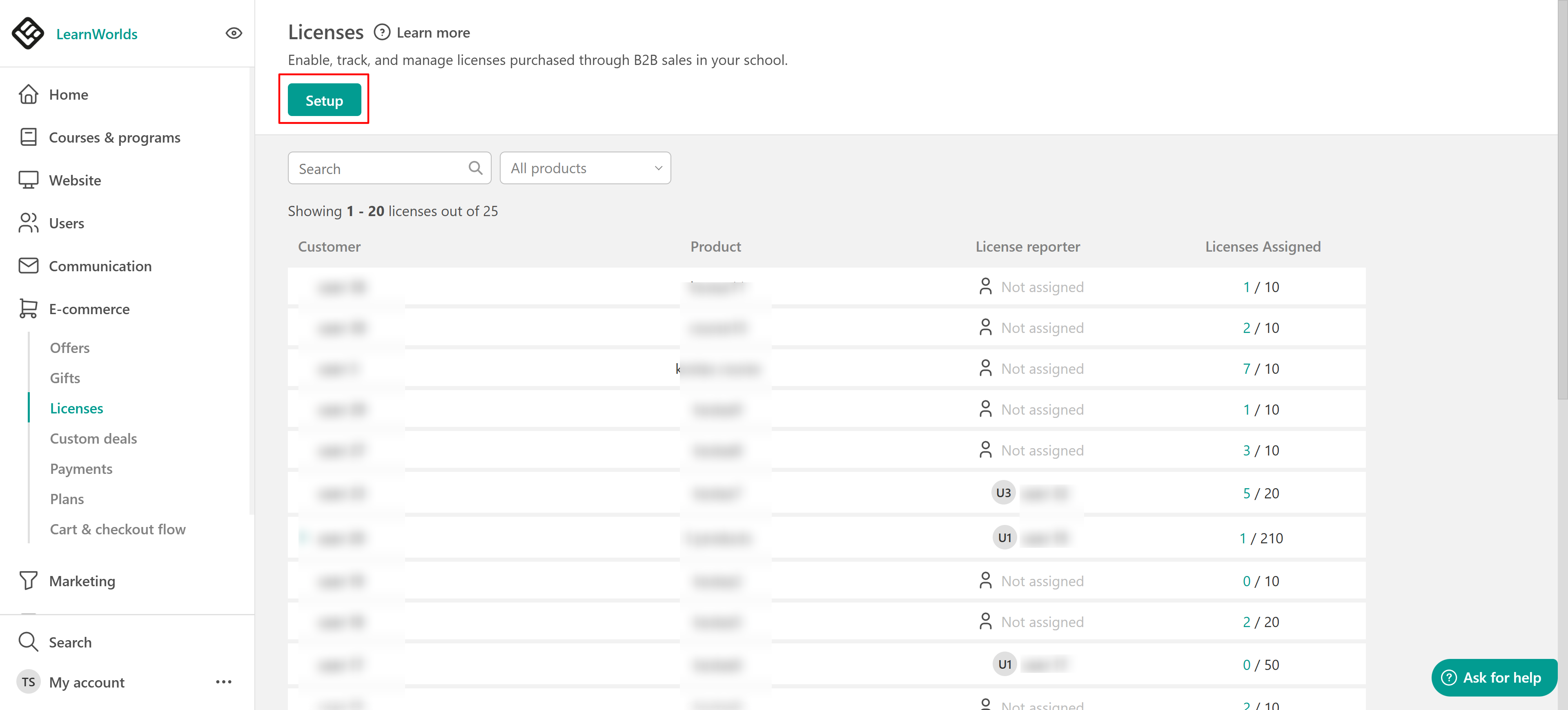
- Enable Auto-assign license reporter.
- Click Save.
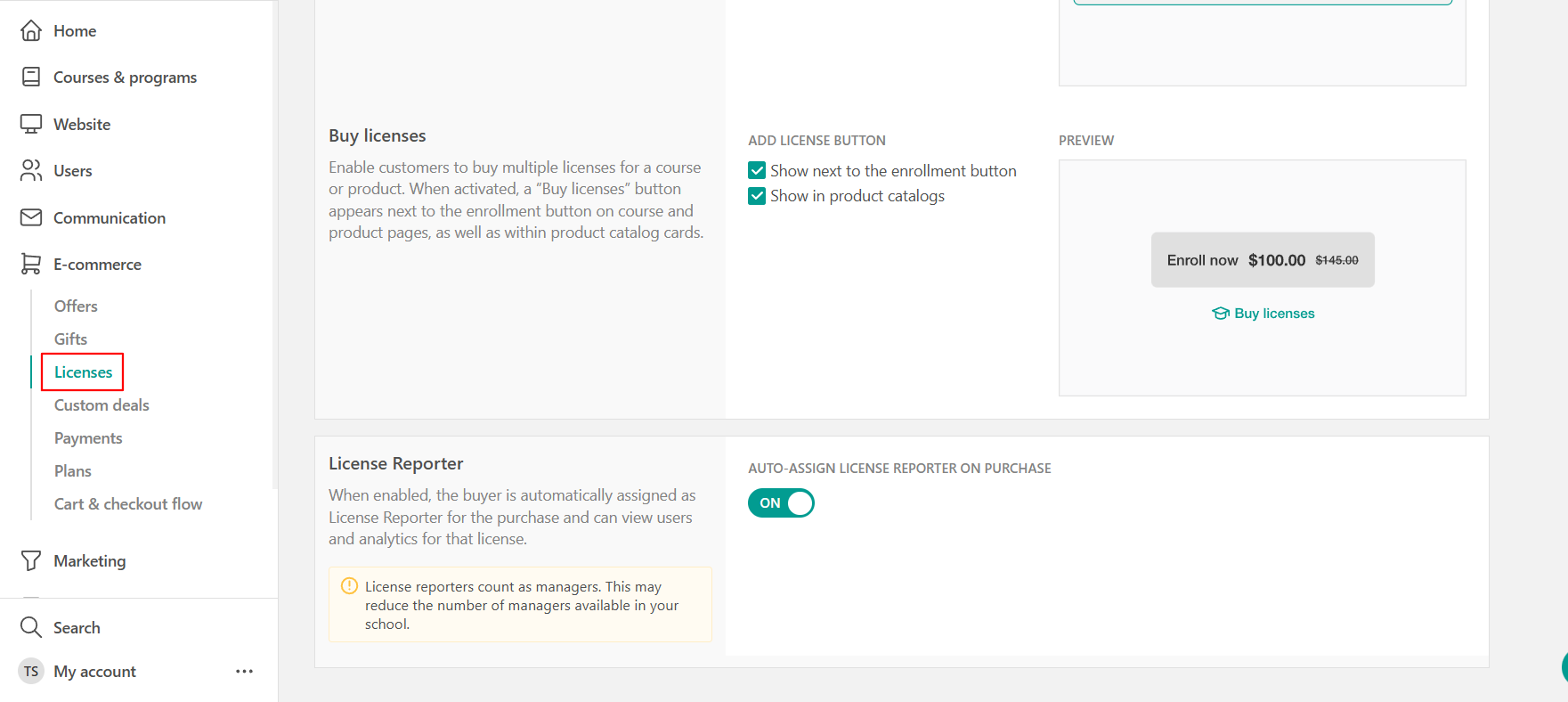
When enabled, the buyer is automatically assigned as the license reporter for the purchase and can view users and analytics for that license.
 -License reporters count as managers. This will reduce the number of managers available in your school.
From custom deals
Since custom deals include licenses, a license manager can exist here as well.
- Go to E-commerce → Custom Deals.
- Create a deal.
- Select to automatically add a License reporter.
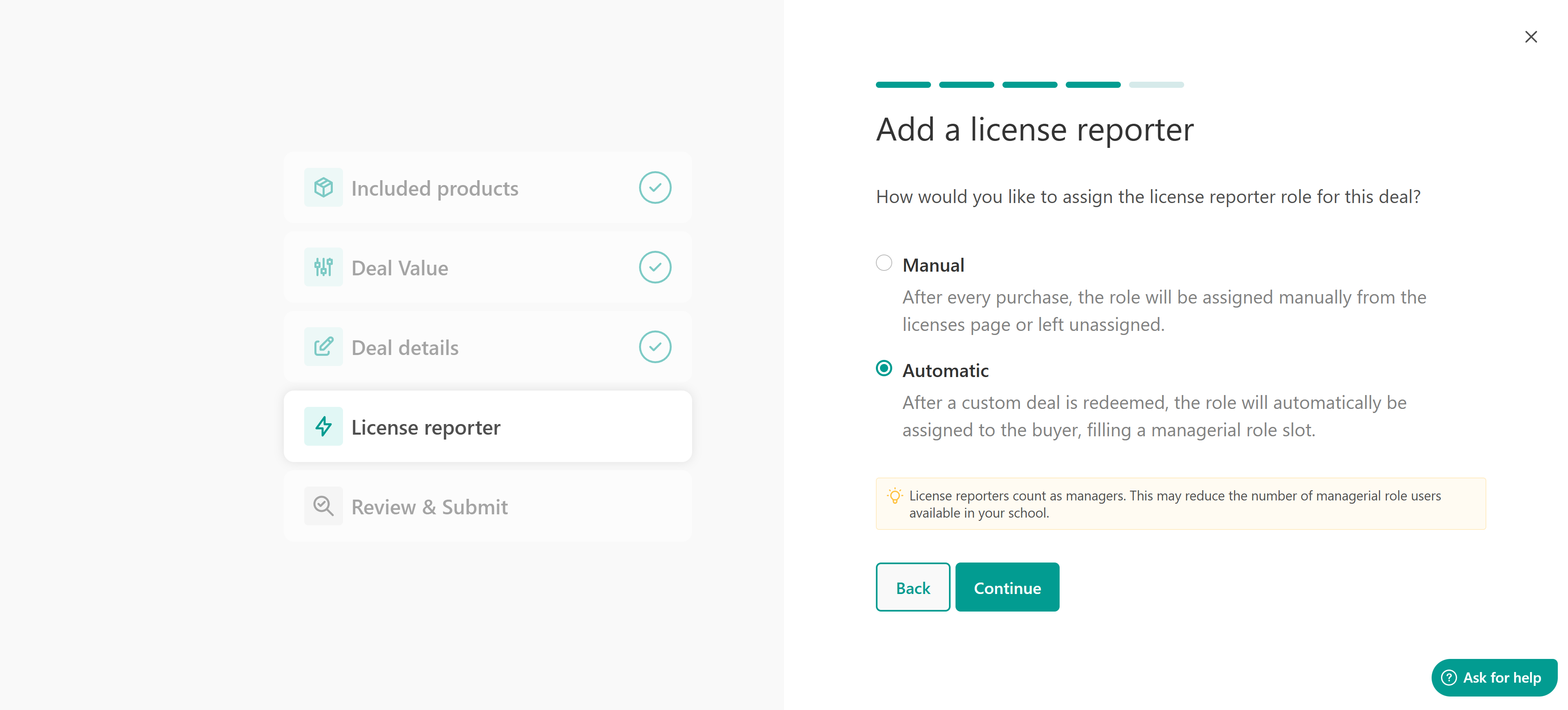
- Click Save.
This setting cannot be changed after the deal is purchased.Assign a license reporter manually
Another option is to make a user a license reporter manually, even after a license is created or purchased.
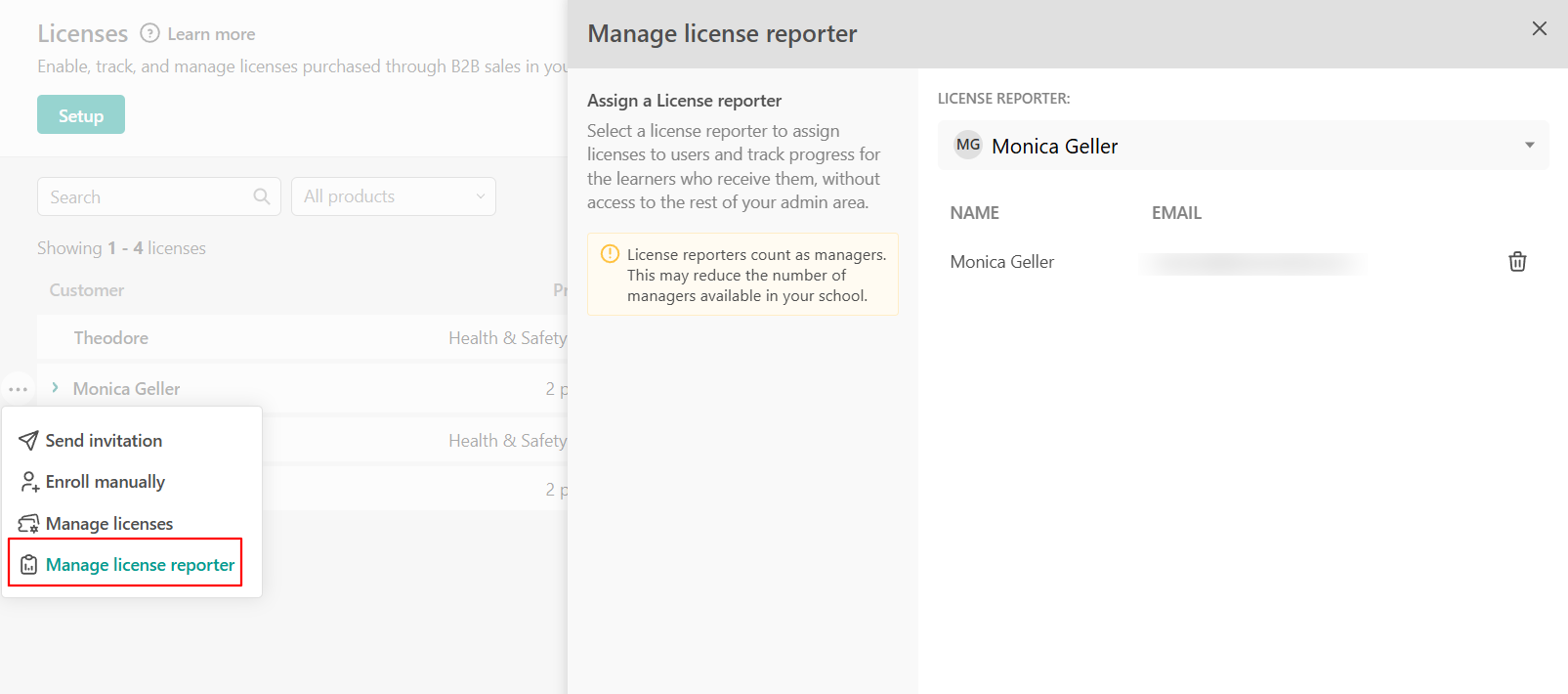
- Go to E-commerce → Licenses.
- Select a purchase.
- Click Manage License Reporter.
- Choose:
- The buyer
- A user who has been assigned a license and has redeemed it. If the assignment is still pending, the user will not be available for selection
What license reporters can do
License reporters have access to a limited version of the admin view. They can:
- View learners assigned to their licenses
- Track progress and performance
- Export reports
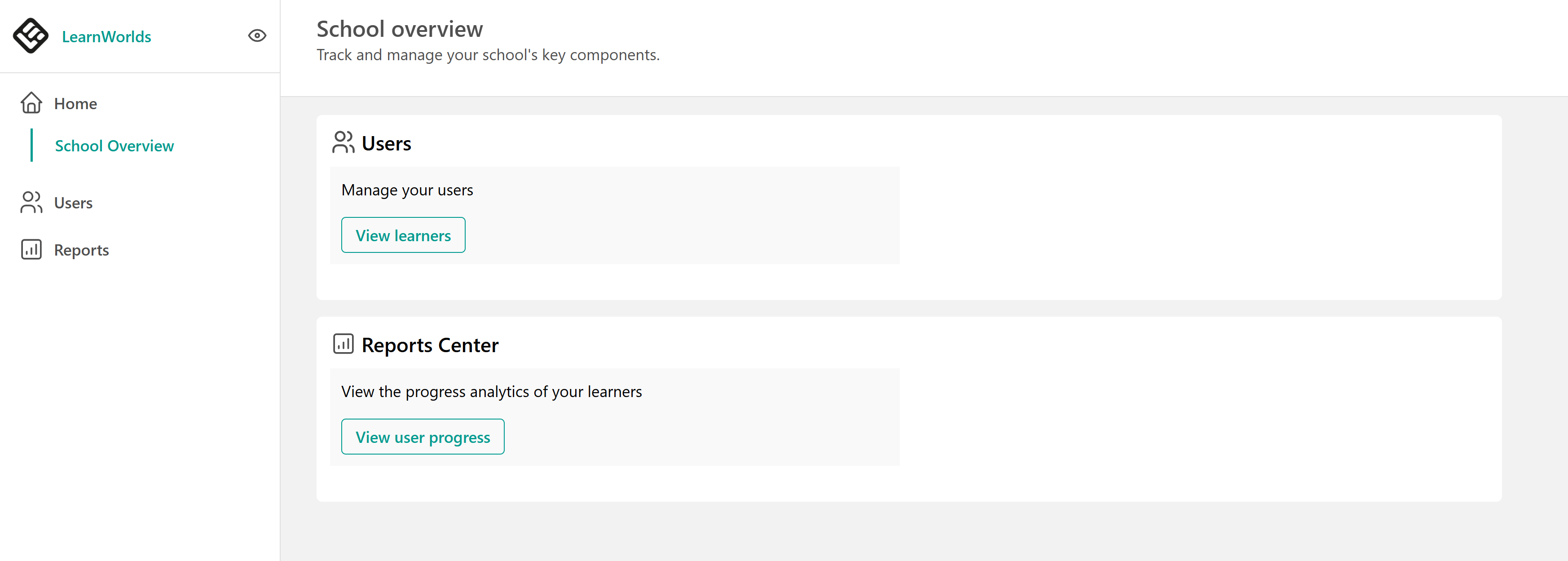
They can access:
- Users
- Report Center
- Training Matrix
They only see data related to their own license purchases.
An admin cannot modify the permissions of a License Reporter.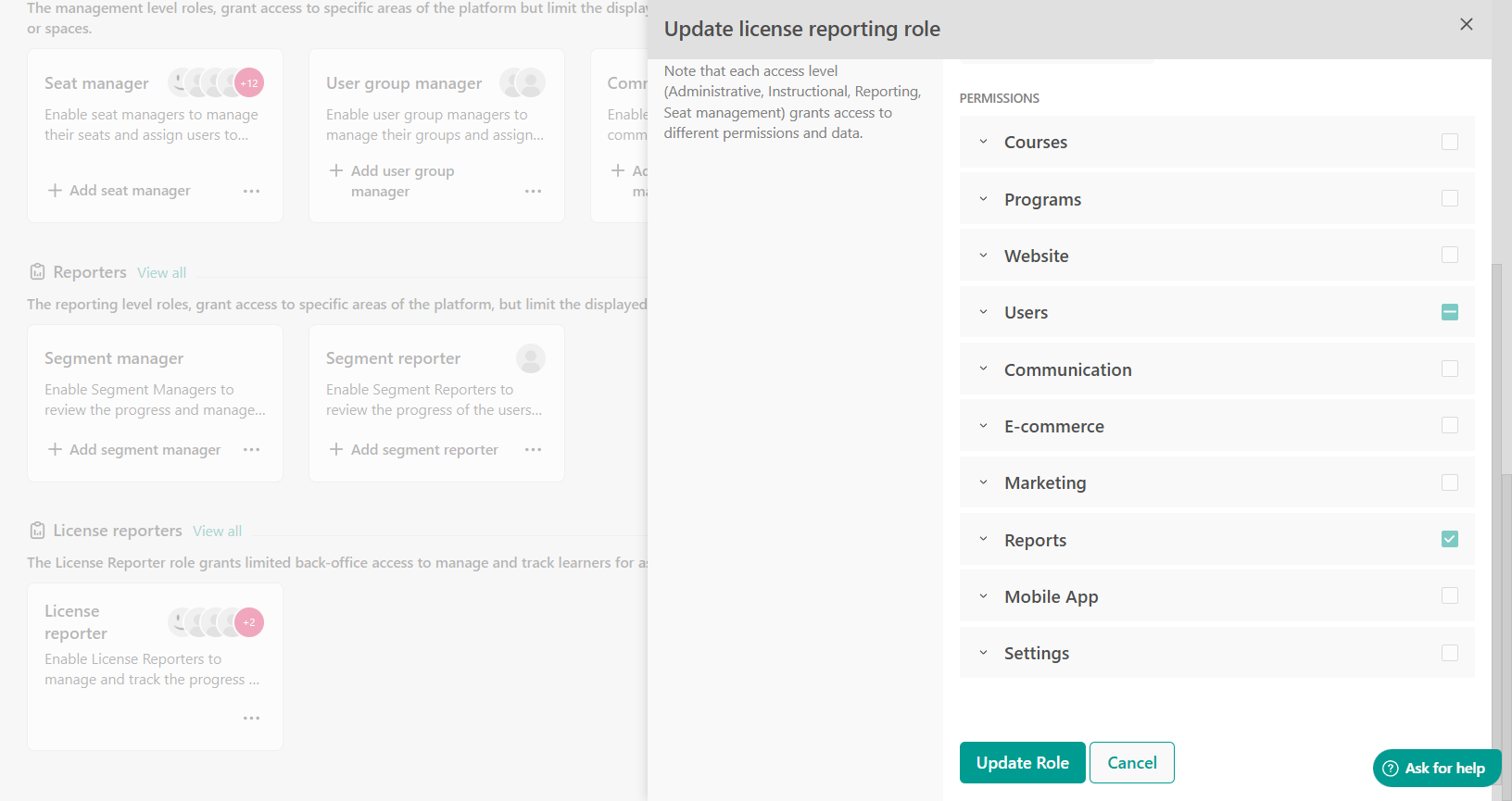
License reporter experience (User View)
After logging in, License reporters will see parts of the back office, but only what they need. They can:
- View their assigned learners
- Check the course or program progress
- Export reports for their team
They cannot:
- Edit users
- Change settings
- Access other parts of the school
Transfer the license reporter role
In some cases, you may need to transfer the License Reporter role from one user to another. This can be done either by an admin or by the current reporter.
For admins
- Go to E-commerce → Licenses.
- Select a purchase.
- Click Assign License Reporter.
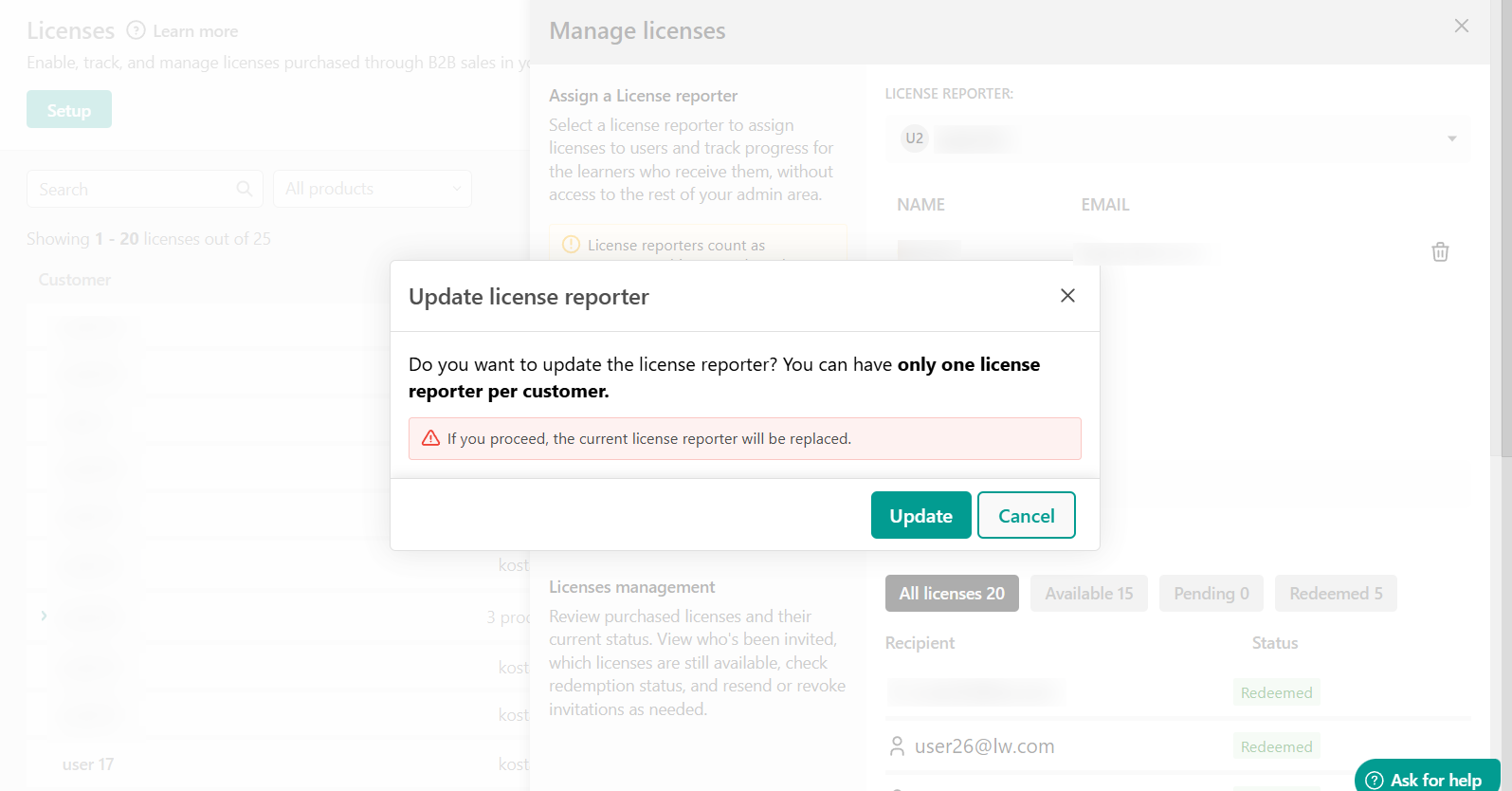
- If a reporter is already assigned, confirm the change.
- Select a new user.
The new user gets access, and the previous one loses it.
For buyers/ reporters
A Buyer can transfer the License Reporter role to another user who has an active license, between users, or back to themselves. This permission is exclusive to the Buyer (and Admins).
If a Buyer transfers the role to another user, that user does not gain permission to transfer it further.
Only Admins can remove the License Reporter role. Buyers cannot remove it.Revoke license reporter access
- Go to E-commerce → Licenses.
- Select a purchase.
- Click the bin icon to delete the existing reporter.
- A confirmation button will appear.
- Click revoke access.
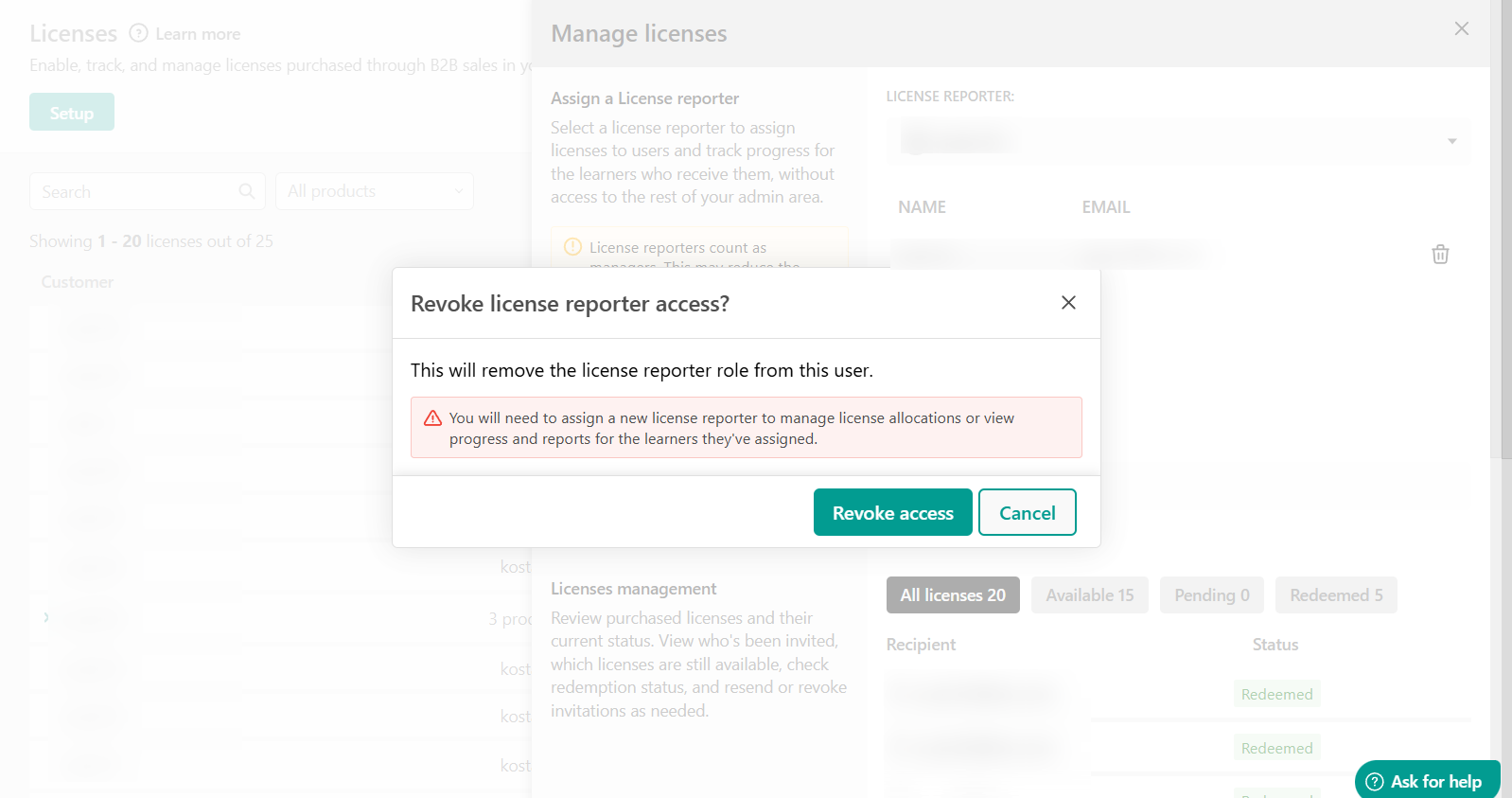
With this action, the user loses access to reports immediately and becomes a simple learner.
- There is only one License Reporter per purchase
- Permissions for the license reporter are fixed
- A license reporter counts toward your manager/collaborator limits
FAQs
- Who can assign a License Reporter?
Only admins can assign or revoke the role.
- Can I assign more than one License Reporter?
No, only one License Reporter is allowed per Buyer.
- Can a license reporter make any changes?
No. They can only view and export reports.