
Subscription-based in-app purchases allow you to sell courses or learning programs through recurring payments in your mobile app.
Instead of a one-time purchase, learners subscribe and are billed automatically through the Apple App Store or Google Play Store. This is useful for memberships, certification programs, and continuously updated learning content.
In this article, you'll learn how to create and manage subscription-based in-app purchases from your LearnWorlds dashboard.
Steps to create a subscription
Before adding a subscription product to your store, make sure your billing and tax information is properly set up in both the Google play and App store.
You can sell your products in the app either as one-time purchases or as subscriptions. Subscriptions can be applied to both courses and learning programs already created in your school. Follow the steps below to create a subscription product:
1. Go to Mobile App → In-App Products
2. Click Add In-App Product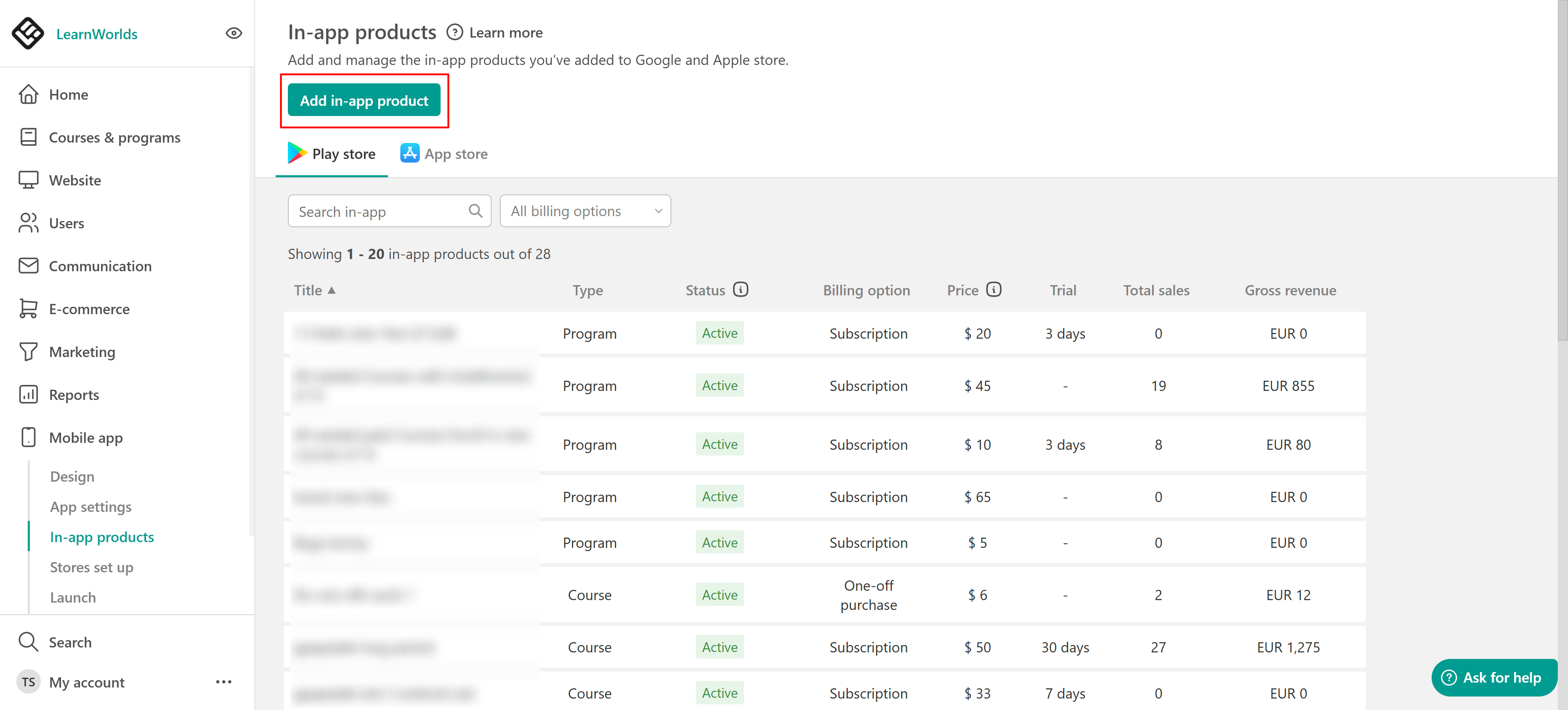
3. Select the product (Course or Learning Program).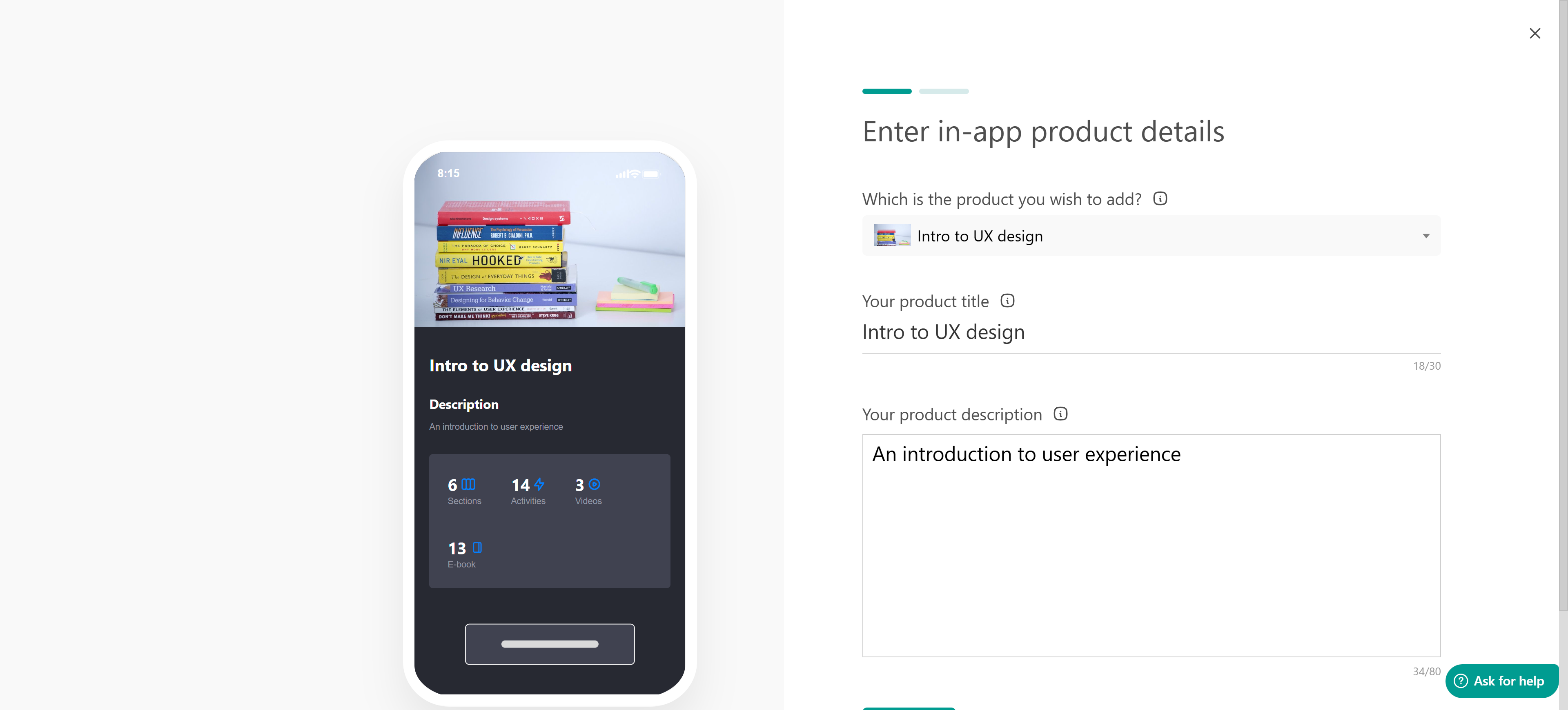
4. Enter the product title and description.
5. Choose on which platform you want to add it, App store/ Google playstore.
6. Choose if this will be an one-off payment or subscription based. For this case let's choose subscription as the billing type and configure:
- Currency
- Price
- Billing interval
- Optional Free trial
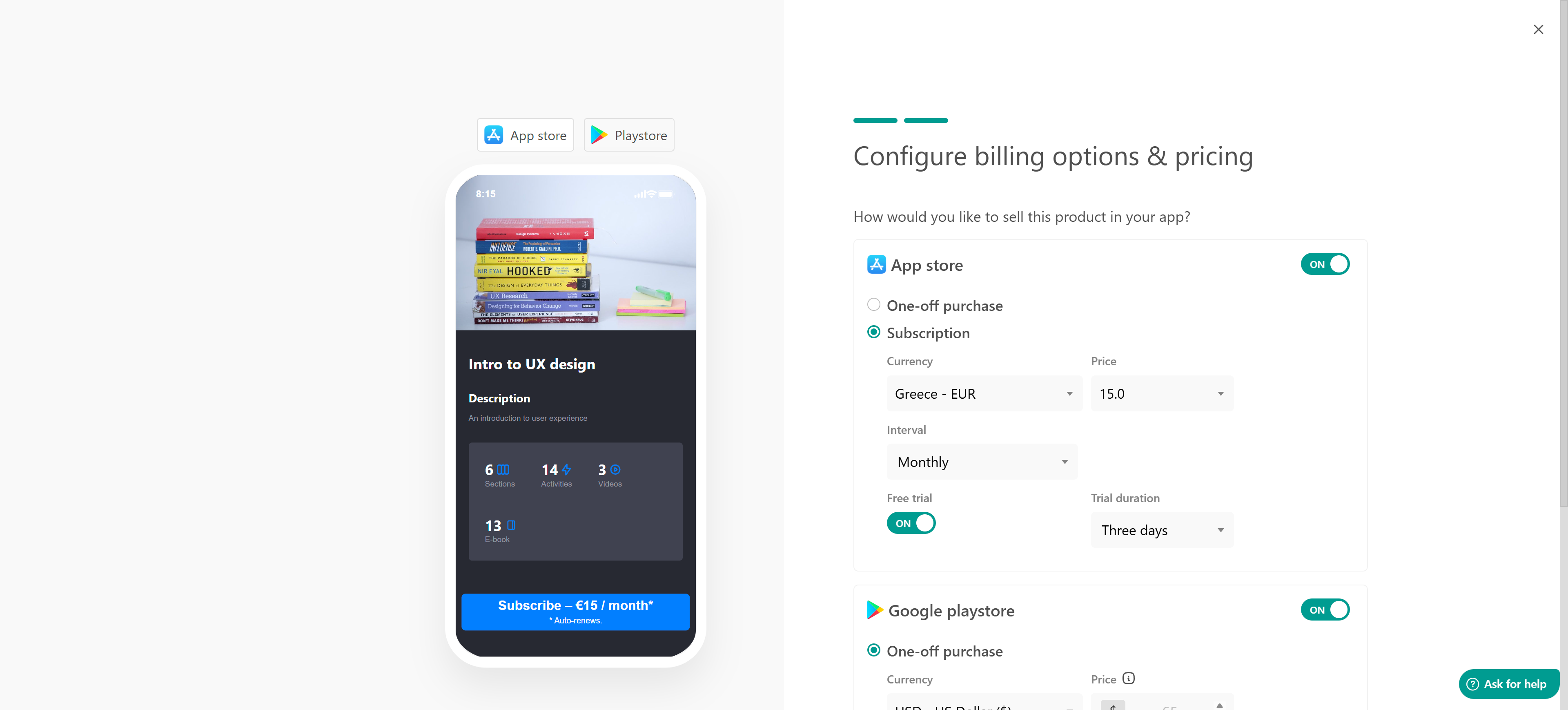
7. Click Finish.
Your subscription will appear in the In-App Products dashboard.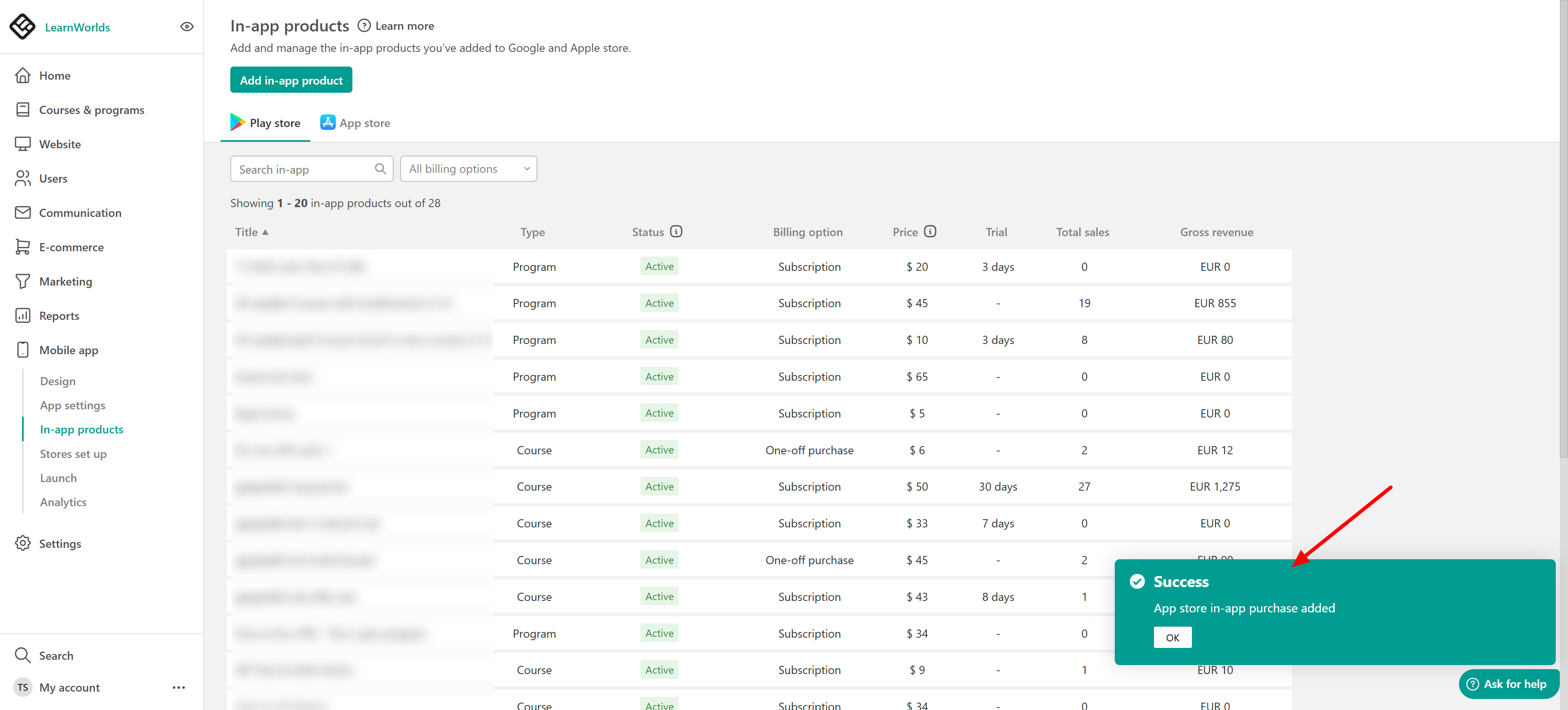
 To maximize subscription conversions offer free trials to encourage new users.
Edit subscription settings
After creating a subscription product, you can update some settings. You can edit:
- Title
- Description
- Price
- Free trial period
However, you cannot edit the Billing interval. If you need a different billing interval, you will have to create a new subscription product.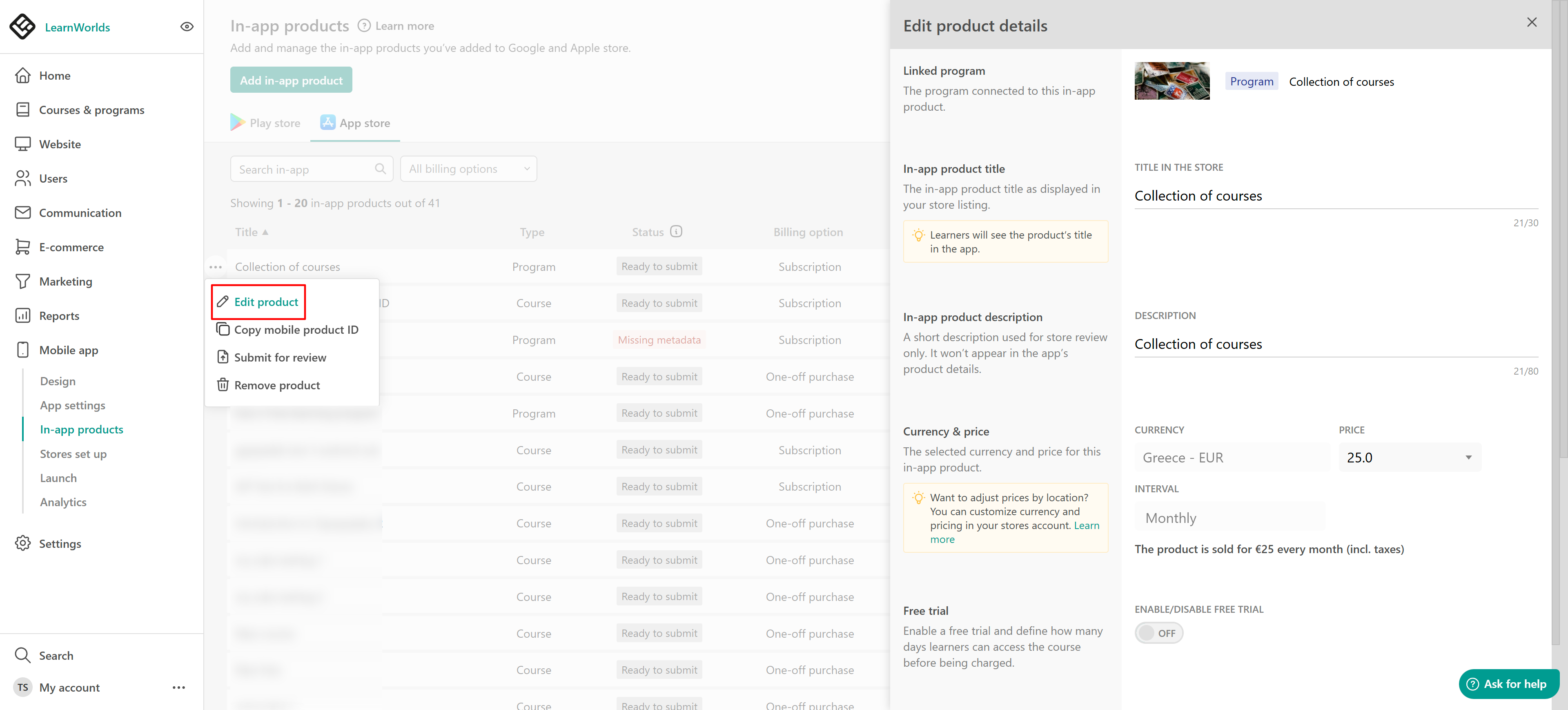
If you want to find more information about status categories for the in-app products check this guide.
Manage subscriptions and payments
Subscription payments are recorded in E-commerce → Payments.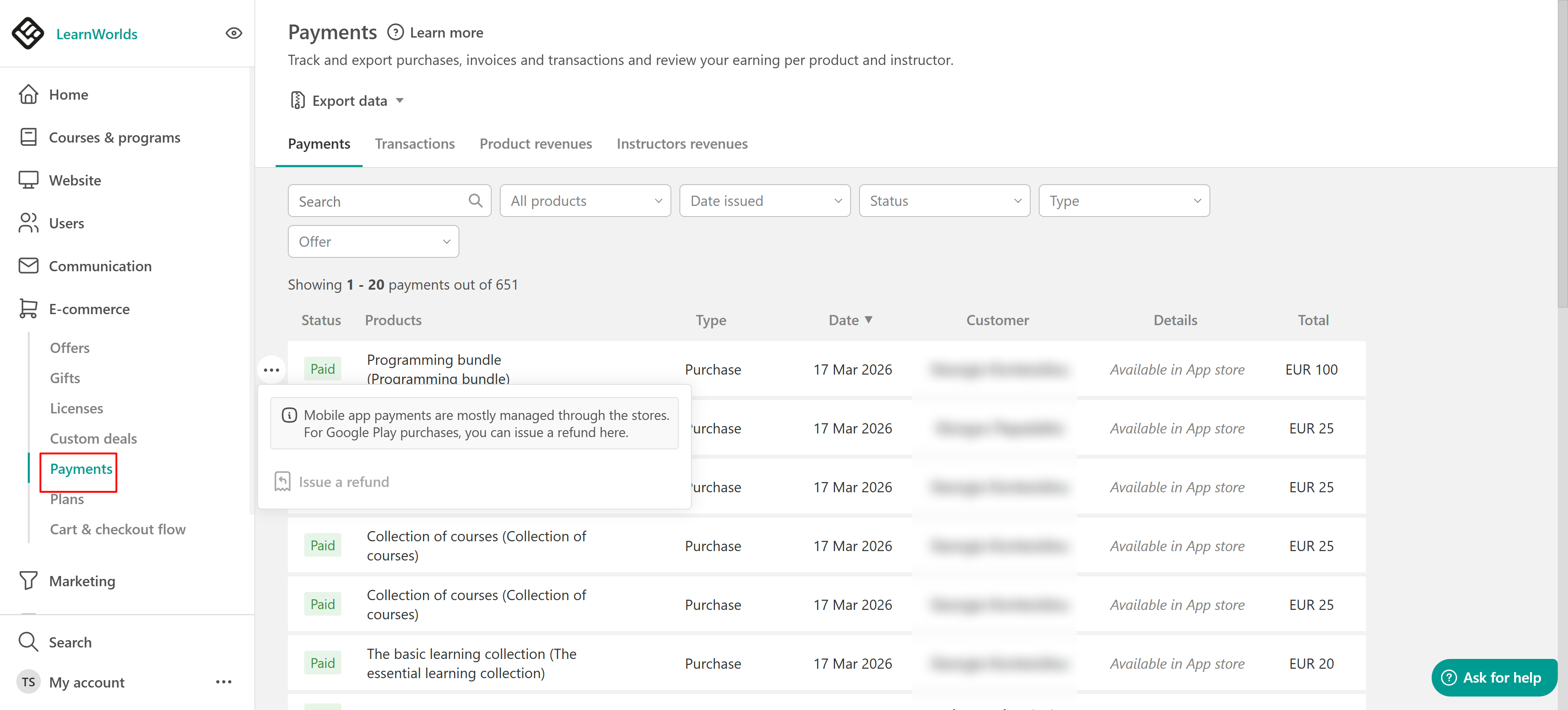
You can also track subscription products in E-commerce → Plans.
Platform-specific subscription management
Subscription management differs between Google Play and Apple App Store.
Google Play (Android)
Admins can:
- Cancel a plan
- Refund a subscription payment
These actions can be performed from the Plans or Payments page.
Apple App Store (iOS)
In this case, admins cannot cancel subscriptions directly but they can unenroll a learner from the product, which removes their access.
To stop billing, the learner must cancel their subscription from Apple ID → Subscriptions
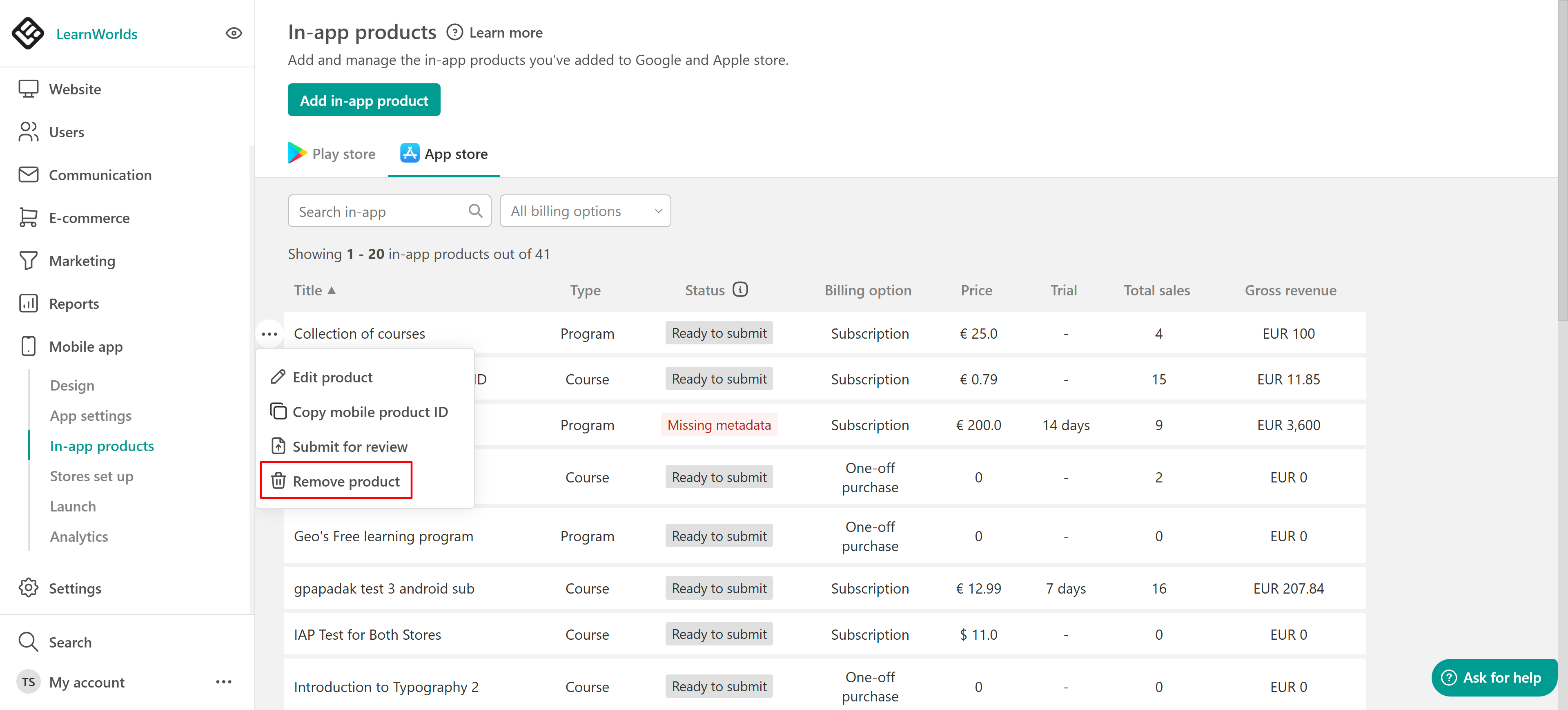
If a subscription is removed from sale:
- New learners cannot purchase it.
- Existing subscribers remain active.
- Auto-renewal continues unless the learner cancels or payment fails.
Learner experience
Learners can purchase subscription products directly inside the mobile app. Courses and learning programs with subscriptions appear in the mobile catalog.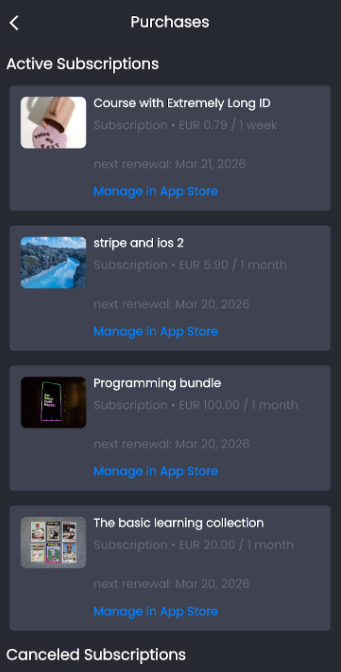
Learners see subscription pricing and a purchase button on the course or program page.
After they have bought a product, they can view them in Profile → Products.
FAQs
- Can I sell the same course as both one-time and subscription?
Yes. Courses and learning programs can support both pricing models.
- Where can I see subscription payments?
In E-commerce → Payments and E-commerce → Plans.
- Can admins cancel subscriptions?
Admins can cancel Google Play subscriptions. Apple subscriptions must be cancelled by the learner.
- Can I create subscriptions before publishing my app?
Yes. As long as the mobile app has passed the LearnWorlds internal review.