
A Certificate of Knowledge is awarded after a learner successfully passes a graded assessment within a LearnWorlds course. To earn the certificate, learners must achieve the passing grade you define and meet any additional requirements you configure.
In this article, you'll learn how to create and configure a certificate of knowledge, set up the exam, customize the certificate, and manage certificates after they are issued.
Create a certificate of knowledge
To add a certificate of knowledge to a course:
1. Go to Courses & Programs → Courses and select the course you want to edit.
2. Go to Contents → Course outline
3. Select Add activity in the section where you want to add the certificate.
4. Under the Certificates category, choose Certificate of knowledge.
5. Click Save to create the activity or Save & Edit to begin customizing immediately.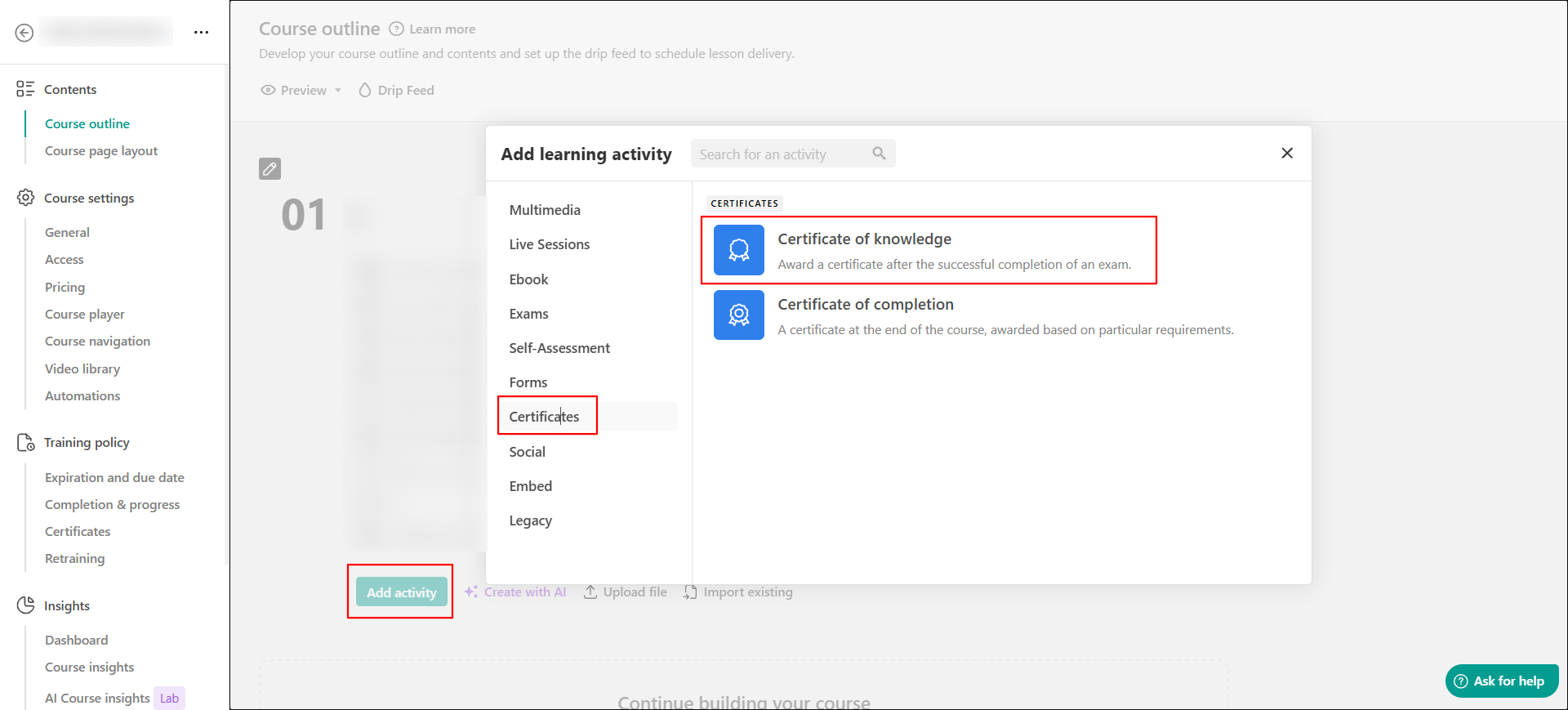
Your course's certificates can also be created and edited under Training policy → Certificates.
Set up the certificate of knowledge
After creating the certificate of knowledge activity, open its Settings. If you selected Save & Edit when creating the activity, you can configure these settings directly.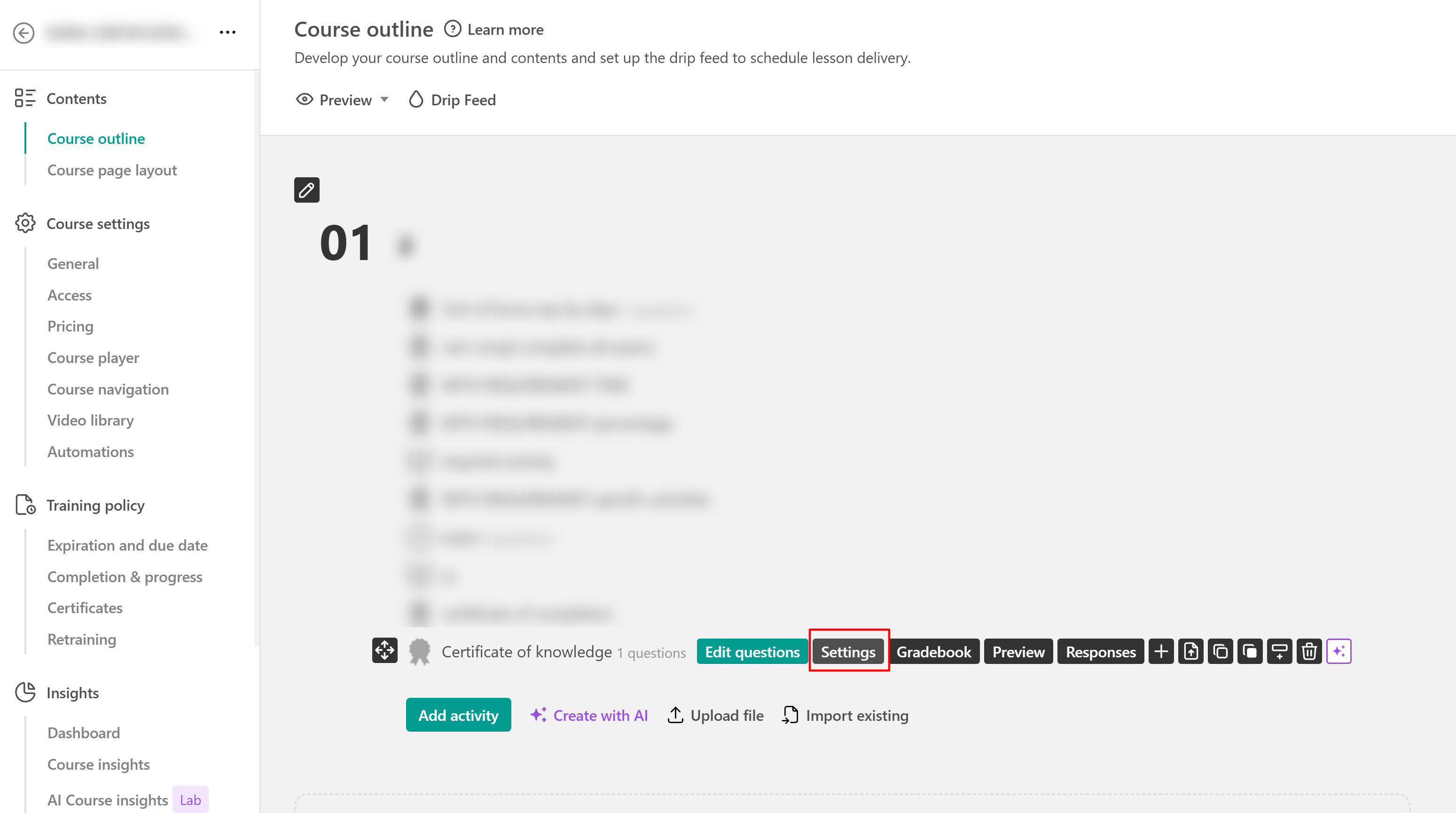
From the certificate settings, configure the certificate appearance, passing grade and additional requirements, expiration, certification provider, social sharing options, and certificate template.
- Add the certificate details: Under Certificate details, enter the title and description, and select the icon displayed for the certificate in the Course Player. You can also add a digital download, password-protect the activity, and upload a background image.
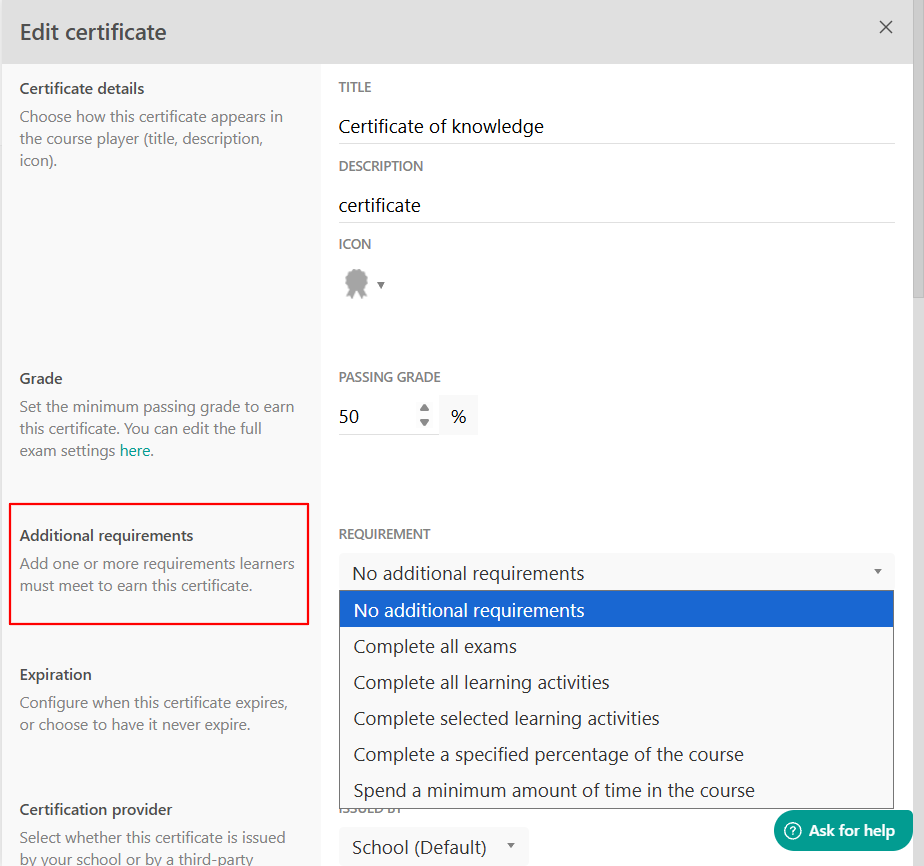
- Set the passing grade: Under Grade, set the minimum Passing grade learners must achieve on the certificate assessment to earn the Certificate of Knowledge.
The passing grade is expressed as a percentage. For additional options that control how learners take the assessment, use the certificate's assessment settings. - Define additional requirements: In addition to passing the certificate assessment, you can require learners to meet an Additional requirement before they can earn the certificate. If you don't want to add another requirement, select No additional requirements.
- Configure certificate expiration: Under Expiration, choose when the certificate expires or select Never expires if it should remain valid without an expiration date. Certificate expiration determines how long an issued certificate remains valid.
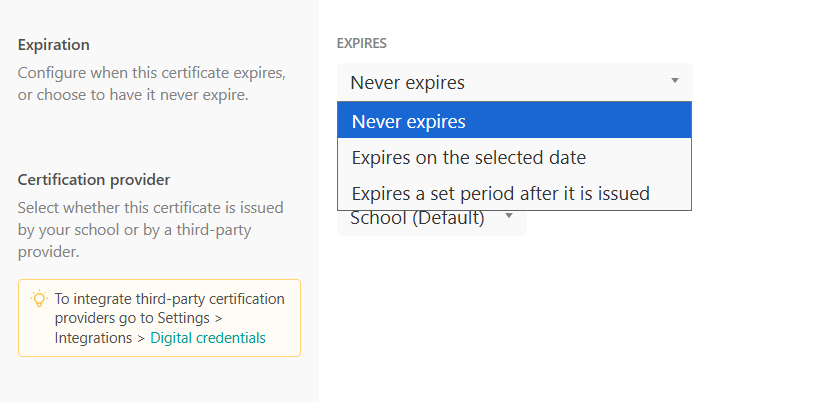
If learners need to repeat training when their certificate expires, use Retraining and select Certificate expiry as the retraining trigger. This starts a new training cycle based on the retraining settings you configure.
- Choose the certification provider: Under Certification provider, choose whether the certificate is issued by your school or by a connected third-party certification provider.
- School (Default) uses your LearnWorlds school as the certificate provider.
- To use a supported third-party certification provider, connect it from Settings → Integrations → Digital credentials, then select it as the provider for the certificate. - Configure social sharing: Under Social sharing, choose where learners can share their earned Certificate of Knowledge. You can allow certificate sharing on LinkedIn, X, and Facebook.
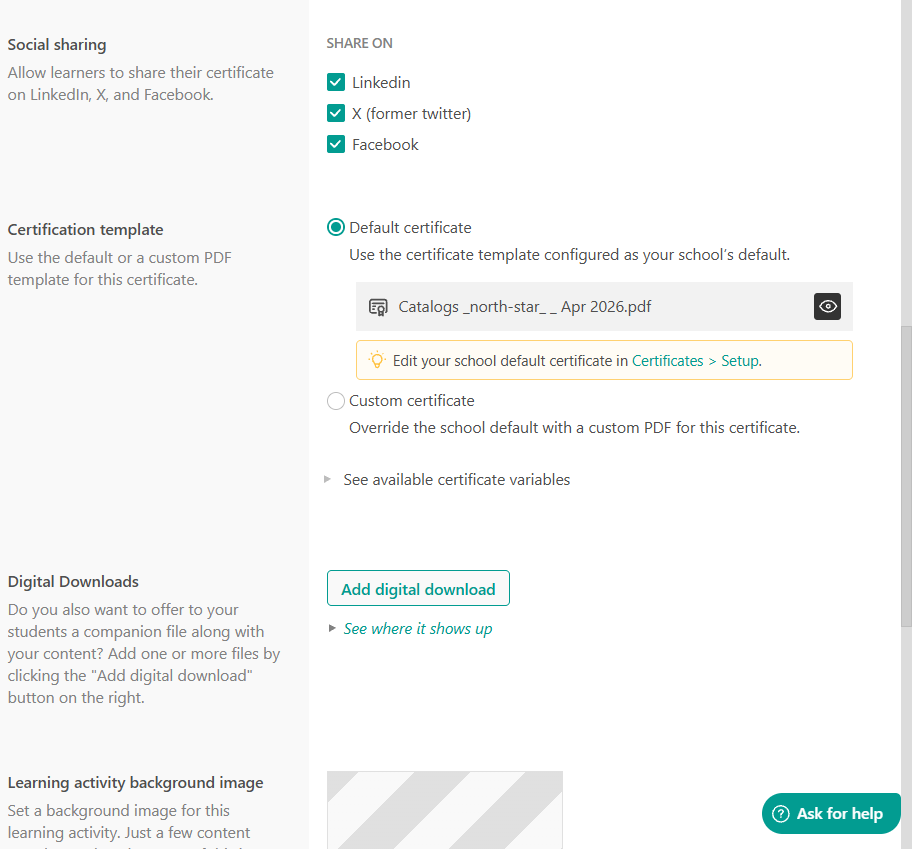
- Choose the certificate template: Under Certification template, choose which PDF template is used for the certificate of knowledge. Select Default certificate to use the certificate template configured as your school's default. Select Custom certificate to override the school default with a custom PDF for this certificate.
 You can set or change your school's default certificate template from Courses & Programs → Certificates → Setup. Certificates using Default certificate will use the template configured there.
Customize the certificate assessment
Locate the Certificate of Knowledge activity and select Edit questions to open the assessment editor. From here, configure the Starting screen, Certificate candidate details, assessment questions, and Ending screen.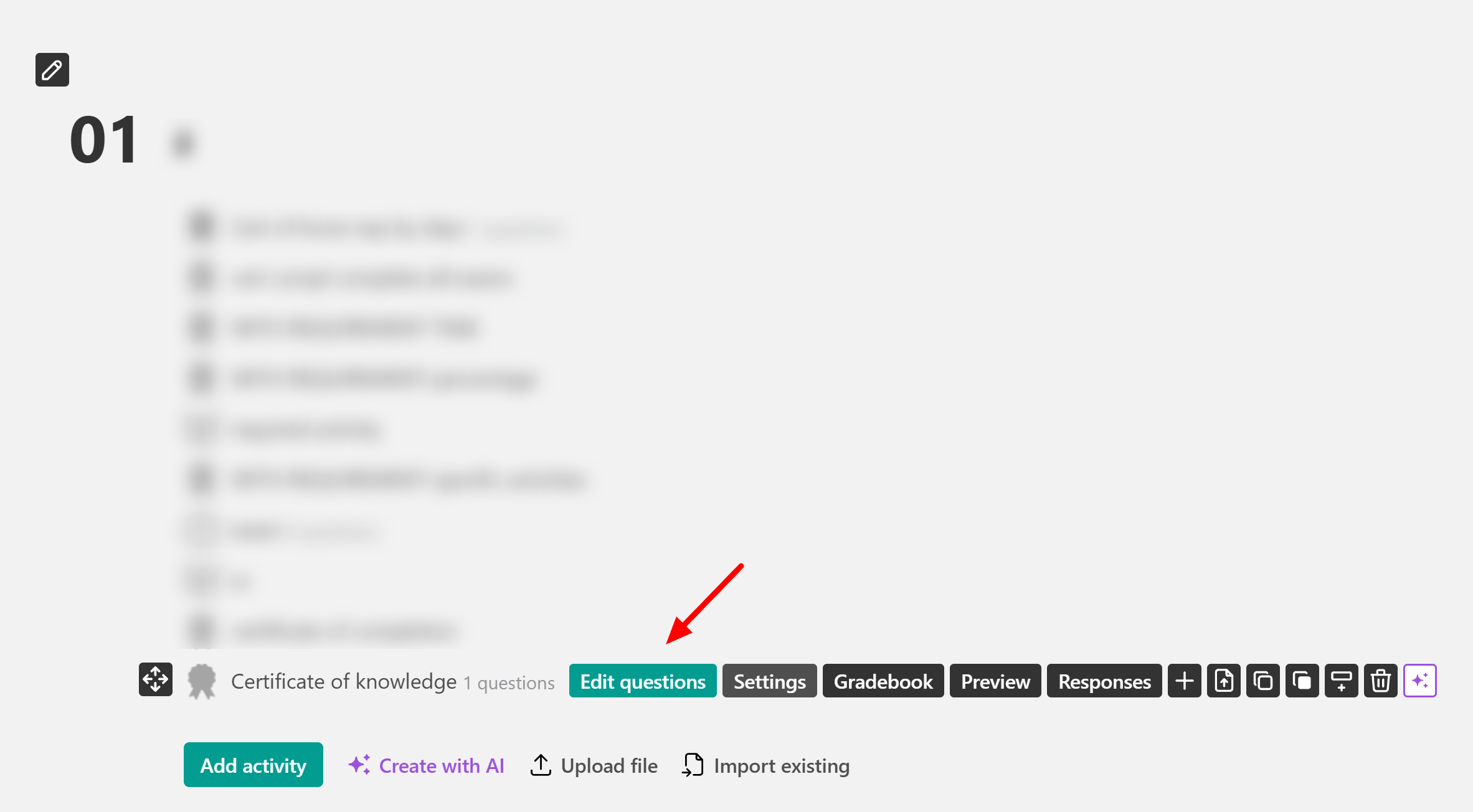
The certificate of knowledge editor includes a Starting screen, Certificate candidate details, Assessment questions, and an Ending screen.
Customize the starting screen
The Starting screen is the first screen learners see before beginning the certificate assessment. You can customize its content and add available widgets, such as text, buttons, images, and embedded content. You can also remove the Starting screen and add it again when needed.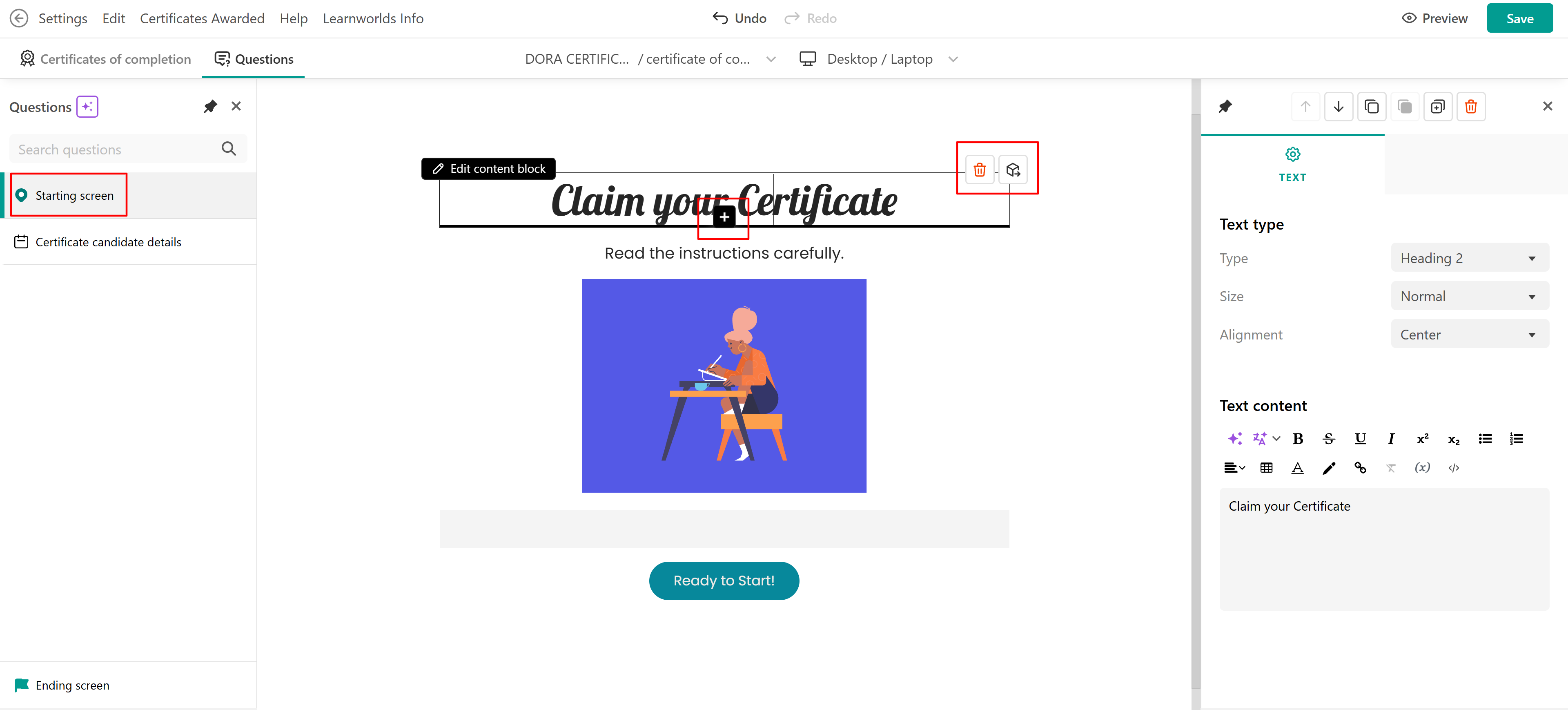
For more information, see this guide.
Customize certificate candidate details
Use Certificate candidate details to choose the information learners provide before their certificate is issued. This information can be used to personalize the certificate. Available certificate fields include:
- First & Last Name
- Short Text
- Dropdown
- Date
- Consent
- Content block
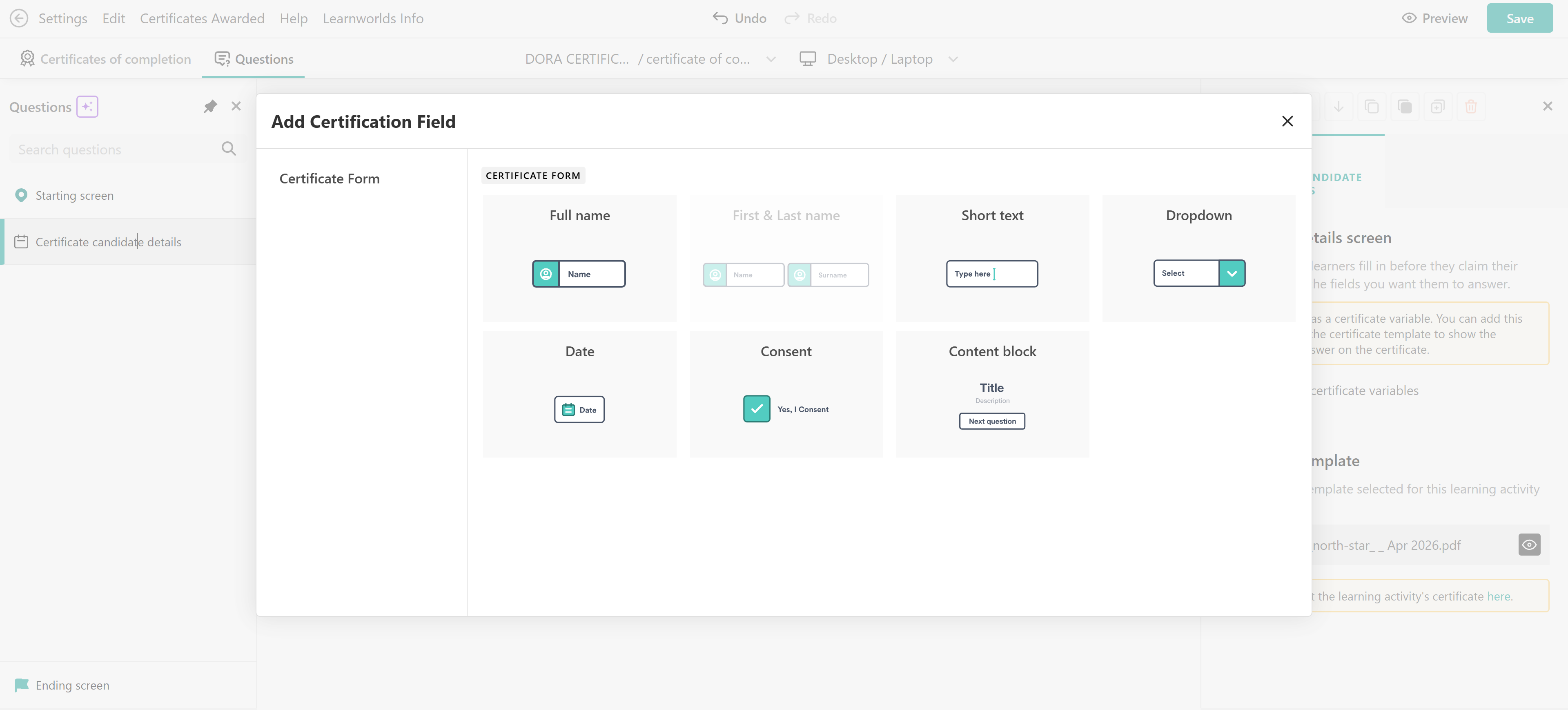
You can add multiple certificate fields based on the information you need to collect.
Use certificate variables with a custom certificate
When using a custom PDF certificate, use the available certificate variables to connect information collected in LearnWorlds with the corresponding fields in your PDF template.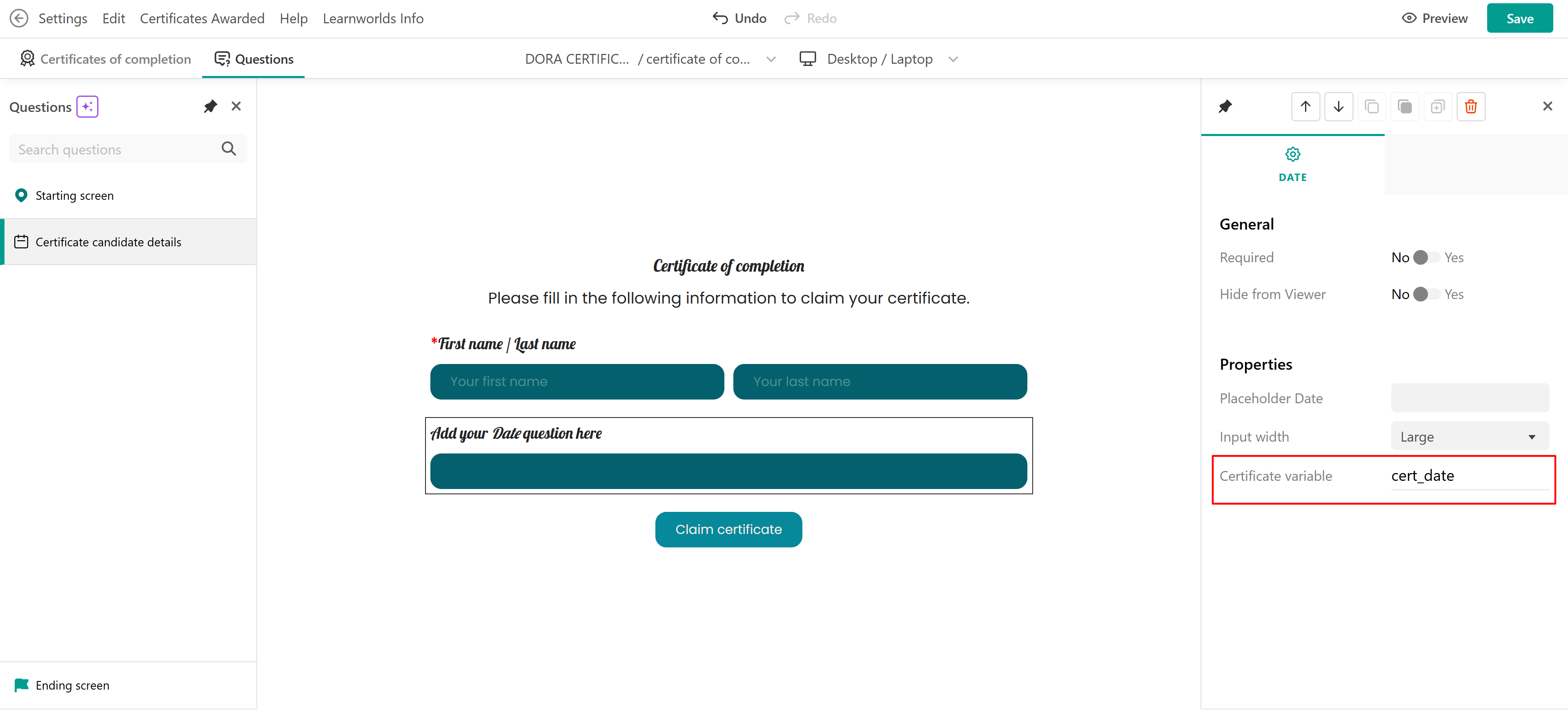
Use the same variable in the PDF template as the one assigned to the corresponding certificate field in LearnWorlds. This allows the information submitted by the learner to appear in the correct place on the issued certificate. For more information about creating a custom PDF certificate, see this guide.
If no custom PDF is uploaded, the system will fall back to the default template.Add assessment questions
Click Add/ Import questions to add the questions learners need to answer as part of the Certificate of Knowledge assessment.
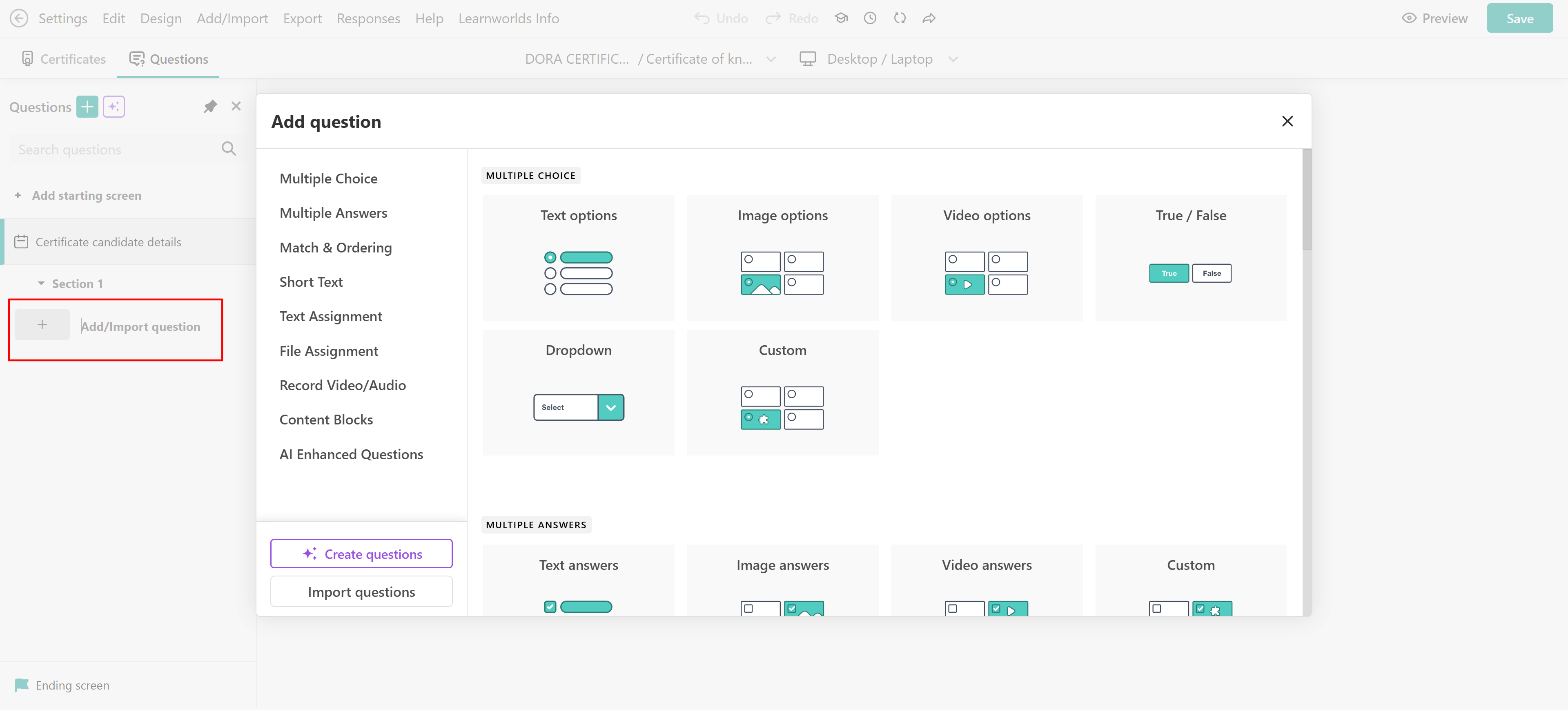
You can also import questions from the Question Bank, from another assessment, or from an XLS file. For more information about creating and editing questions, see this article.
Grade questions that require manual review
If the assessment contains Text Assignment or File Assignment questions, the submission must be graded before the certificate can be awarded. Submissions that require grading are available in the Review Center.

While inside the activity, select the Responses tab to view learners' responses, unreviewed submissions, and awarded certificates.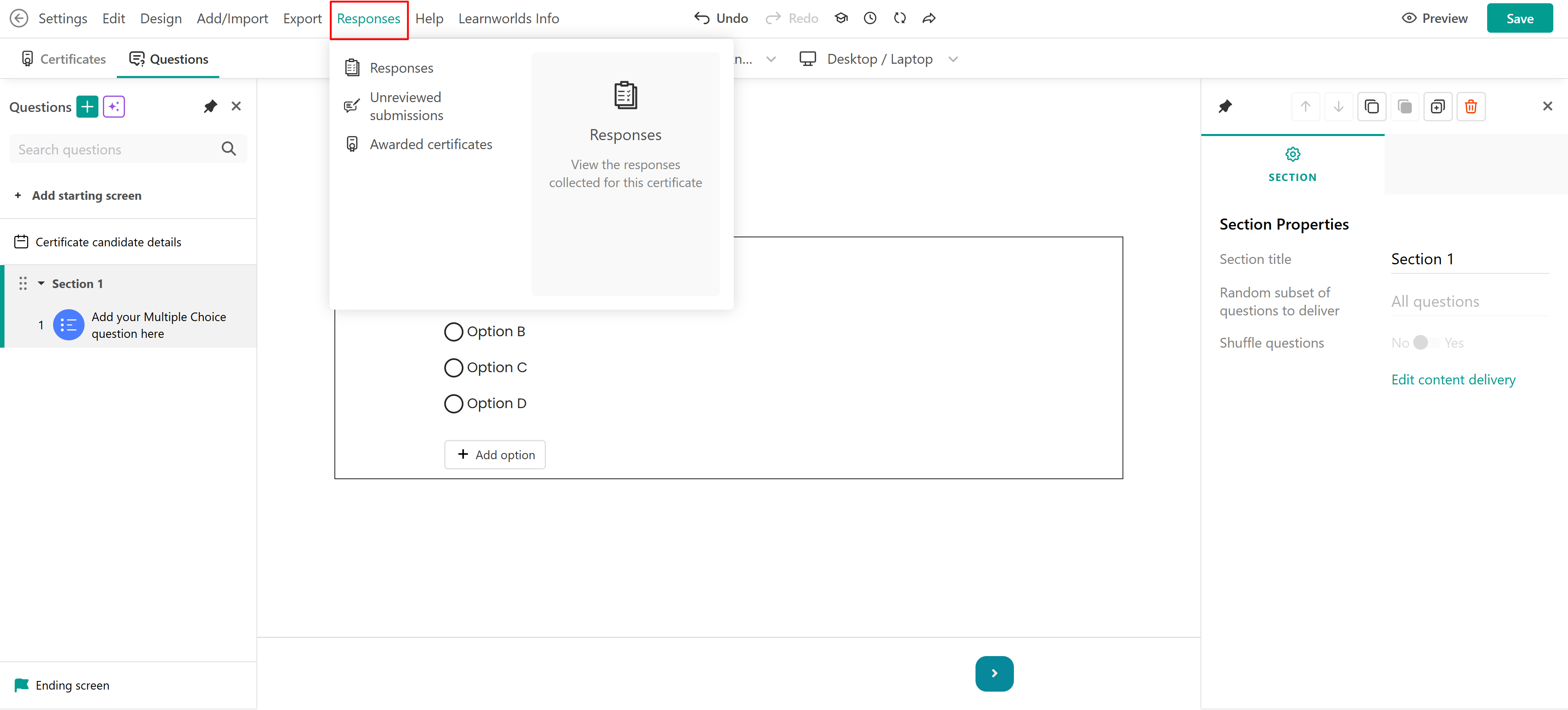
Configure the assessment settings
Use the assessment settings to control how learners take and complete the certificate assessment. These settings include the available options for attempts, grading, feedback, and assessment behavior.
For all available settings and configuration instructions, see here.
Customize the ending screen
After learners submit the assessment, the Ending screen reflects the status of their submission. Learners see the Pass screen when they pass, the Fail screen when they don't pass, or the Pending screen when the submission requires grading.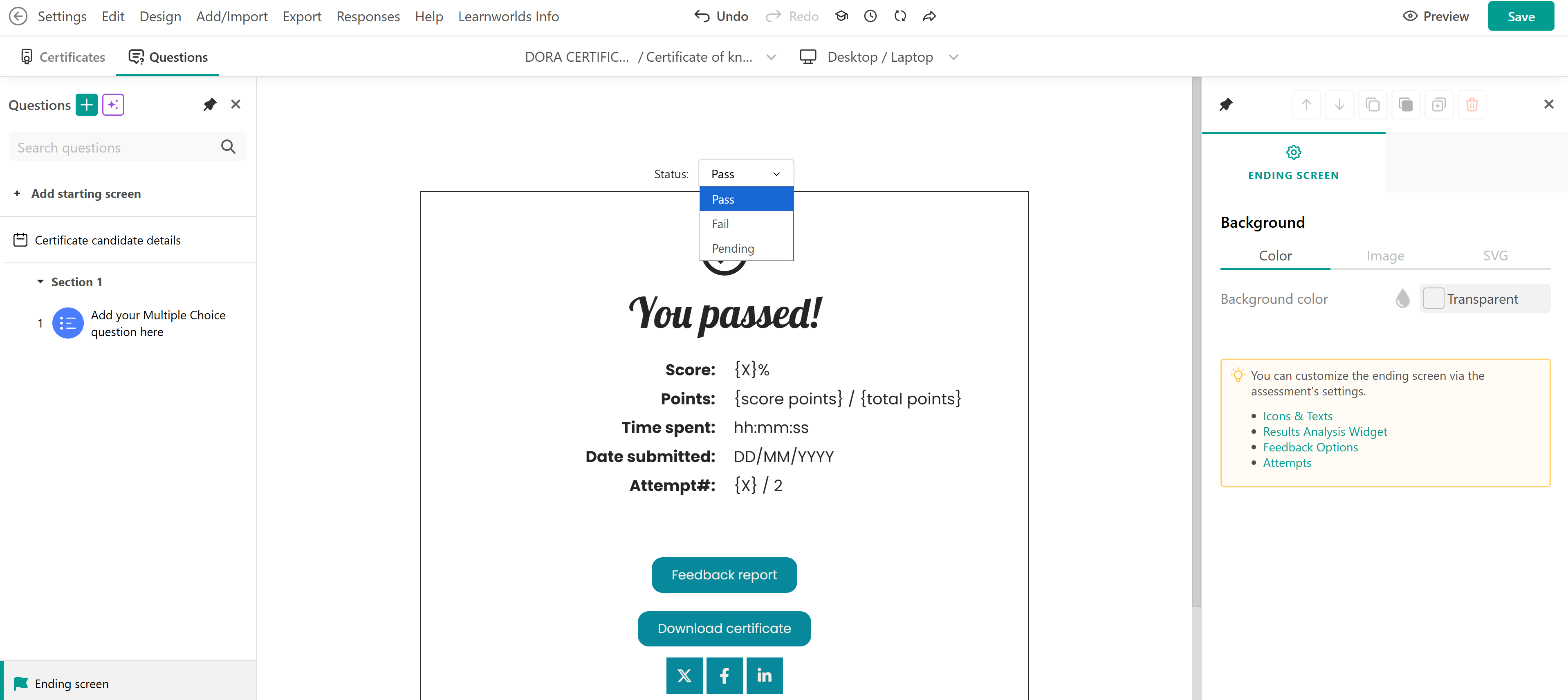
If the assessment contains question types that require grading, learners see the Pending screen until their submission has been reviewed.
You can customize the content shown on each ending screen by adding widgets, such as images and buttons. For more information, check this guide.
Enable certificate verification
Enable certificate verification from Courses & Programs → Certificates → Setup. When certificate verification is enabled, issued certificates can be checked through a public verification page.
For information about enabling certificate verification and using the verification page, see this guide.
- Certificates generated through admin submissions are used for testing or preview purposes
- Learners can download earned certificates from the Course Player, the My certificates page, or their profile page
- If a Certificate of Knowledge expires and learners need to repeat training to earn a new certificate, use Retraining with Certificate expiry as the trigger.
- For information about reviewing, editing, revoking, deleting, and exporting issued certificates, check here.