
The topbar is the main navigation area of your LearnWorlds site. It adapts based on whether a user is logged in, helping you show the right actions and links at the right time.
You can fully customize the topbar, add buttons, change layouts, update your logo, and tailor the experience for both desktop and mobile.
Topbar versions
LearnWorlds includes two topbar views:
- Visitors – Shown to users who haven't signed in.
- Signed-in users – Visible to logged-in users, offering personalized navigation.
Using different buttons for each view improves usability. For example:
- Recommended buttons for the Visitors: Sign In, Sign Up, Courses / Products Page
- Recommended buttons for the Signed-in users: My Account, Sign Out, After Login/Start, Learning Apps
These are just suggestions; personalize your topbar by adding or removing buttons to suit your needs.
Edit your topbar
Τo access the topbar editor, go to Website → Design → Edit website.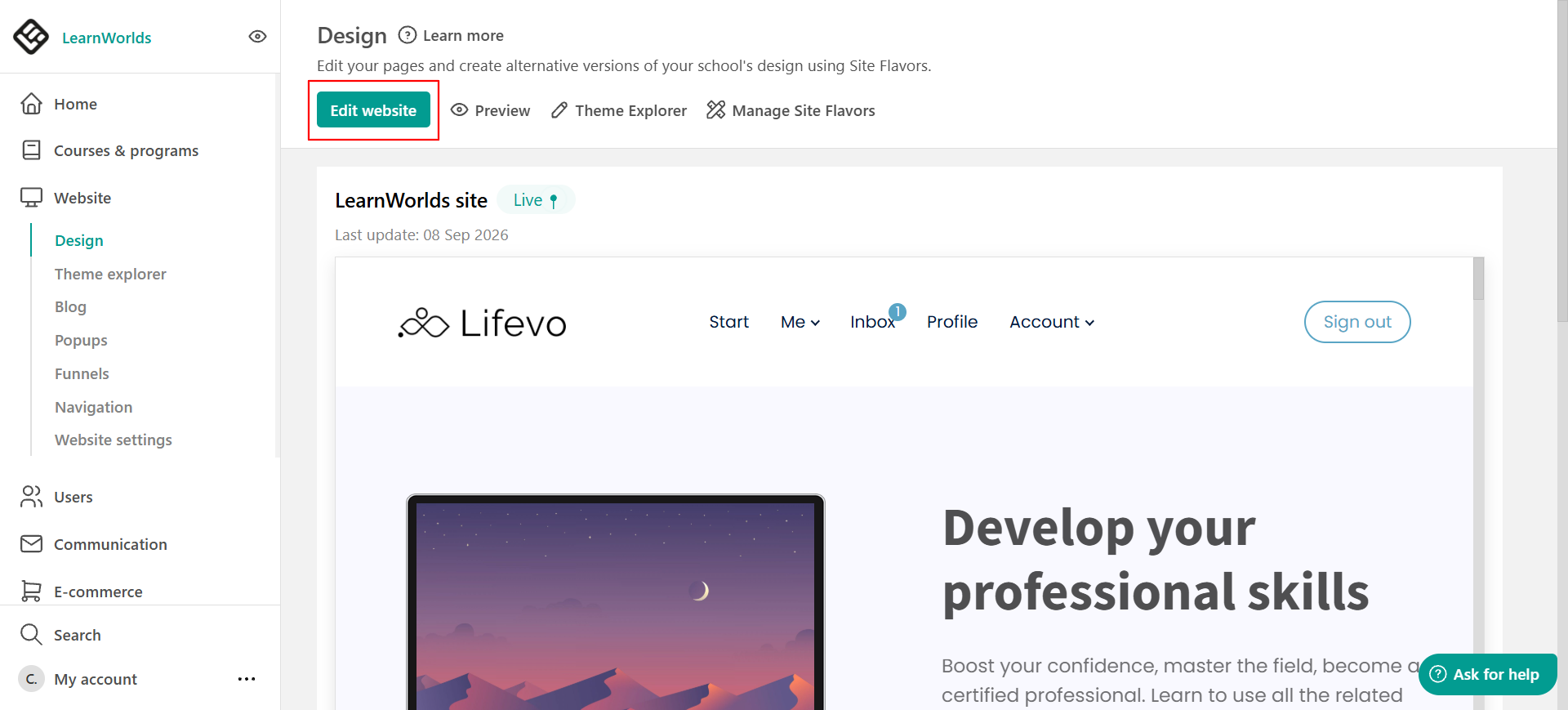
Click Edit school topbar to access topbar customization options.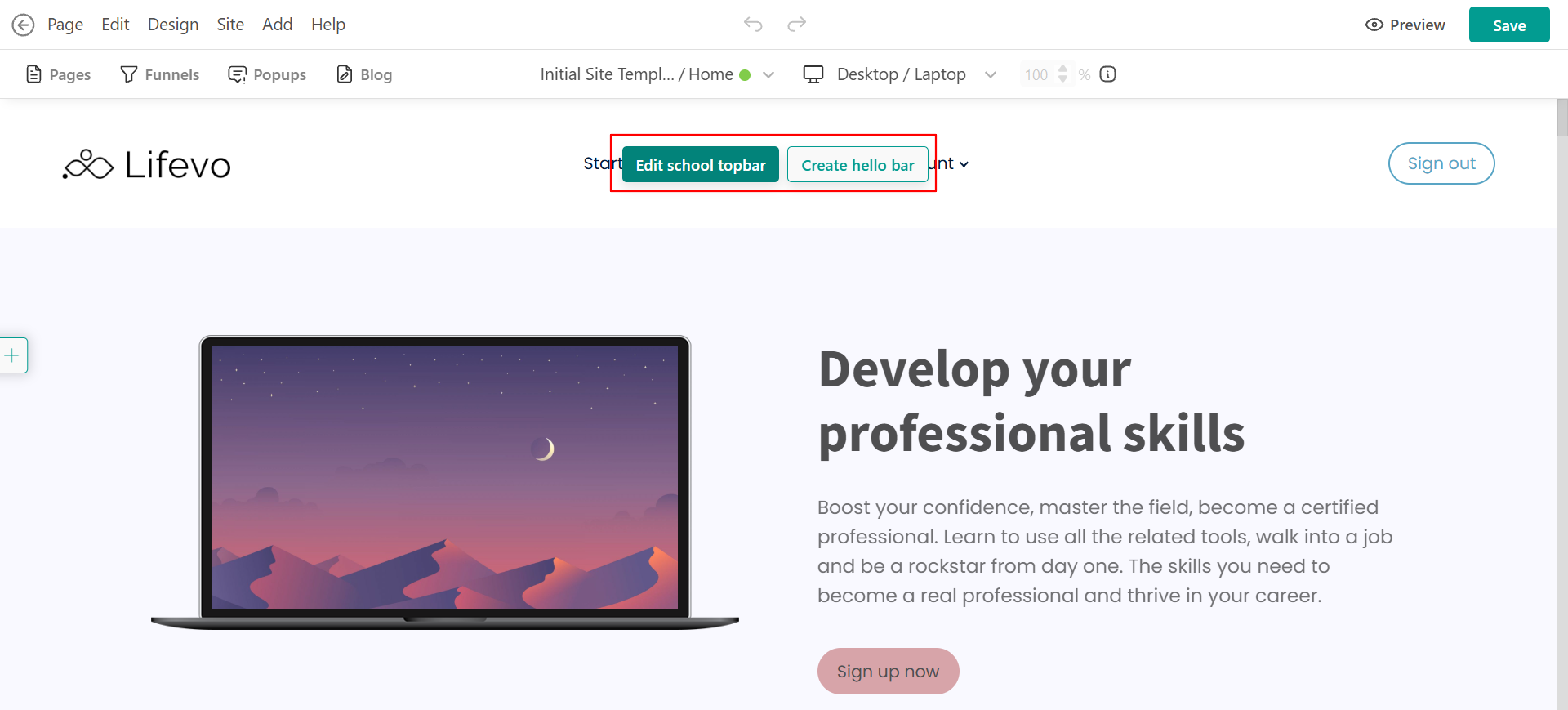
A box opens where you decide which version of the topbar you want to edit, either Visitors or Signed-in users.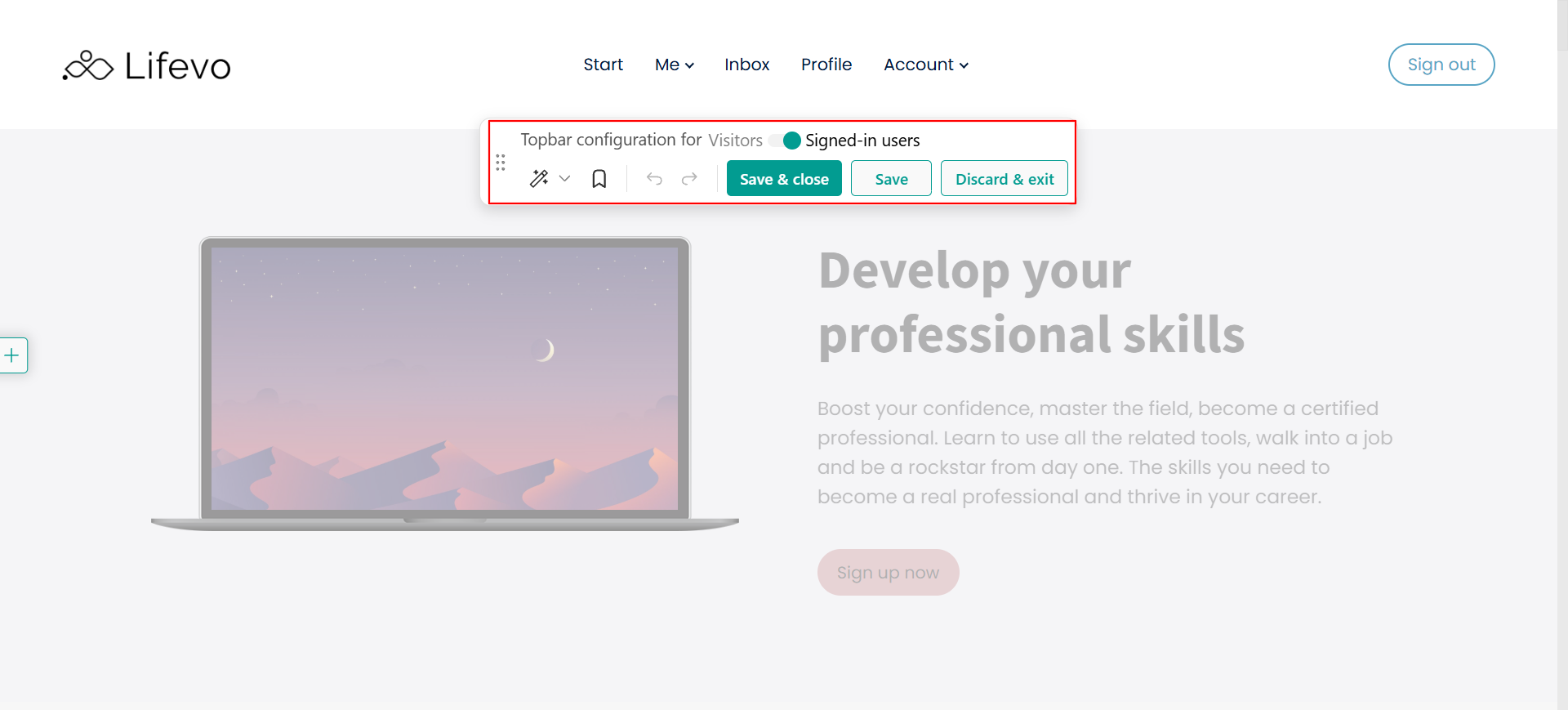
From here, you can:
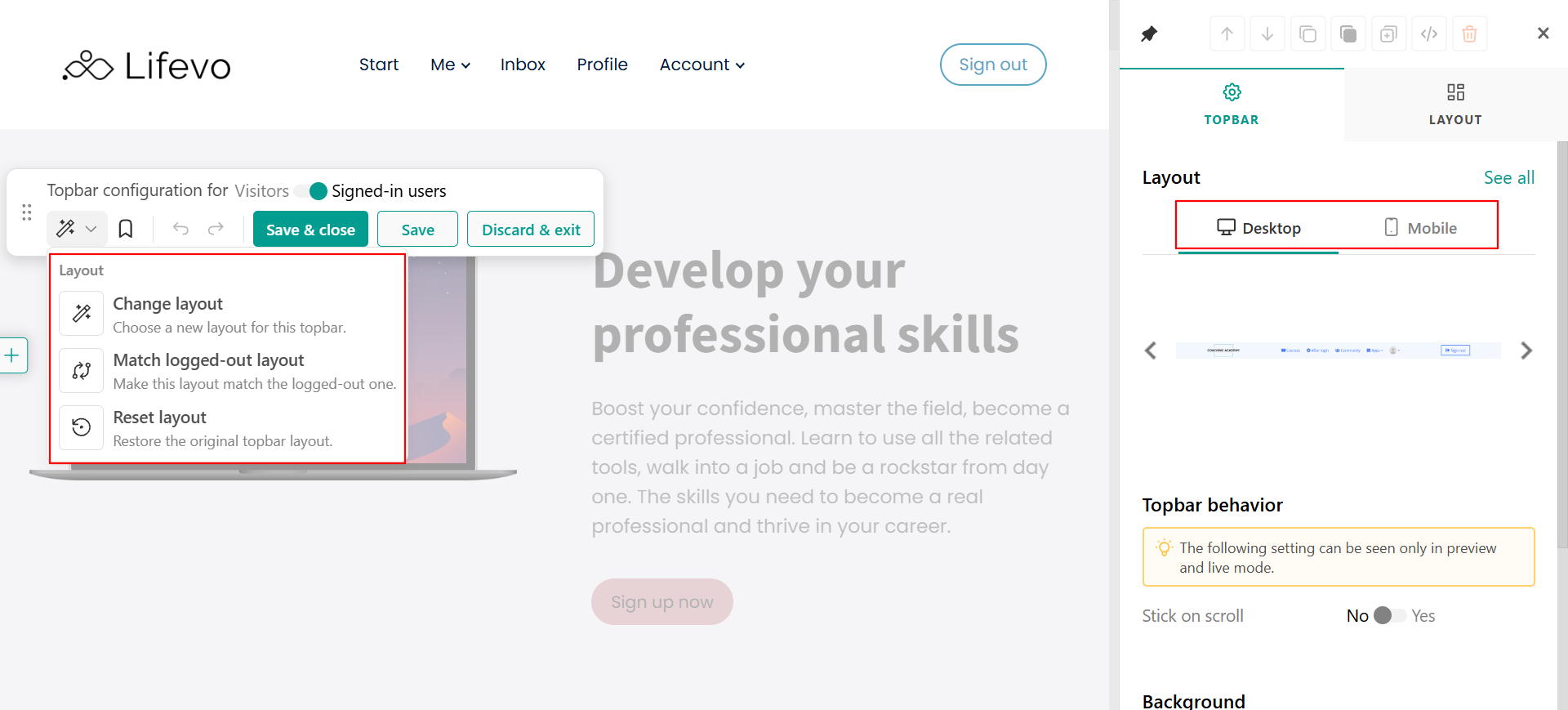
- Choose a topbar layout. Click Change layout to browse the available prebuilt templates. You can also use the arrows on the right side of the window to preview and switch between layouts until you find one that fits your needs.
- Match one layout to the other version. If you've finished designing one version of the topbar (for example, the Signed-in users topbar), click Match logged out layout to apply the same layout to the Visitors topbar. Authentication buttons are updated automatically to match the selected audience. For example, a Sign out button is replaced with Sign in and Sign up when copied to the visitor version.
- Reset the layout. If you want to discard your changes and return to the default design, click Reset layout.
- Save your topbar as a template. If you've created a custom topbar that you'd like to reuse, click Save as template. Your custom template will be available to apply to other topbars, helping you maintain a consistent design and save time when building additional pages.
Add and customize your logo
To insert a logo, click on the existing one in the topbar. Then, in the settings panel on the right, click Change under the Image options and upload your logo file.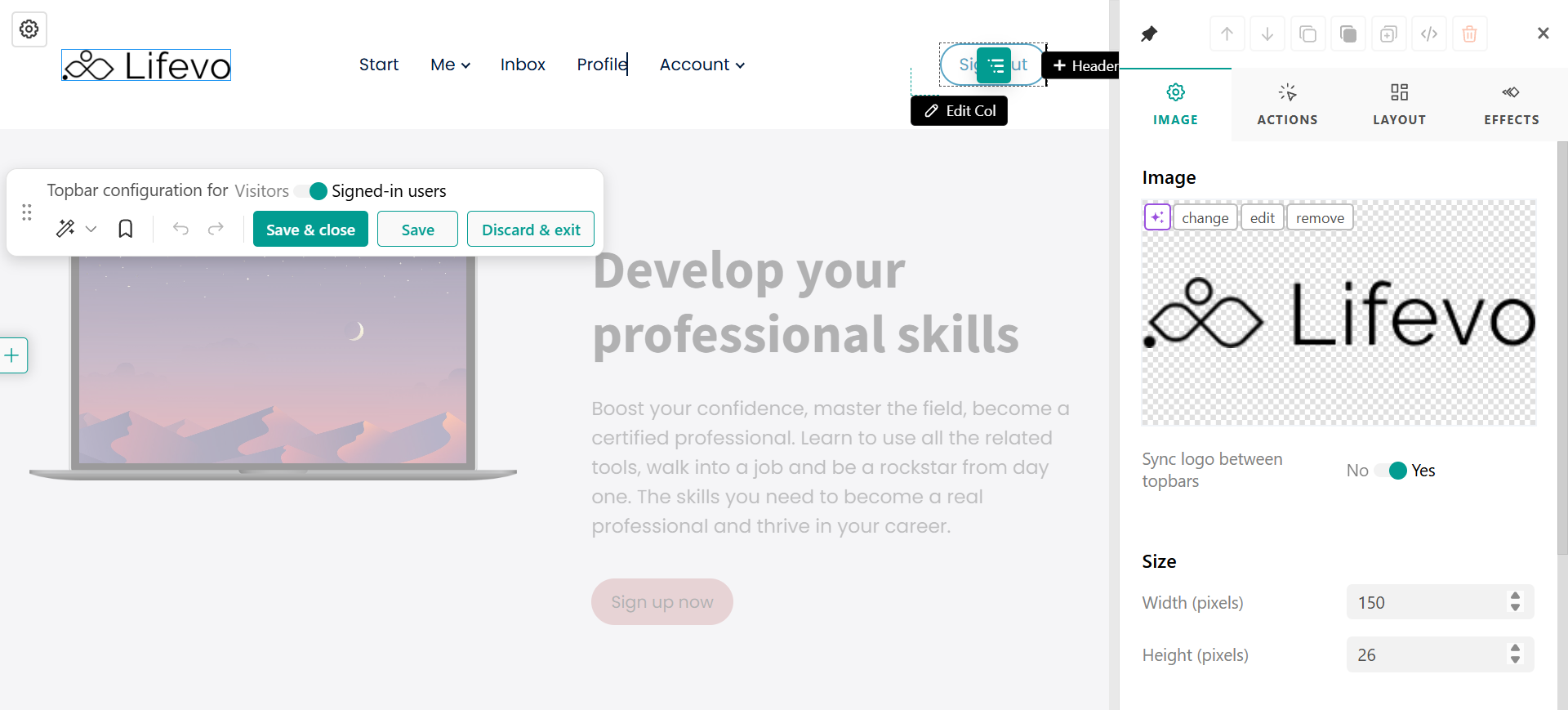
Adjust the size, alternative text, actions, and layout as needed.
You can also use the AI option to generate an image. A prompt box will appear where you can describe what you want to create or modify. Once you’re happy with the result, you can insert the image, and it will be saved in your image gallery.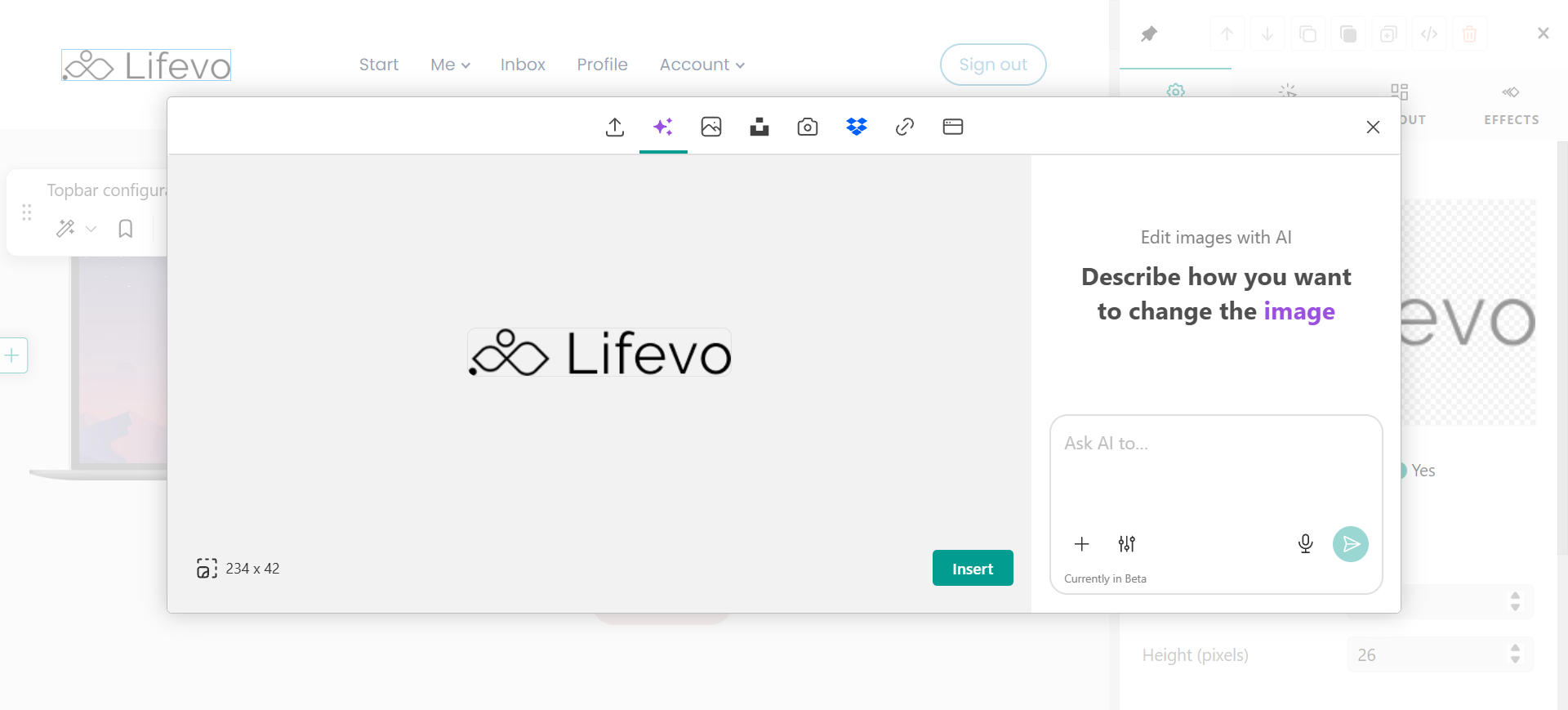

- The topbar logo is not automatically fetched from your school's Logo and Favicon settings. You must manually insert it.
- If you use alternative text instead of an image, you can change the background color in the Layout settings.
- To add a link to your logo, click on it and select Actions. Here you can check more information about on click actions.
Edit your navigation menu
Click Edit menu to open the menu editor. First, choose whether you're editing the menu for Visitors or Signed-in users. Then select whether you want to customize the Desktop or Mobile menu.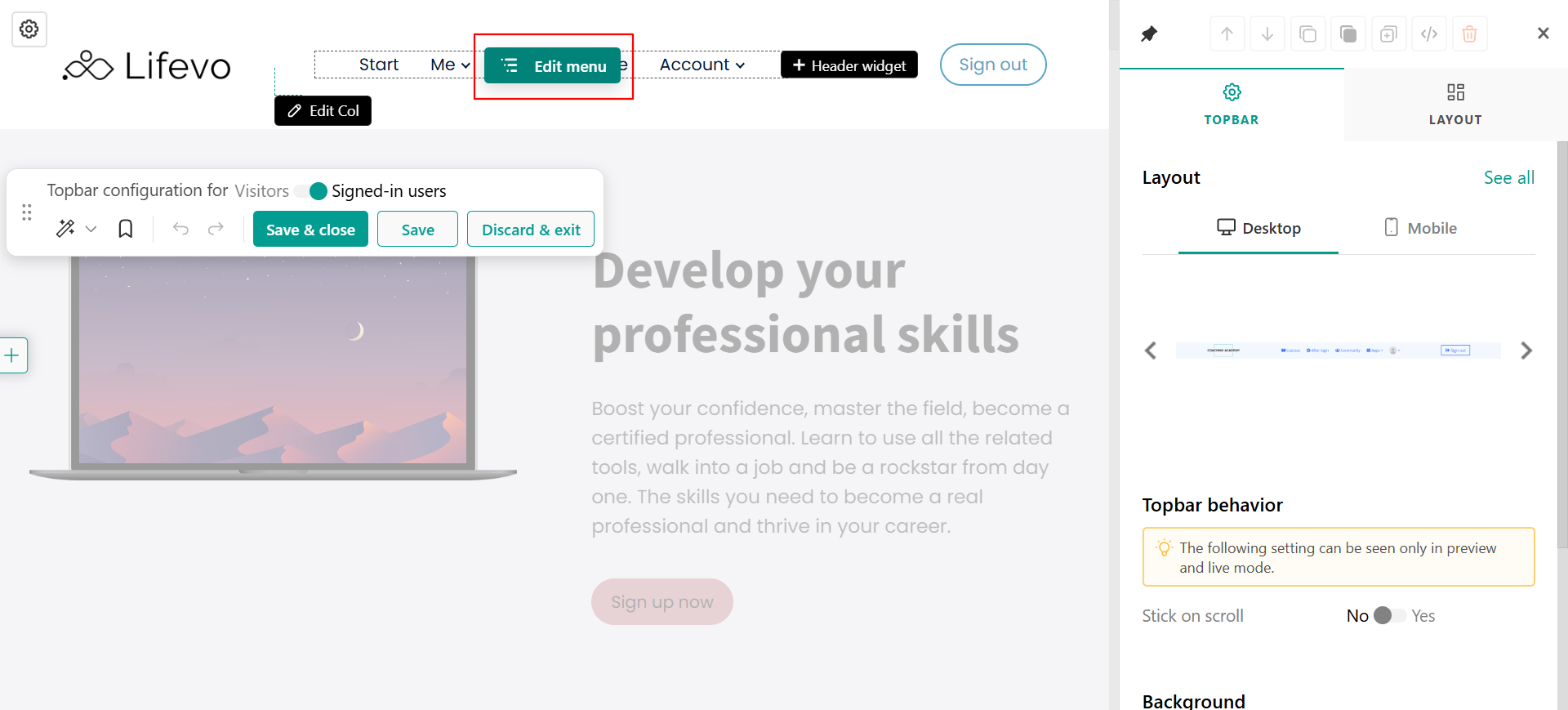 The center panel displays all your menu items and submenus. From here, you can:
- Reorder menu items using drag and drop.
- Edit their actions
- Add new menu items.
- Create submenu items.
- Delete existing menu items.
To edit a menu item, select it. In the right-hand panel, under Menu item, you can choose where the link should take users.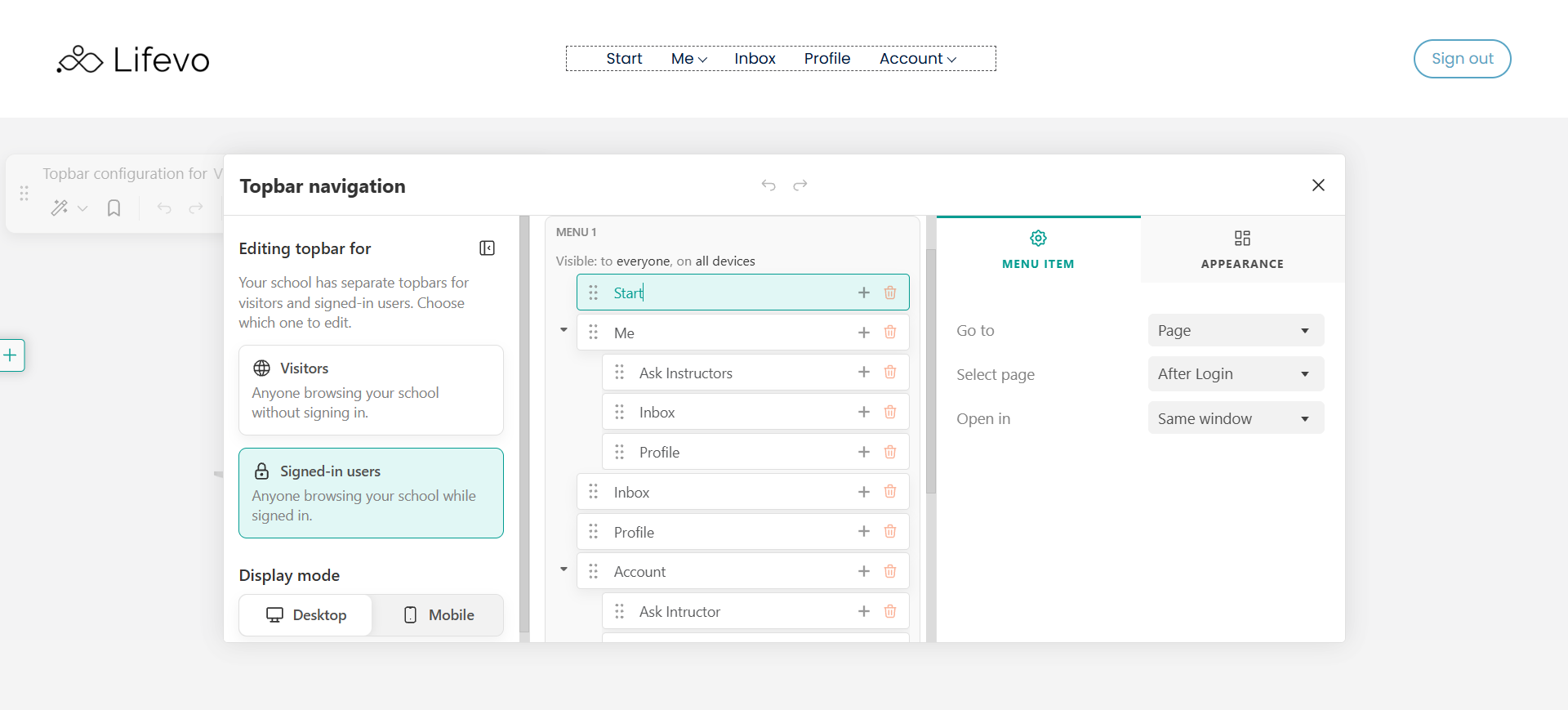 For example, you can link to a page in your school, select which page to open, and choose whether it opens in the same tab or a new tab.
Under Appearance, choose how the menu item is displayed: Icon & text, Icon only, or Text only. You can also customize its layout and select the icon displayed for the menu item.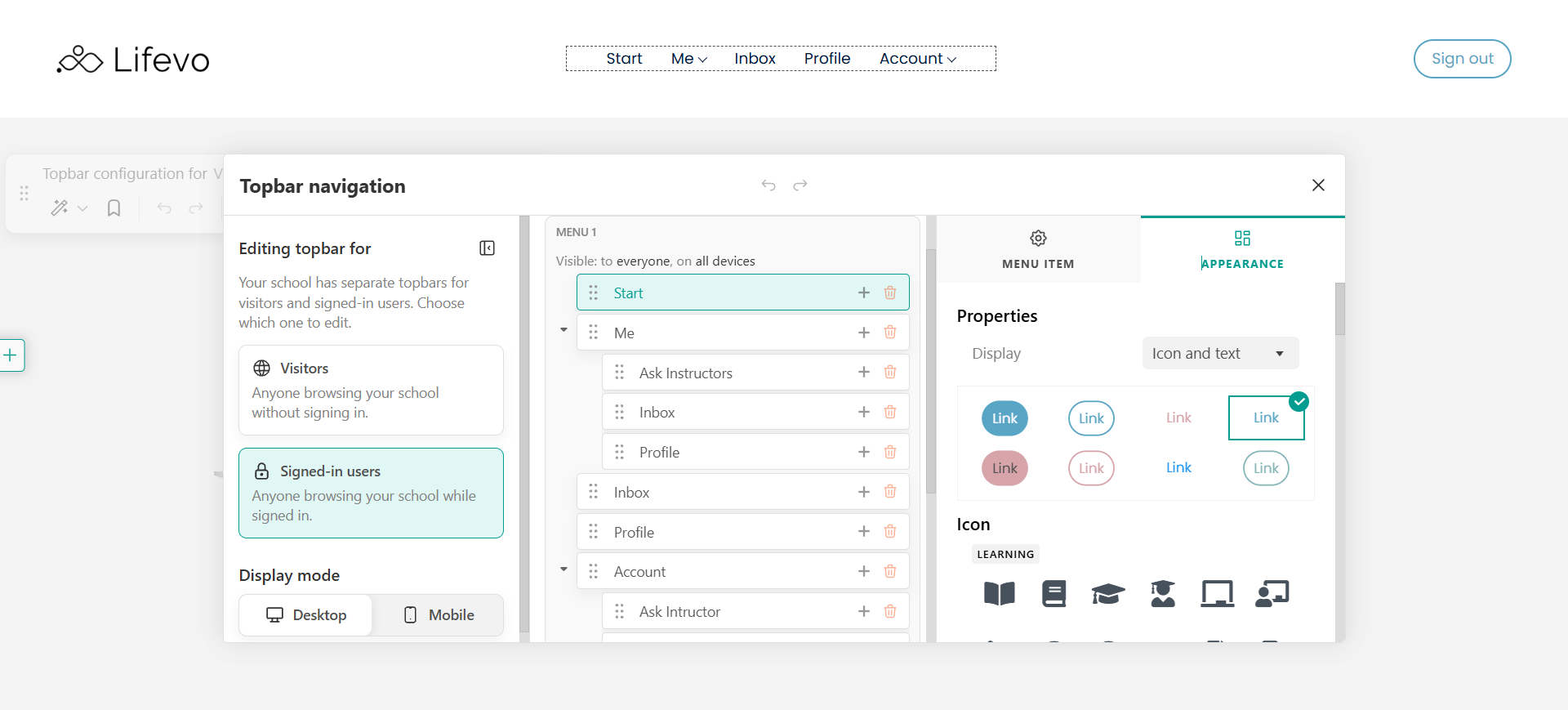
To customize the appearance of the entire menu, select the menu container instead of an individual menu item. You can then modify settings such as the text color, font family, font size, font weight, letter spacing, spacing between menu items, hover effect, and menu style.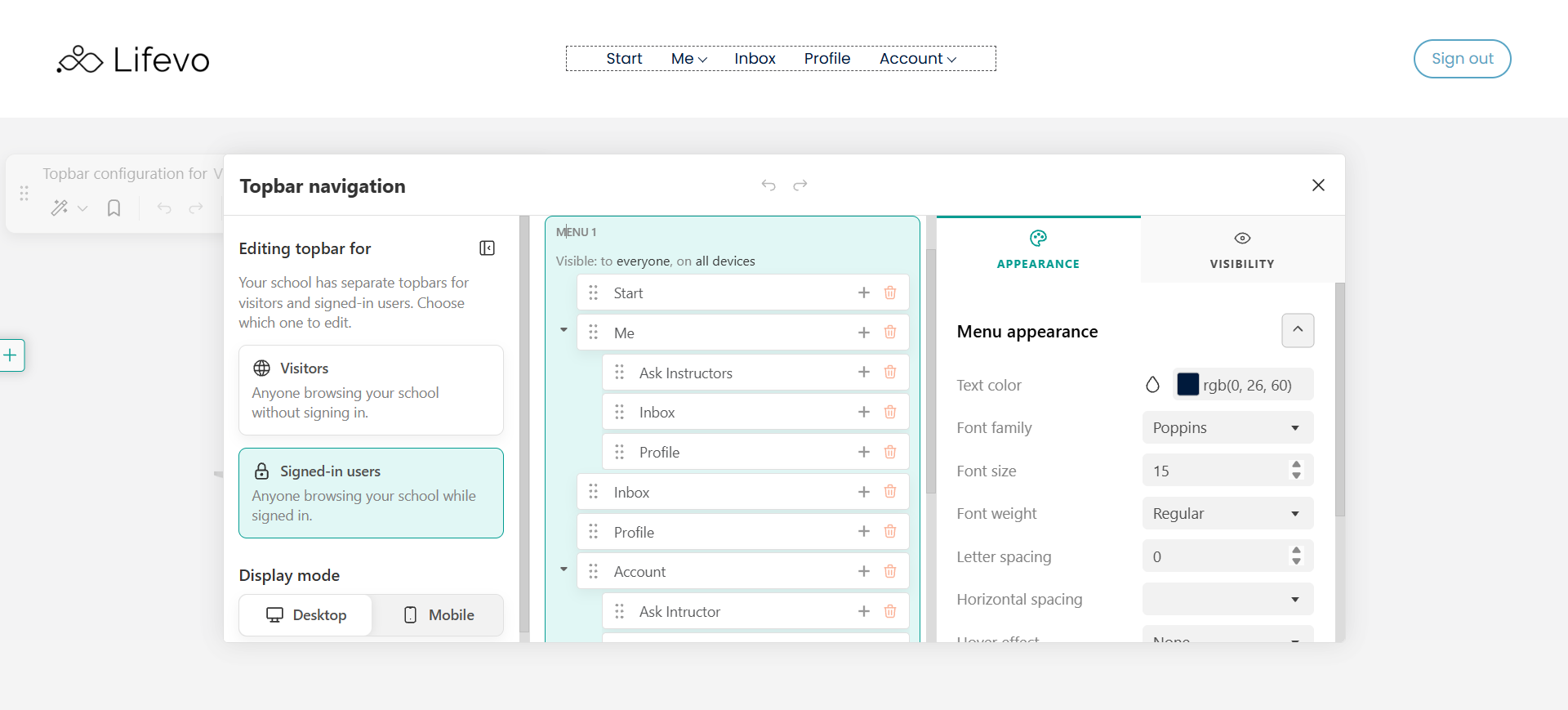
Under the Visibility tab, choose who can see the menu. You can display it to everyone, limit it to specific devices, or make it visible only during a specific time period.
Add widgets
You can enrich your topbar by adding widgets.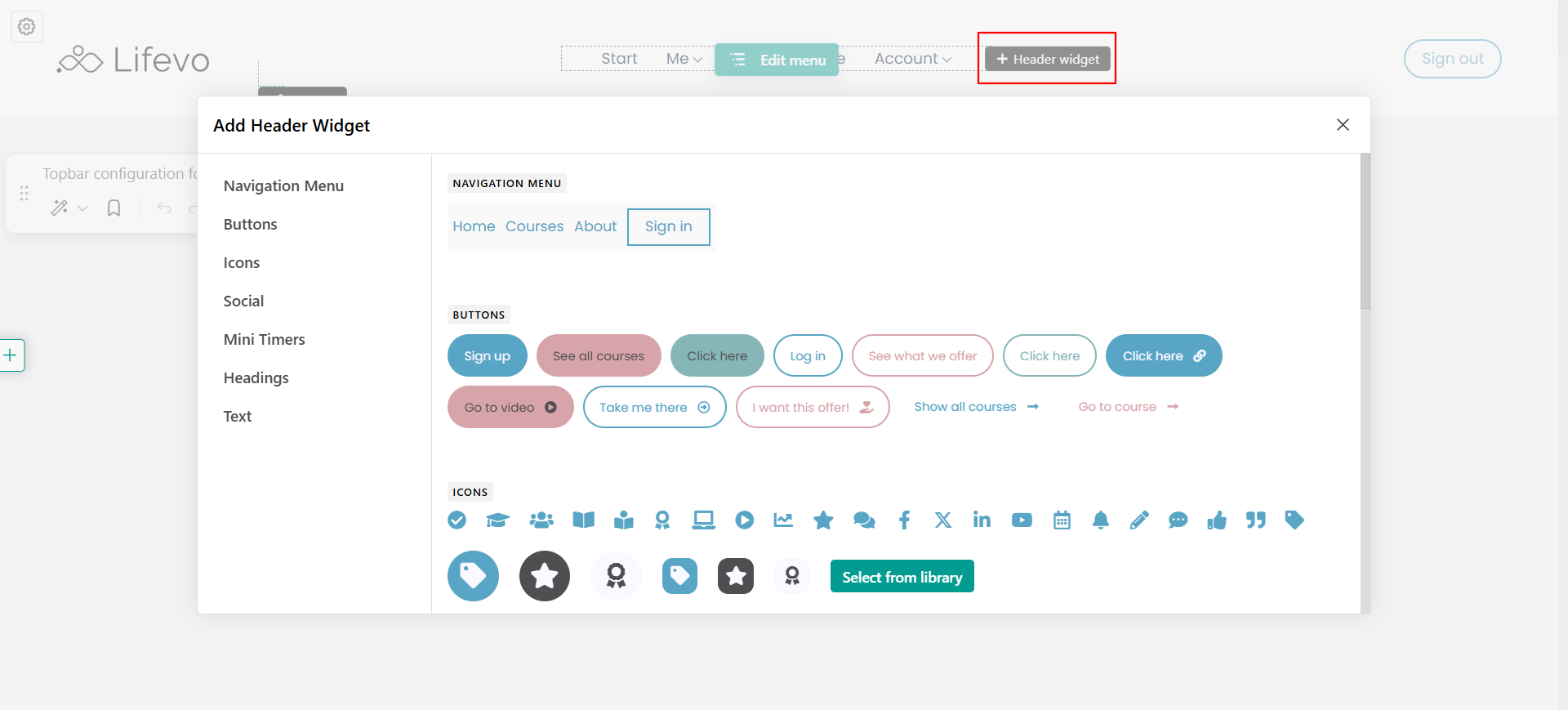
You can add buttons, icons, social, mini-timers, headings, or text. Find more information about widgets here.
Customize the mobile topbar
The mobile topbar is displayed when users access your school from a mobile browser.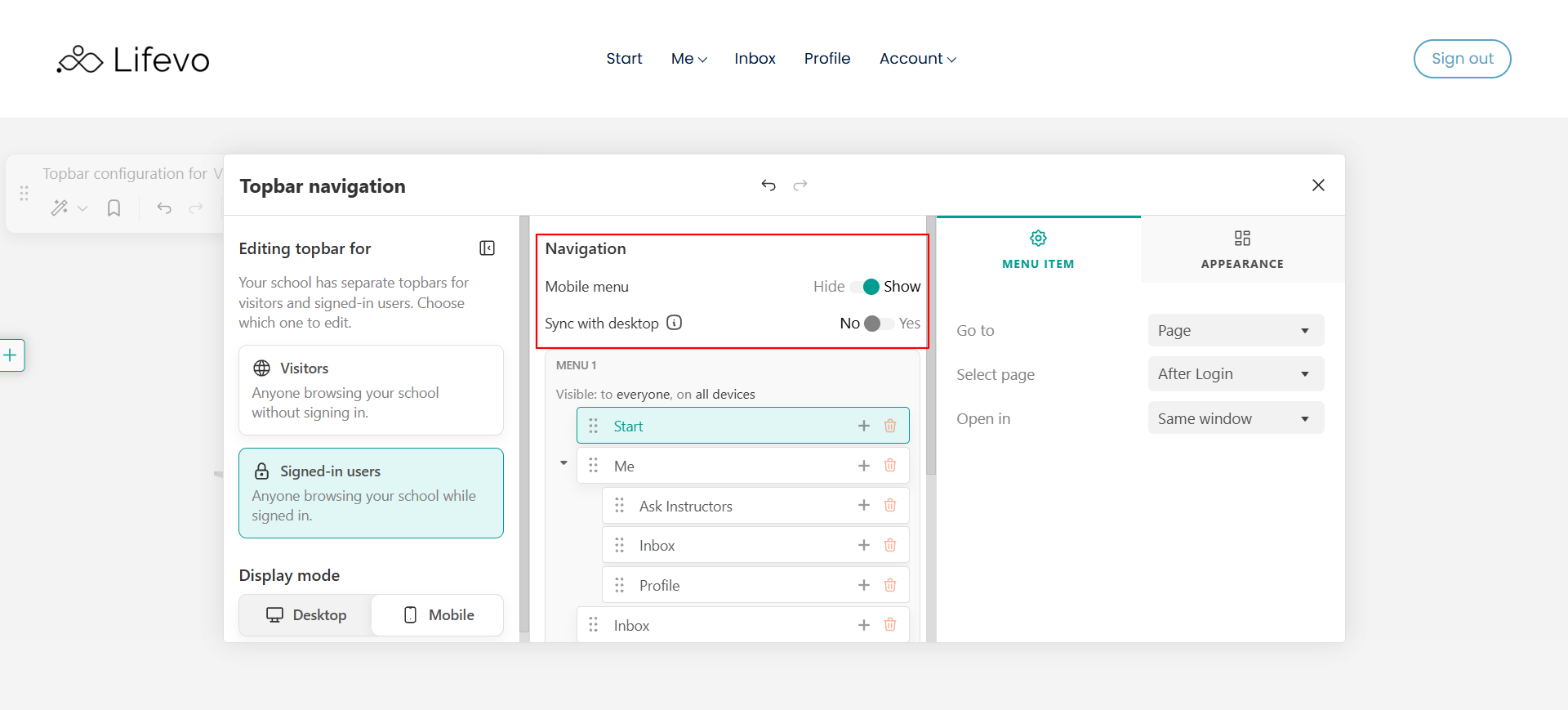
If you'd like a different navigation experience on mobile:
- Disable Inherit from desktop.
- Edit the mobile menu independently.
- Add, remove, or rearrange menu items as needed.
This allows you to simplify navigation for smaller screens while keeping the desktop experience unchanged.
Tips to efficiently customize your mobile menu
1. Disable the mobile menu if you would like to follow a different navigational strategy for your users, by clicking on your Topbar settings, and by choosing Hide on the Mobile Menu Setting.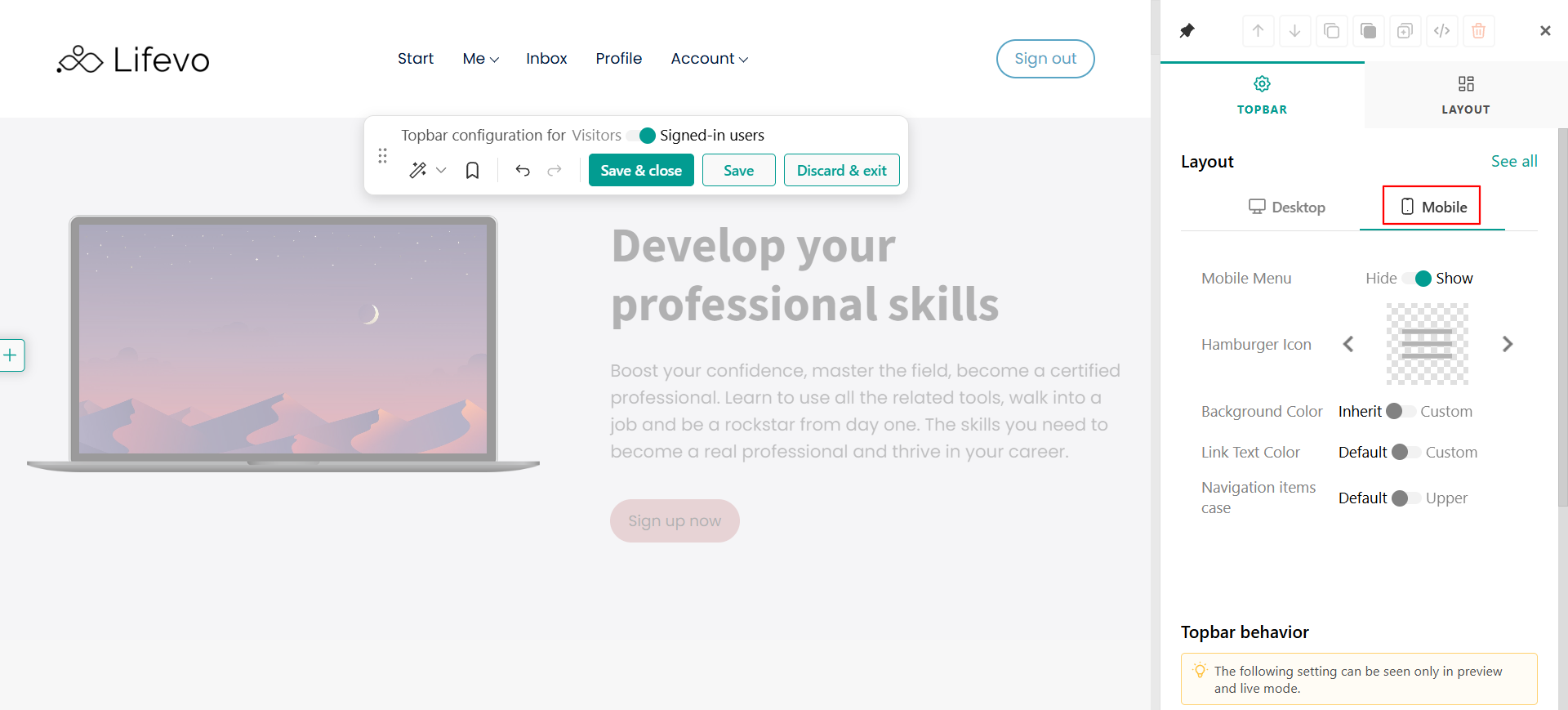
2. Change the Hamburger menu icon.
3. If you want to have a different background color in your mobile menu in comparison with your school's Theme Explorer, you can choose a color by enabling the Custom option in your Topbar settings.
4. You can insert a custom Link Text Color, a different one from the default Theme Explorer Colors.
5. Choose to enable or disable stick on scroll option.
- The before and after sign-in topbars also apply to the Hamburger menu.
- If a submenu is added, the main dropdown button won’t be clickable, it will only expand the submenu.
- Elements with applied effects (e.g., custom buttons with entrance animations) cannot be rendered in the hamburger menu.
Creating a custom page topbar
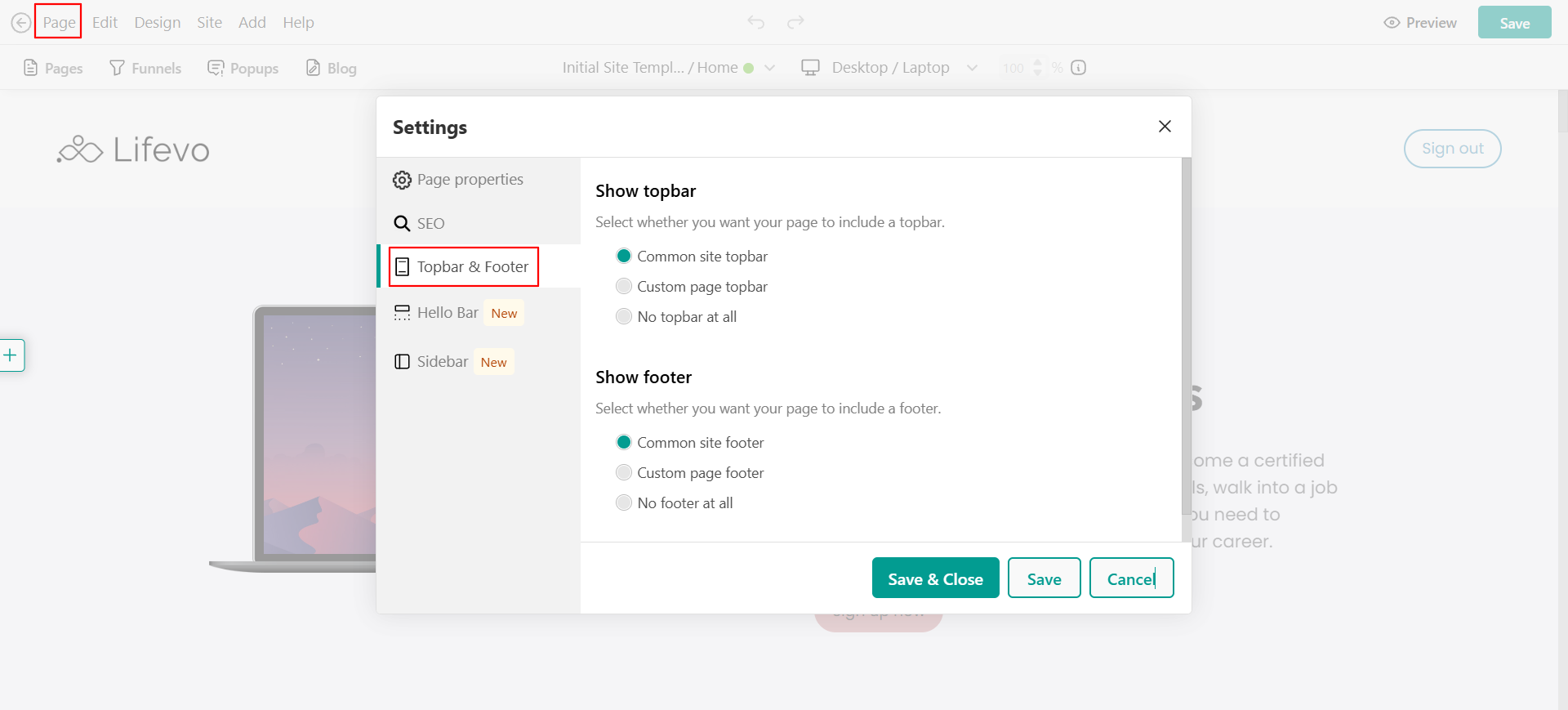
You may want to customize or hide the topbar on specific pages, to create a unique experience for different sections of your website. Navigate to Page → Topbar & Footer and choose whether to use:
- Common topbar
- Custom page topbar
- No topbar at all
- Admin preview: When previewing the topbar, admins always see the After Sign-in topbar (since they are logged in). To view the visitors version, log out or use an incognito window.
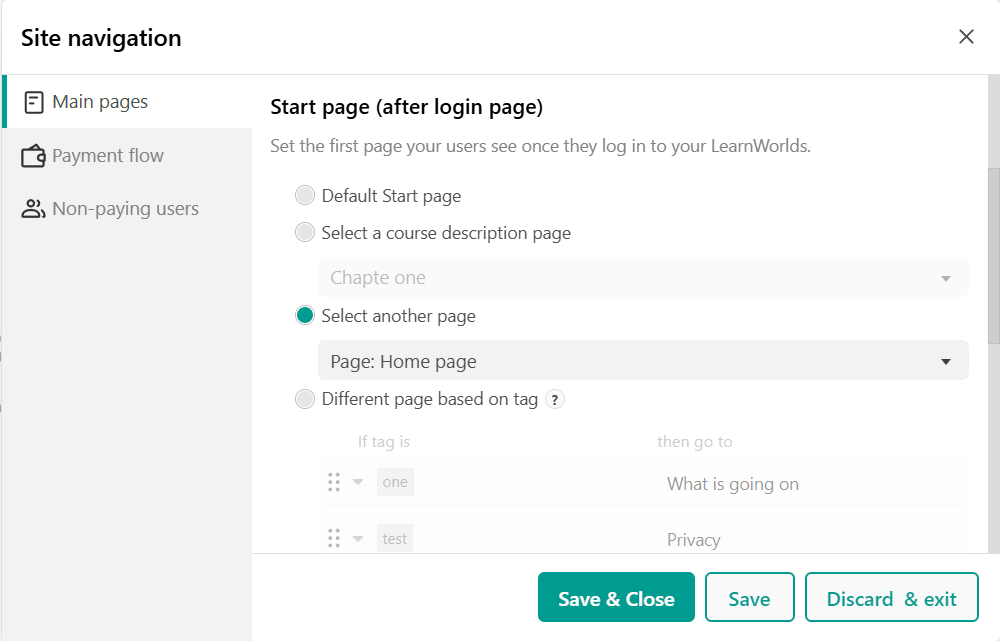
- Home page restrictions: The Home page cannot be linked in the After Sign-in navigation unless it is explicitly set as the After Login page.
- Built-in app limitations: Certain apps (Inbox, Profile, Account) may have restrictions on custom topbars.