
The Course and Program Player creates create an environment that simulates a classroom experience for students, allowing them to engage with e-learning content as if they were present in person.
You can customize its appearance and navigation settings to match the learning experience you want to provide.
This article explains how you can personalize the appearance and functionality of your players and configure the course navigation.
Course player
To access the course player settings, navigate to Courses & Programs → Courses, select a course, and go to Course settings → Course Player.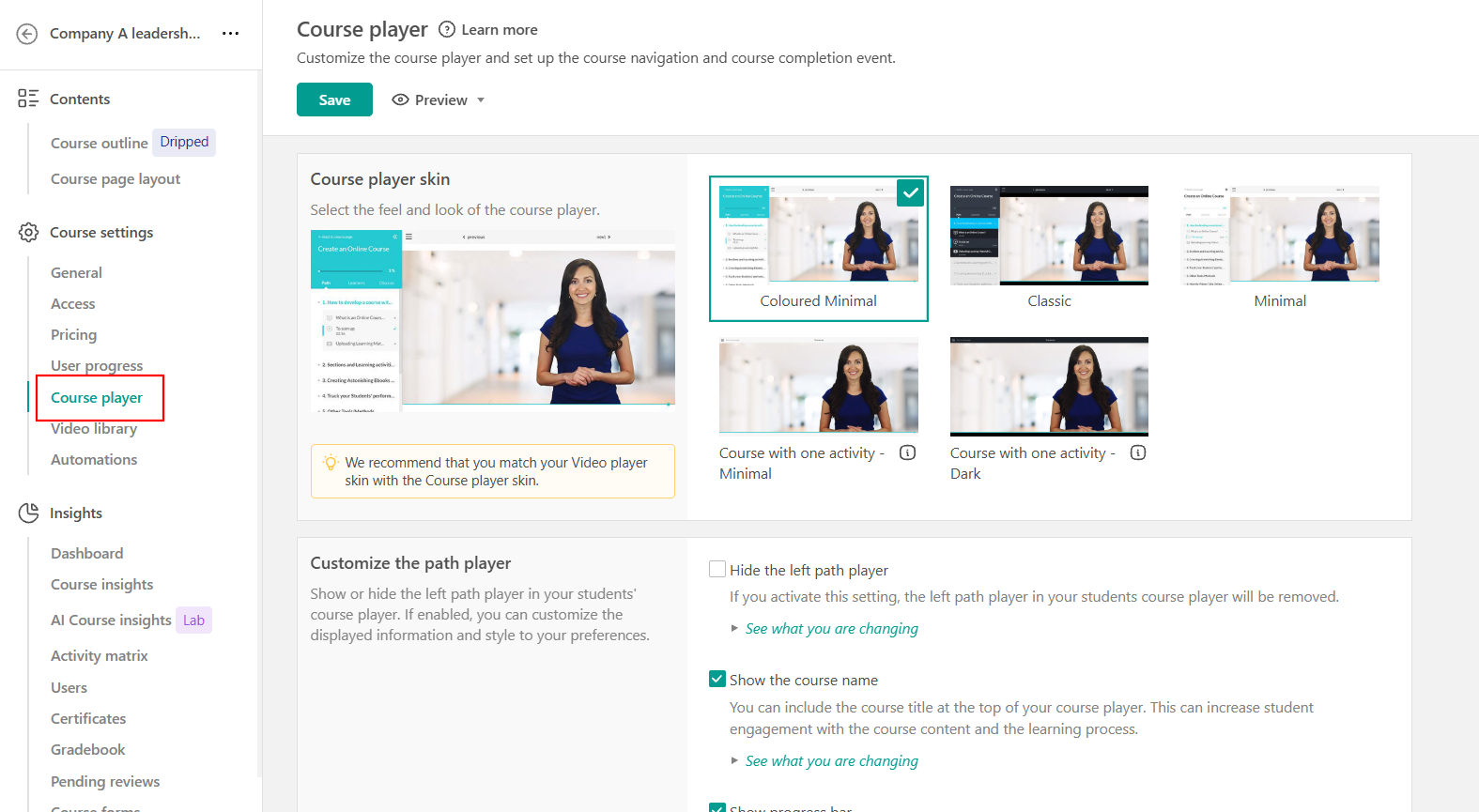
Course player skin
You can customize the appearance and feel of the course player by selecting its skin.
The Coloured Minimal skin will be chosen as the default option. You have the choice of selecting from three skins: Colored Minimal, Classic, and Minimal. Additionally, there are two Minimal & Dark skins specifically designed for Single Learning Activity courses. Enabling them will configure this course to display only the initial activity of the first section.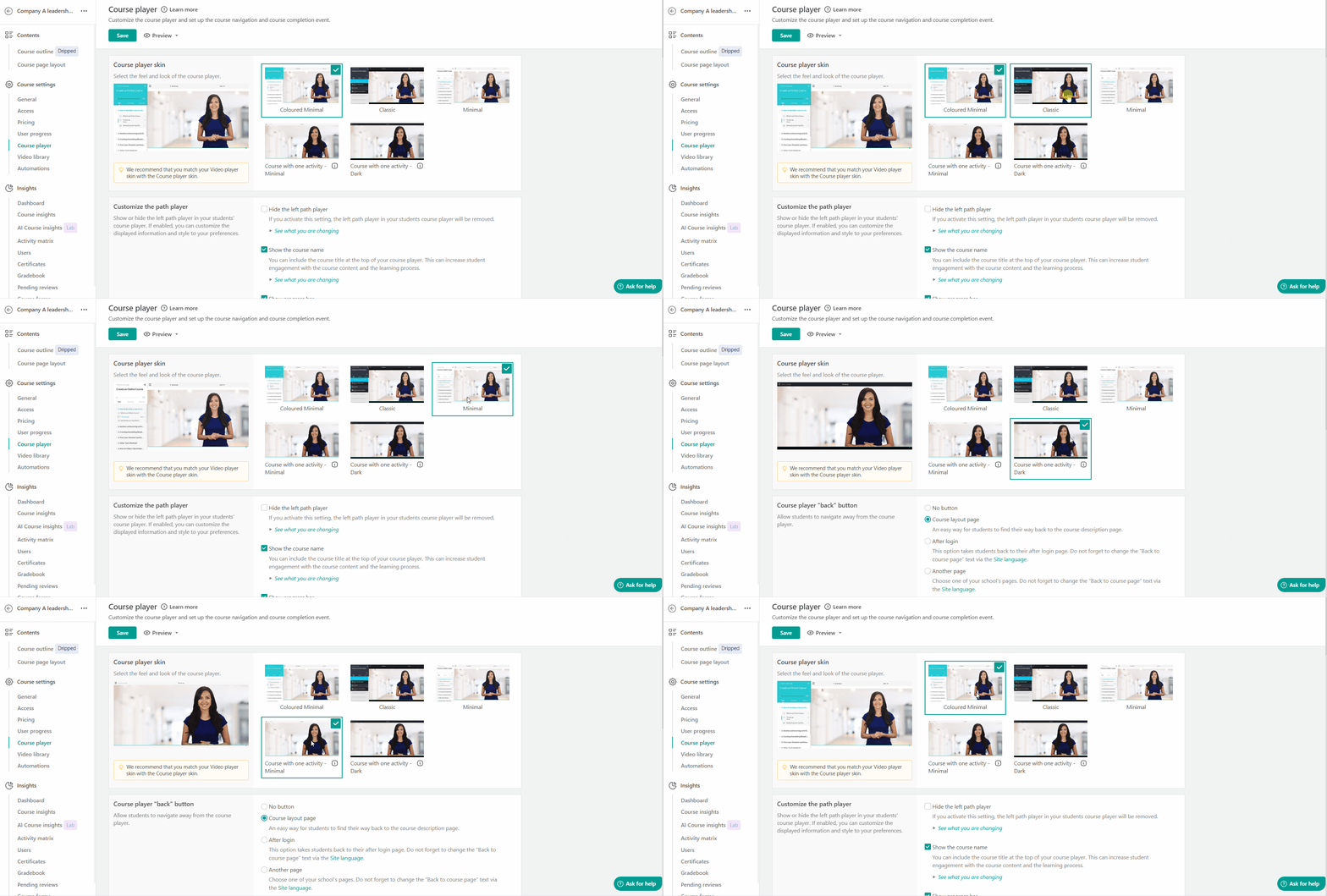
 With the Minimal skins, course section descriptions are not displayed in the course section descriptions will not be displayed in the Course Content section on the Course Layout page, and learning activity descriptions are not displayed in the Course Player
Customize your path player
Use the path player settings to control what learners see while moving through the course.
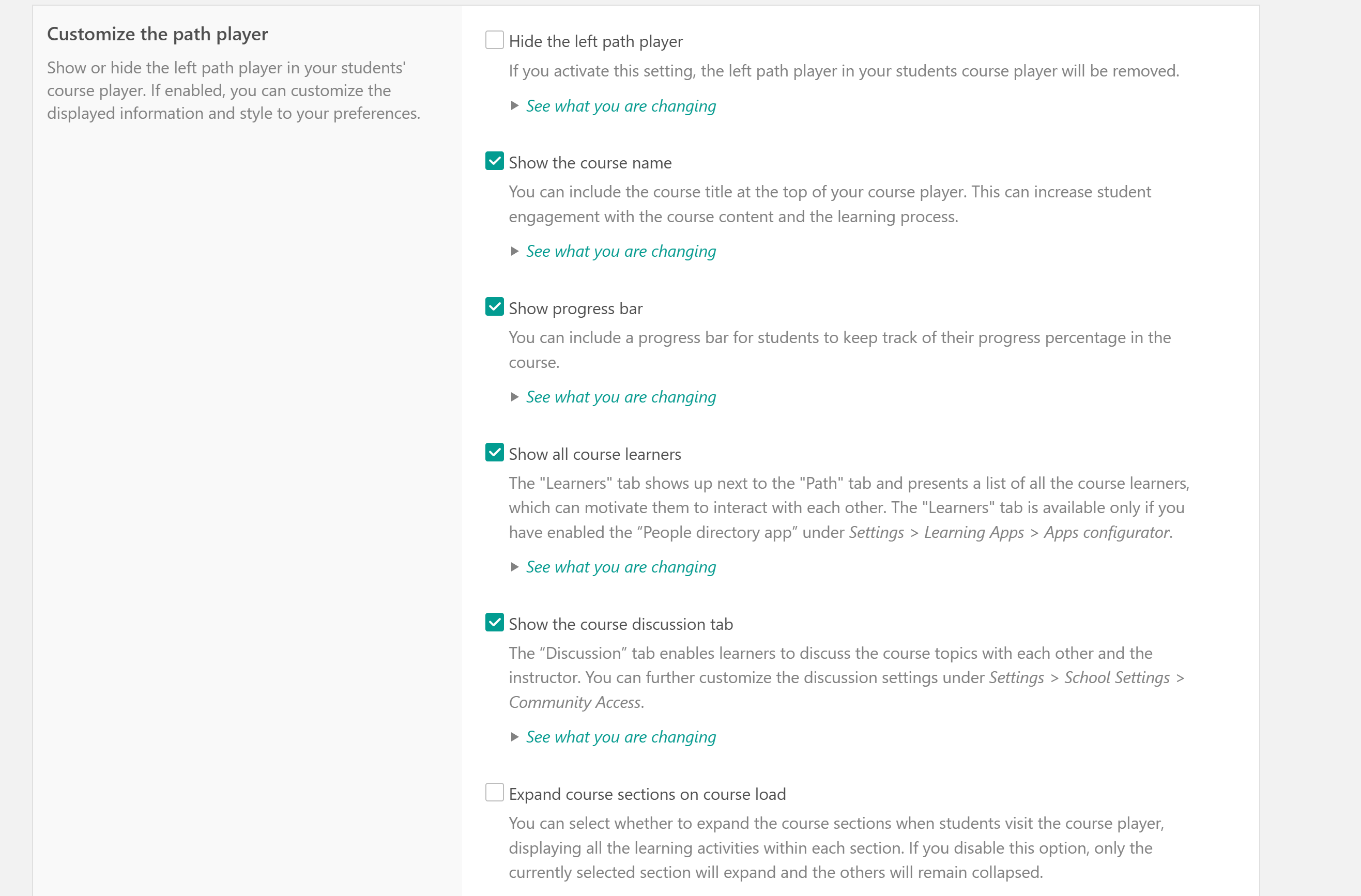
The available options are:
Available Options |
1. Hide the left path player. If you activate this setting, the left path player in your students course player will be removed. |
2. Show the course name in the course player or hide it. |
| 3. Show students' progress with a progress bar, which represents the percentage of the learning units that are considered completed |
| 4. Show all course learners tab |
| 5. Show all the course Learners tab next to the "Path" tab. This tab presents all the enrolled learners as links and motivates them to connect. |
| 6. Show the course Discussion tab if you want your learners to be able to discuss your course topics. Check this article for more information on the Discussion settings. |
7. Expand course sections on course load. You can select whether to expand the course sections when students visit the course player, displaying all the learning activities within each section. |
| 8. Number sections automatically or start section numbering from 00. |
| 9. Display the whole titles of course sections even if they need multiple lines (wrapping). If you check this box, the entire titles of your sections will appear no matter how large they are. Otherwise, titles will appear in one line with an ellipsis (...) at the end. |
10. Display the whole titles of learning activities even if they need multiple lines (wrapping), similarly to the section titles. |
| 11. Display the estimated reading time of the Ebooks (this setting can be enabled in the Ebook). |
Navigation buttons/Sidebar navigation
You can rename the Navigation buttons, hide them, or show the next/previous navigation buttons at the bottom of the course player. Additionally, you can disable the Sidebar navigation.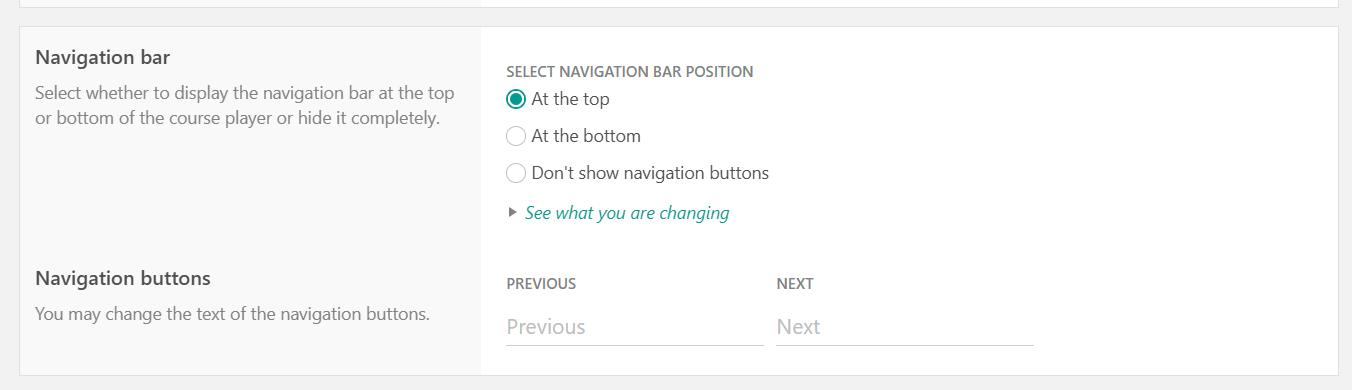
When customizing navigation, consider how learners will move through the course using different input methods. Keep navigation controls clear and predictable, and review the learner experience after changing the sidebar or Previous and Next buttons.
For practical accessibility testing guidance, see this guide.
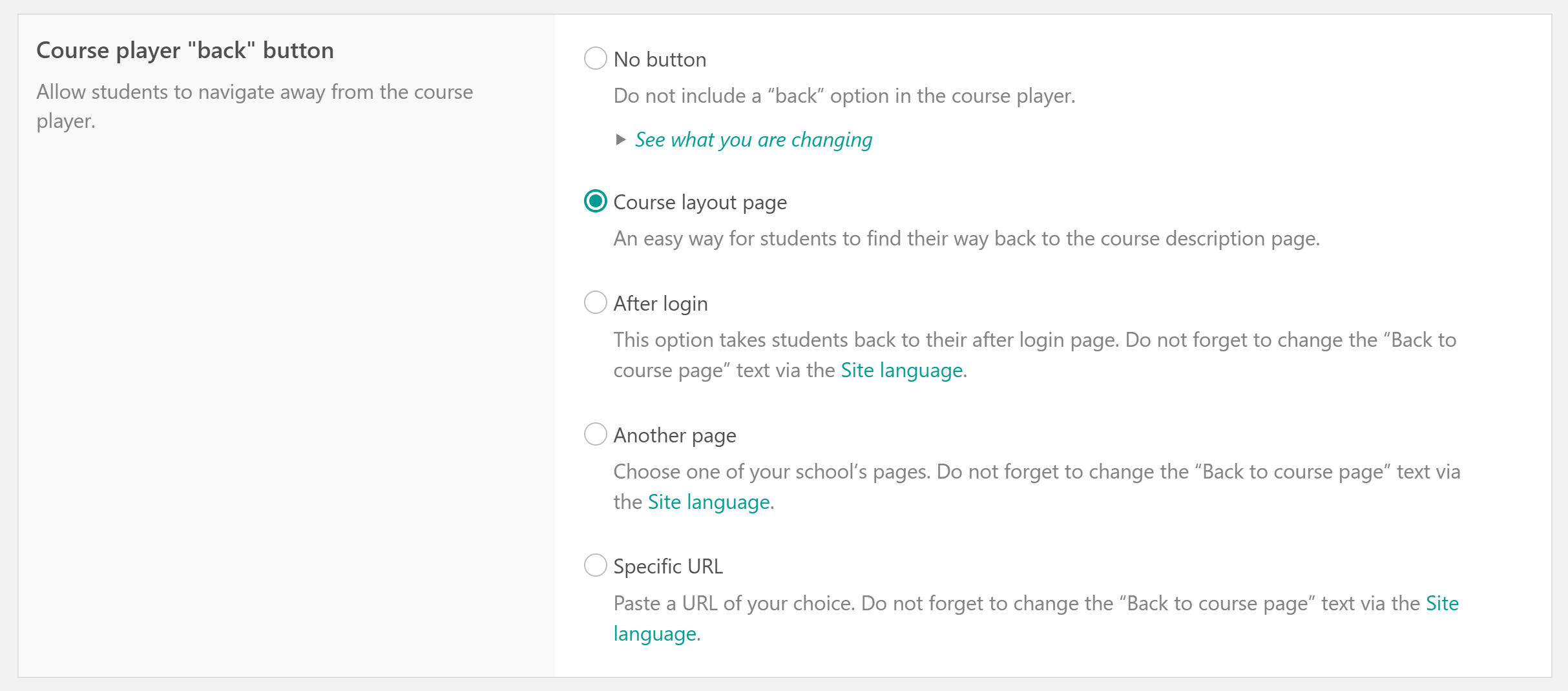
Back button
You can add a Back button that lets learners leave the Course or Program Player. For a course, go to the Course player tab. For a learning program, go to the Program player tab.

Choose whether to hide the button or direct learners to:
- Not having a button at all
- Navigate to the Course layout or Program page
- Navigate to the After login page
- Navigate to another school page
- Navigate to a Specific URL
Course video auto-progress
Choose whether the next learning activity will automatically be loaded when the video learning activity ends.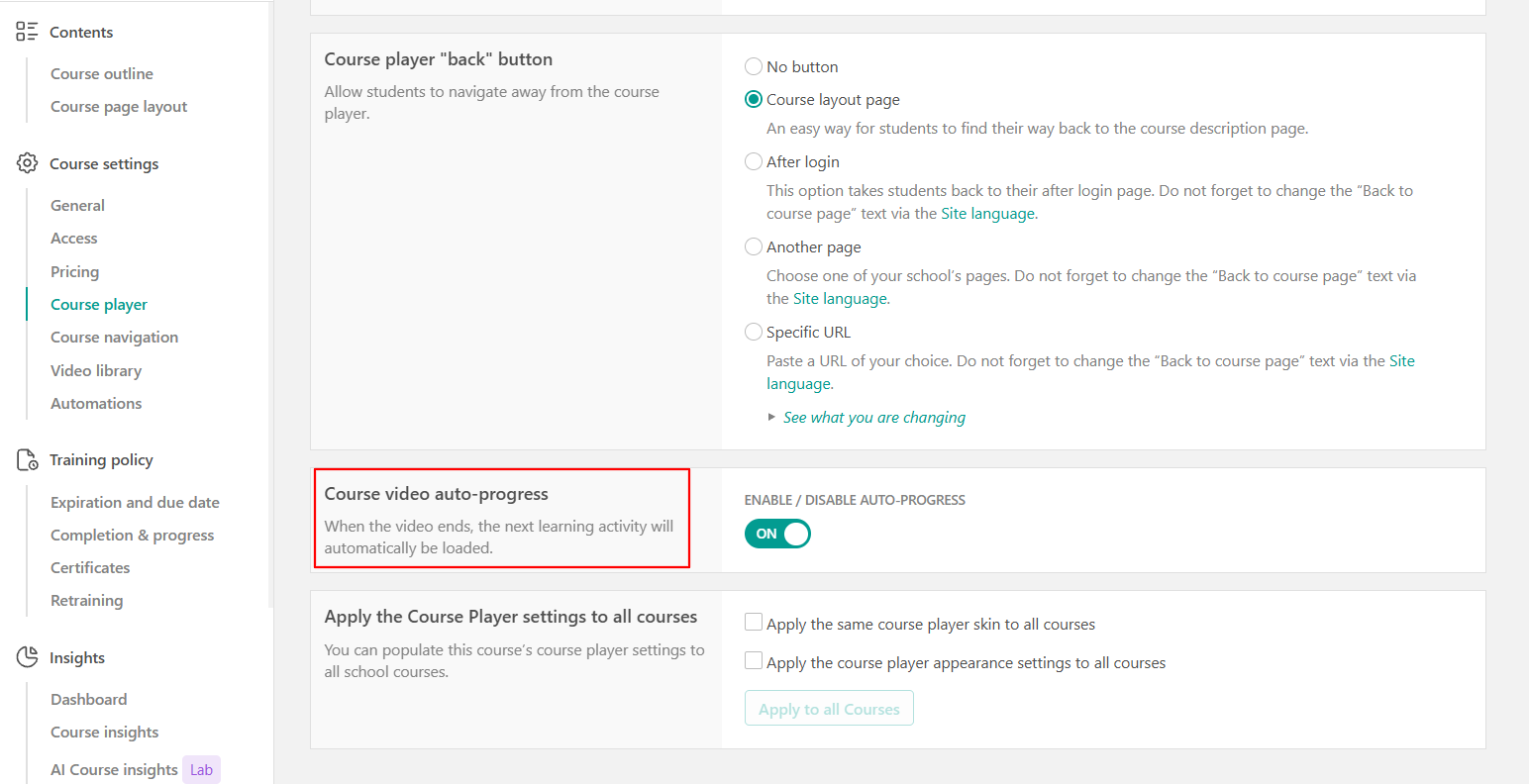
Course navigation
Course navigation determines how learners move between activities. You can choose from:
- Free navigation
If you choose this option (available on all our plans), users can navigate freely in your content without restrictions, so they can jump to any learning activity they want. - Sequential navigation
With sequential navigation (available on our Pro Trainer plans or higher), the user has to "complete" each learning activity before continuing to the next. - Navigation with Prerequisites
Some of the activities are considered prerequisites to unlocking the activities that follow them (available on our Learning Center plans or higher). When you enable this choice, the sideform when editing a learning activity will also present a checkbox for setting this activity as a prerequisite.
Check more information about this setting here.
- If you wish to apply the Course Player settings to all of your created courses, check the relevant settings under Apply Course Player settings to all other courses.

- You can add the following code in your Custom Code editor → <style> (CSS) for built-in pages (i.e., social, profile, work pad, my account) (make sure to add the hex color of your choice and replace #ffc0cb), to change the background color of the learning activities in the path section:
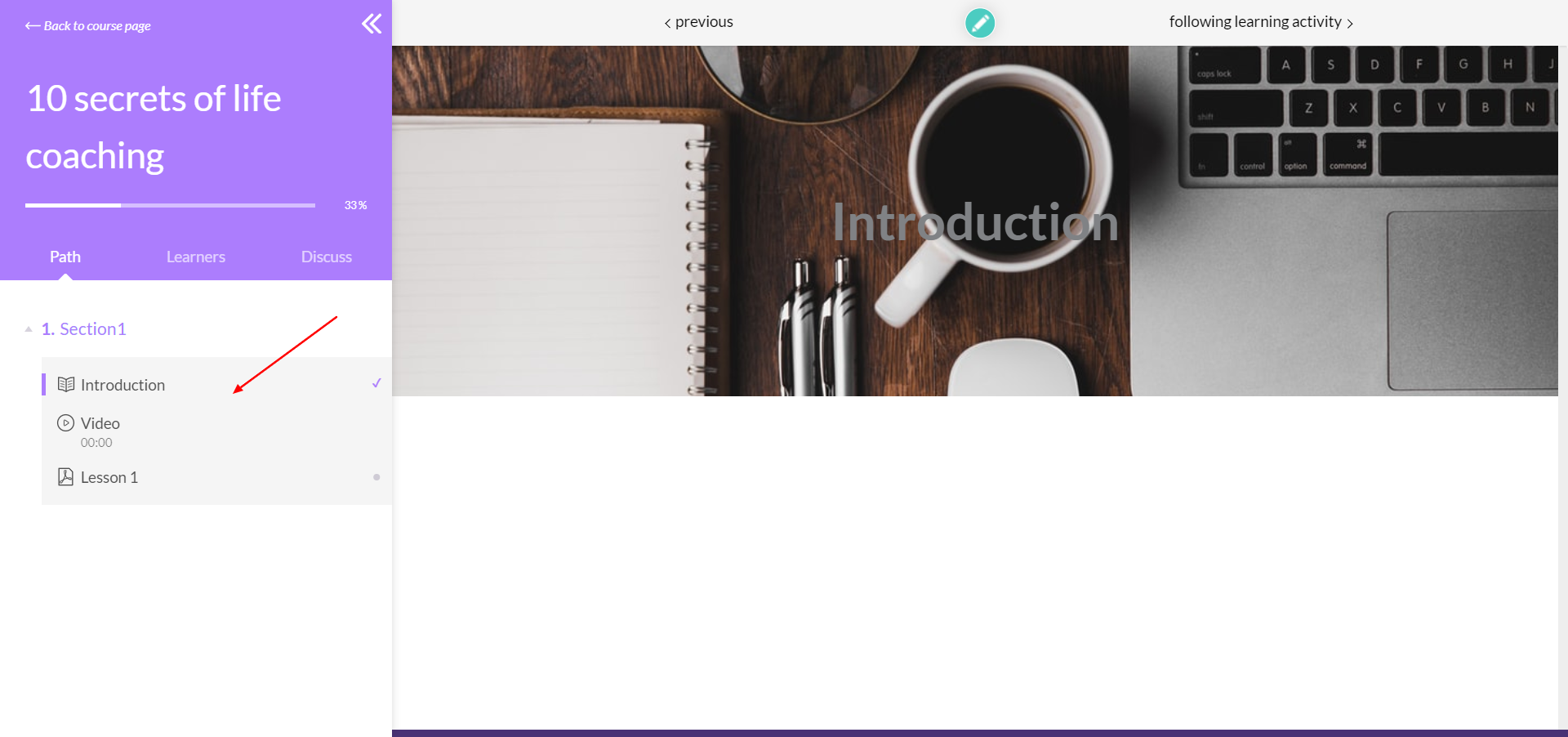 .slug-path-player .lrn-path-conts{
background-color:#ffc0cb!important;
}
Note: To ensure proper functionality, please select the Coloured Minimal skin (the default option) for the course player.
Looking for completion settings? To define when a course or learning activity is marked as completed, see this guide.