
This guide explains how to display subscription-based Learning Programs on your pages and guide users toward subscribing. By using Learning Programs sections, you can present your subscriptions either as a catalogue of available plans or as a dedicated section for a specific subscription, depending on your layout and sales strategy.
You’ll also learn how to control which programs are visible, how learners see included courses and access restrictions, and how to use pricing-focused sections to effectively promote different subscription tiers.

Subscriptions are available via Stripe as a payment gateway for our Pro Trainer plans or higher.
Add a Subscriptions section to a page
To display subscriptions on a page, you can use a Learning Programs section. This allows you to showcase subscription-based Learning Programs either as a list or as a dedicated section for a single subscription.
Start by editing the page where you want the subscriptions to appear. Add a new section, select Learning Programs, and then choose between Program Catalogue or Program Contents, depending on how you want to present your subscriptions.
Program catalogue
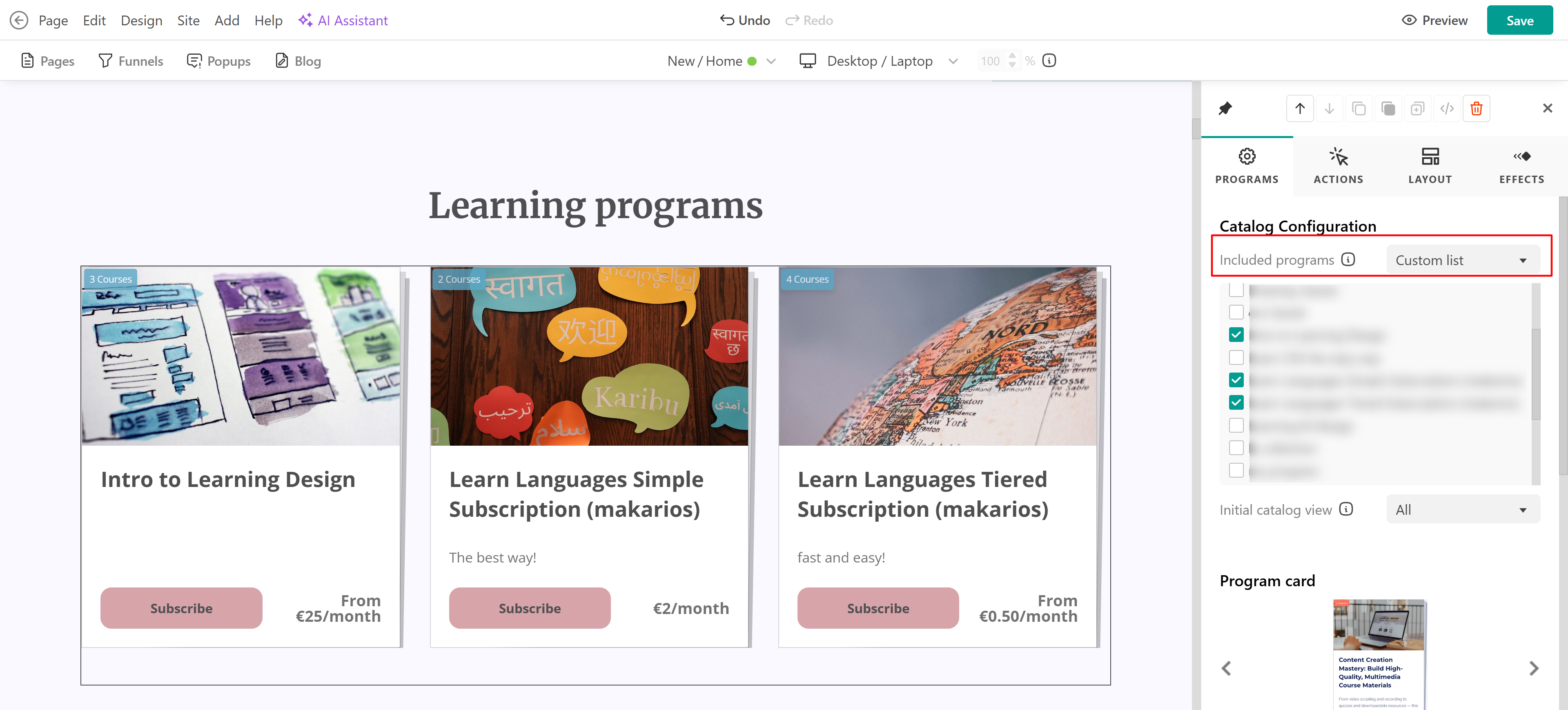
The Program Catalogue section is a flexible way to showcase Learning Programs on your pages. While it supports all program types, it can be configured to display only subscription-based programs, making it ideal for promoting subscriptions. For full configuration options, layouts, and card behavior settings, see this guide.
To ensure learners only see subscription-based products, it’s recommended to edit the section settings and switch to a custom list, where you can manually select only the subscription Learning Programs you want to display. This helps guide users toward subscribing, without exposing non-relevant products.
Program contents
The Program Contents option is used to showcase a single Learning Program. This is ideal if you want to create a dedicated page or section for a specific subscription.
After adding the section, select the subscription Learning Program you want to display. The section will automatically show all included courses, along with the learner’s progress for each one (Not started, In progress, or Completed).
Courses may appear locked in certain cases:
- When drip-feed scheduling is enabled
- When a course is included in a higher subscription tier than the learner currently has
When this happens, learners see a clear message explaining why the content is locked and, if applicable, prompting them to upgrade their subscription to gain access.
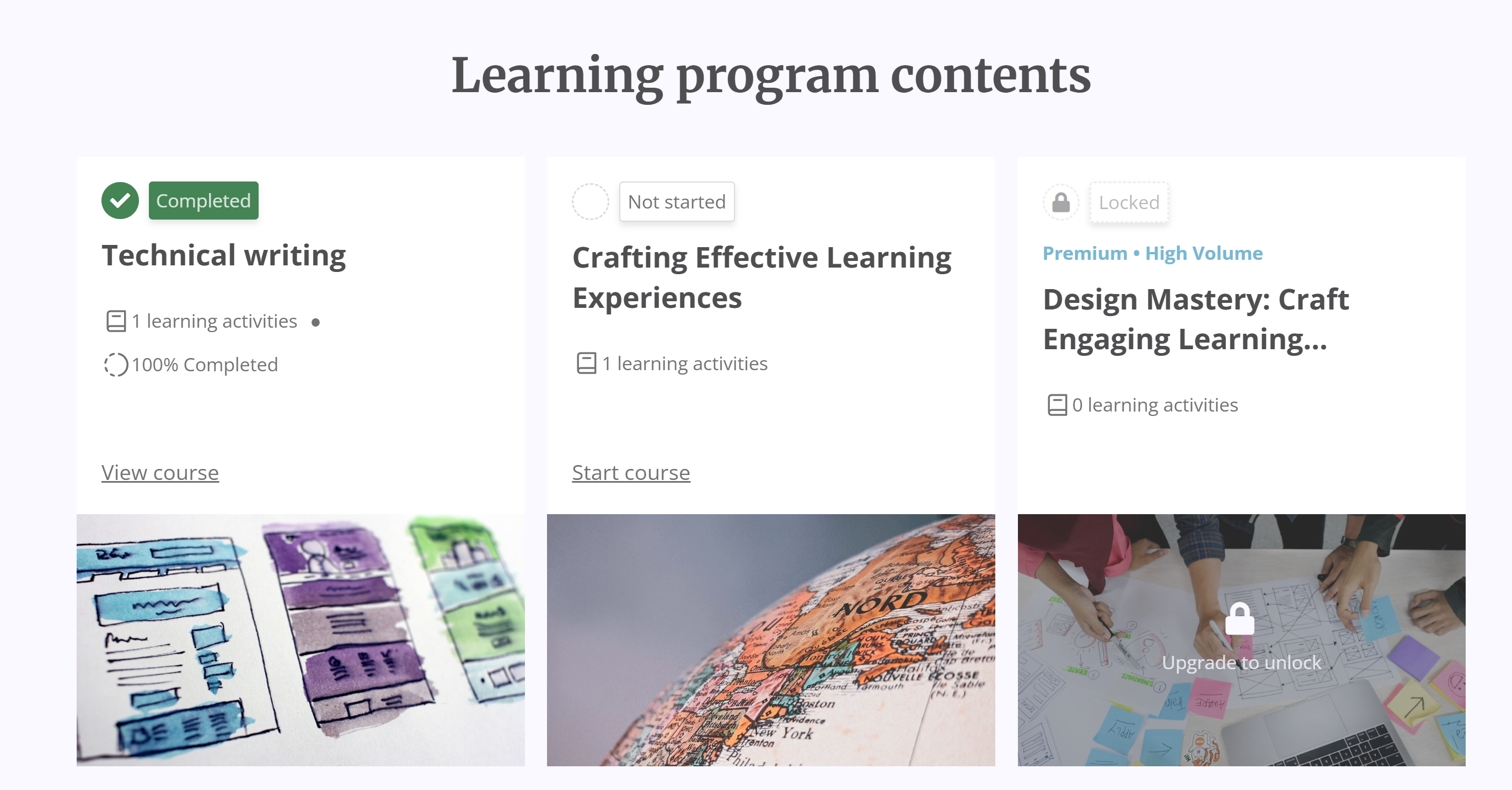
Private courses are not displayed in such Public templates, but will be available when the user has subscribed to the plan.
Promoting Subscription Tiers with Pricing Tables or Tabs
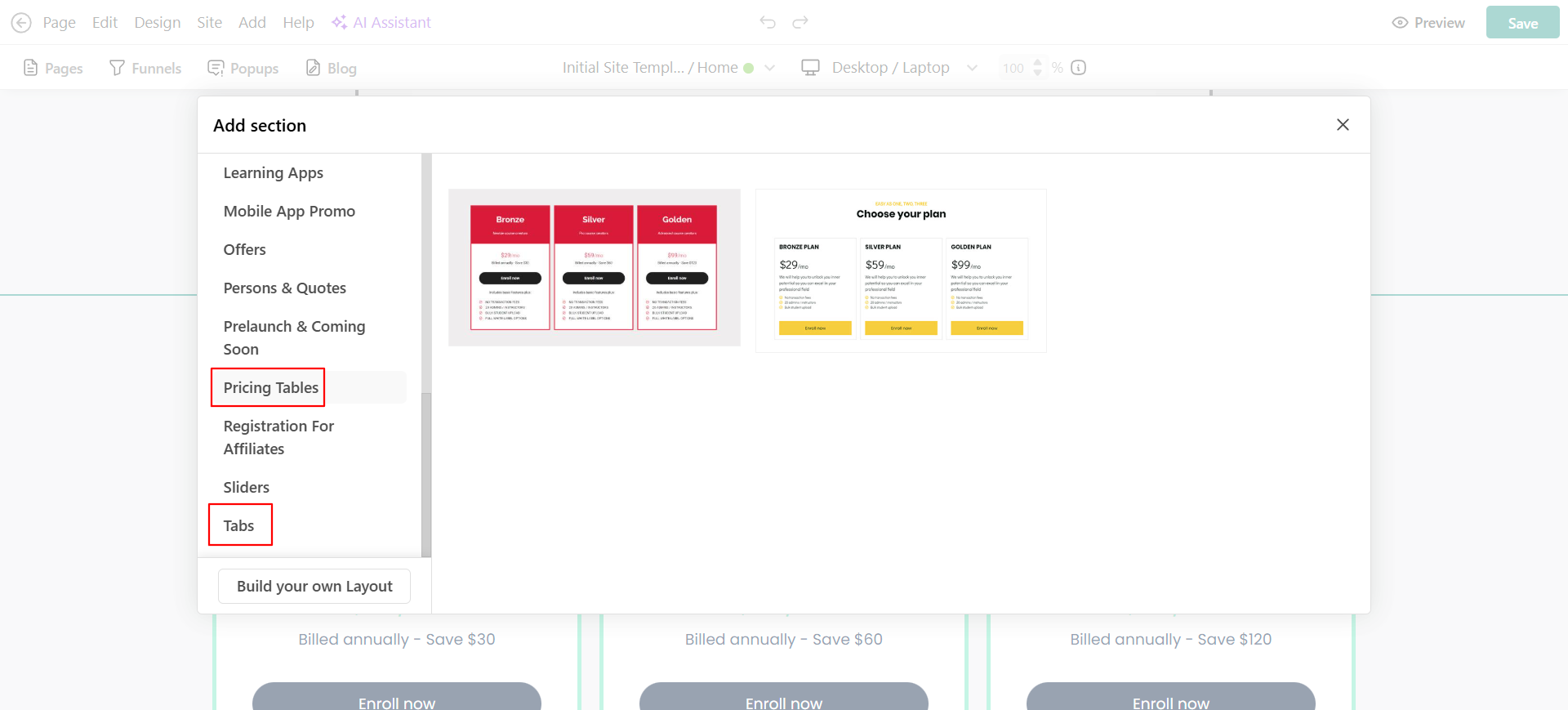
In addition to the above options, you can also highlight your different subscription tiers using our Pricing Tables or Tabs section.
This approach allows you to clearly compare subscription tiers side by side, highlight key differences in features, pricing, or included courses, and add call-to-action buttons that directly link users to the subscription checkout page.
To add this section:
- Choose to add a new section and select either a Pricing Table or a Tabs layout.
- Configure each column or tab to correspond with a subscription plan/ tier.
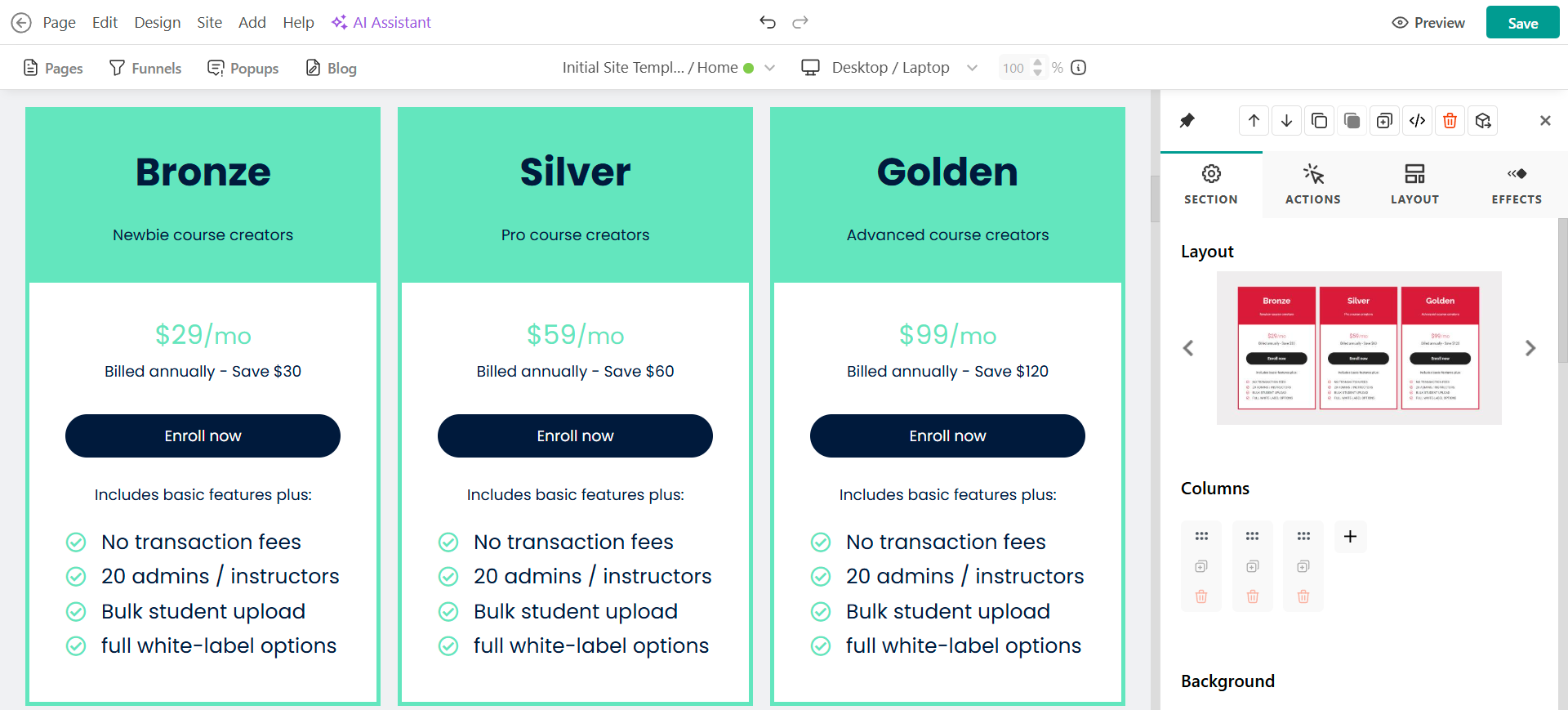
Using Pricing Tables or Tabs makes it easier for potential subscribers to understand your offerings at a glance and choose the plan that best fits their needs.