
A PDF learning activity lets you add PDF course materials directly to the Course Player while preserving the file's original layout and formatting.
In this article, you'll learn how to create a PDF learning activity, upload a PDF file, and manage download, copy, and print settings.
Create the PDF learning activity
1. Navigate to the Course outline tab of your created course.
2. Click on Add an Activity under the selected course section.
3. Click on PDF in the Multimedia menu.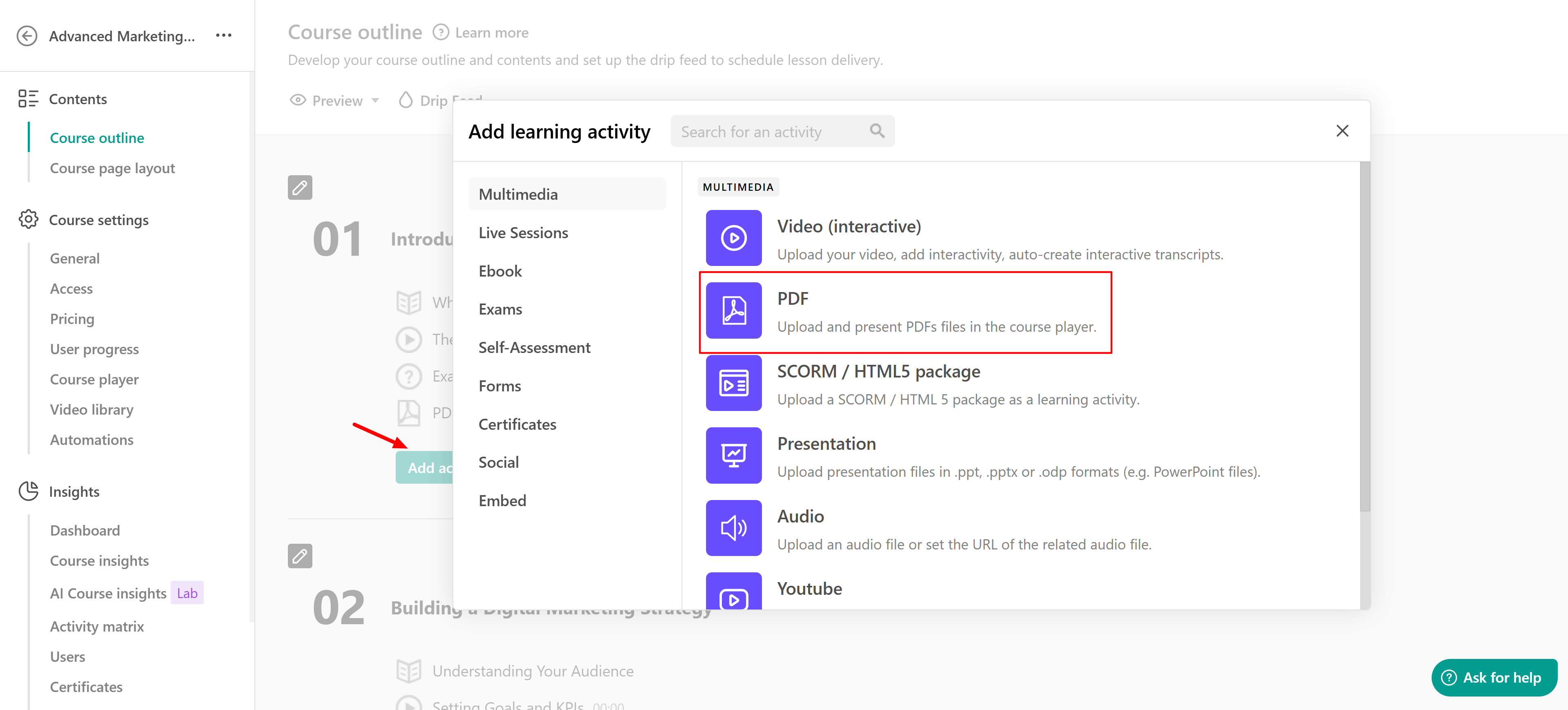
4. Give your PDF learning activity a title, then click Save or Save and Edit to begin making changes immediately.
Upload the PDF file
1. Hover over the learning activity and click on Settings (if you have clicked on Save and Edit in the activity creation process, skip this step).
2. Click on Select pdf to upload your PDF file. Make sure that the title of the file is in Latin characters (special characters like â, è, ü, etc., are not supported).

 To ensure that the learning activity works as expected, ensure that the PDF is uploaded under Upload your file and not under Digital Download. Digital downloads are only supportive material.
3. Optionally, fill out the number of pages that your PDF includes.
4. You can also password protect this learning activity for users who only have the password.
This is how the PDF will be displayed on the Course Player.

Prepare your PDF for accessibility
Check the accessibility of your PDF before uploading it. Uploading a PDF does not change its existing accessibility features, such as heading structure, reading order, alternative text, table structure, or whether the text is selectable and searchable.
Whenever possible, prepare accessibility features in the source document before exporting it as a PDF. Check that:
- Text is selectable and searchable
- Headings follow a logical structure
- Content follows a meaningful reading order
- Images that convey information have appropriate alternative text
- Links have descriptive text
- Tables are structured so their content and relationships can be understood
Avoid using scanned documents when possible, as they may contain images of text rather than readable text. If a PDF still presents access barriers, provide the same information in another format. For more details, see this guide.
PDF file requirements
PDF files up to 50 MB are supported, and only Latin characters can be used in the file title (special characters like â, è, ü, etc., are not supported).
Enable PDF Download/Copy/Print
To allow your users to download, copy, or print your PDF files, you can adjust the settings on the Copyright Protection page. Navigate to Settings → School Settings → Copyright Protection.
If you don't enable the Let your users print the pdf files option under your Copyright Protection settings, your users will not be able to print the downloaded file and the file will appear locked.
You can also choose to display a Watermark on the PDF file.
