
Discover the future of teaching and writing with our AI Assistant! Whether you're crafting a Course Outline or your pages, authoring Ebooks, developing Assessment questions, or offering feedback on Assessments, our AI Assistant is your partner in innovation. Utilizing our AI Assistant, you can unlock endless AI possibilities to revolutionize your teaching and writing experience. You can also leverage AI to craft engaging popups, forms, and blog posts with ease.
AI Provider
Apart from our AI assistant, you can connect your OpenAI provider by following the steps in this article.
To connect your AI provider:
1. Navigate to Settings → Integrations → AI → Provider.
2. Under AI provider choose OpenAI and connect your account. Add the OpenAI Organization ID and click on edit to add the API key to connect your provider. 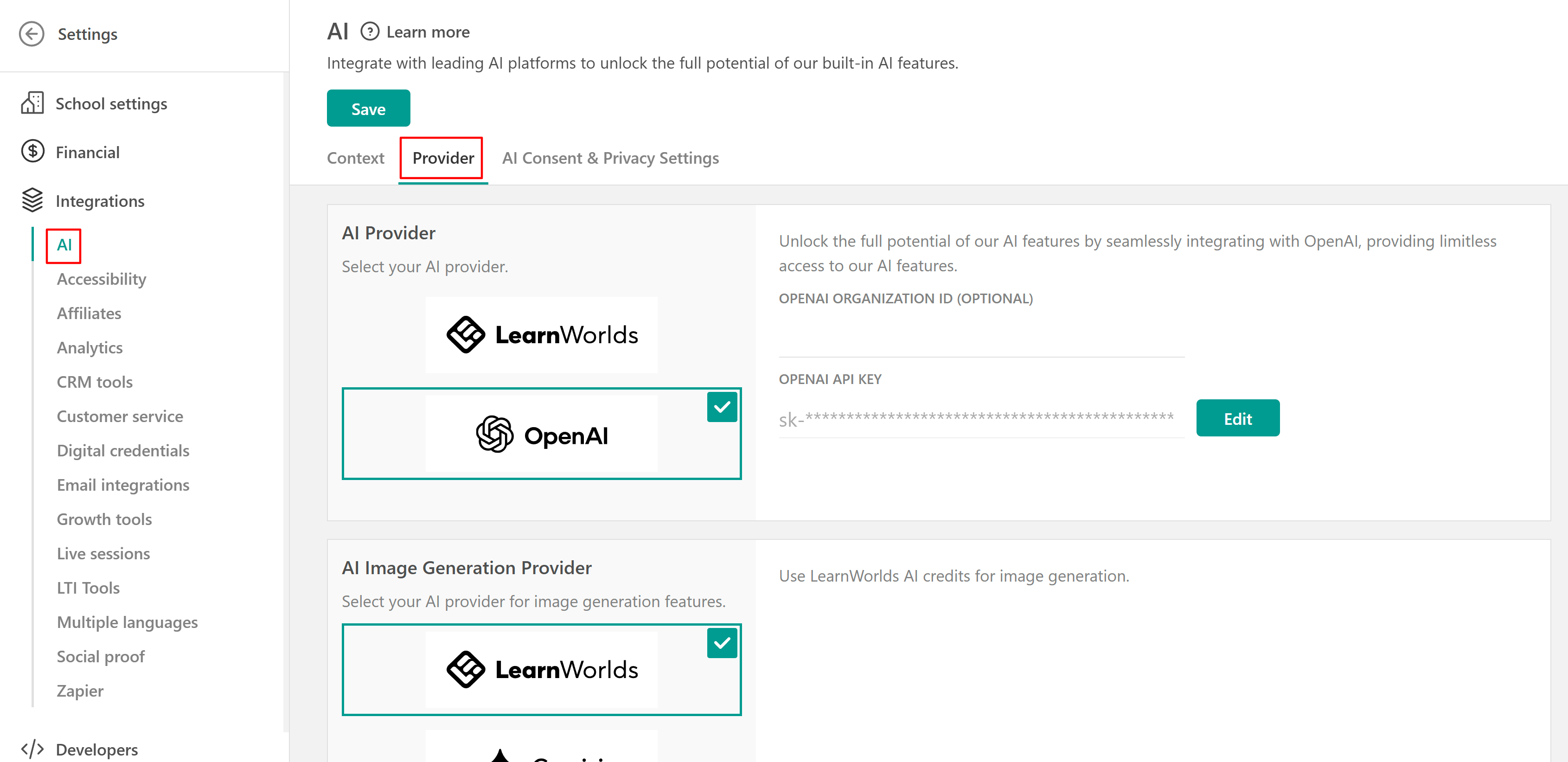
Make sure to verify the Account Credits you have available on platform.openai.com. When you initially set up your account, it comes with a certain amount of credits.
AI image generator provider
When using the AI image generator, you can choose which provider to use, such as
- LearnWorlds,
- Gemini, or
- OpenAI.
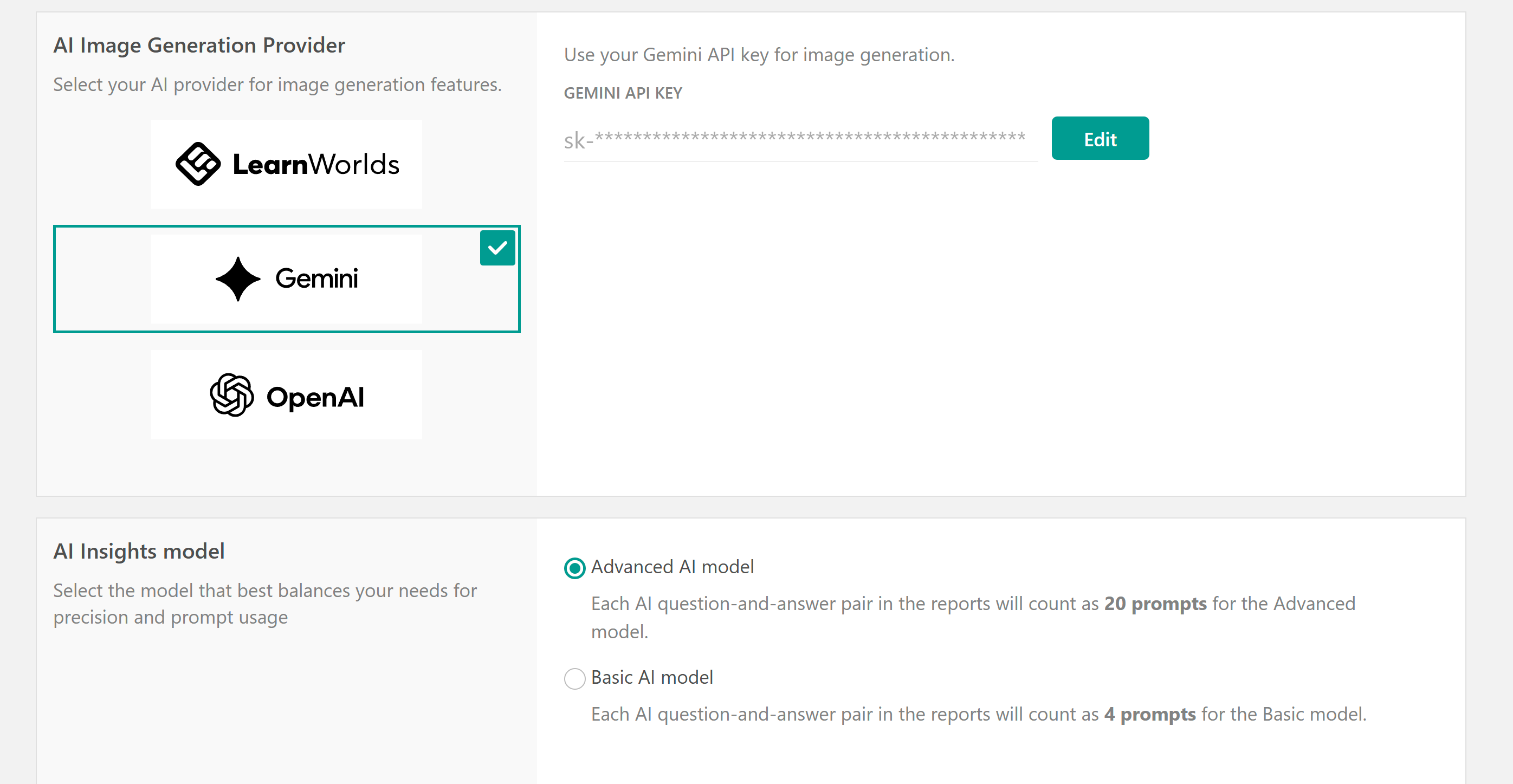
Make sure to select your preferred option and connect your account. From then on, all images will be generated based on this setting.
 Connecting your own OpenAI or ChatGPT account only affects billing and which account is used for generating AI reports. It does not change the AI models used by the AI Assistant for content creation (such as assessments or eBooks), which always rely on the platform’s built-in models.
AI Insights model
Only for your AI insights (located under Reports → AI Insights), you can select the model that best balances your needs for accuracy and prompt usage. You can choose between:
- Advanced AI model: Each AI question-and-answer pair in the reports will count as 20 prompts for the Advanced model.
- Basic AI model: Each AI question-and-answer pair in the reports will count as 4 prompts for the Basic model.