
LearnWorlds Site Builder offers intuitive tools to add, edit, organize, and customize page sections. This allows you to design and structure your school pages easily without needing advanced technical knowledge.
- Sections are the main building blocks of your page content between the topbar & footer of your page's content.
- Widgets are the elements placed within a section.
You can learn more about creating pages and page structure here.
In this article, we will learn how to add, edit, and customize sections and their settings on your pages.
Add section
1. Navigate to Website → Design → Edit Website.
2. Choose any page to edit from the Page Manager.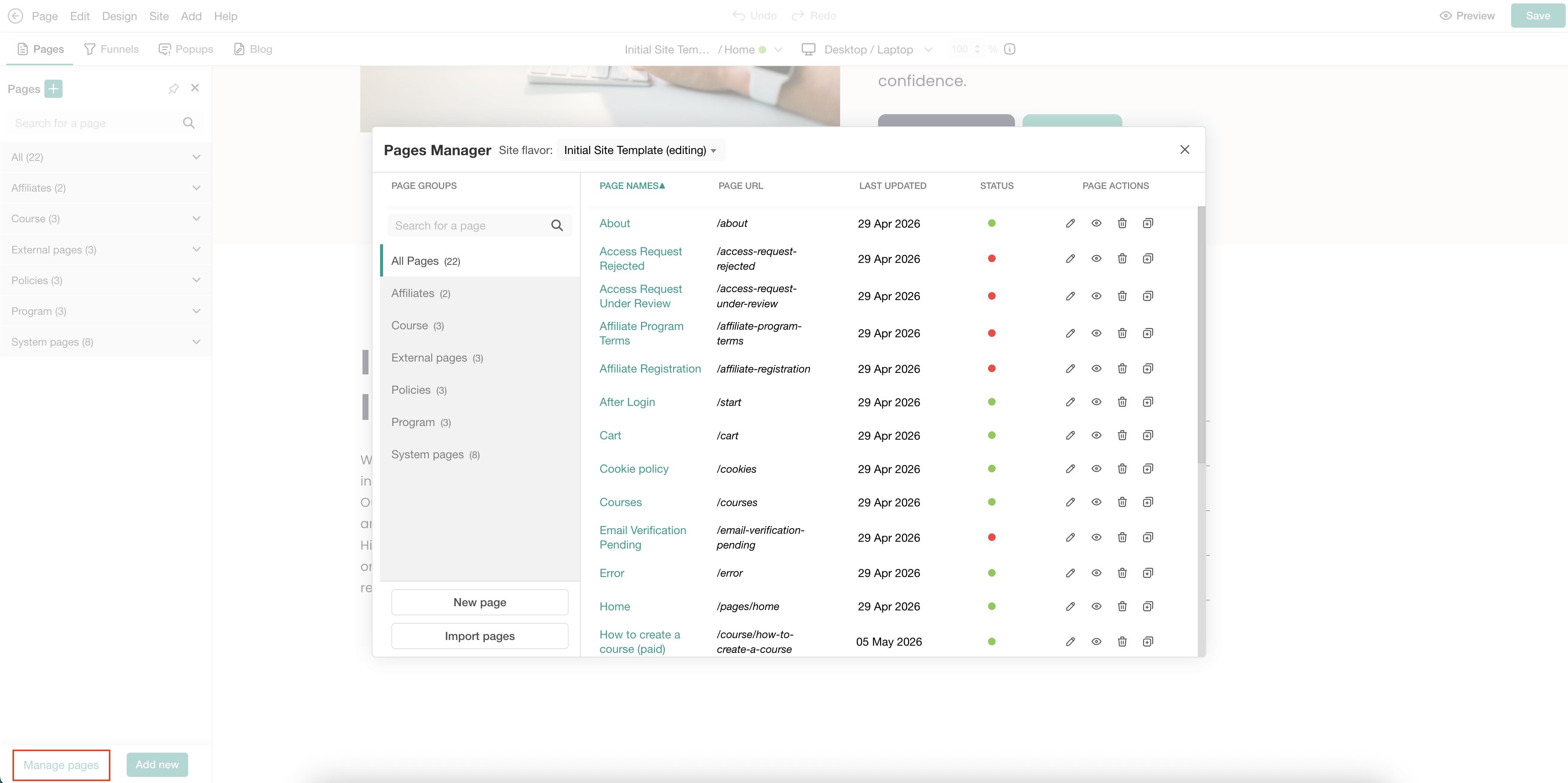
3. Hover over the page and click on the (+) icon to add a section.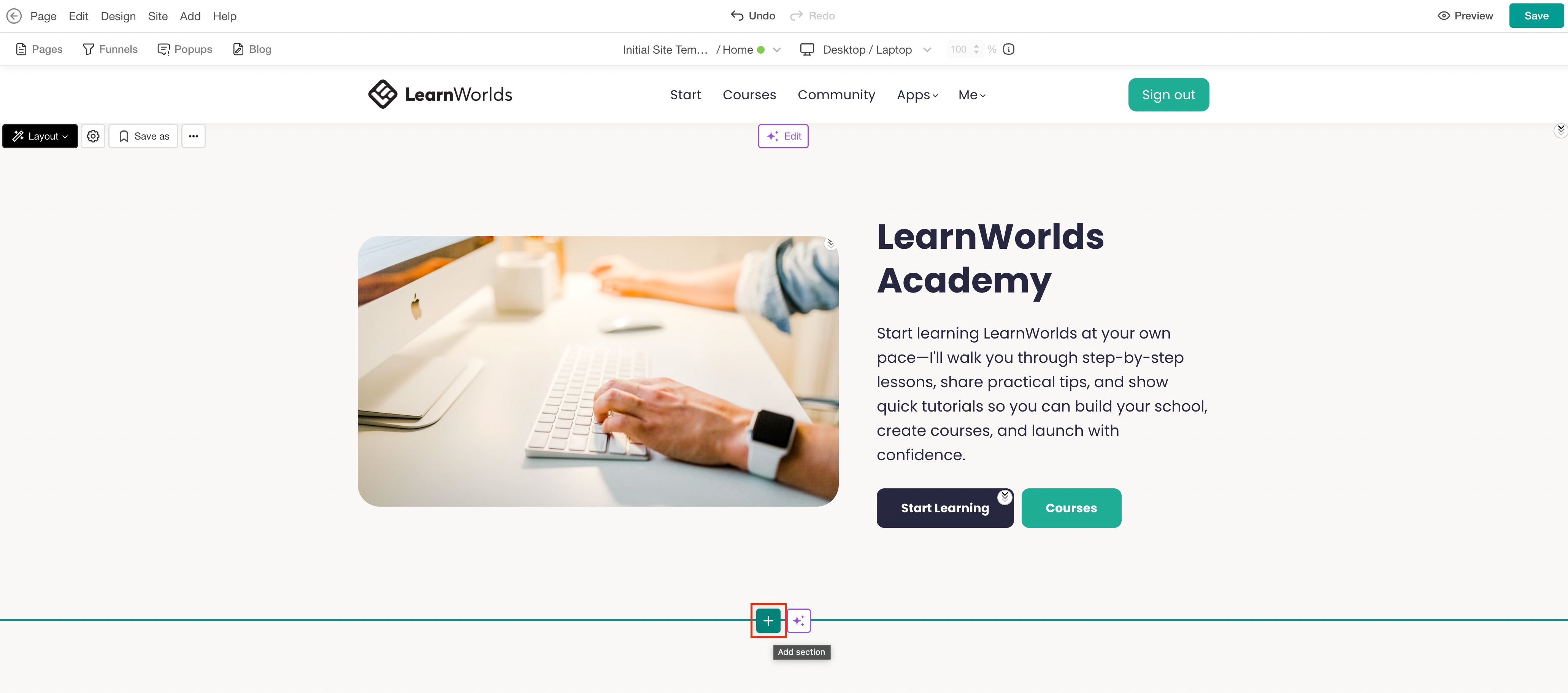
4. Select Add to insert the preferred section, or choose Fill with AI. When using Fill with AI, a dialog box will appear, allowing you to provide instructions to further customize the selected section. You can use one of the ready templates, linked or template sections, or build your own layout.
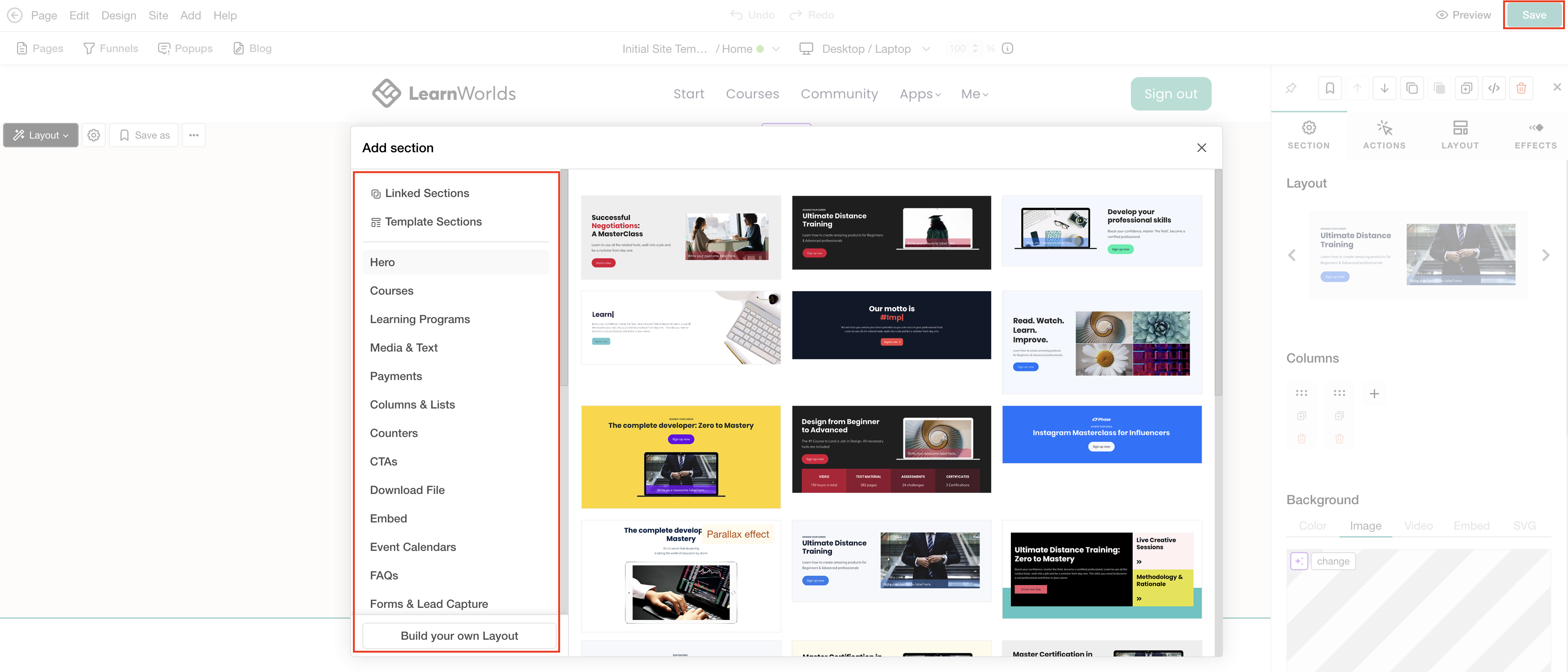
5. Click Save to save changes on the page.
Move, copy, duplicate, or delete section
1. Click on the section for the sideform to appear.
2. Select the desired action. Use the up and down arrows to move a whole section within your page. You can also copy a section and paste it on the same page or on a different page, duplicate it, or delete it.
3. Click Save to save changes on the page.
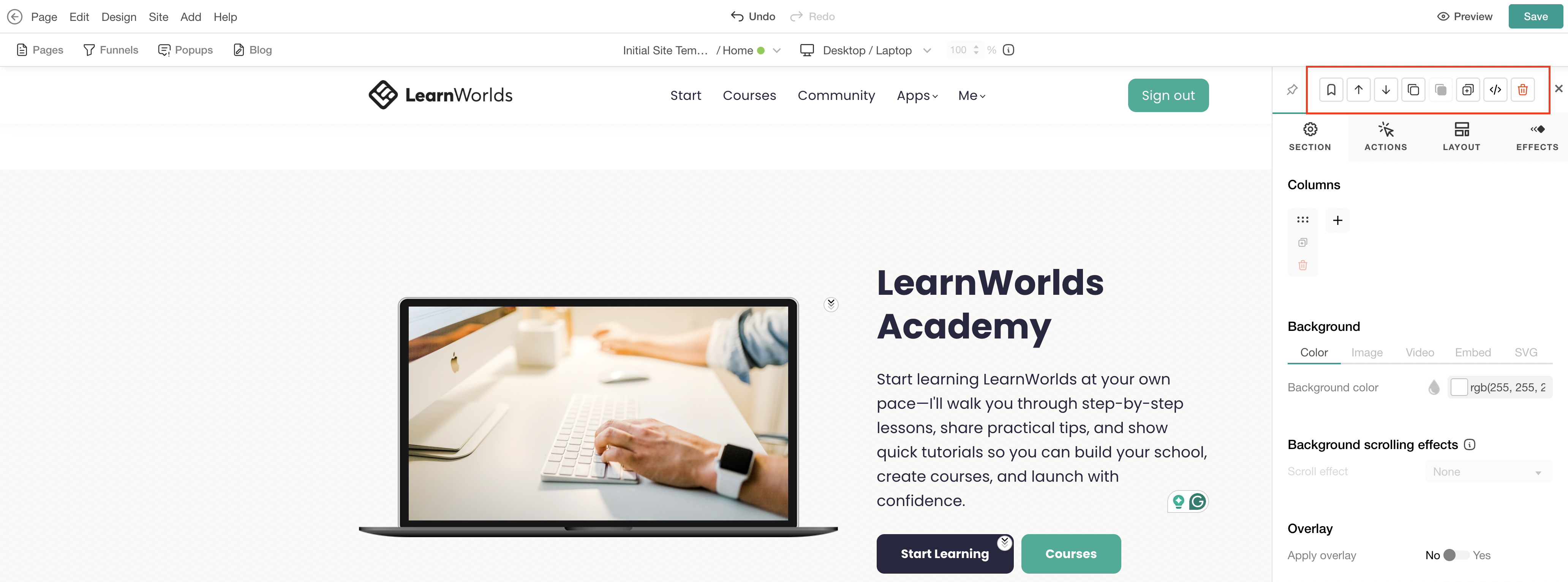
 The Edit HTML button allows you to edit the HTML code for the selected element. If you are familiar with Custom Code, check here for more information.
Customize section
1. Click on the section for the sideform to appear.
2. Choose the tab you wish to edit: Section, Actions, Layout, or Effects.
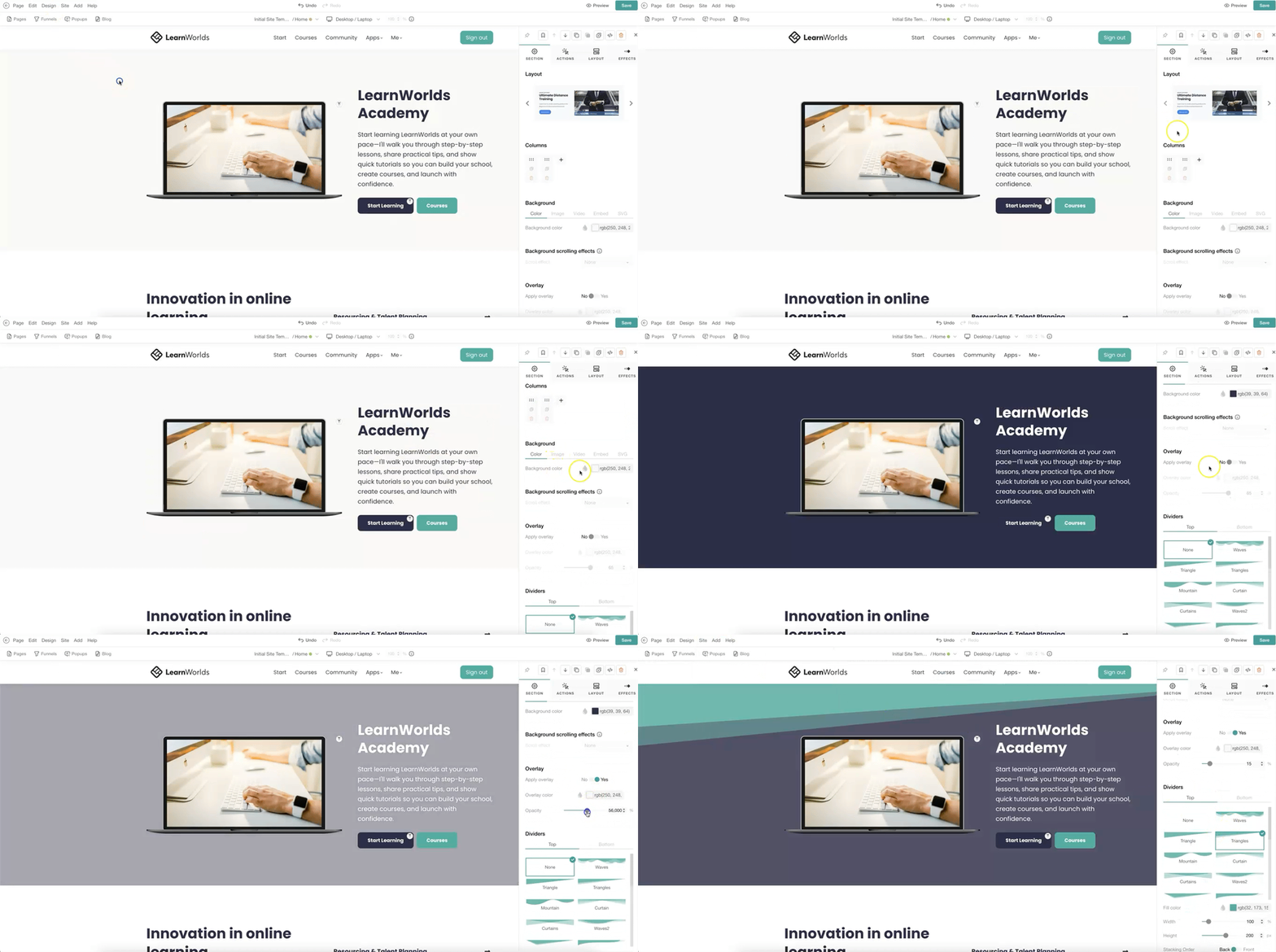
Section tab
Use the Section tab to edit the elements within a section and the general section's settings.
You can change the selected template layout with another premade template of this category, configure the columns' settings in this section, the background and its scrolling effects, apply an overlay, or add dividers.
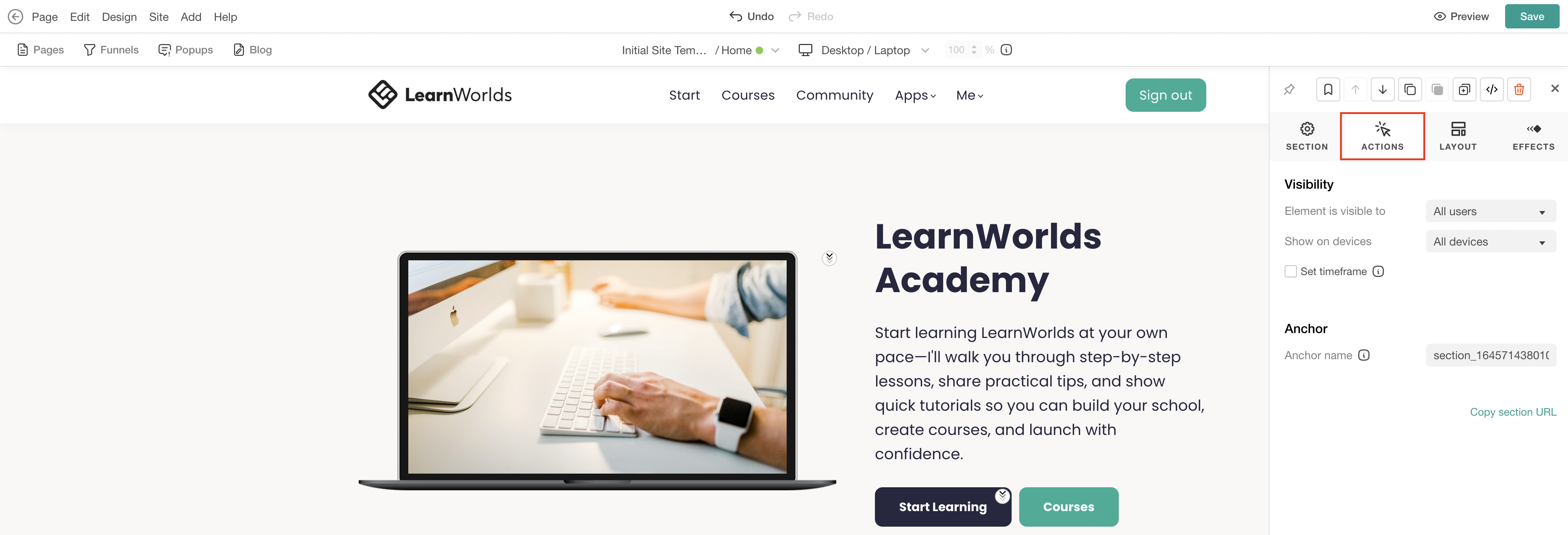
Actions tab
Use the Actions tab to configure on-click actions or visibility. You can configure the visibility of a section or element per device or specific users.
You can also find and edit the anchor name of the section. The anchor name can be added as an on-click action within the same page or a different page, allowing users to be redirected directly to the specific section.
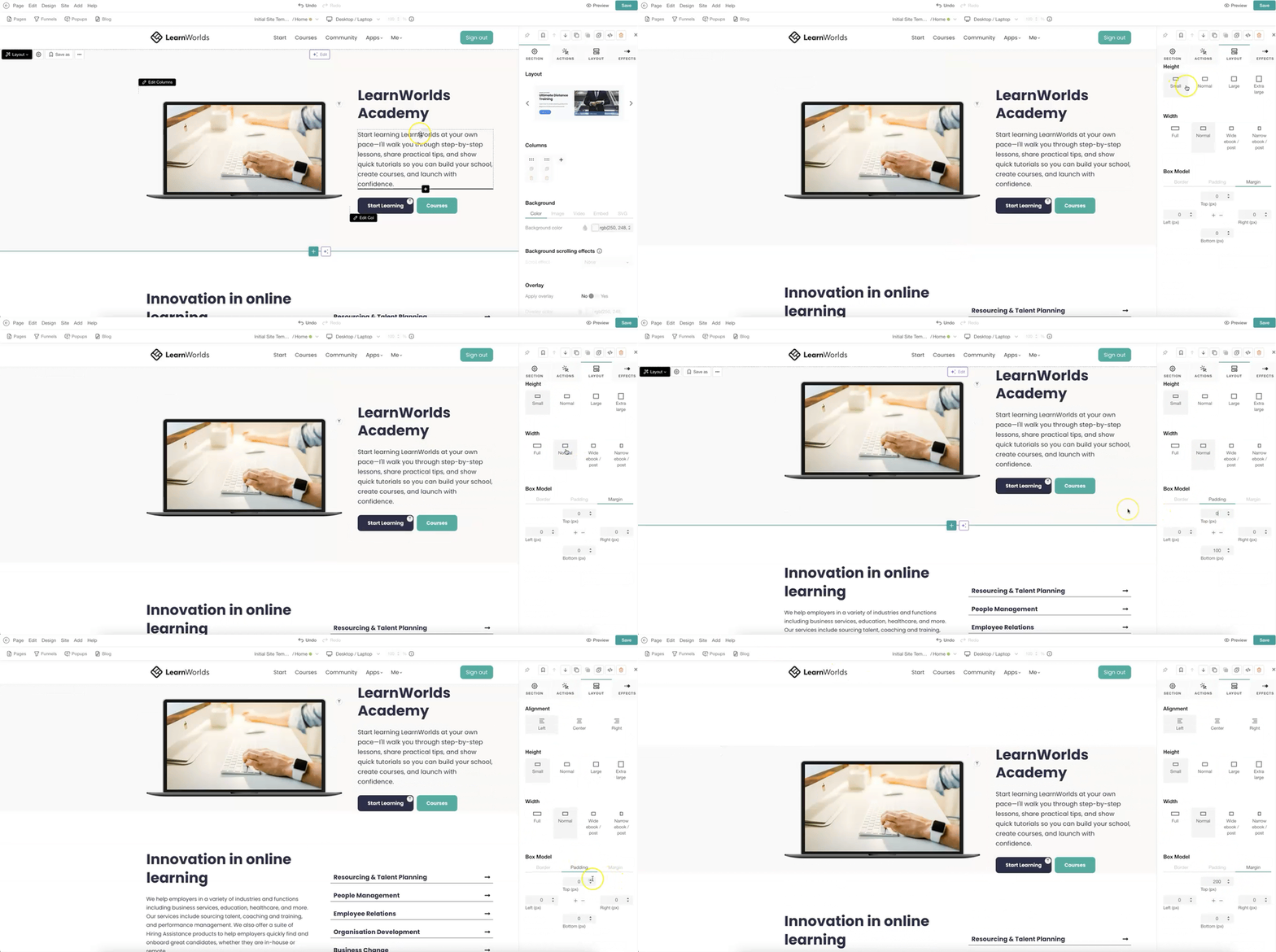
Layout tab
Use the Layout tab to configure elements' alignment and positioning within the section. Adjust alignment, height, and width using the default options, and further customize borders, padding, and margins through the Box Model to achieve the desired layout and appearance. Find more information about the Layout tab here.
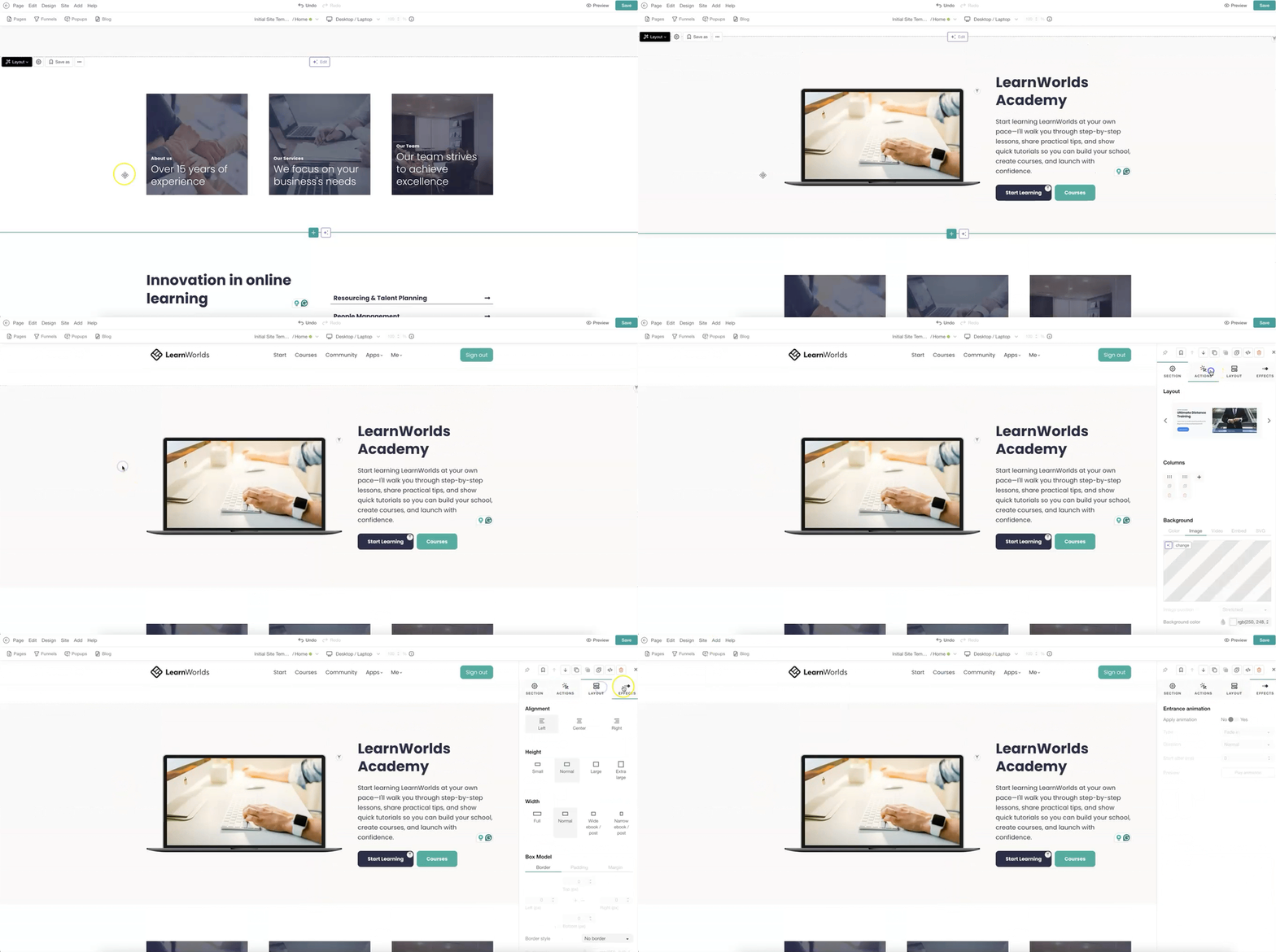
Effects tab
Use the Effects tab to add animations or scrolling effects to your pages. 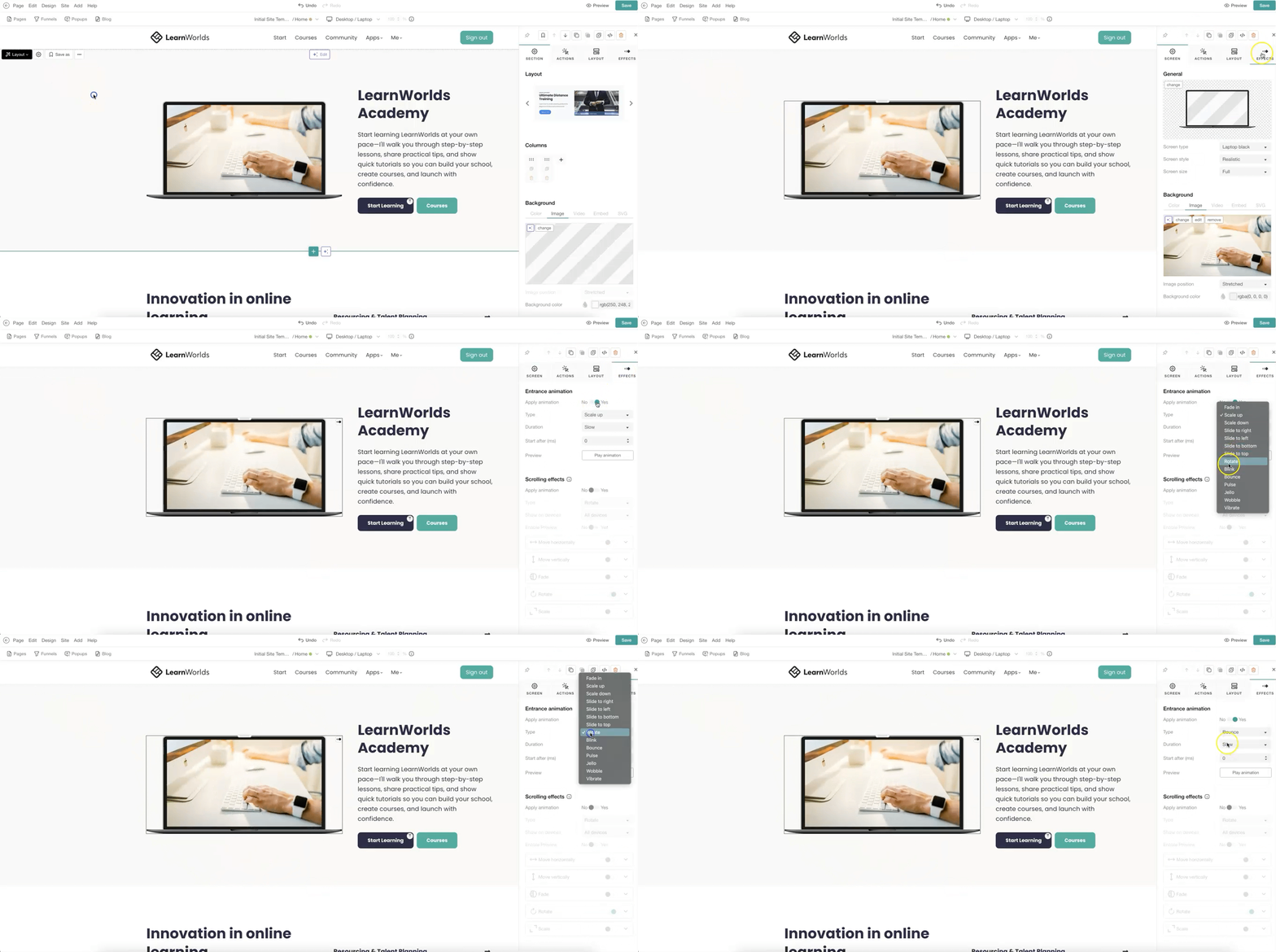
Always click Save to ensure your changes are applied and saved successfully.