


Our mobile app's offline video feature allows users to download video content directly within the app, allowing them to watch videos at their convenience, even without an internet connection.
To enable offline video for your academy's app, navigate to the Mobile App tab → App settings → Learner Tools → Enable Offline Video.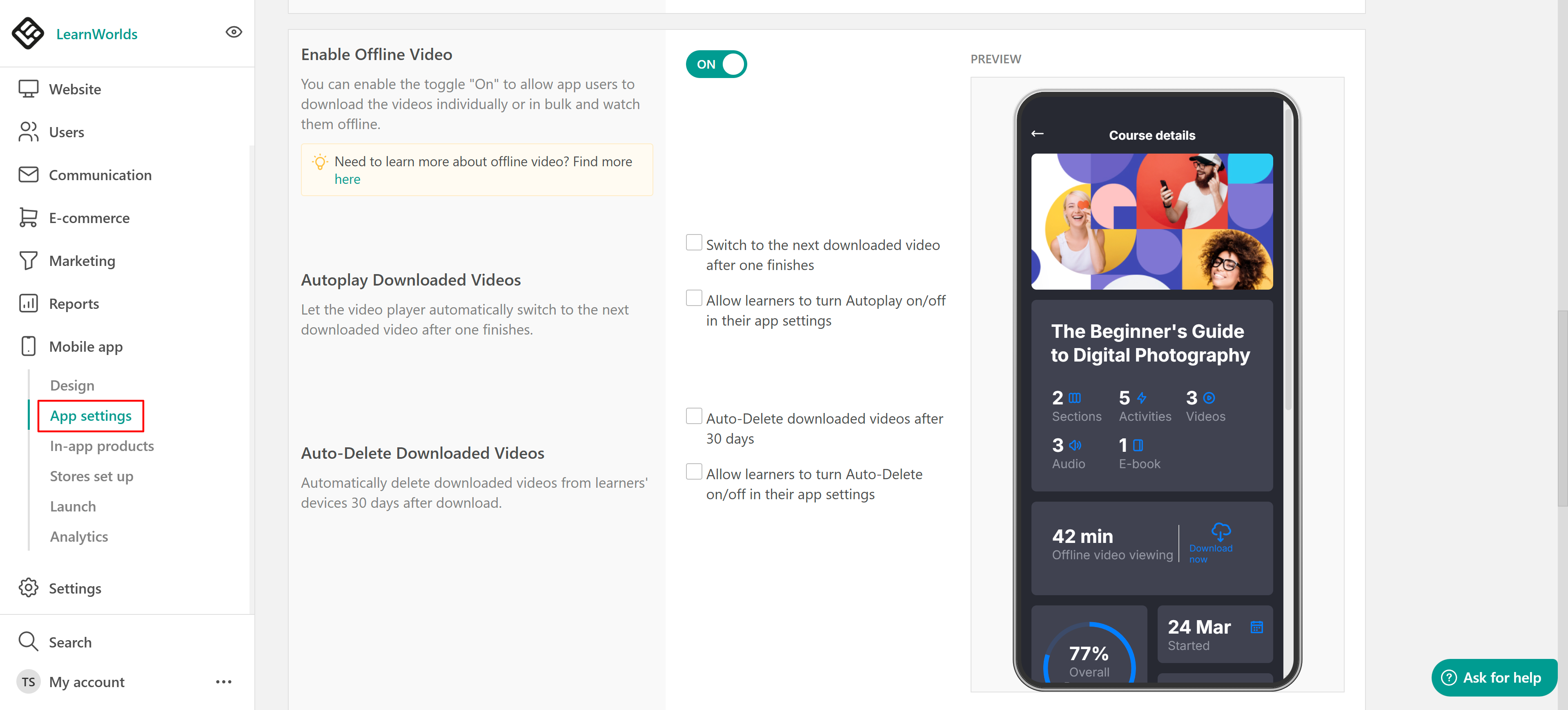
How to Download Offline Videos
App users can view the total minutes of downloadable videos on the Course Details screen and the “Download now” button.

When they tap on it, they can view the list with all videos available for download. They can then download them individually or in bulk.

Only downloaded videos in the .mp4 format can be played offline.
 A video will not be available for download if in the course access settings:
1. Drip-feed for a future date is enabled. The video won’t be available for download until that date.
2. Sequential navigation is enabled, and users haven't yet completed previous learning activities.
3. Prerequisite learning activities have not yet been completed.
How Users Can Find Offline Videos
On the "My courses" page, app users can find their downloaded videos in a separate section, the "Downloaded courses." Within the section, the videos are categorized by course. They can be viewed and accessed when the device is offline.


Users can also bulk delete the videos for the entire course.
How to Play Offline Videos
From the downloaded video's view, the user can tap on the course they’d like to watch and be taken to the native offline video player, where they can view all downloaded videos for a certain course as a playlist. They can navigate to the playlist freely and can also delete each video individually.

The native offline player can also play in the background, so you can listen to and control the video, truly and fully on the go!

Wi-Fi Download Settings
It is essential to allow users to choose whether downloads can occur when using mobile data. By default, the app allows downloads over Wi-Fi only, but this setting can be changed by the user:
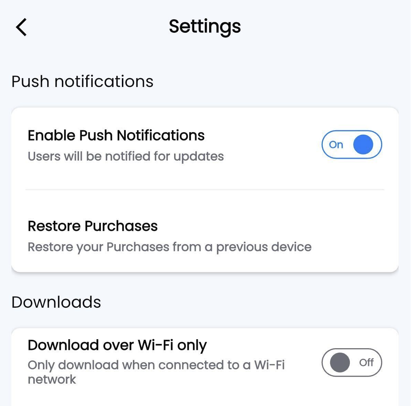
However, if the user initiates a download when on mobile data, they will get a notification to proceed to make sure they really wish to use their data plan.

Autoplay Downloaded Videos
Along with enabling offline downloads, you can further customize how downloaded videos behave on learners’ devices. You can choose how Autoplay behaves for your learners by enabling the following options:
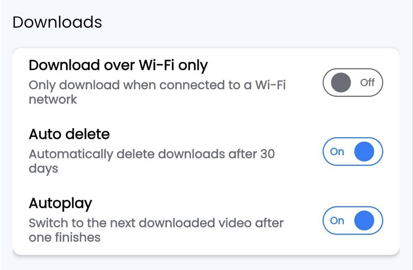
- Automatically switch to the next downloaded video: The player will move to the next downloaded video as soon as the current one finishes, creating a smooth and uninterrupted offline viewing experience.
- Allow learners to control Autoplay in their app settings: Learners can decide for themselves whether Autoplay is on or off, giving them flexibility based on their preferences.
As an admin, you can enable either of these options, or both, depending on the experience you want to offer.
Auto-Delete Downloaded Videos
The Auto-Delete downloaded videos feature helps learners manage their device storage efficiently. Based on the options you’ve enabled, you can:
- Automatically delete downloaded videos after 30 days: Videos are removed from the learner’s device 30 days after download, preventing older content from taking up unnecessary space.
- Allow learners to control Auto-Delete in their app settings: Learners can decide whether Auto-Delete is enabled or disabled, giving them flexibility over how their device storage is managed.
When enabled, downloaded videos are automatically removed 30 days after download, reducing the chance of older content occupying unnecessary space on learners’ devices.
1. Currently, there is no way to sync course progress when offline. This means that when a user watches part or the whole of the video offline, progress will not be synced to the unit/overall course progress.
2. Interactive video elements, captions, and subtitles are not supported in the offline mode.
3. If you are using a third-party provider (i.e., other than Learnworlds), your videos need to be uploaded to Learnworlds to be able to download them through the app.