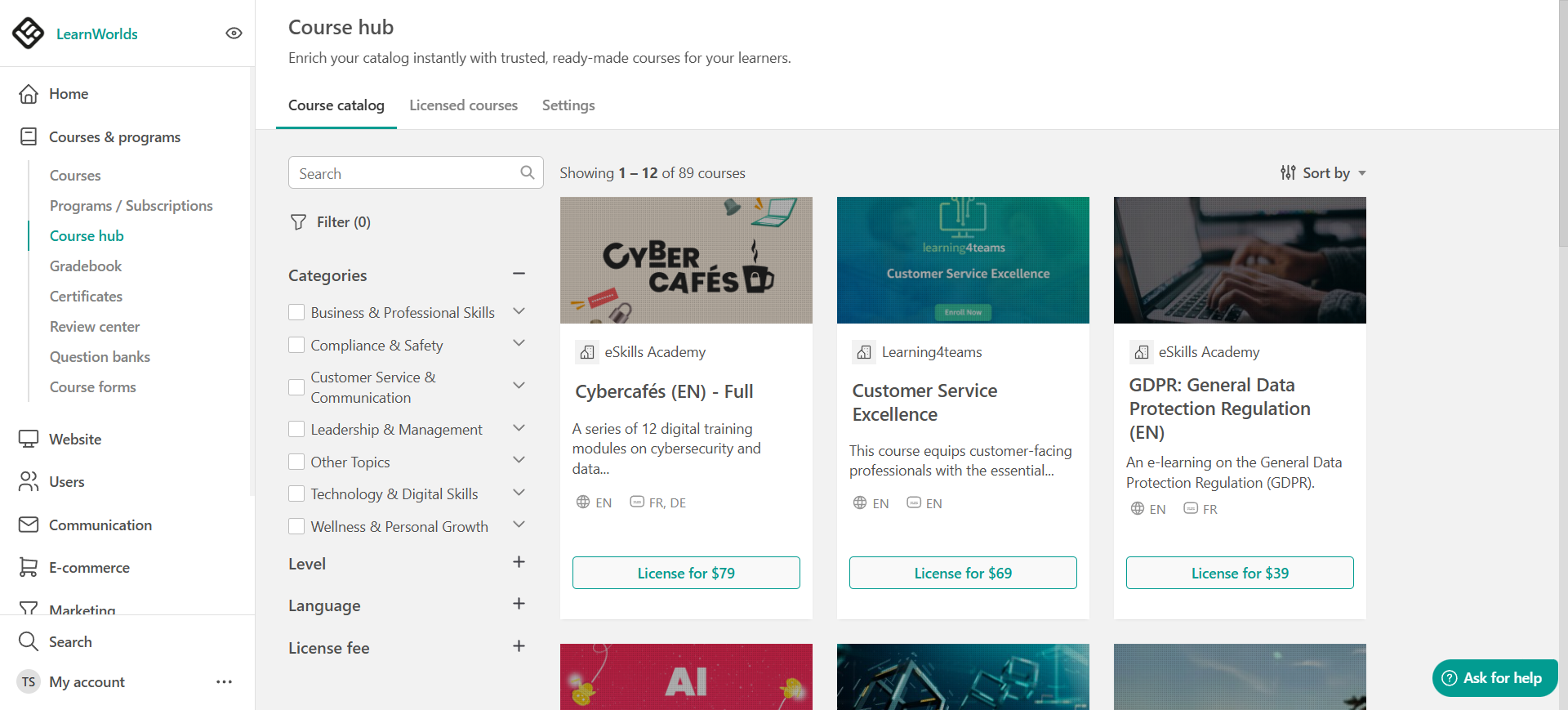
Your Course Hub profile controls how your school appears to Buyers when they view your published course listings. It includes your school name, logo, description, and social links.
In this guide, you’ll learn where to find your Course Hub profile settings and how to customize your profile details without affecting your main school settings.
Access your Course Hub profile settings
To edit your Course Hub school profile:
- Go to Courses & Programs → Course Hub
- Open the Settings tab
- Under School profile, click Edit Course Hub profile
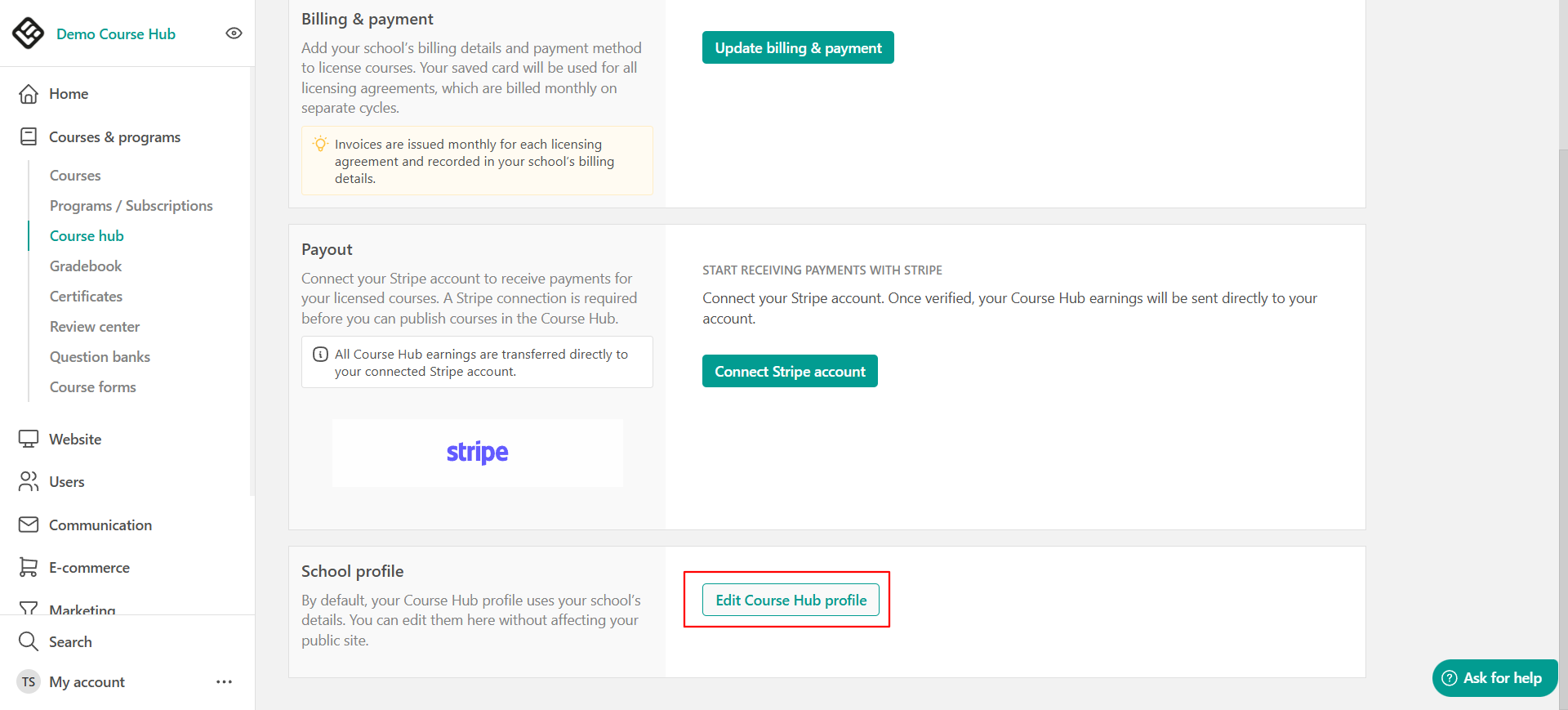
A panel will open where you can manage your profile details.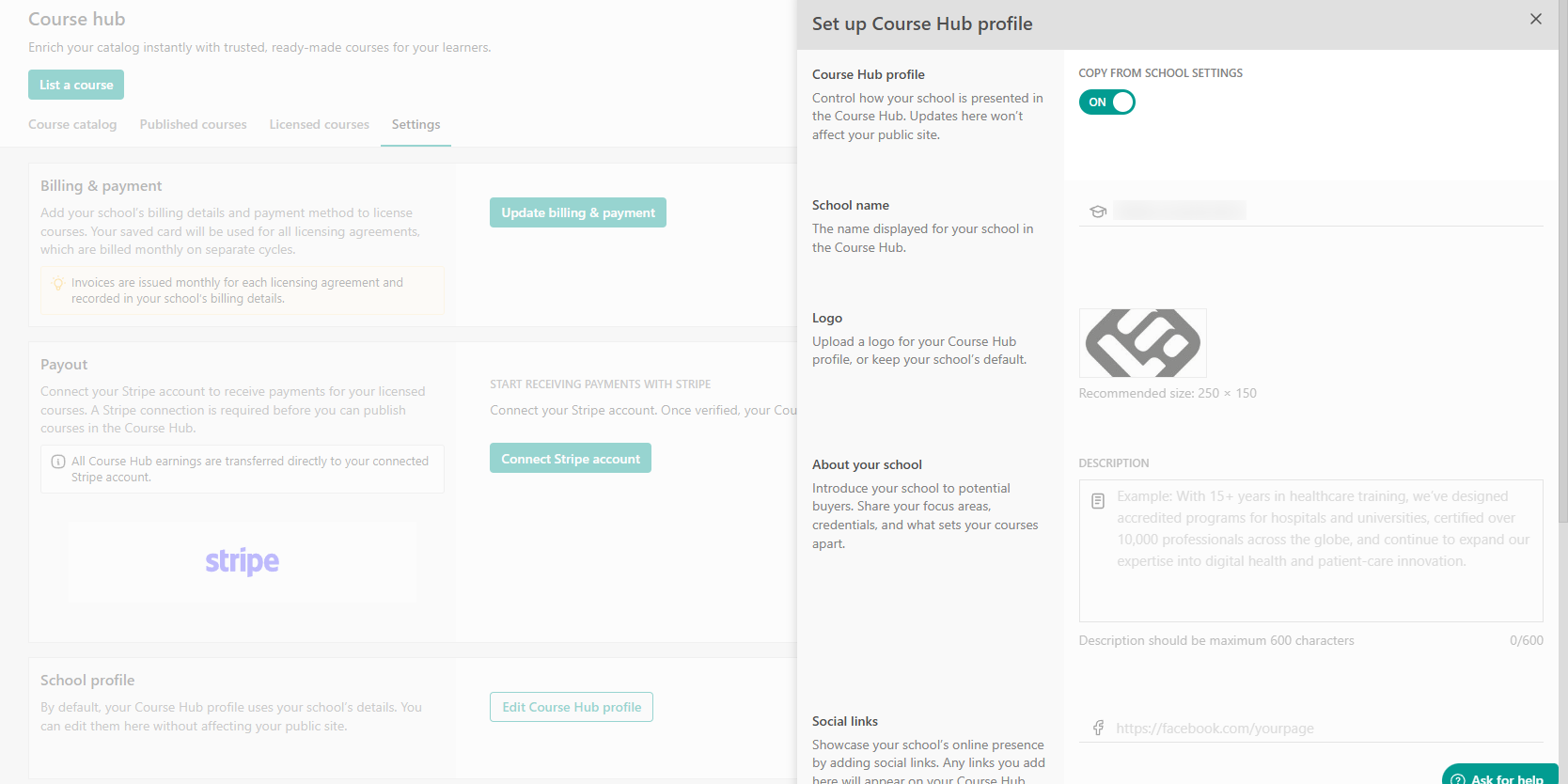
By default, LearnWorlds automatically pulls your profile information from your main school settings. This includes:
School name
- Logo
- School description
- Social links
This makes it easy to publish courses without setting up profile details separately.
If you want your Course Hub profile to display different information than your main school profile, in the Course Hub profile panel, locate the Copy from school settings toggle and disable it.
You can now edit the fields manually (school name, logo, description, and social links). When you are ready make sure to save your changes.
 Your updates will apply only to the Course Hub profile. Changes made here will not affect your public school site.
Your Course Hub profile information is visible to Buyers at the bottom of your published course listing pages. This helps Buyers learn more about your school and evaluate the credibility of your content before licensing.