
The Pricing tab allows you to manage and customize the pricing settings of your course from a centralized dashboard.
In this article, you will learn how to configure the pricing settings of your courses.
Configure course price
1. Navigate to Courses & Programs → Courses.
2. Click on the course you want to update.
3. Navigate to Pricing.
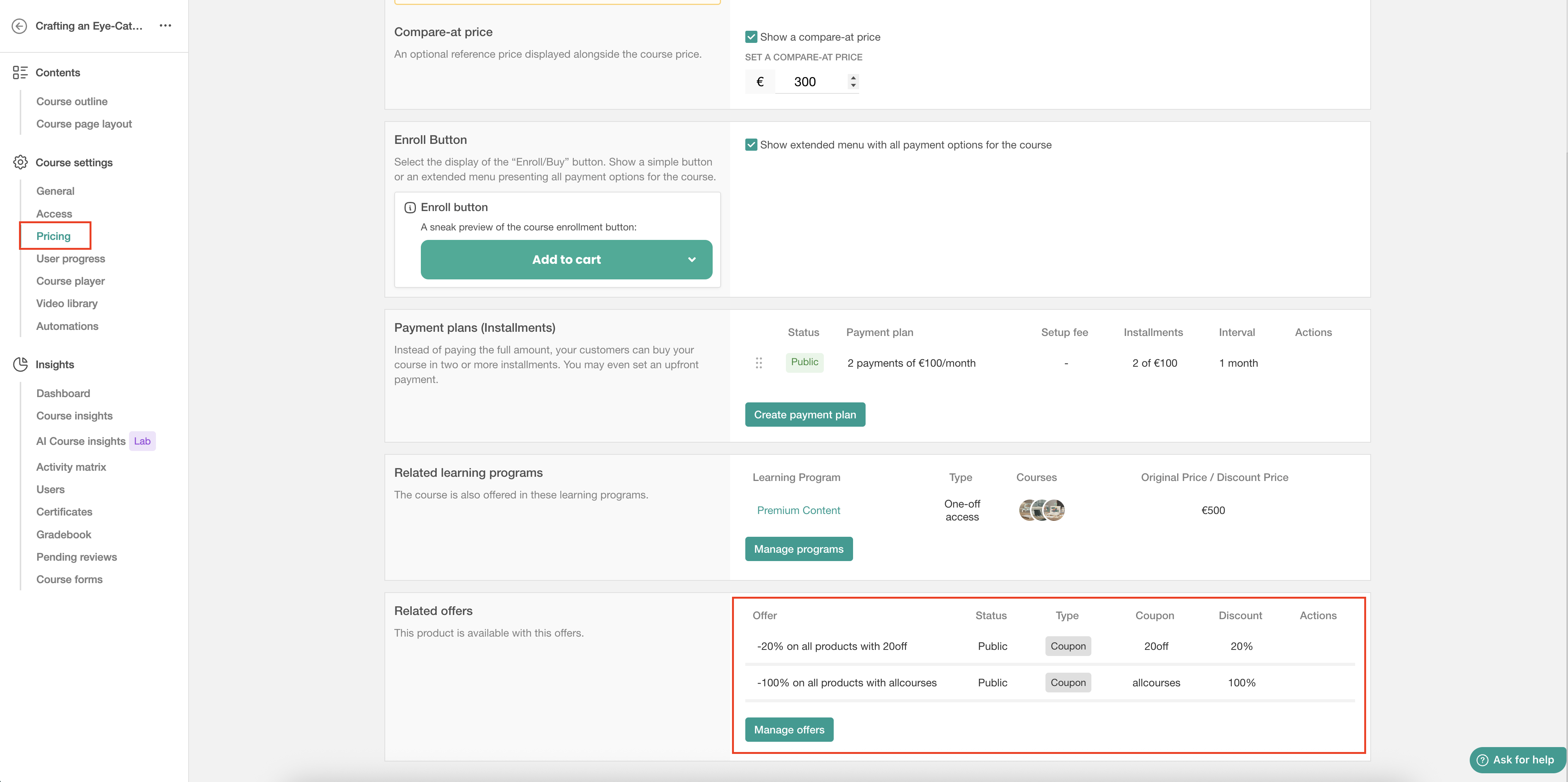
4. Edit the Course price and optionally the Compare-at price which displays the original price next to the discounted one. Enable Show a compare-at price to highlight discounts and savings for your learners.
5. Click on Save.
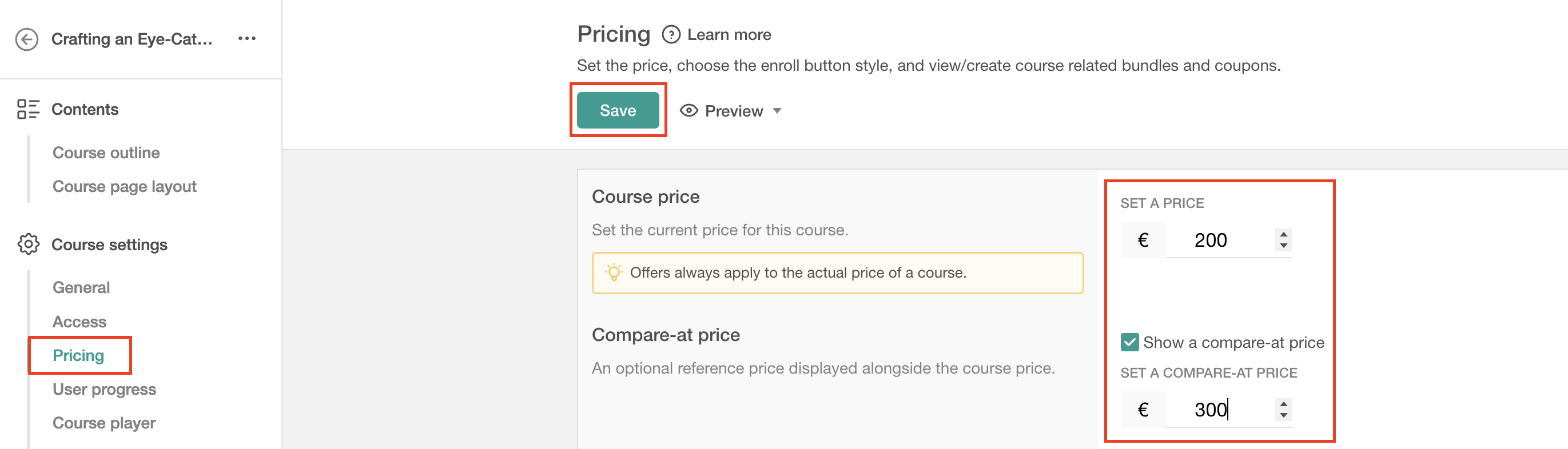
 When the Compare-at price option is enabled, the special offer banner is automatically added to the course card and displayed across all course card sections throughout your school. You can customize the banner text through the Site Language.
Configure extended enroll button
If multiple payment options have been configured for a course (such as installments, bundles, or subscriptions), you can choose to display all available payment methods under the enroll button. Enable the Show extended menu with all payment options for the course option to automatically adjust the enroll button and display the additional payment choices.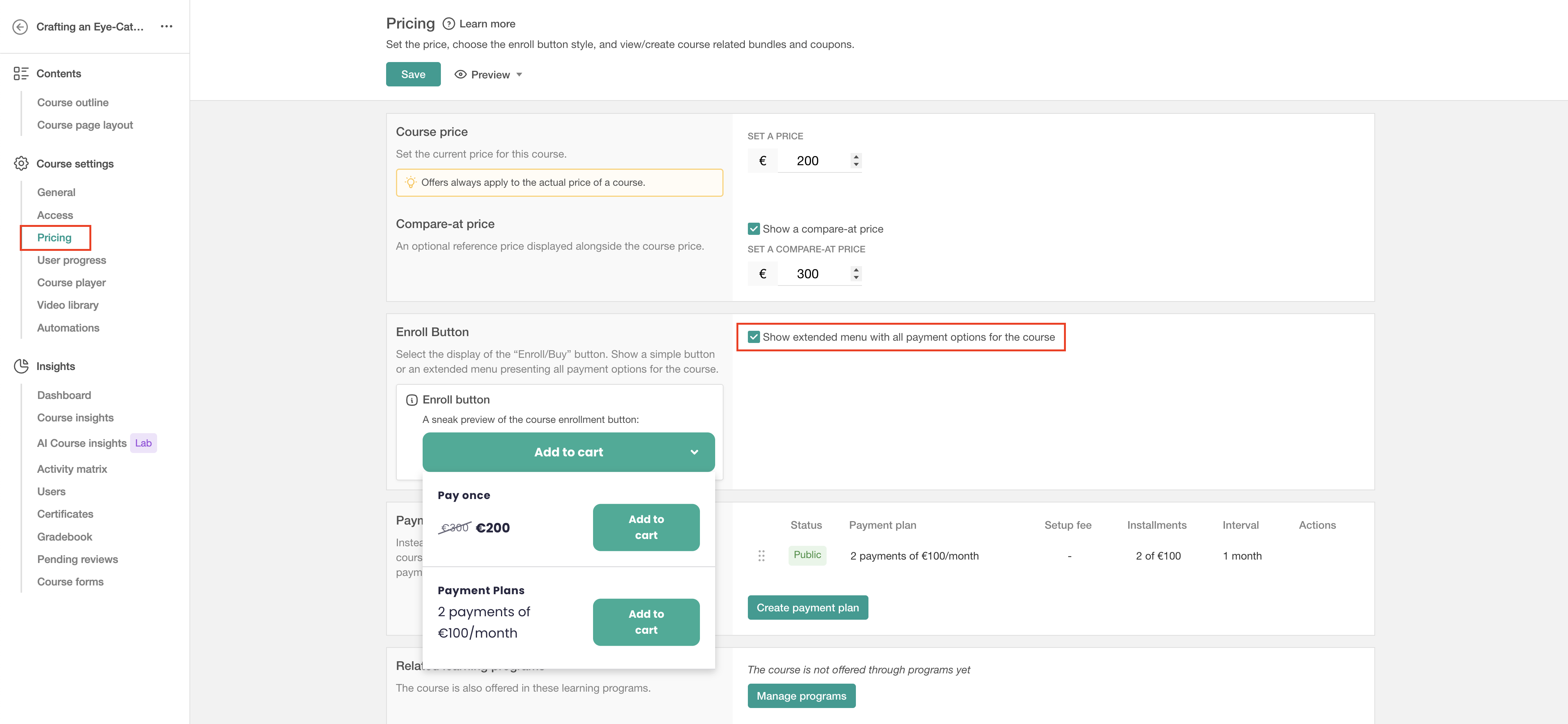
Even if a course is set as Paid, LearnWorlds allows you to control the access status of each course section individually. You can mark specific sections as Free while keeping others locked to provide preview content for prospective students. Make sure to review and update the section access settings when changing a course to a paid model. Check more information about course section access settings here.
Set up payment plans
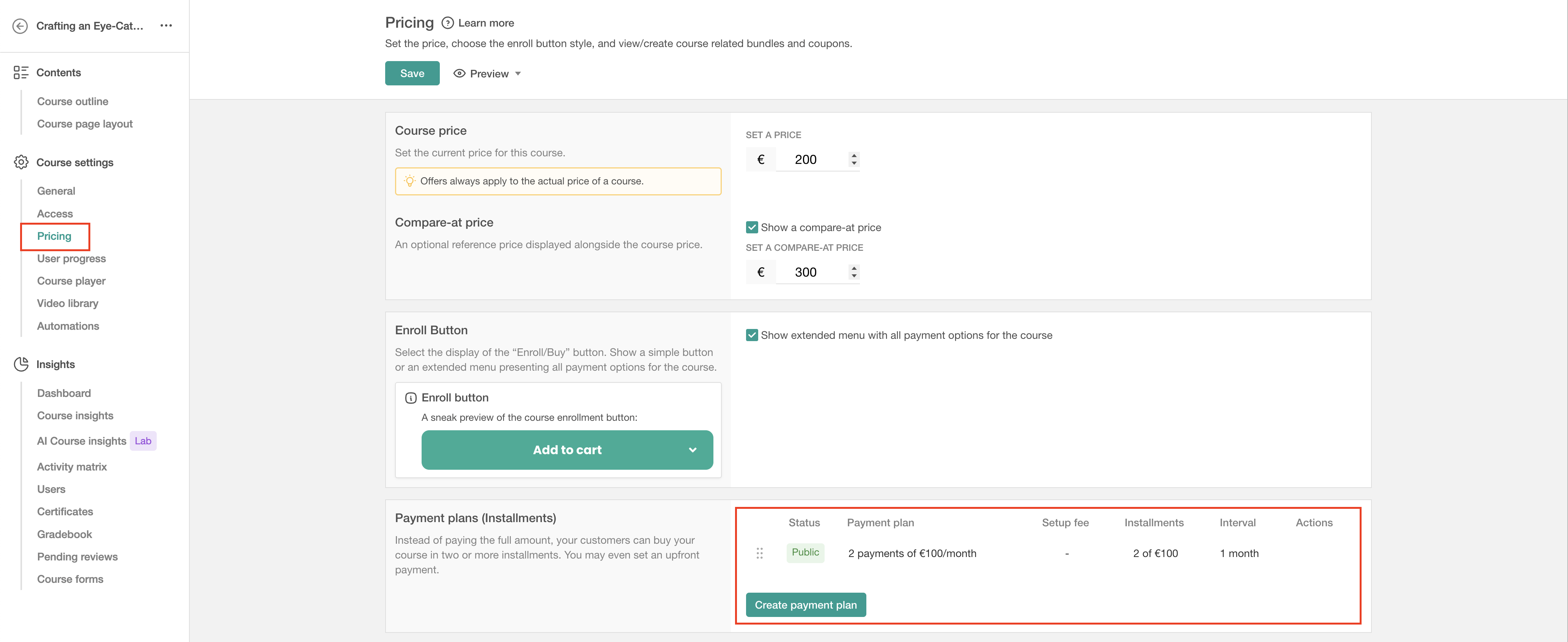
With payment plans, customers can purchase a course by splitting the total price into multiple scheduled installments instead of paying the full amount upfront. You can also configure an upfront payment if needed. Check how to create and use installments here.
Manage learning programs
If the course is included in one or more Learning Programs, they will be listed in this section. To manage these programs, click Manage Programs to be redirected to the corresponding dashboard.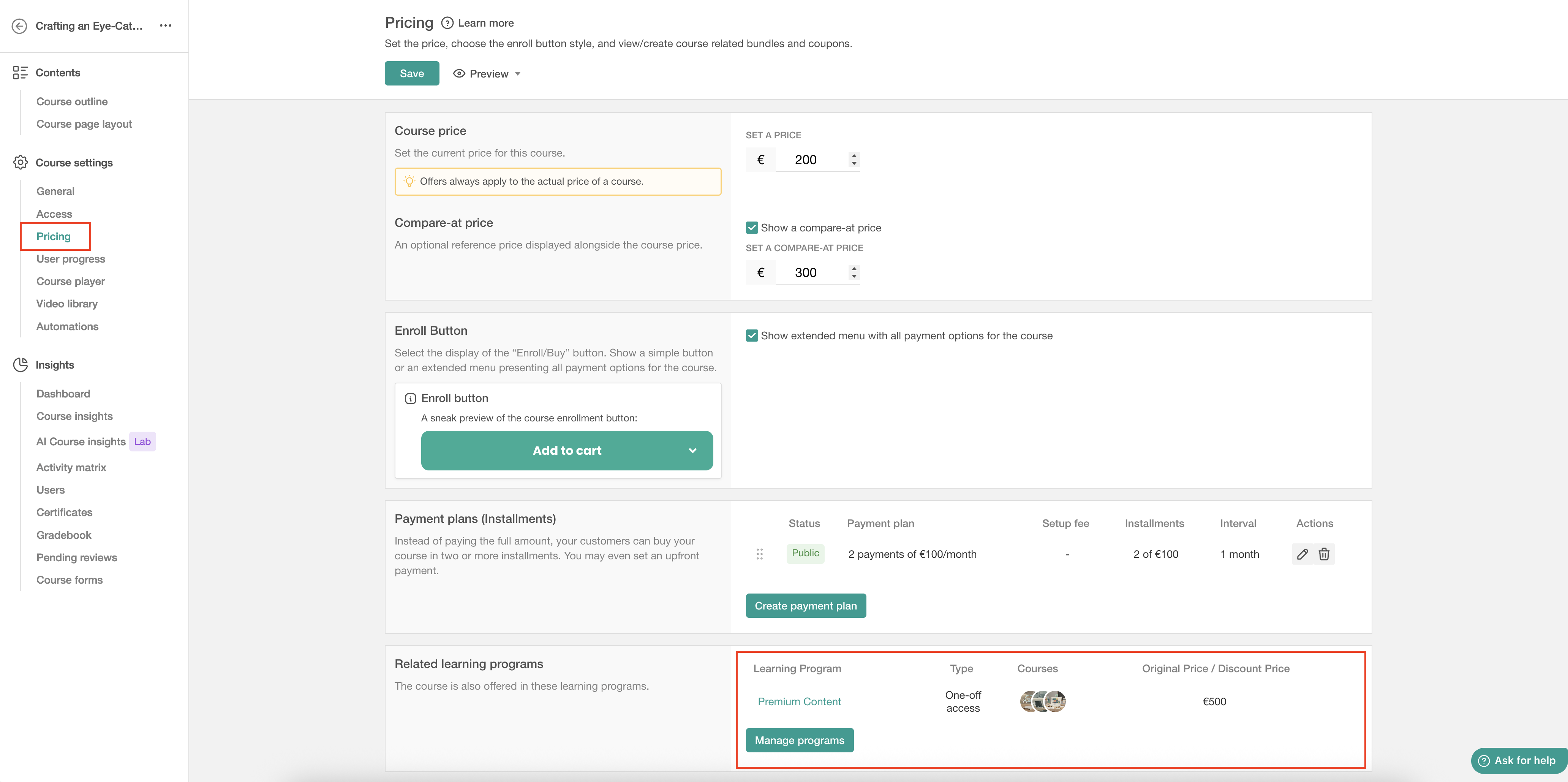
Manage offers
If the course has related Offers, they will be listed in this section. To manage these offers, click Manage offers to be redirected to the corresponding dashboard. Click here for more information on how to create and use offers.
Manage recommendations
If the course has related recommendations, they will be listed in this section. To manage them, click Manage order bumps to be redirected to the corresponding dashboard. Click here for more information on how to create and use order bumps.