
LearnWorlds allows you to control where users will be redirected after they purchase a product or enroll in a free product. You can guide users to start learning immediately, view a Thank You page, access their dashboard, or navigate to another page of your choice.
In this article, you will learn how to configure the After Purchase Navigation settings for your learners.
Types of after-purchase navigation
- Global navigation: The default after-purchase redirection settings applied across your school for all products. Available in all plans.
- Product-specific navigation: Product-specific redirection settings that override the global navigation rules for a particular course or learning program. Available in the Pro Trainer plan or higher.
Global after purchase navigation
Global after purchase navigation is ideal when you want all products in your school to follow the same post-purchase user flow.
1. Navigate to E-commerce → Cart & checkout flow.
2. Select After Purchase.
3. Select the desired redirection settings for single product purchases, multiple product purchases, and free product enrollments to create the preferred post-purchase user experience.
4. Click on Save.
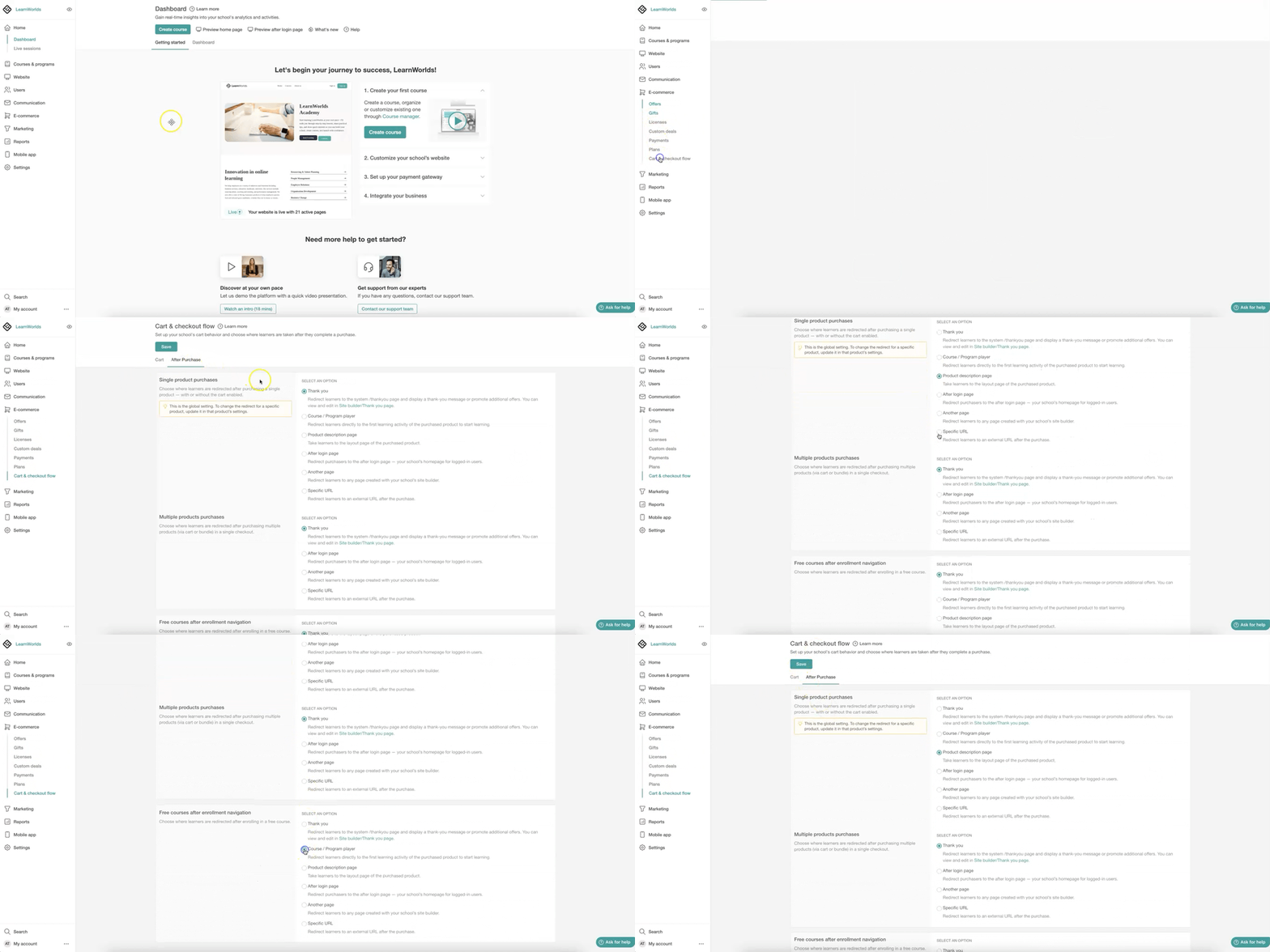
Single product purchases: Choose where learners will be redirected after purchasing a single product, whether the cart is enabled or not. You can redirect users to the common Thank You page, the course or learning program player, the product page, the after login page, another page within your school, or a specific URL.
Multiple product purchases: Choose where learners will be redirected after purchasing multiple products through the cart or a bundle in a single checkout. You can redirect users to the common Thank You page, the after login page, another page within your school, or a specific URL. These options function the same way as they do for single product purchases. However, the Course/Program Player option is not available for multiple product purchases, since more than one product is included in the checkout.
Free courses after enrollment navigation: Choose where learners will be redirected after enrolling in a free course. You can redirect users to the common Thank You page, the course or learning program player, the product page, the after login page, another page within your school, or a specific URL.
Product-specific after purchase navigation
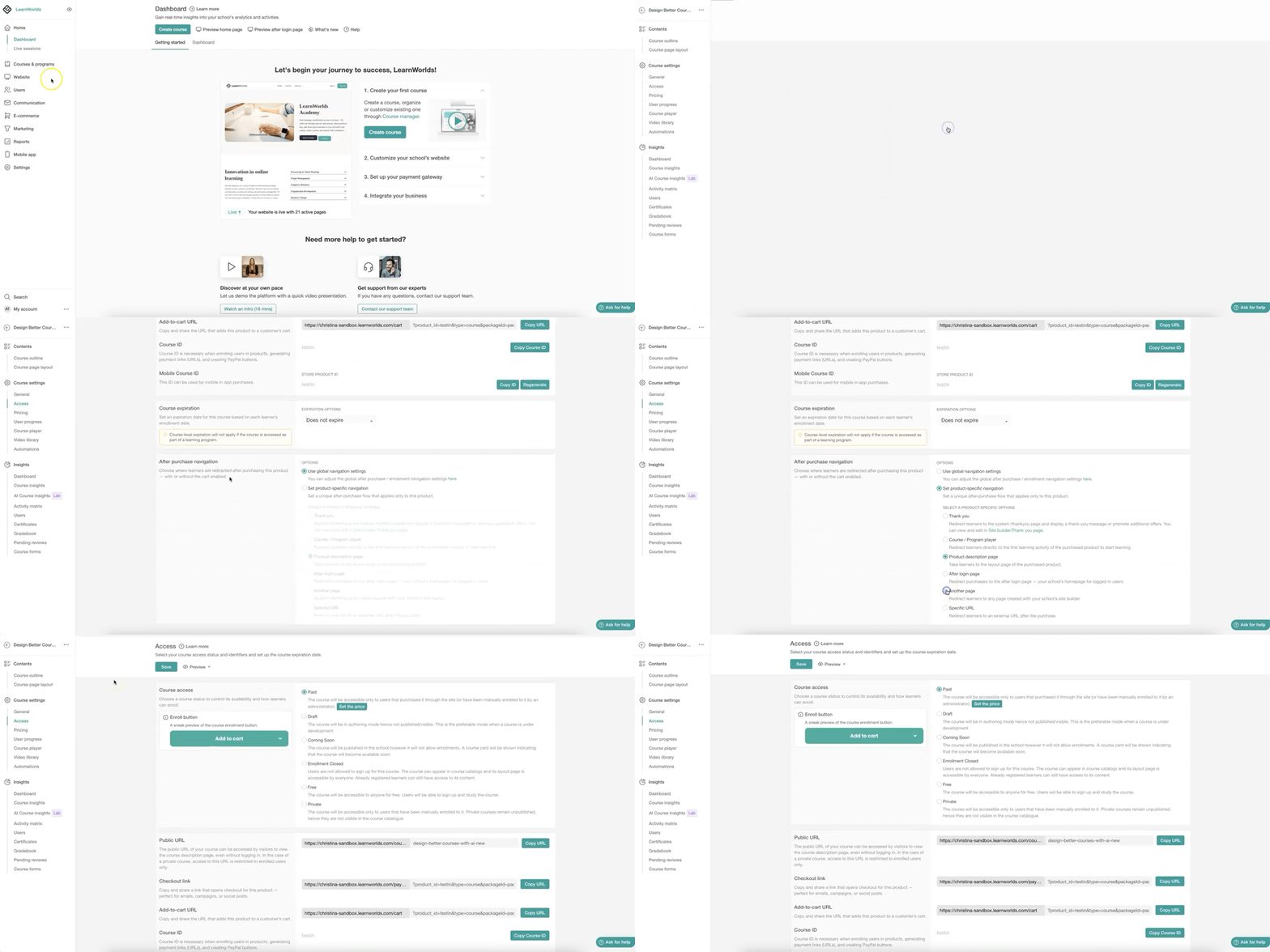
Product-specific after purchase navigation is useful when different products require different post-purchase flows, such as redirecting learners directly to the course player, onboarding materials, or a custom page. This is available in the Pro Trainer plan or higher.
1. Navigate to Courses & Programs.
2. Click on the product you want to update (course or learning program).
3. Navigate to Access.
4. In the After purchase navigation, or After enrollment navigation if you are editing a free course, choose Set product-specific navigation. This applies only to the selected product.
5. Select the desired redirection for this product from the given options.
6. Click on Save.
 Each LearnWorlds school includes a prebuilt Thank You page. The page can be customized globally for all products on all plans, or individually for specific products on the Pro Trainer plan or higher. Check how here.