
A Page Funnel is a sequence of pages designed to guide users step by step toward a specific goal, such as making a purchase, signing up, or submitting a form.
Unlike manually linking separate pages, a Page Funnel automatically tracks users' progress, redirects them to their last completed step, and prevents them from skipping ahead. This ensures a smooth, step-by-step experience.
This creates a smoother experience, reduces distractions, and improves conversion rates.
 Page Funnels are available in the Pro Trainer plan with the option of creating up to 15 funnels and in the Learning Center plan or higher with unlimited page funnels.
 Use cases
Here are five ways you can use Page Funnels effectively:
- Lead Generation – Capture emails by offering free ebooks, guides, or coupons in exchange for sign-ups.
- Course Sales – Direct potential customers through a structured process leading to a purchase.
- Webinar Registration – Collect registrations for live events and automatically guide users to confirmation pages.
- Survey or Feedback Collection – Lead users through a step-by-step feedback form before directing them to a thank-you page.
- Upsell or Cross-Sell Funnels – Offer additional courses or subscriptions after a purchase is completed.
Create a page funnel
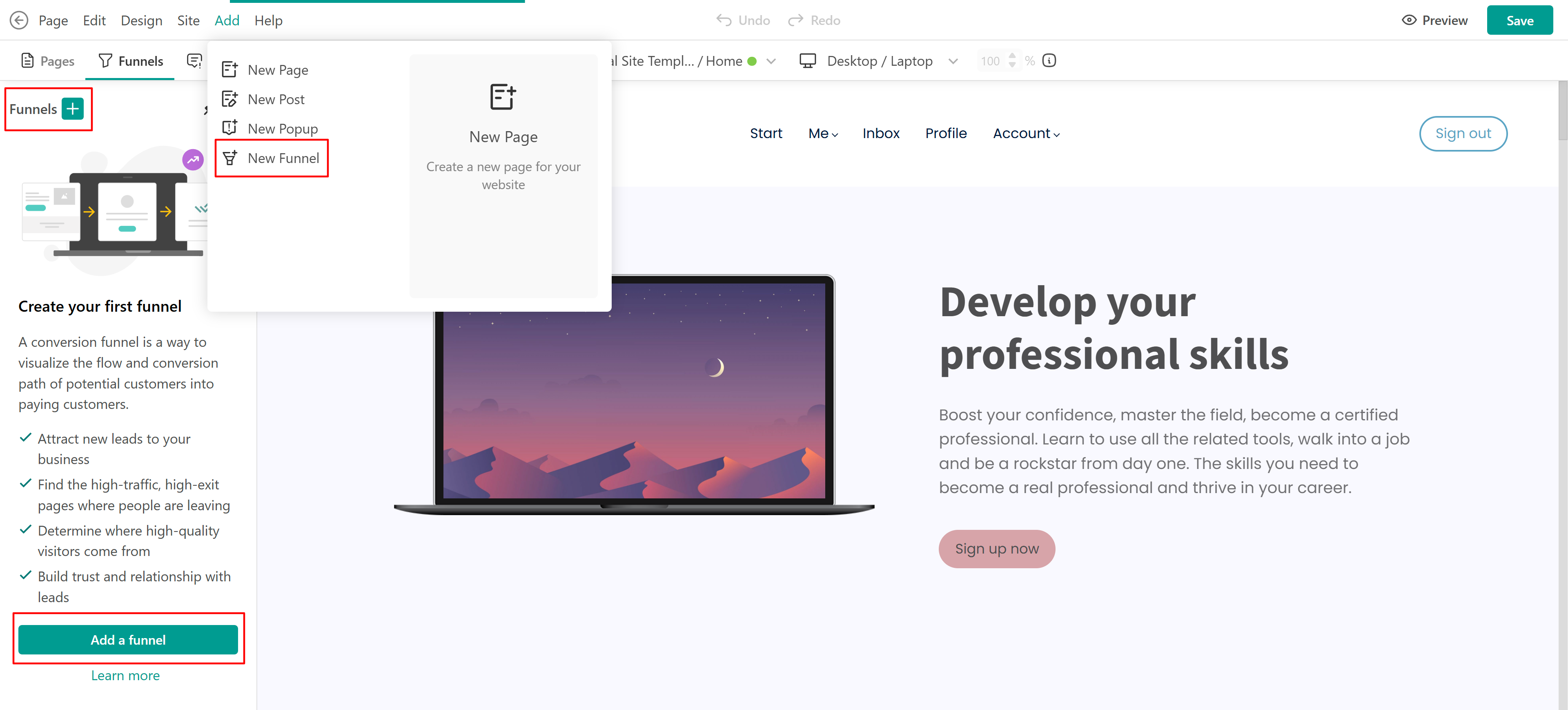
To create a new page funnel navigate to Website → Funnels. Create a funnel using one of the following options:
- Click on Add → New Funnel on the authoring toolbar.
- Click on Funnels on the top and then on the plus icon.
- Add new at the left bottom sidebar next to Manage funnels.
You can start in two ways:
- Using a template
- Using AI
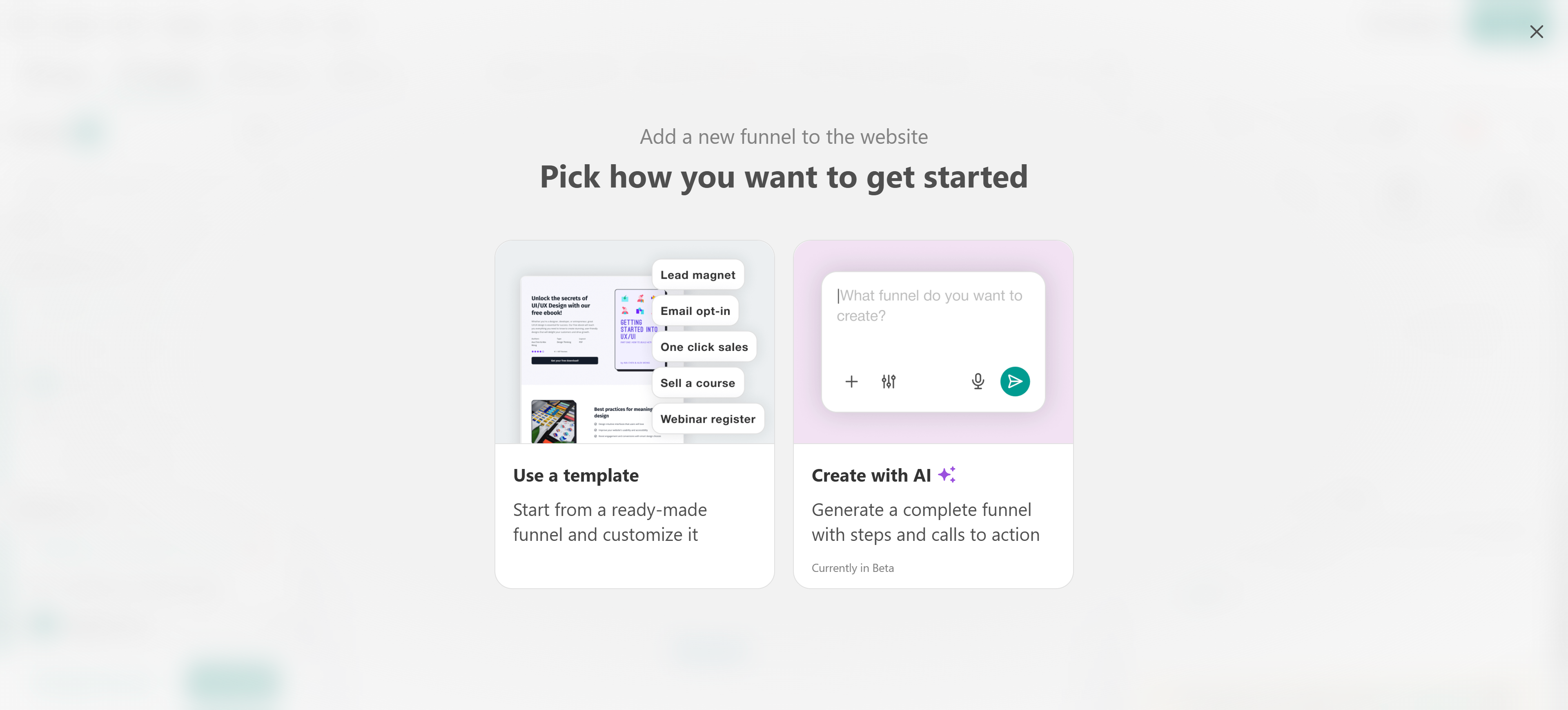
Use a template
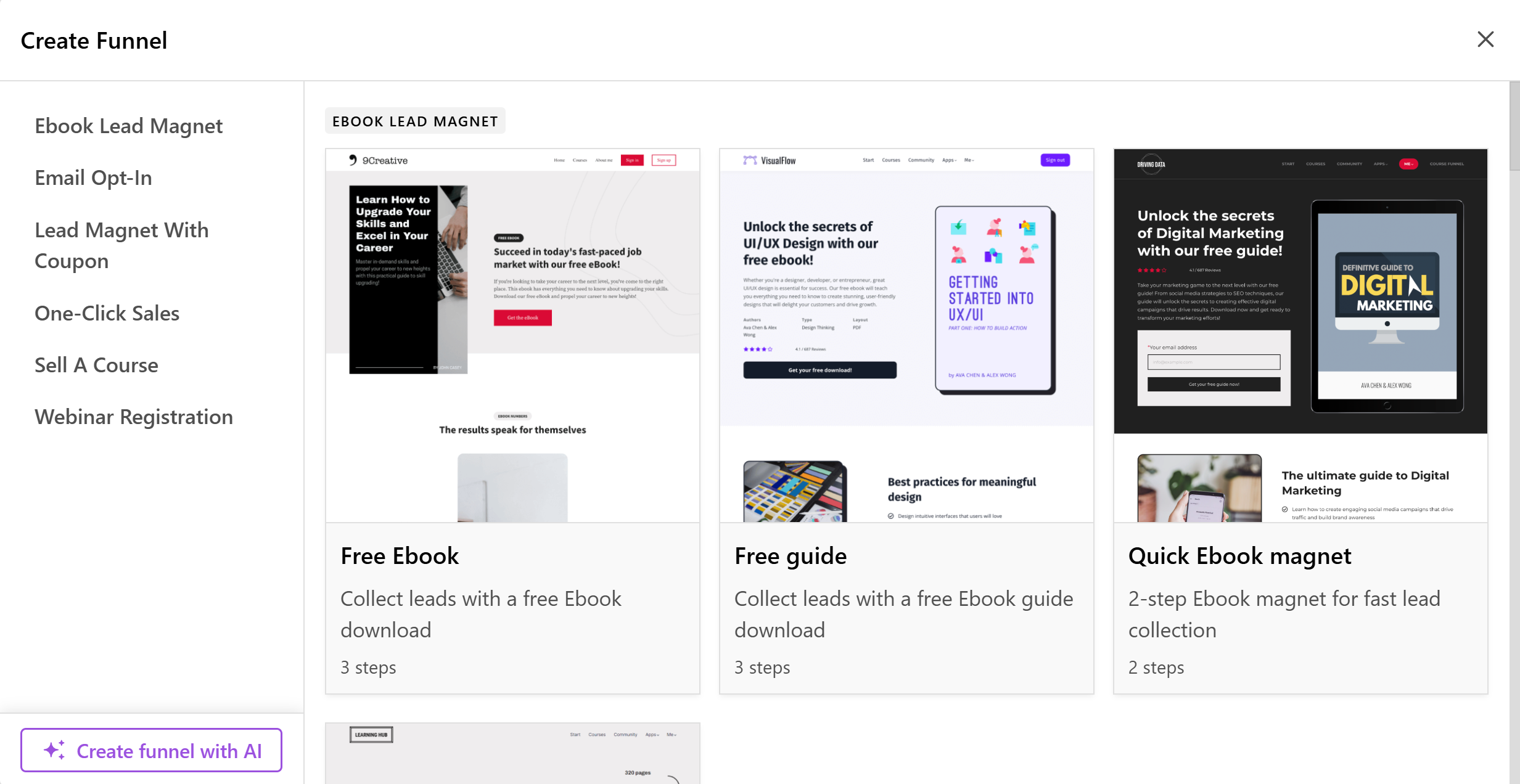
1. A new funnel wizard will appear where you can choose between the following funnel pre-made templates:
- Ebook Lead Magnet - Offer free ebooks or guides in exchange for email addresses.
- Email Opt-in - Build your email subscriber list.
- Lead Magnet with Coupon - Collect leads by offering discount coupons.
- One-Click Sales - Optimize the purchase process for users.
- Sell a course - Promote and sell courses or subscriptions.
- Webinar Registration - Register users for a webinar with automated follow-ups.
2. Configure the funnel:
- Funnel Name – Assign a name to your funnel.
- Funnel Slug – Define a custom URL for the funnel.
- Status – Choose between Draft (hidden) or Public (visible to users).
- Groups (Optional) – Organize your funnel by assigning it to a group.
- Create Form Automatically (if applicable) – If the selected template includes a form, decide whether to use an existing form or generate a new one automatically.
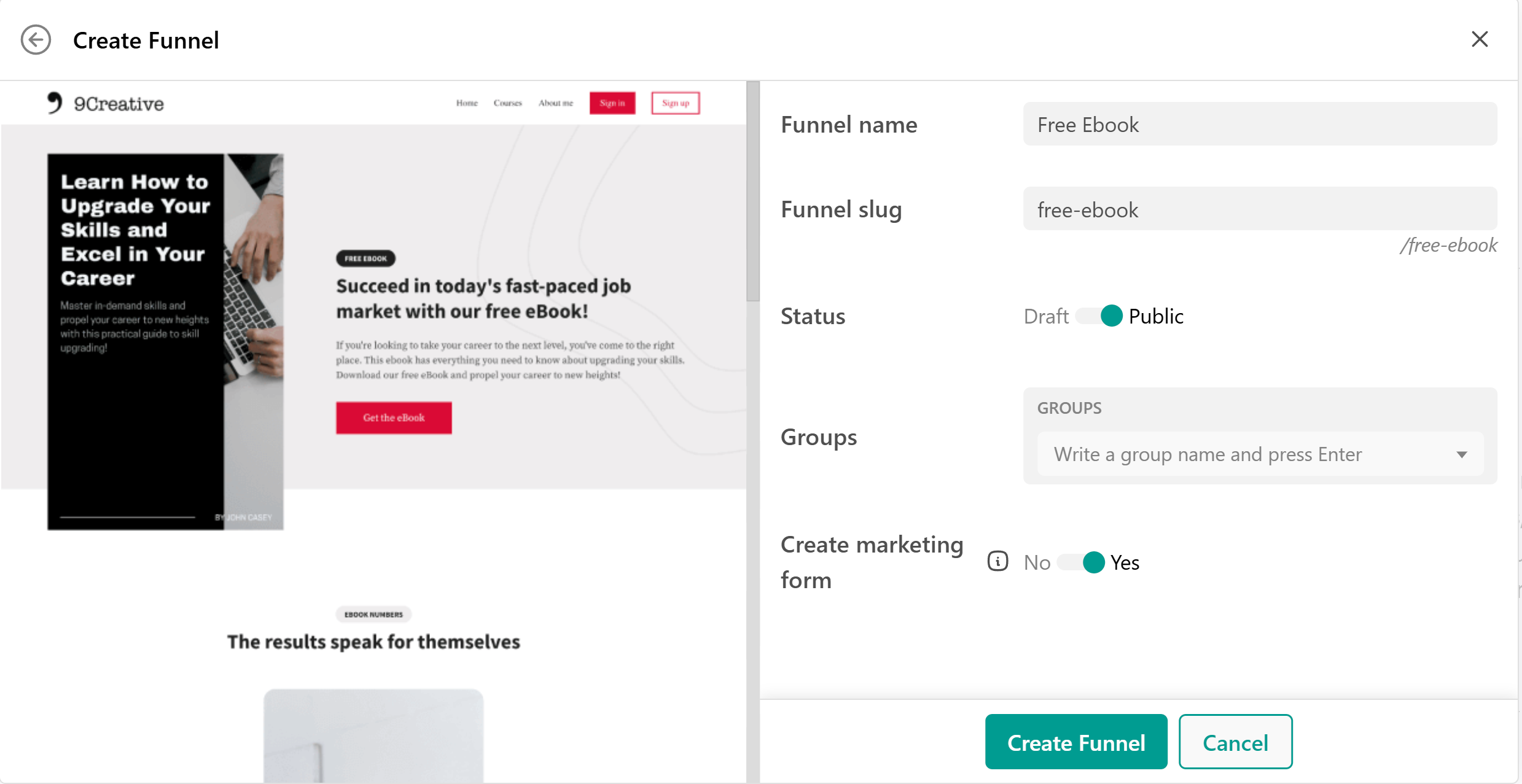
3. Click on Create funnel to finalize the setup.
Use AI with a template
While creating a funnel from a template, you can select the Fill with AI option to speed up the process.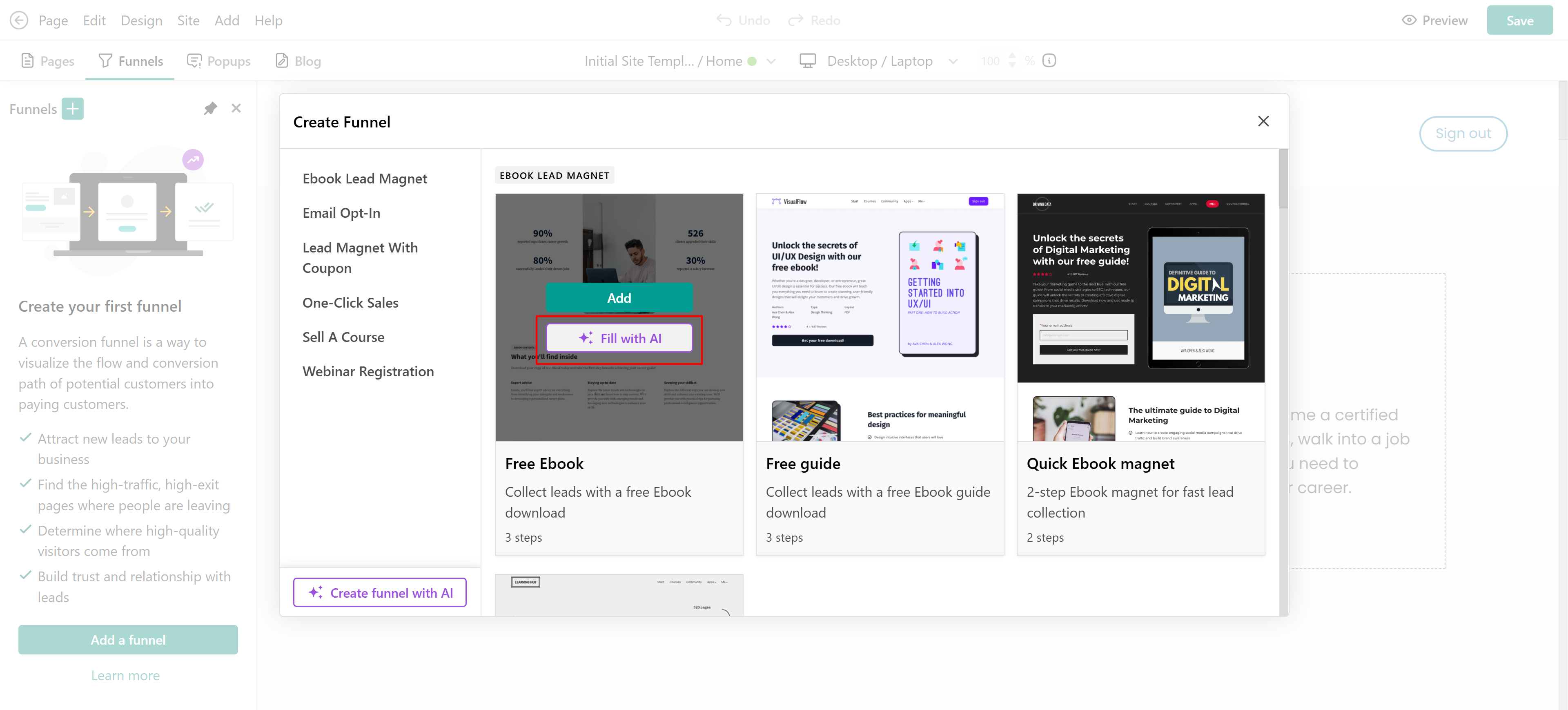
A chatbox will appear where you can describe the funnel you want to build and its goal, based on the template you’ve chosen. The AI may ask a few follow-up questions about elements like the funnel’s title, appearance, purpose, and confirmation step. Simply follow the prompts and refine your inputs until you get the result you’re looking for.
Create funnel with AI
When you select this option, a chatbox appears where you describe the funnel you want. Press enter, and the AI generates an initial draft.
You can then review and refine the draft, either manually or by asking the AI to make changes, such as updating text, reordering sections, or adjusting layouts.
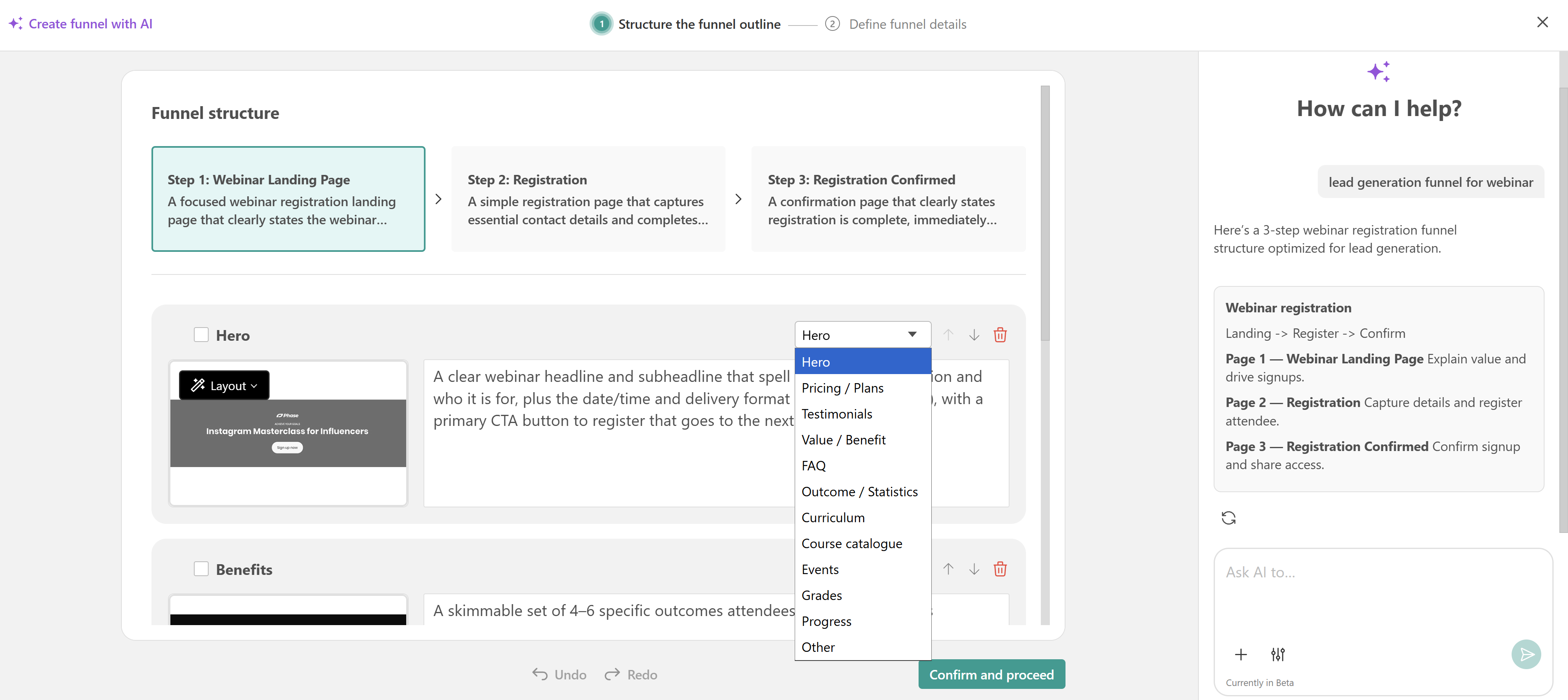 Once you’re satisfied, click Confirm and proceed, then complete the funnel’s properties (name, status, SEO details, description, keywords, and image). You can upload an image or generate one with AI.
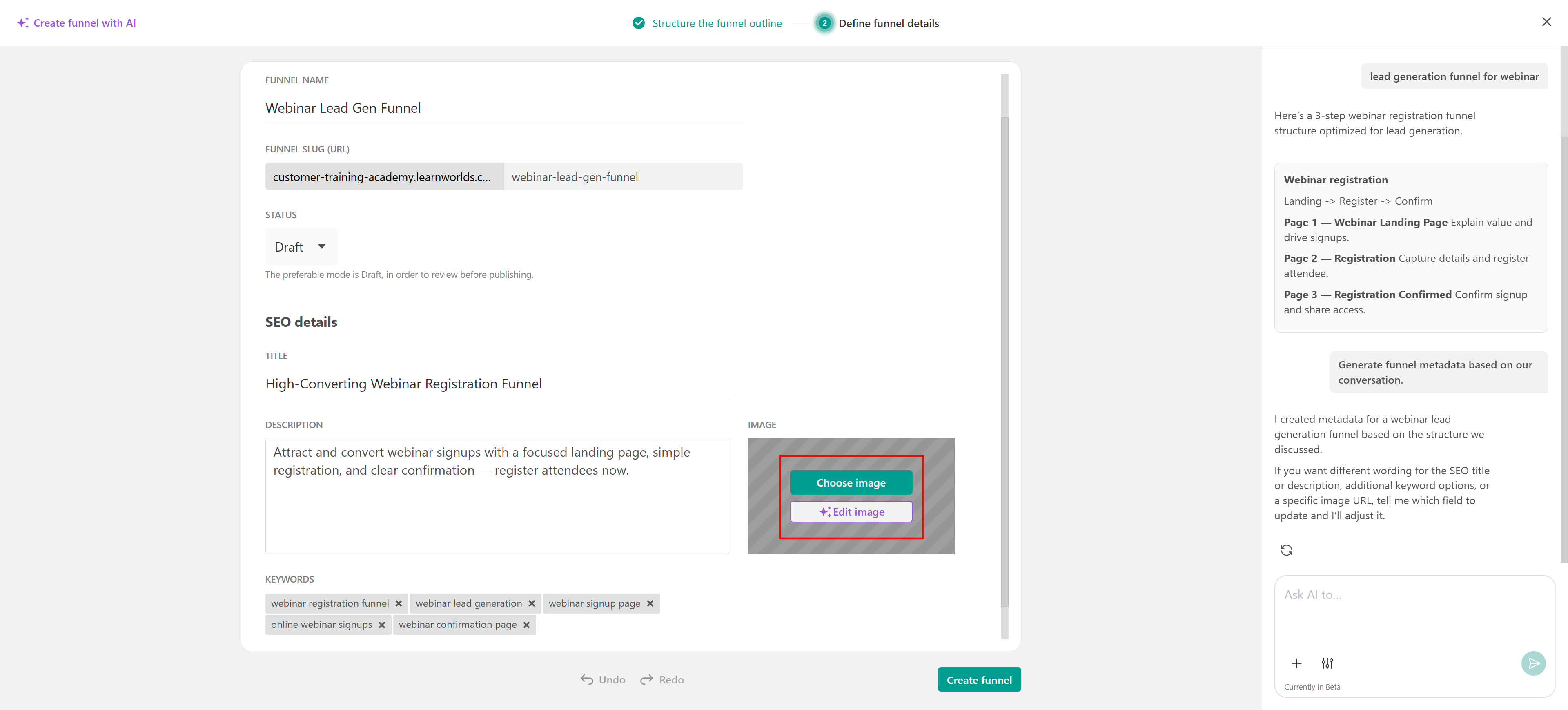
Finally, click Create funnel. You can continue editing it afterward, just like a manually created funnel, and use AI to refine sections, text, or images.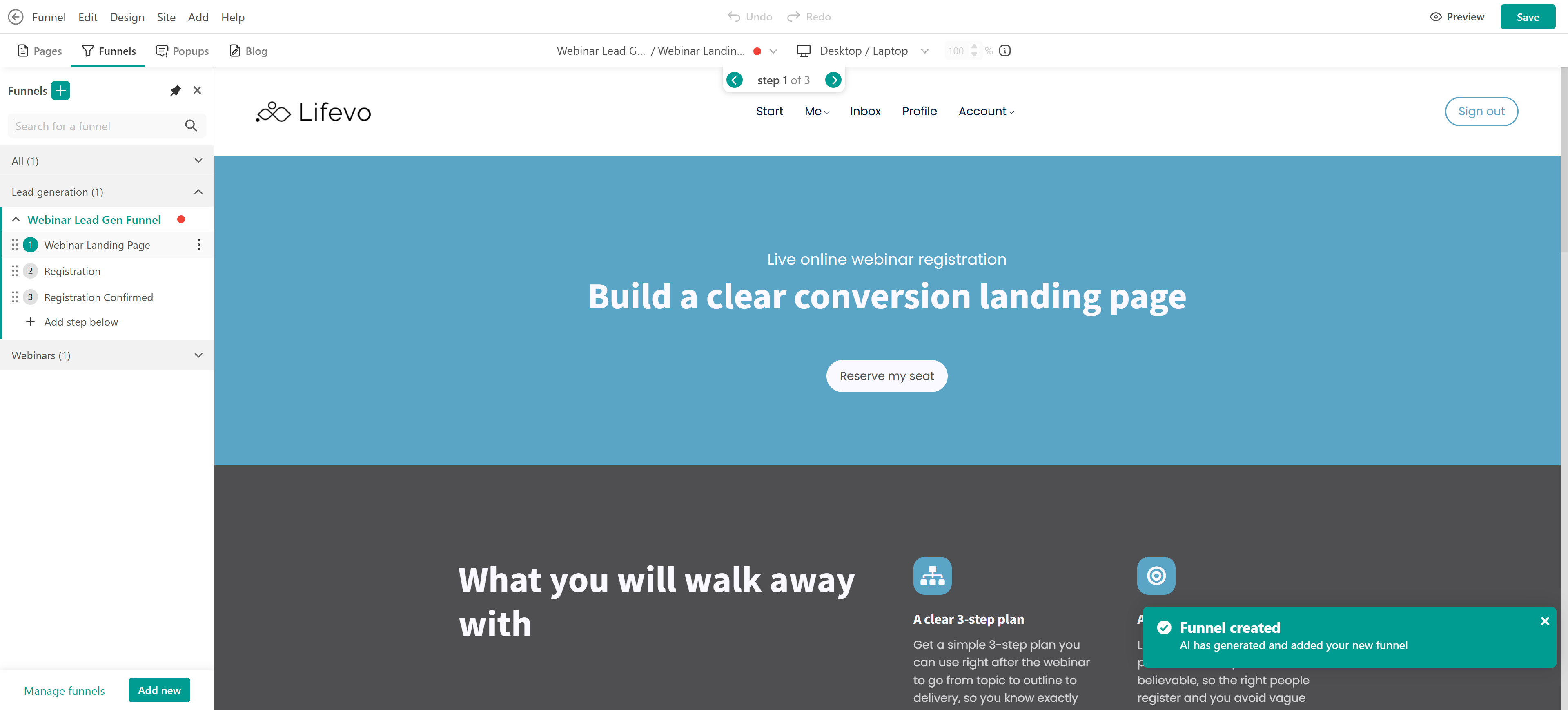
Configure page funnel settings
Each funnel includes global settings. To access them, οpen the funne and click the three dots → Funnel Properties
Funnel Properties:
- Change the funnel title and slug.
- Choose the funnel status (Draft or Public)
- Add or remove funnel groups. Groups help you better organize & categorize funnels in the left sidebar.
- Set an expiration date for your funnel
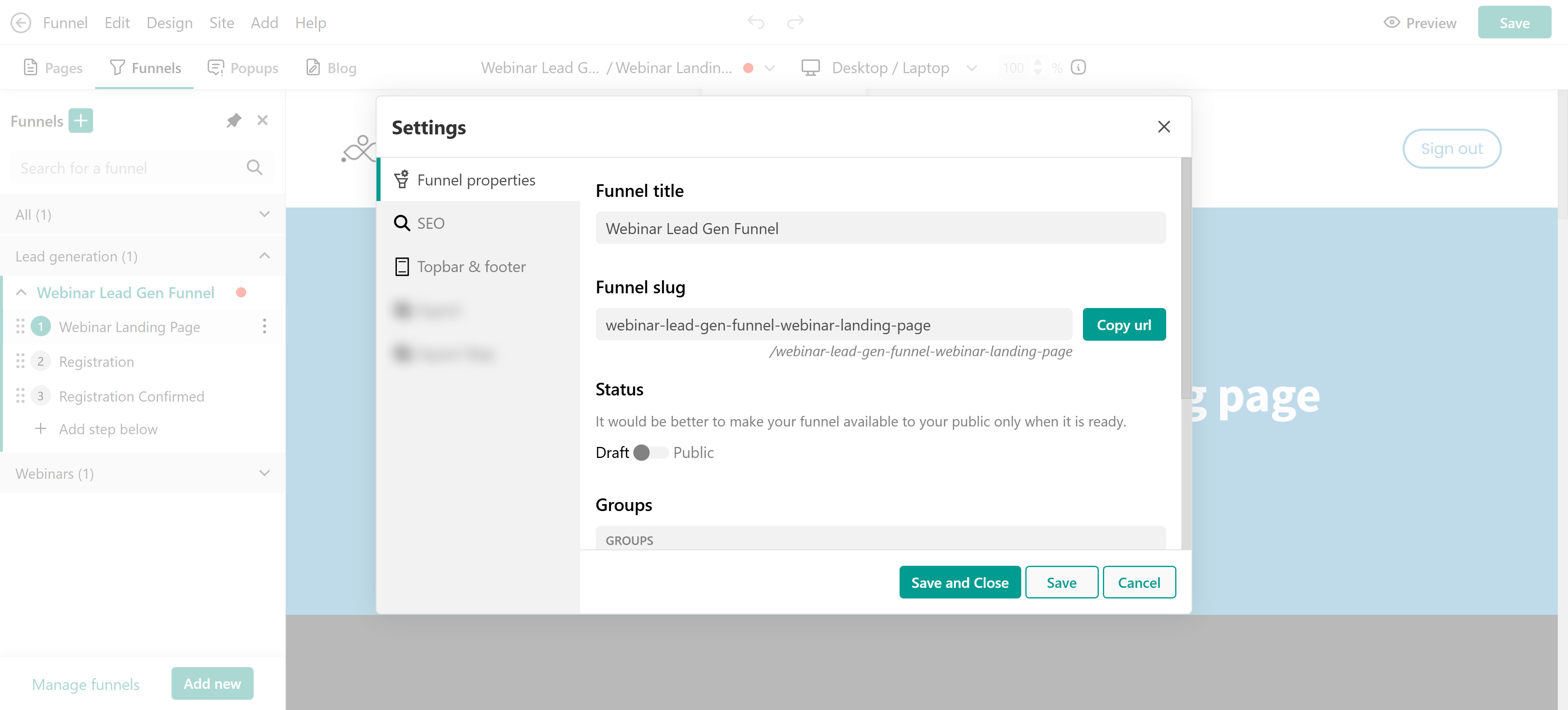
SEO: Adjust the funnel SEO title, description, image, and keywords. You can even exclude the funnel from the sitemap.
Topbar & footer: You can choose to include or exclude the topbar/footer on your funnel. The topbar & footer if enabled appear on all the steps of the funnel. We suggest not including a topbar/footer in your funnels to avoid distracting users from the funnel flow.
From the three-dot menu, you can also preview the funnel, view the analytics, and clone and delete the funnel.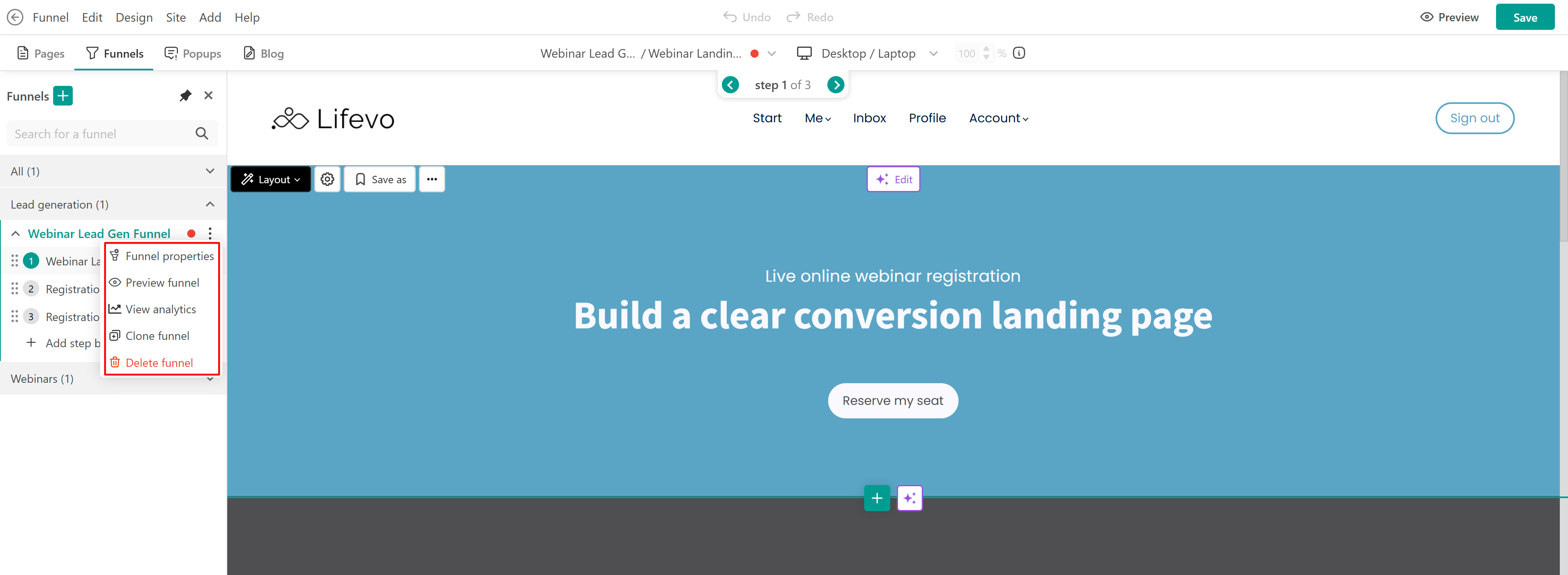
Create and manage funnel steps
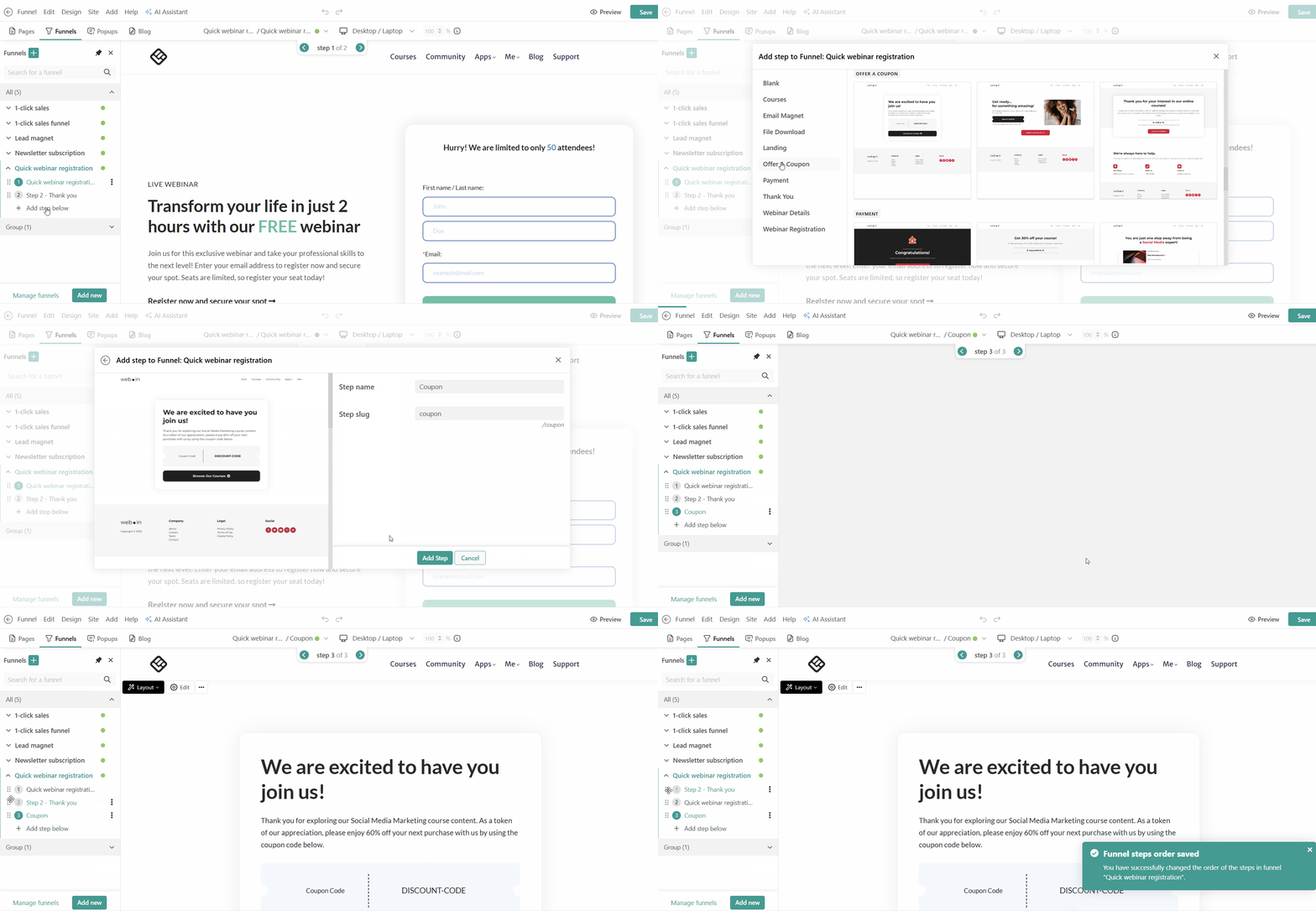
A Page Funnel consists of funnel steps (pages). To create funnel steps, hover over the three dots on an existing step and click on +Add the step below to add as many steps as you like, or use the Add step option at the bottom.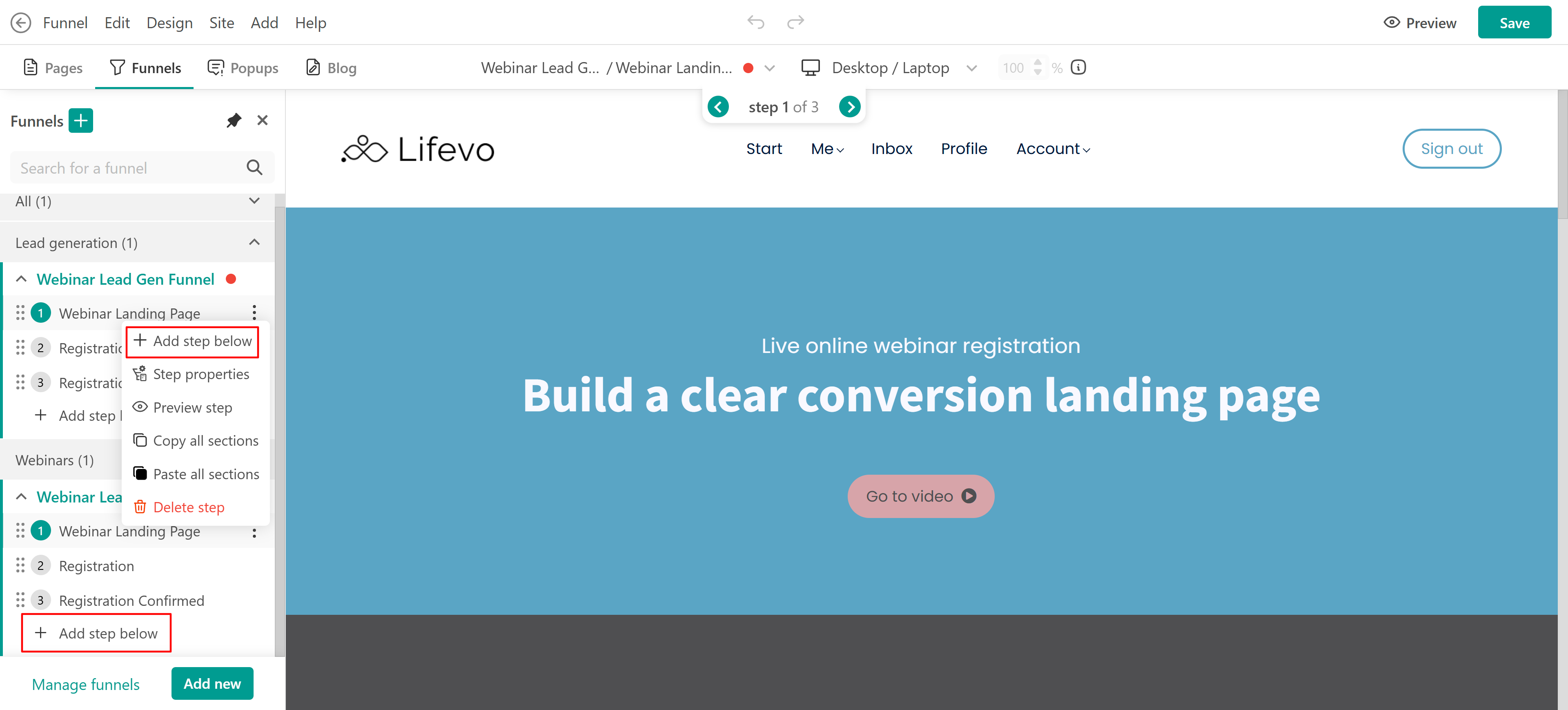
1. Select a new funnel step template in the wizard, from the following available choices.
2. Set up the Step name and slug (URL) and create the form automatically (if applicable for this funnel step template).
You can rearrange steps by dragging and dropping them in the left panel.
Set up the funnel flow
Each funnel step should guide users to the next. Since every step is a page, you can adjust its navigation to lead users toward the final goal.
To do this, set on-click actions that move users to the next step after they complete an action, such as clicking a button or submitting a form.
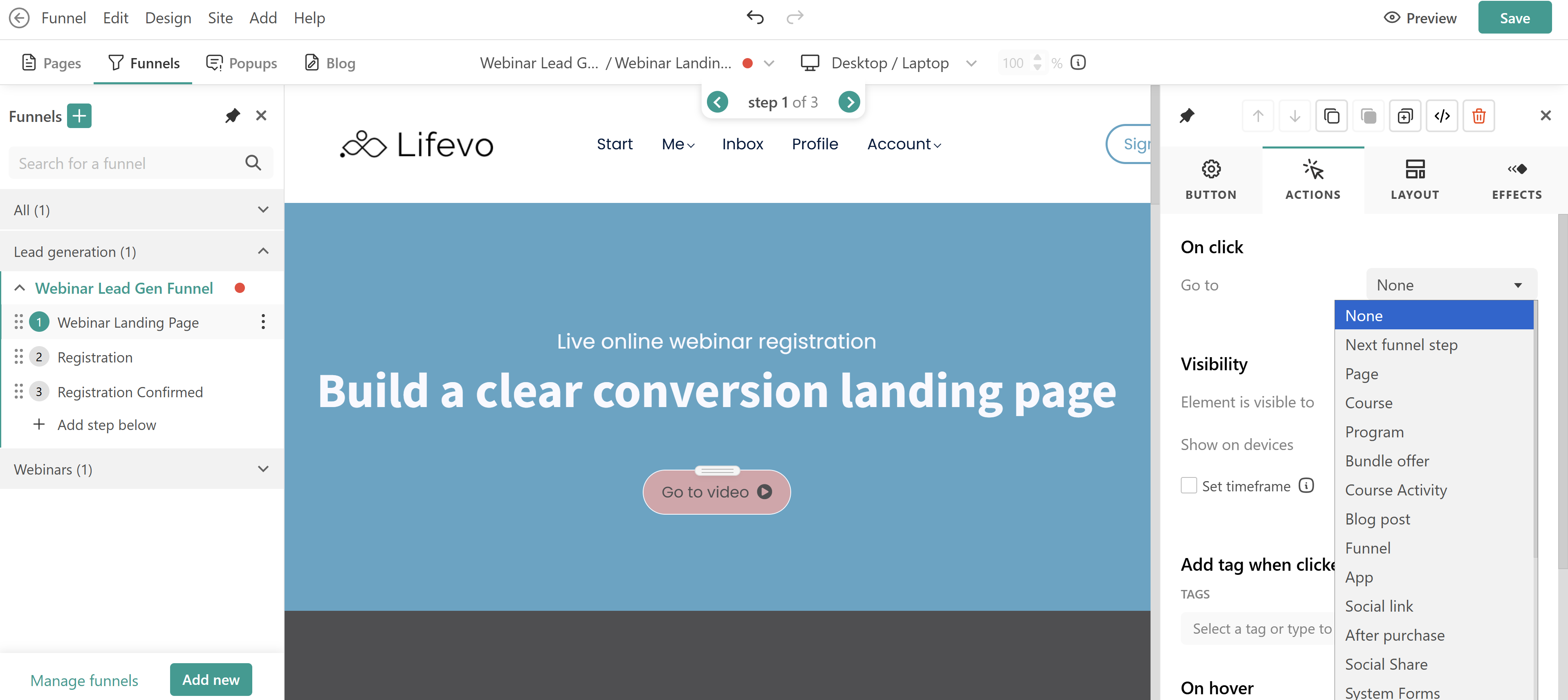
For Buttons:
- Select the button.
- Open the Actions tab.
- Under On Click, select Next Funnel Step.
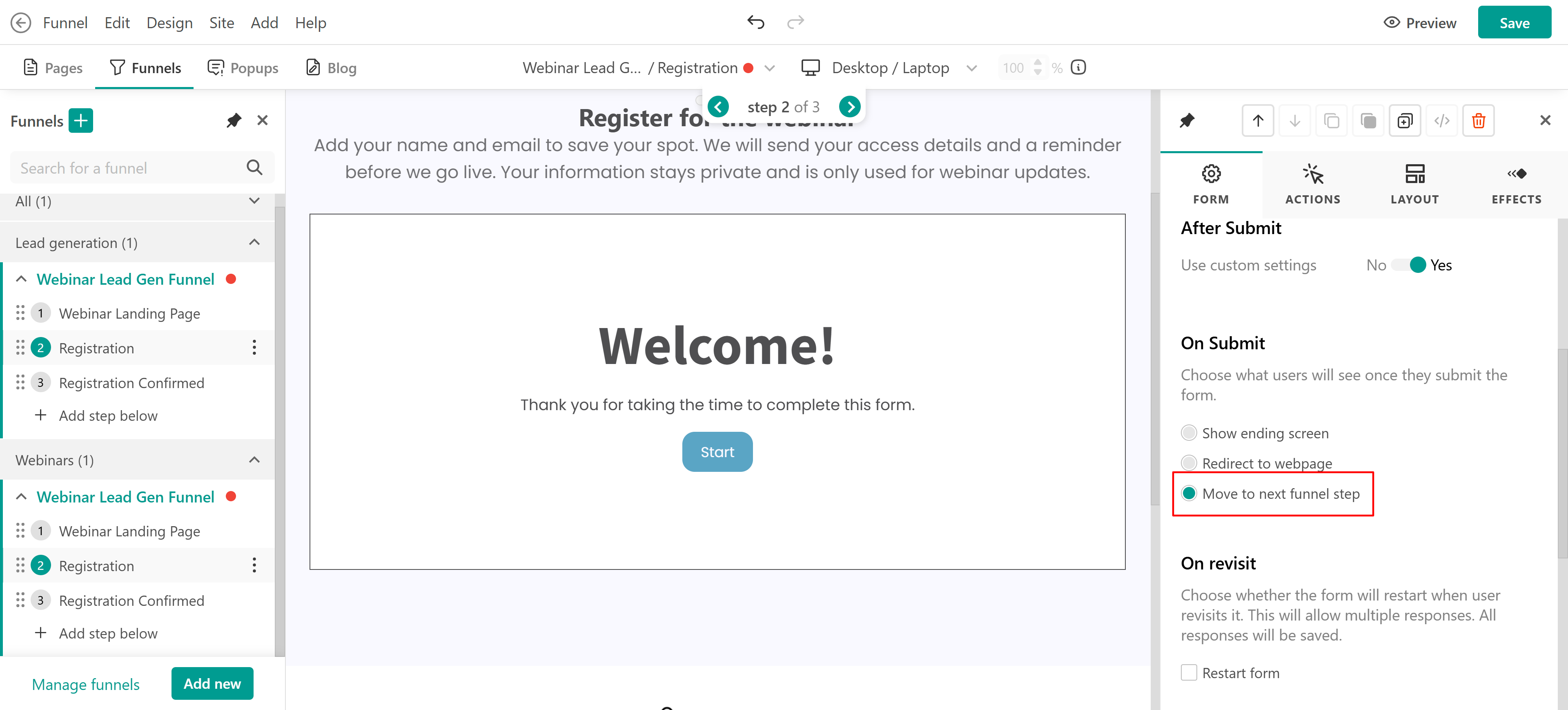
For Forms:
- Click on the embedded form.
- On the right panel, set On Submit → Move to Next Funnel Step.
For Payment Pages: Users are automatically redirected after payment.
- Shopify and SSCommerz payment gateways do not support automatic redirection. For these, place the payment step last in the funnel.
- The after-purchase navigation setting is ignored in the funnel context if the payment zone is followed by another (usually a "thank you") funnel page step.
Funnel templates (with Embedded Forms)
Our pre-made funnel templates are carefully designed to meet various needs, including webinar registration, lead capture, and guided purchases. Some templates, like the Webinar Registration, offer a Create a form automatically option.
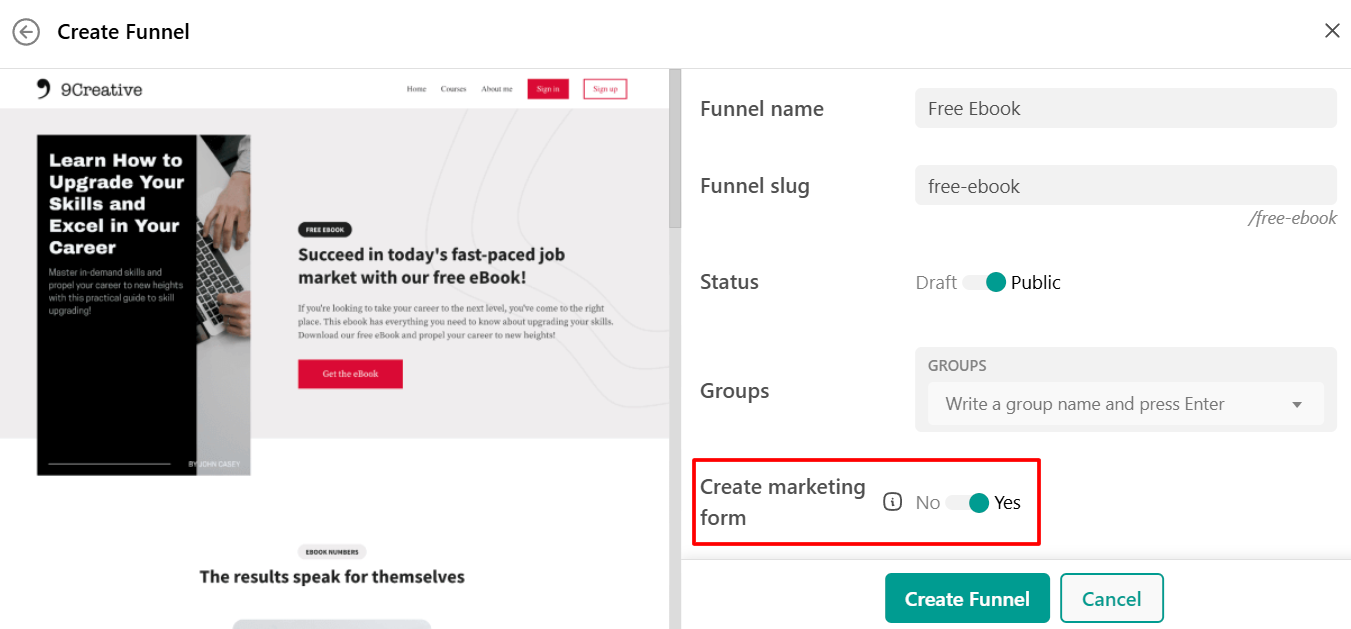
Enabling this embeds a Marketing Form or Email Magnet Form tailored to the funnel’s purpose (e.g., relevant questions for webinar sign-ups). You can use the suggested form or link your own. Even if you disable this setting, you can still add a form manually as a widget or section in the funnel step.
In both cases, if not pre-selected, ensure the On Submit action in the form's settings is set to Move to next funnel step to allow users to proceed after submission.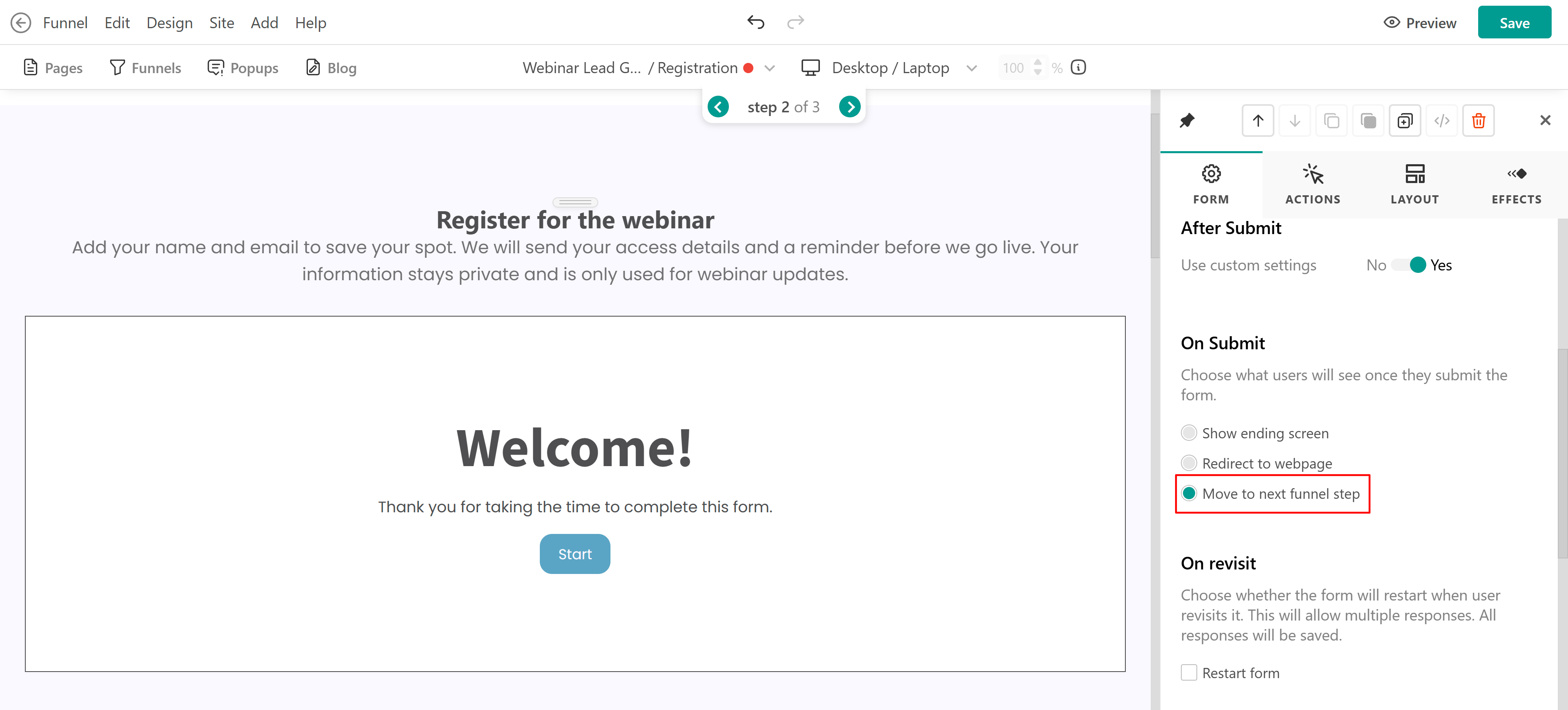
Marketing form in Page funnels
If a Marketing form is added specifically to this funnel and included in a specific funnel step, you can edit the Form by clicking on Edit Form on the right side form.
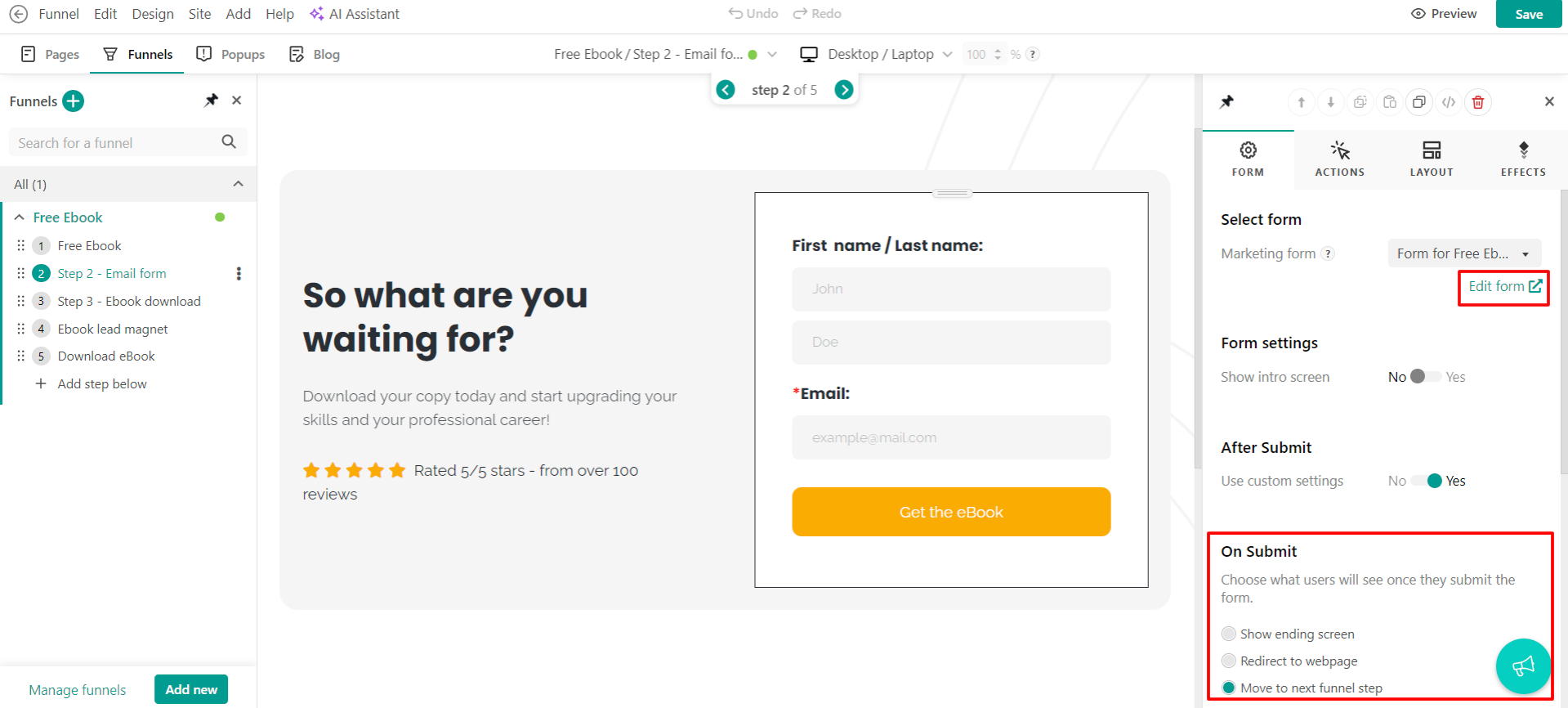 Alternatively, you can edit any Marketing form by navigating to Marketing → Marketing Forms.
All Marketing Forms and their responses are saved in the Form Responses panel. Navigate to Marketing → Marketing Forms.Email magnet form in page funnels
For an Email Magnet Form, configure to save data in the "Leads from Pages" table. 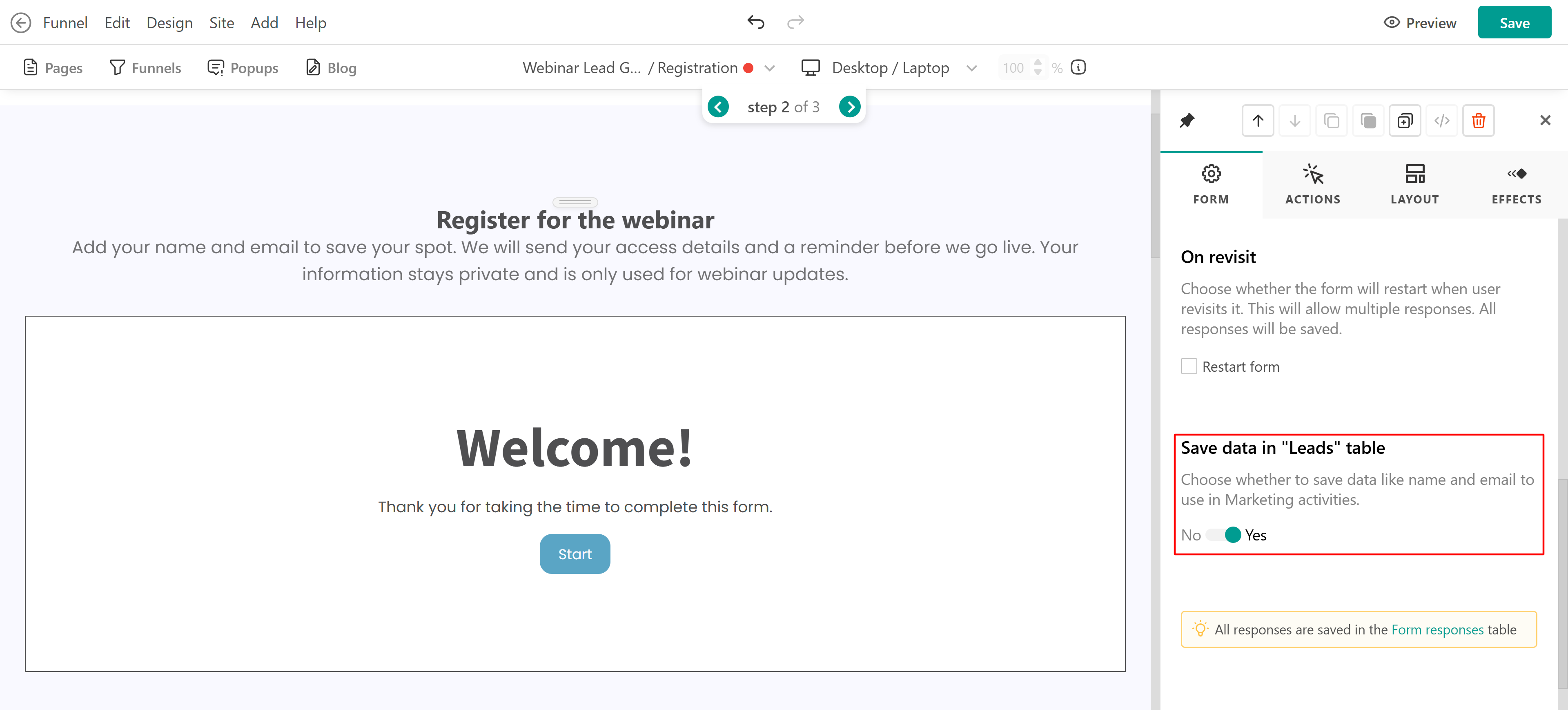
Funnel manager
To manage your funnels, click on Funnels → Manage funnels. Here, you can view all your funnels, check their slug, status, number of visitors, completions, completion rate, and status, and access key actions like edit, delete, clone, analytics, and export.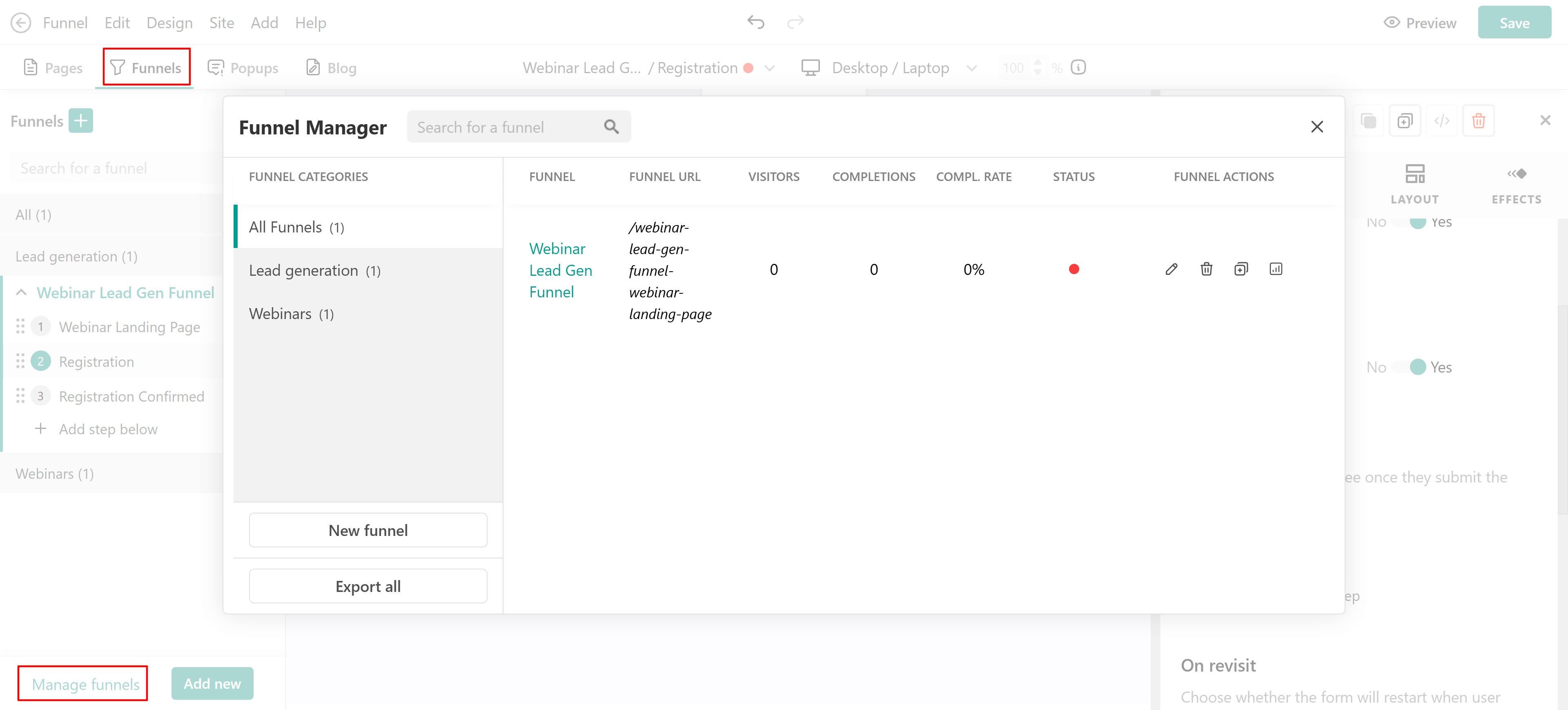
Funnel analytics
Access analytics from Manage Funnels → Analytics or inside the funnel (Funnel → View analytics)
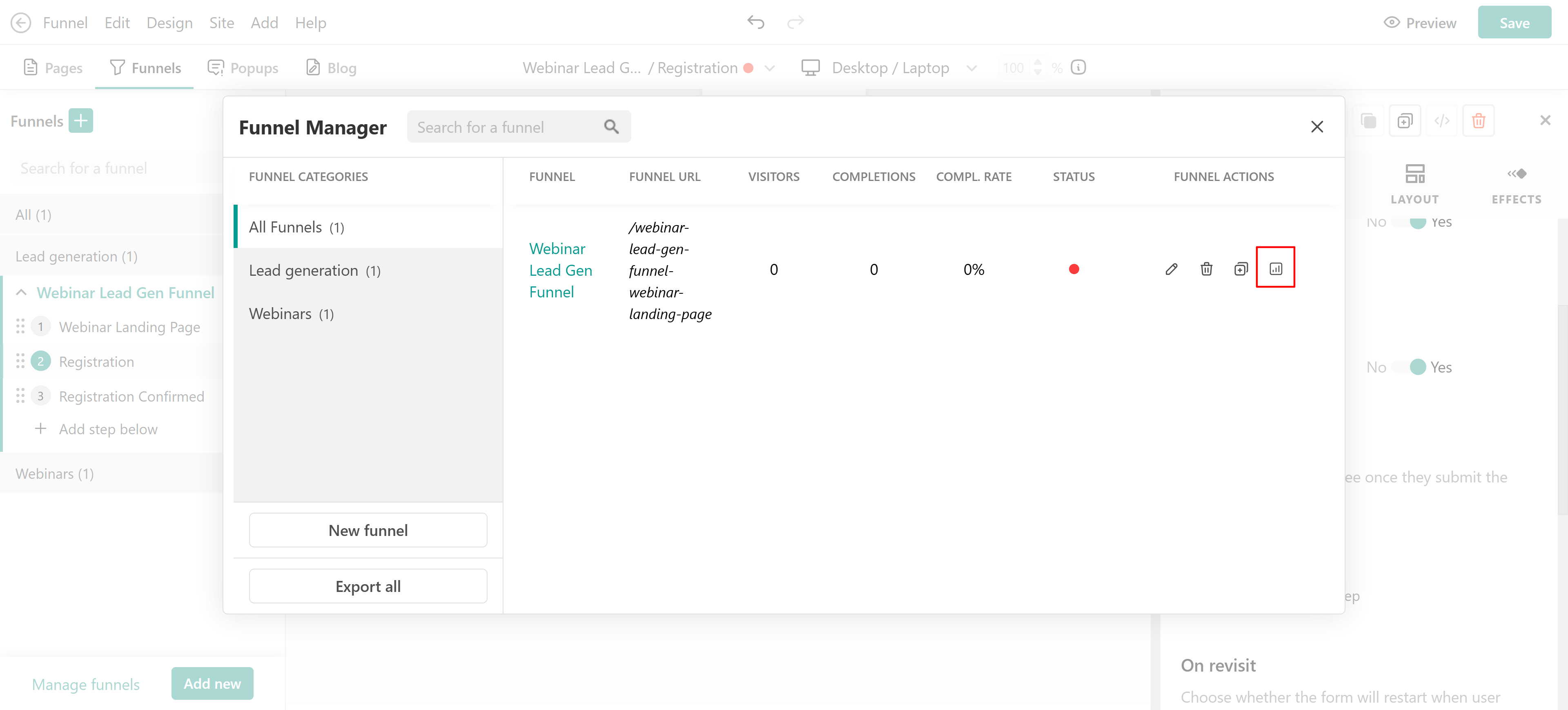
You’ll see an overview of visitor trends like unique first and last step visitors, the average time in funnel and average time to complete, as well as completion stats. You can also see step details, as well as graphs on step views.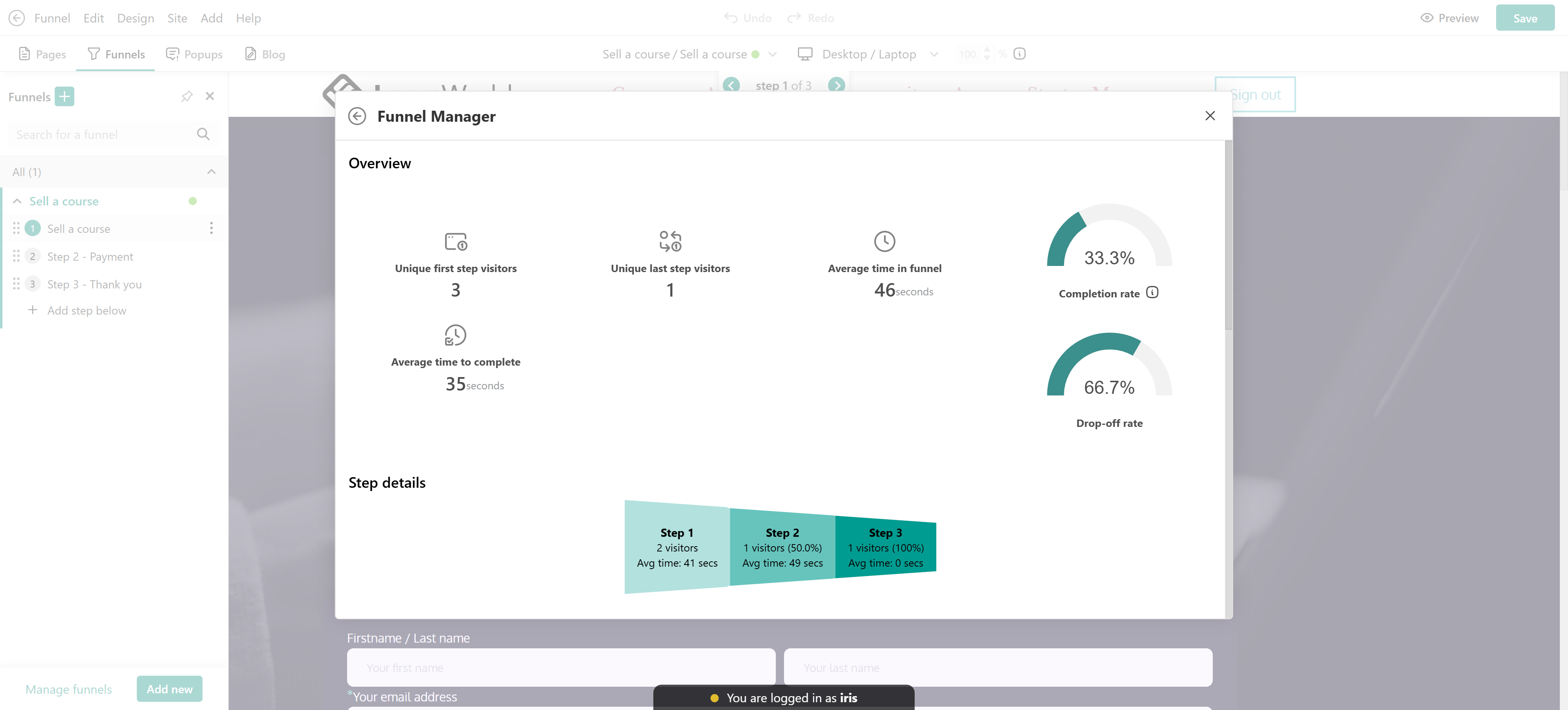
Share and invite users to your funnel
You can direct users to your funnel by linking buttons or sharing the funnel URL.
Link a Button to your funnel
1. Add a button anywhere on your website.
2. Click on the button and open the Actions tab.
3. Select Funnel under On-click action and select the funnel you wish.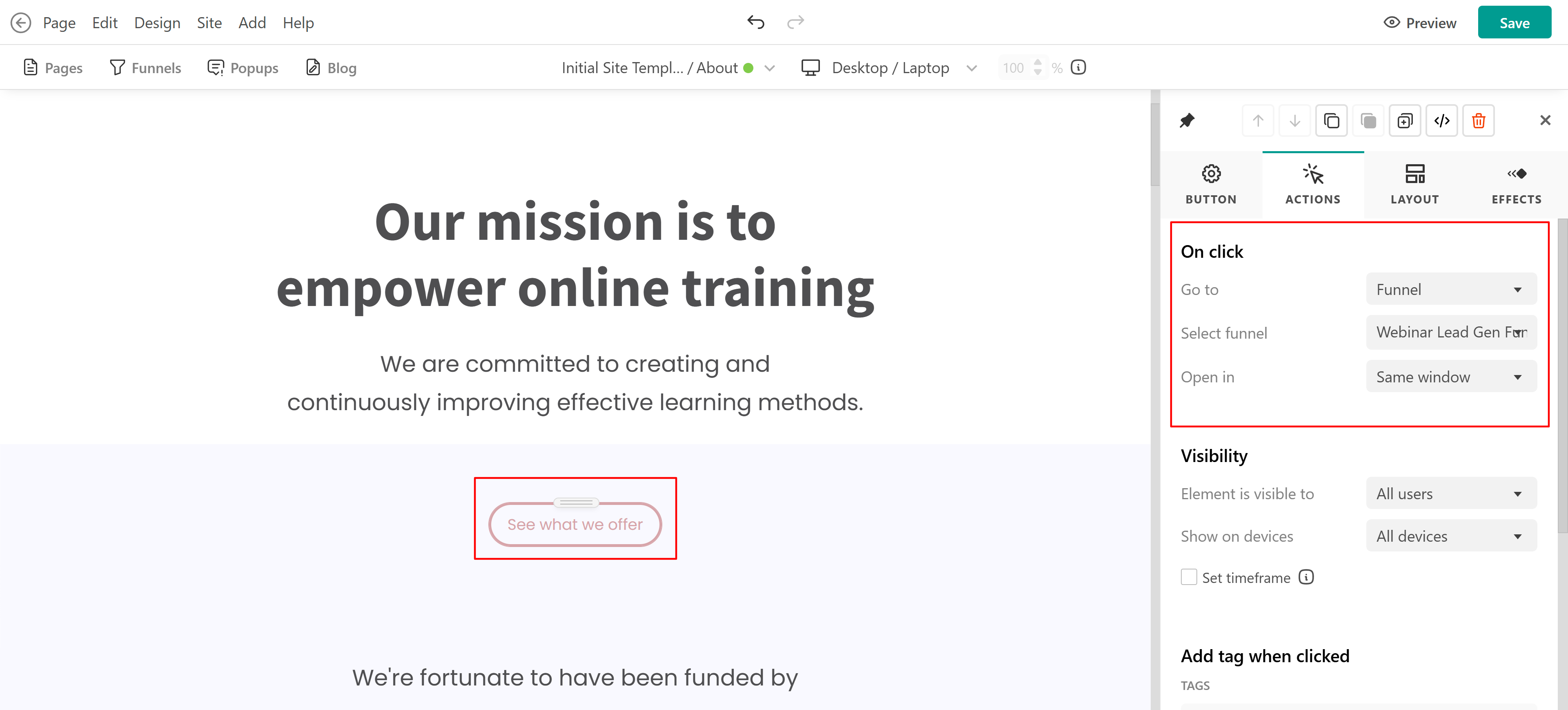
Share the funnel URL
To manually share your funnel:
1. Open the funnel.
2. Hover over the funnel name in the authoring toolbar and click on Copy URL, or go to Funnel → Funnel Properties → Copy URL.
3. Paste the link into emails, social media, or marketing campaigns.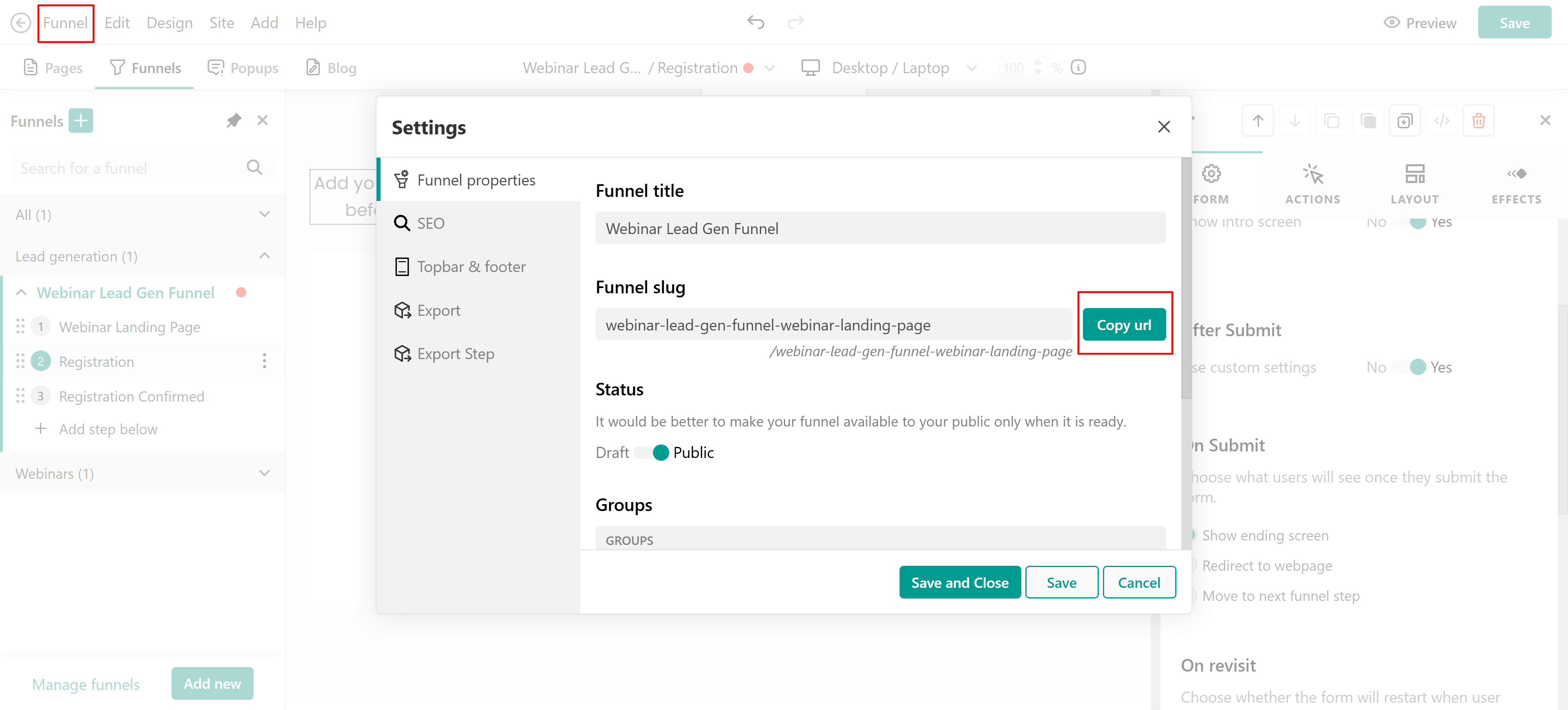
- Pages Funnel is a web version feature that is not supported on Mobile apps.- You cannot clone a funnel step.