
The User Roles function will help you to split your school's assignments into your workforce easily. User Roles are permission sets controlling access to multiple sections and features within your LearnWorlds school.
We provide four available Role levels (Administrative, Instructional, Reporting, and Management). Besides the option to create a new user role from scratch, you can use our predefined ones.
How to create user roles
There are multiple ways to create a new role:
1. Navigate to Users → User Roles → Create a custom role.
2. Navigate to Users → User Roles hover over a predefined or custom role, and create one based on the specific role.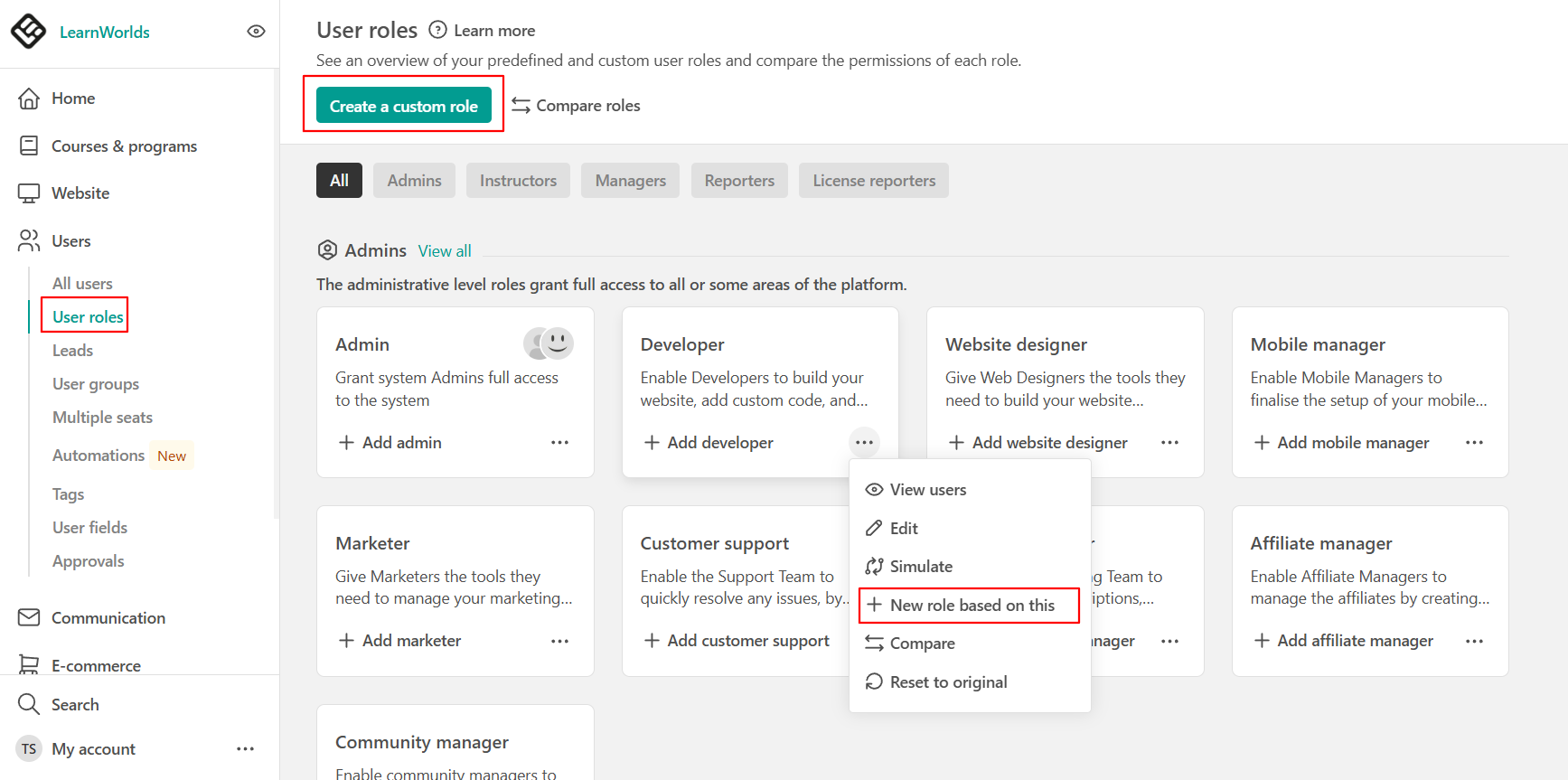
When creating a role, you can:
1. Add the role name.
2. Add the role description.
3. Choose the role you wish to start from (predefined or custom one).
4. Choose the permissions.
5. Default login destination. Choose whether users with this role will see the admin dashboard or the website first after logging.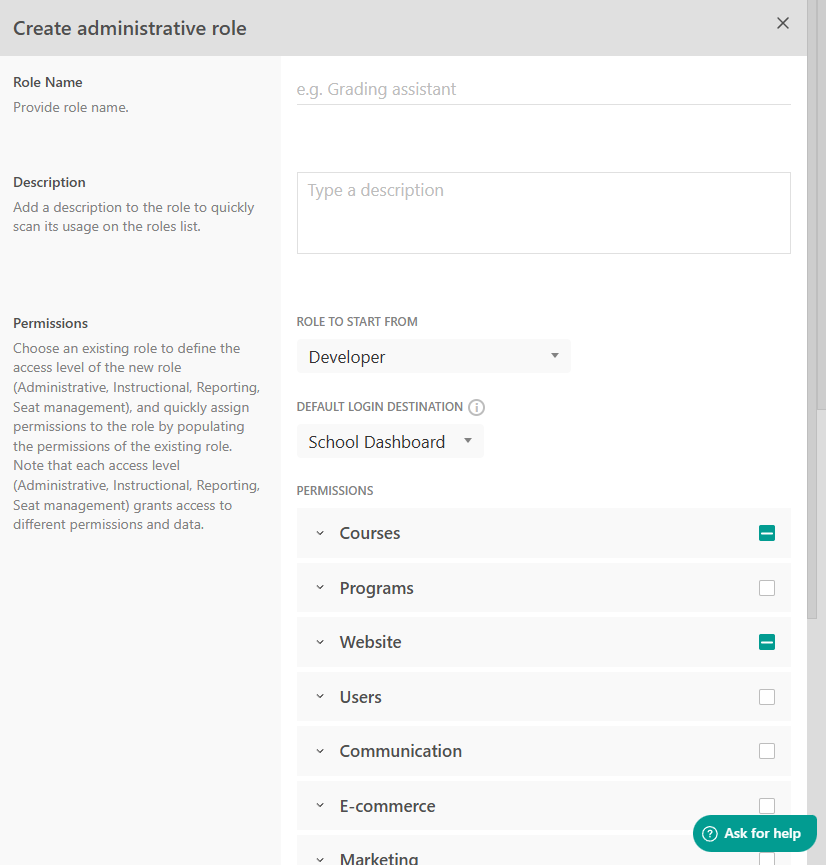
Manage user roles
From the user roles page, you can:
- Create roles
- Edit roles
- Compare roles
- Simulate access
- Reset predefined roles to their default permissions
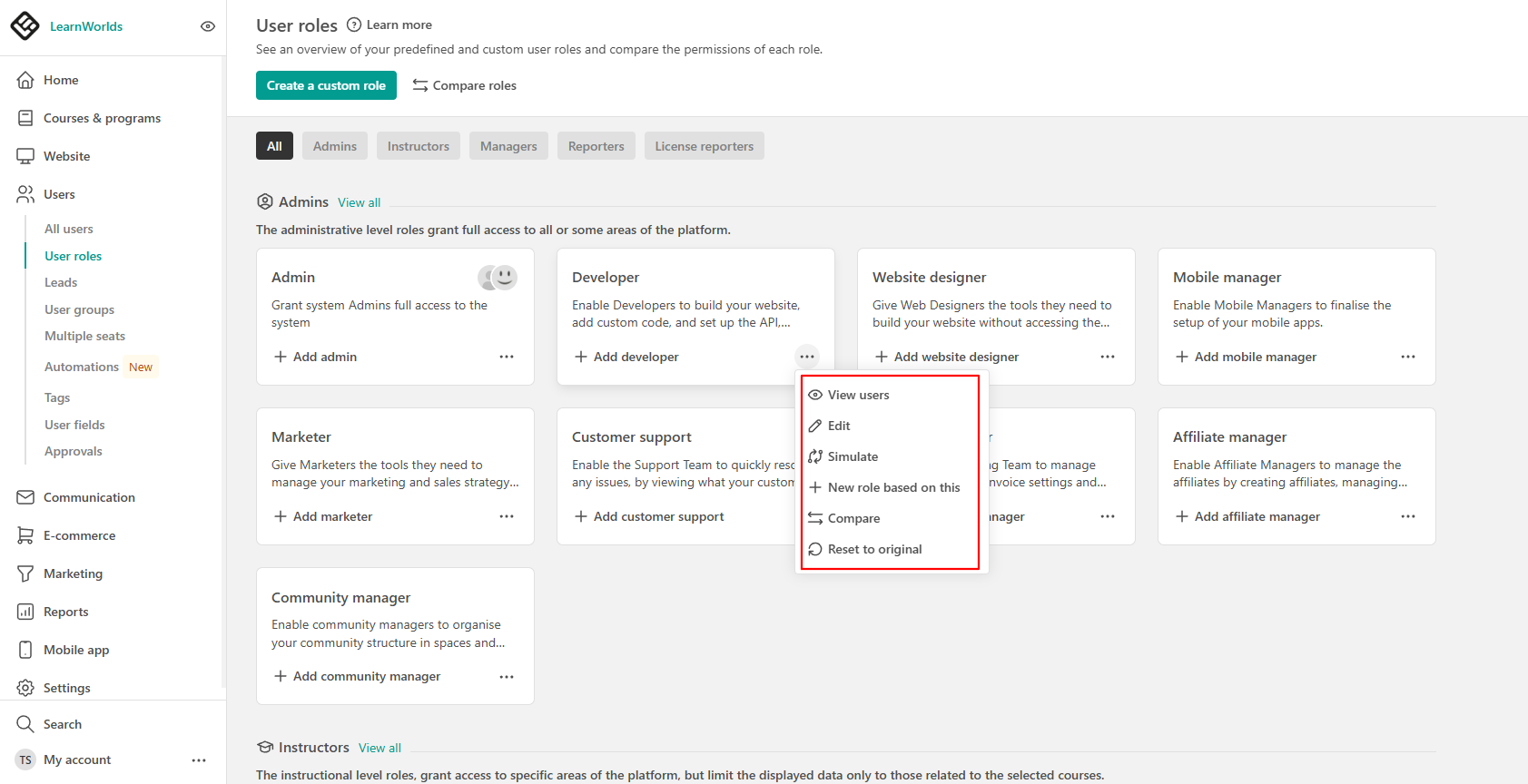
 - The Admin role cannot be edited or deleted. You can only:
- Create a new role based on it
- Compare it
- Simulate it
Custom roles
For custom-created roles, you can:
- View users
- Edit them
- Simulate access
- Create new roles based on them
- Compare permissions
- Delete them

You can also create custom roles based on other already existing roles. For example, you might want to create a community manager that also has admin/instructor permissions. In order to do this, you can choose to edit a role and activate more permissions, e.g. you can have a community manager with courses and site builder permissions.
- In the admin user role, you can only Create a new one based on this, Compare and Simulate.
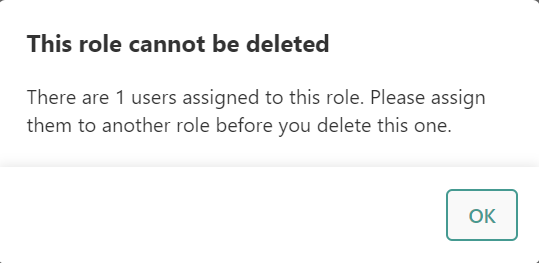
- If a user has been assigned a custom role, you cannot entirely delete the role. You will first need to re-assign the user to another role
Compare
The compare section helps you review and organize permissions across predefined and custom roles. From the Compare page, you can:
- Compare available permissions side by side
- Edit roles if needed

This is especially useful when deciding which permissions should be granted to each team member.
Simulate
The Simulate option allows you to preview the platform from the perspective of a specific role. This helps you understand:
- Which areas of the platform are visible
- Which features can be accessed
- How the dashboard appears for that role

The final step is to assign a role to a user according to the instructions outlined in our relevant guide.