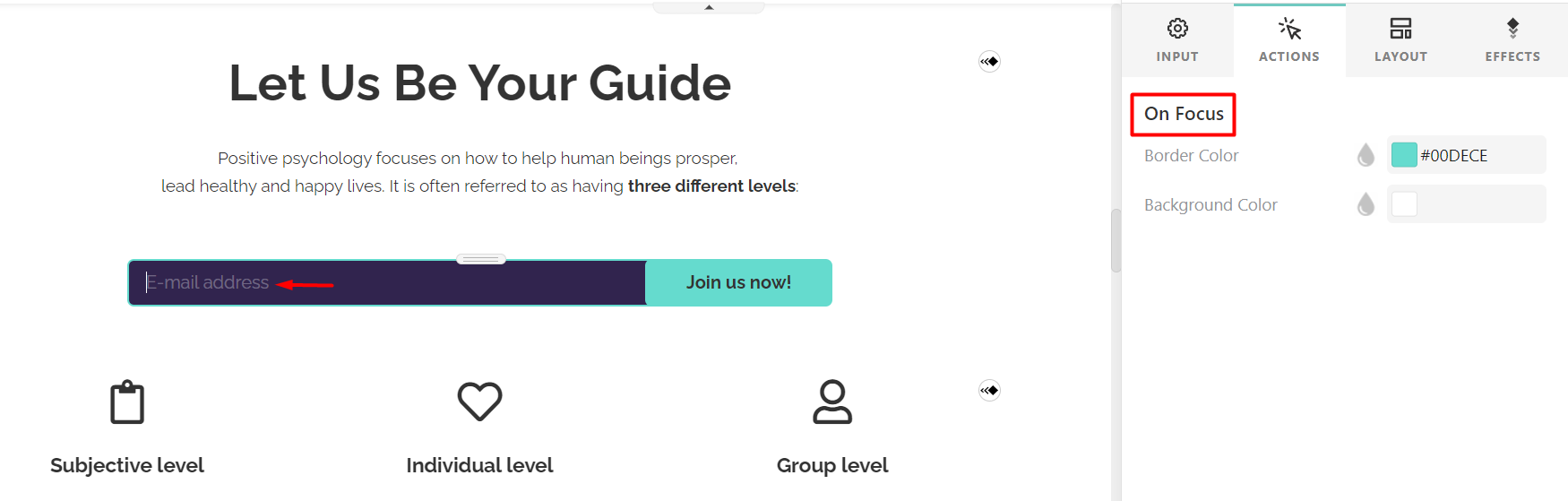
Capturing emails is a simple and effective way to generate leads. In LearnWorlds, you can collect user emails directly from your pages using Email Grabbers and Get Email widgets.
You can customize these elements to match your goals, and use AI to help create or refine your content.
Ways to collect emails
You can collect emails in LearnWorlds using:
- Get Email widgets (added inside existing sections)
- Email Grabber sections (pre-designed lead capture sections)
- Marketing Forms (standalone forms for more advanced use cases)
- Funnels with Get Email Forms
All submitted emails are available in Leads page.
Add an email grabber or get email widget
To add a Get Email or Email Grabber widget/section:
1. Go to Website → Edit Website
2. Open the page you want to edit
a. To add a Get Email widget click +Add widget → Form/ Get email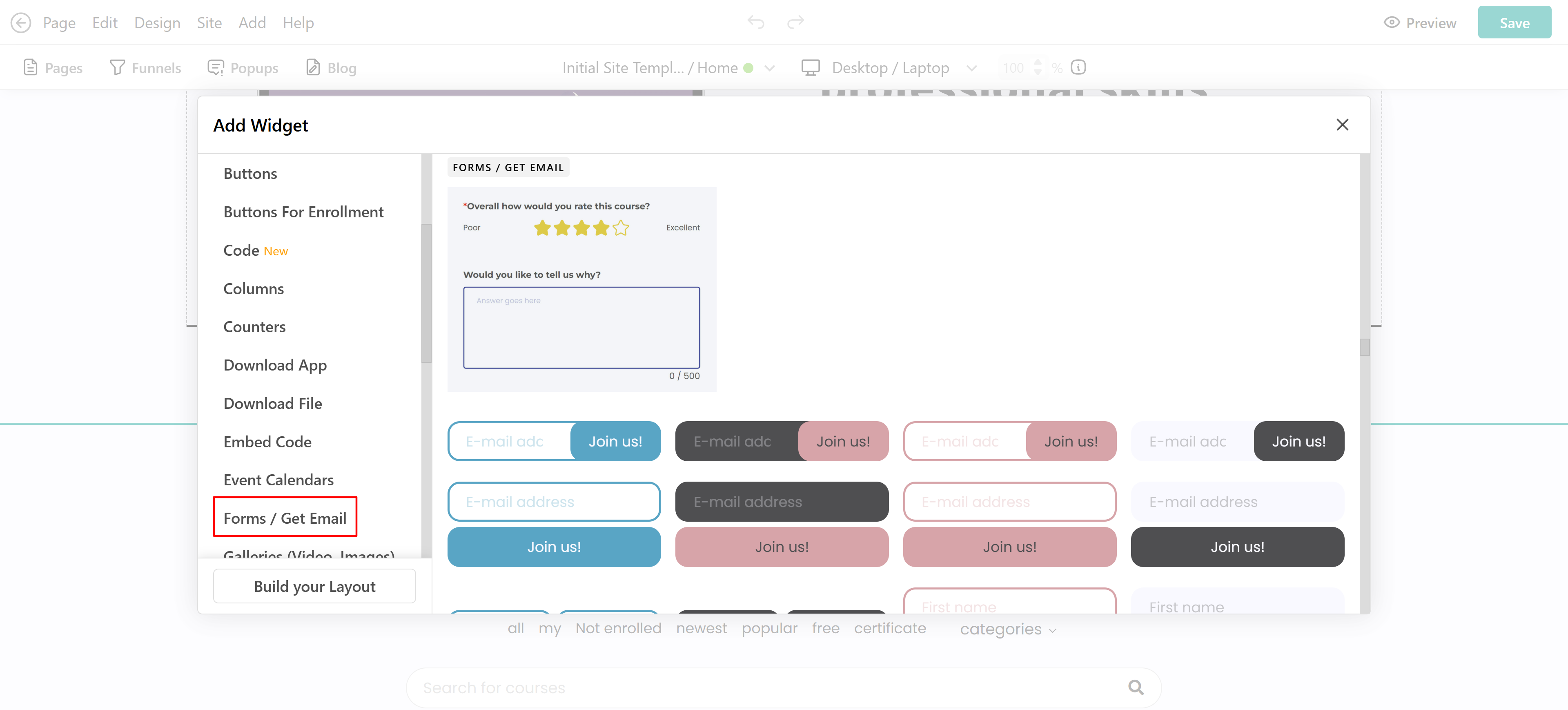
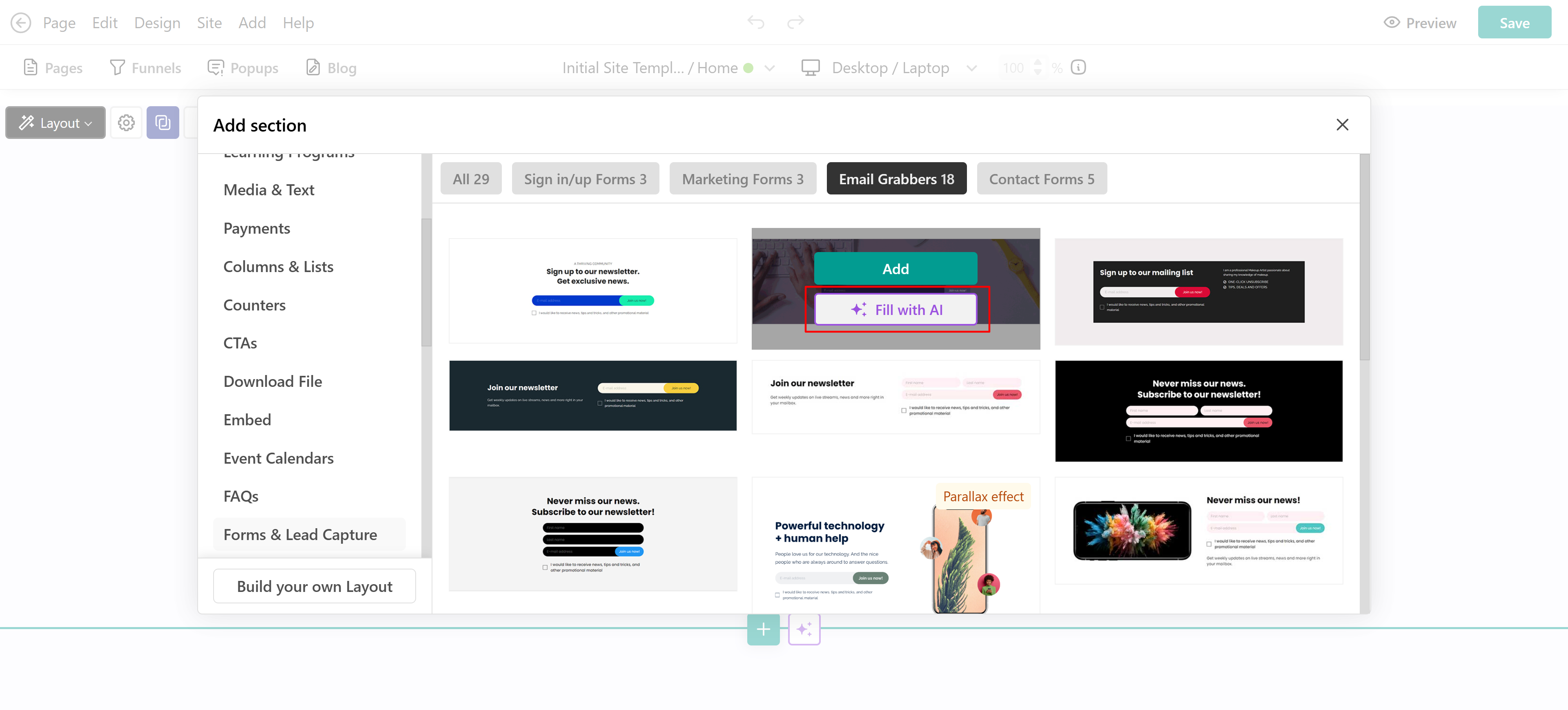
b. To add an email grabber section click +Add section → Forms & Lead capture → Choose an Email Grabber layout.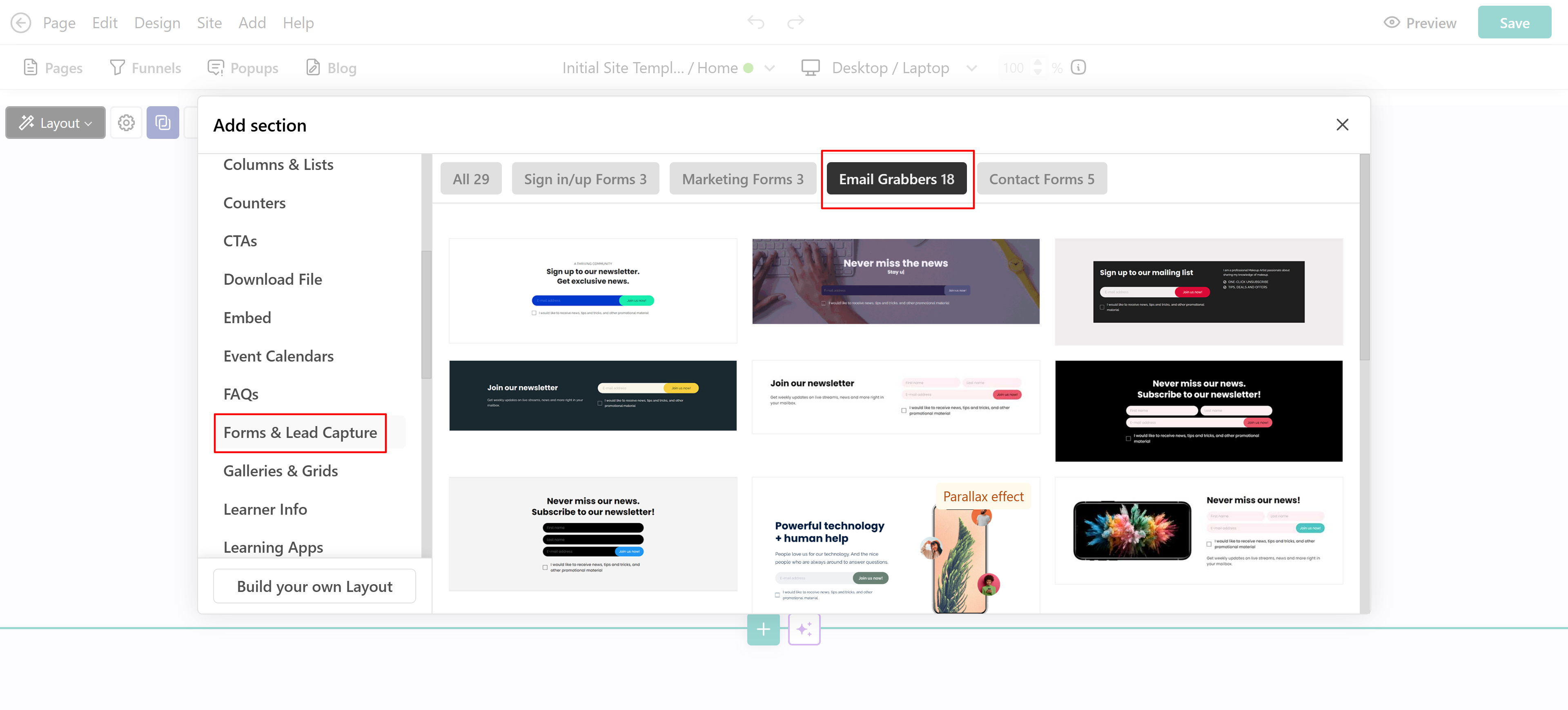
Create and improve sections with AI
You can use AI while building your Email Grabber to generate or refine content.
- When adding a new section, choose Create with AI and describe what you need, e.g. Create a lead capture section for a free ebook.
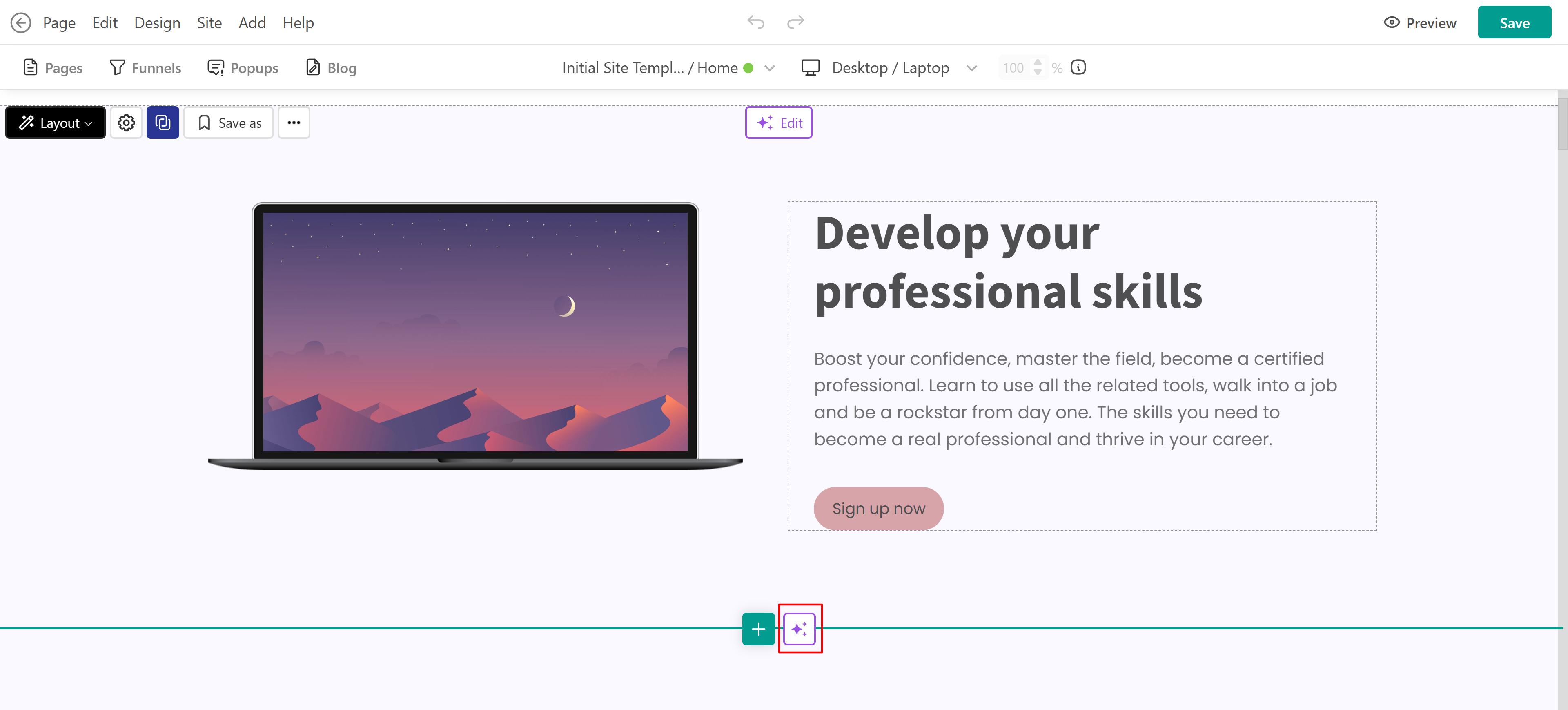
- When using a template, use AI to fill or improve the content.
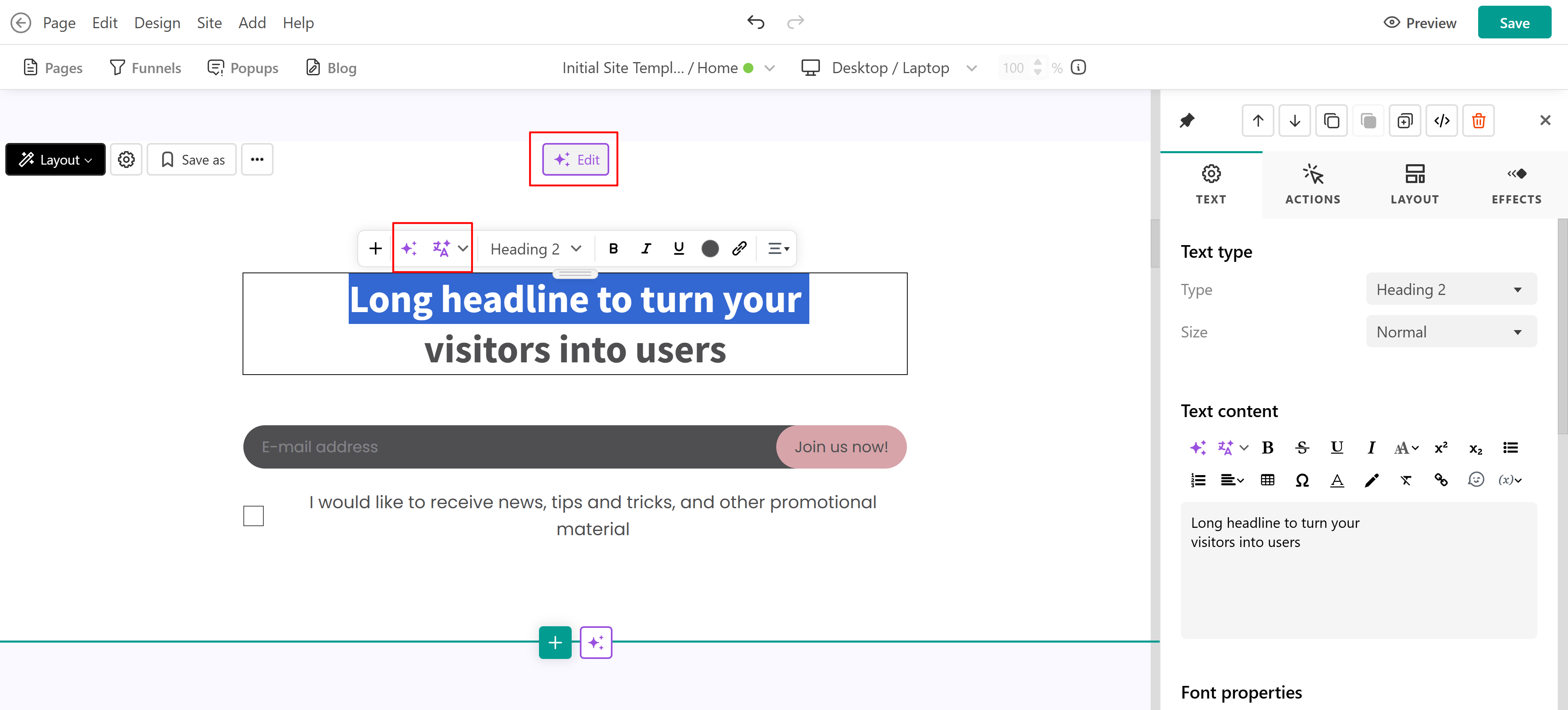
- Edit an existing section with AI to improve it, e.g. Rewrite this to improve conversions.
Customize your email grabber
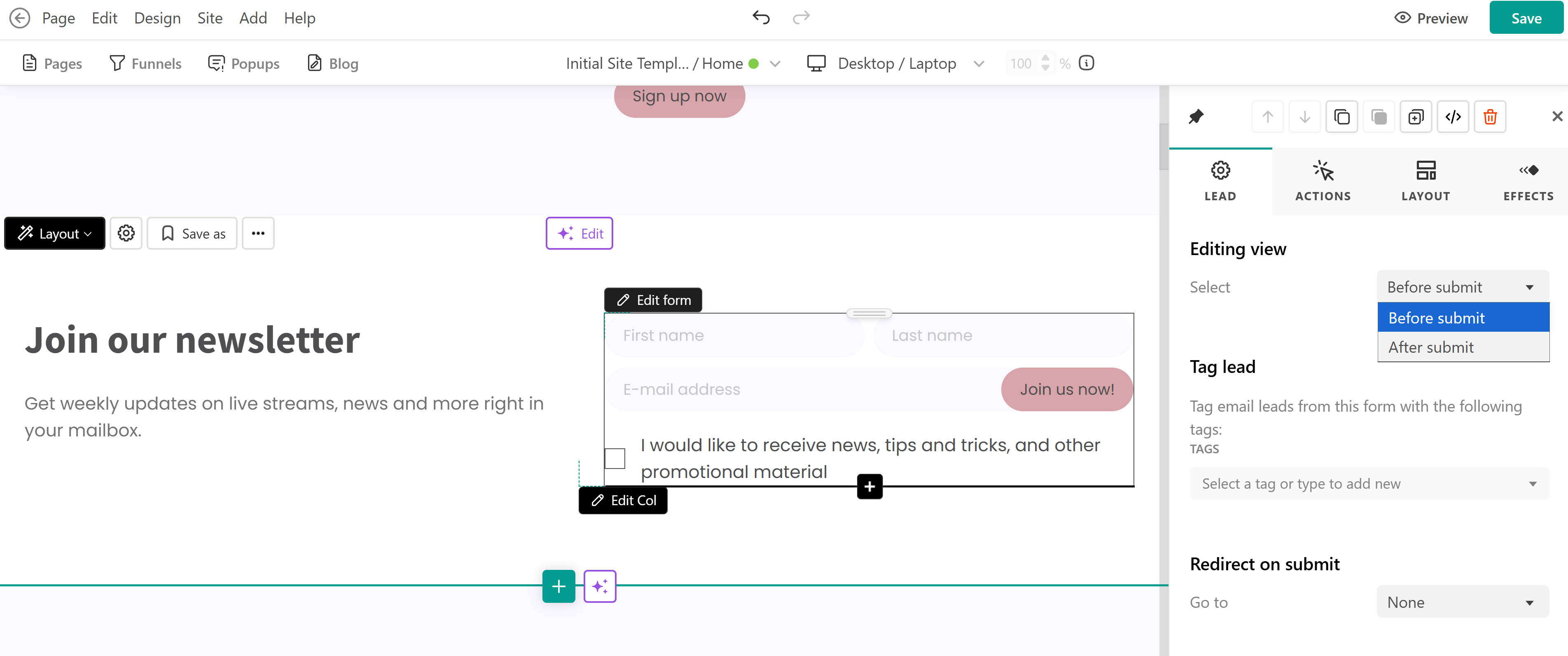
To further edit your widget/section, click Edit form to adjust the following fields on the sideform:
- You can select the Editing view (Before or After submit) to alter the text that users will see before and after the submission, specify a tag for the users that submit, and choose whether you want to redirect your users to a specific page on submit.
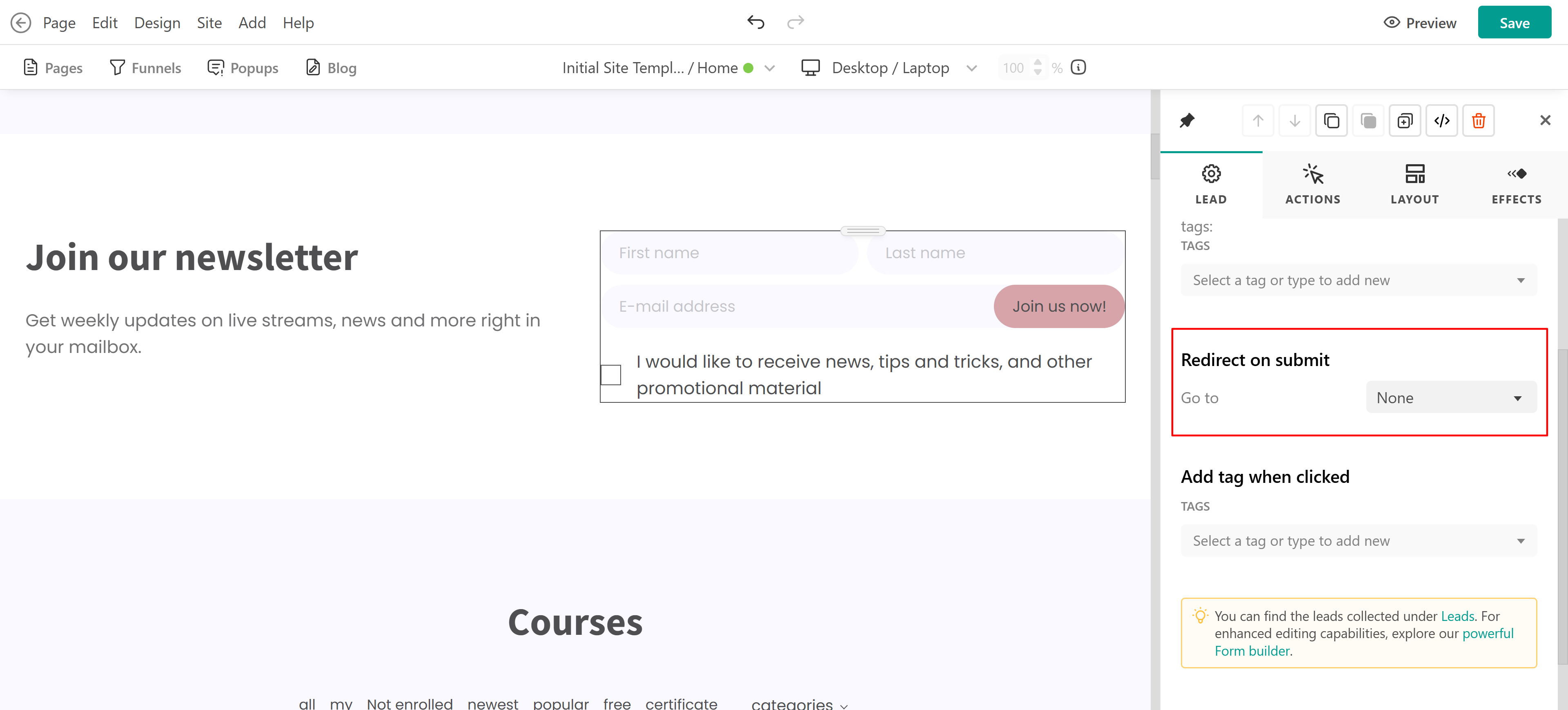
- Set an action to be generated after users submit their information in the Email Grabber form. Under Redirect on submit select where users will be sent. This is ideal if you would like to redirect users, for example, to a Paid Course with Free sections.
- Tag your leads based on the email grabber they used to submit their email. This is great if you have email grabbers on different pages or request emails for different uses (sending an ebook or sending a digital file).
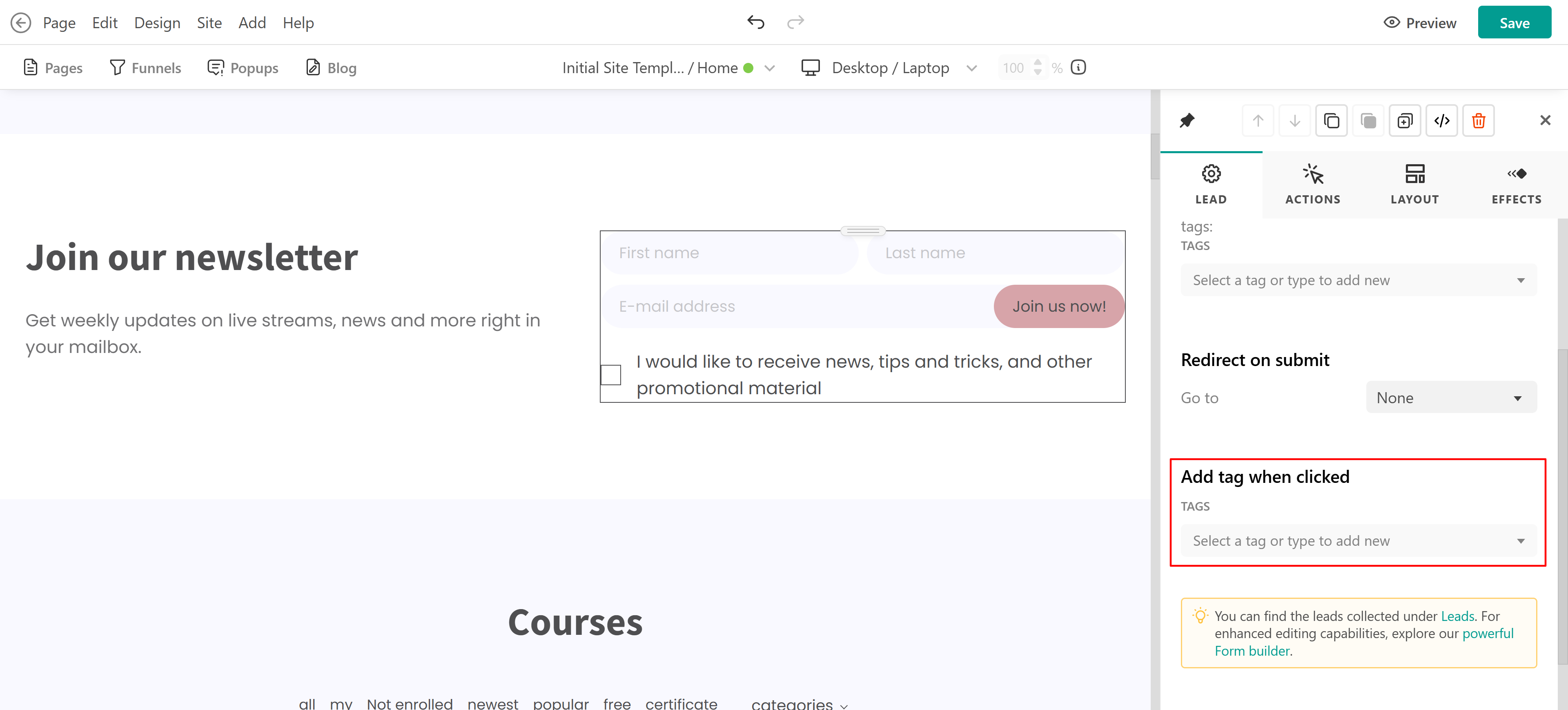 You can view and filter tags in Leads page.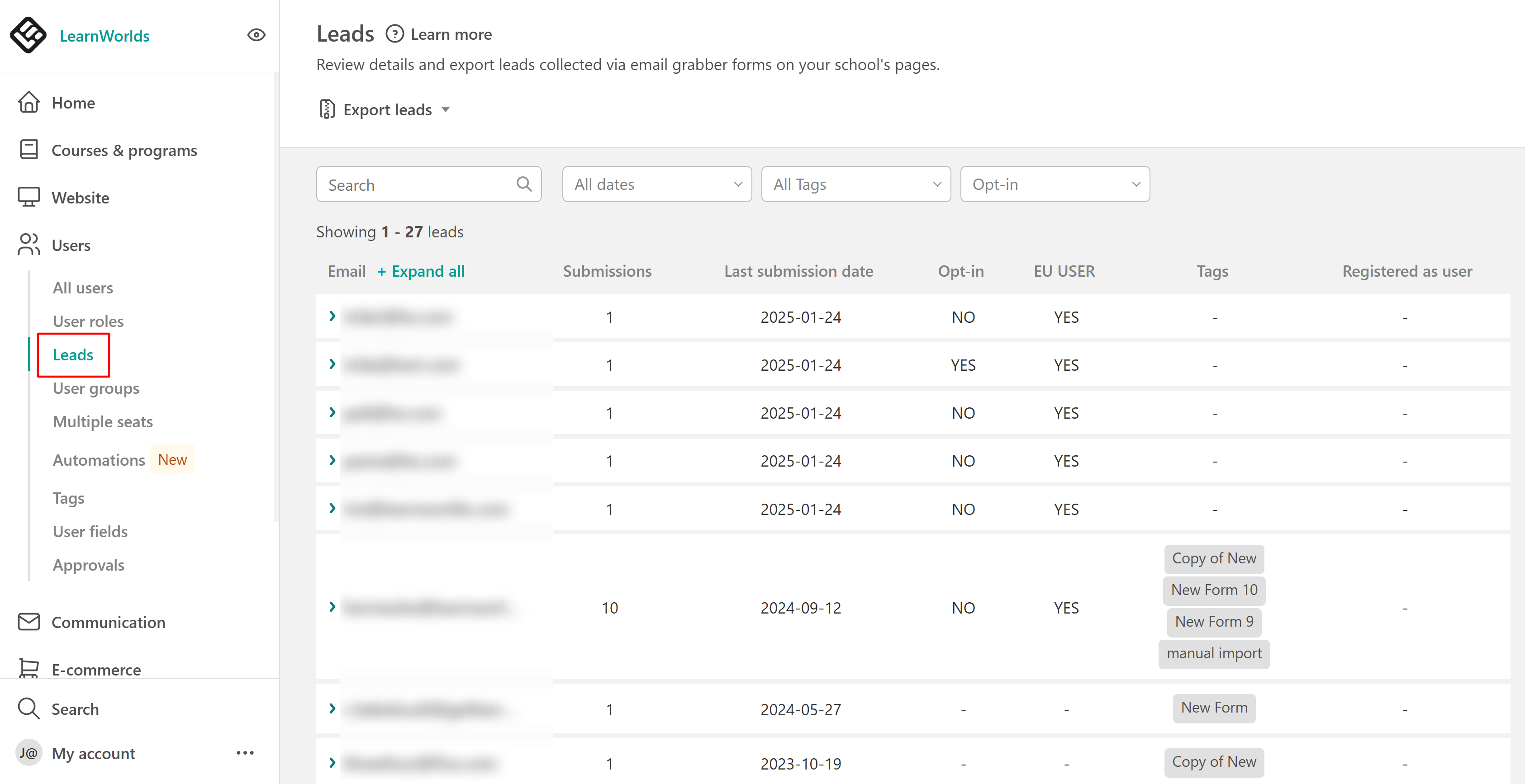
 - You can choose the Get Email/Email Grabber templates that only include email fields, pick templates that also collect your visitors' First and Last Names, or only First Names.