
Product-level tax exemption lets you mark specific courses or learning programs as tax-exempt, add the required legal reference, and show the correct tax treatment in the cart, checkout, invoice details, and PDF invoices.
Use this when some products in your school are legally exempt from tax while others remain taxable, for example accredited educational courses or regulated training programs. The feature is designed to support mixed-tax orders where taxable and tax-exempt products are purchased together.
 LearnWorlds helps you configure and display tax-exempt products, but it doesn't determine whether a product qualifies for tax exemption. Your school is responsible for confirming whether a product is eligible for tax exemption based on the applicable laws in your jurisdiction.
In this article, you'll learn how to mark courses and learning programs as tax-exempt, what learners see during checkout, and how tax-exempt products appear on invoices.
Before you start
Before marking a product as tax-exempt, make sure you:
- Confirm the product qualifies for tax exemption in your jurisdiction.
- Have the legal or regulatory reference required for your invoices, for example:
- EU VAT Directive 2006/112/EC, Art. 132
- §4 Nr. 21 UStG
- Art. 10 DPR 633/72
- Section 501(c)(3)
- Have already configured taxes for your school.
- Know whether you're using LearnWorlds invoices or an external tax provider, such as Stripe Tax or Quaderno.
If you use an external tax provider, support for product-level tax exemptions depends on the provider's capabilities.How to mark a course as tax-exempt
1. Navigate to Courses & Programs → Courses and select the course you want to update.
2. Open the General tab in the Course settings section.
3. Scroll to the Tax exemption section.
4. Choose one of the following options:
- Use default school tax settings
- Mark this course as tax-exempt
If you select Mark this course as tax-exempt, enter the Regulation reference.
5. Click Save.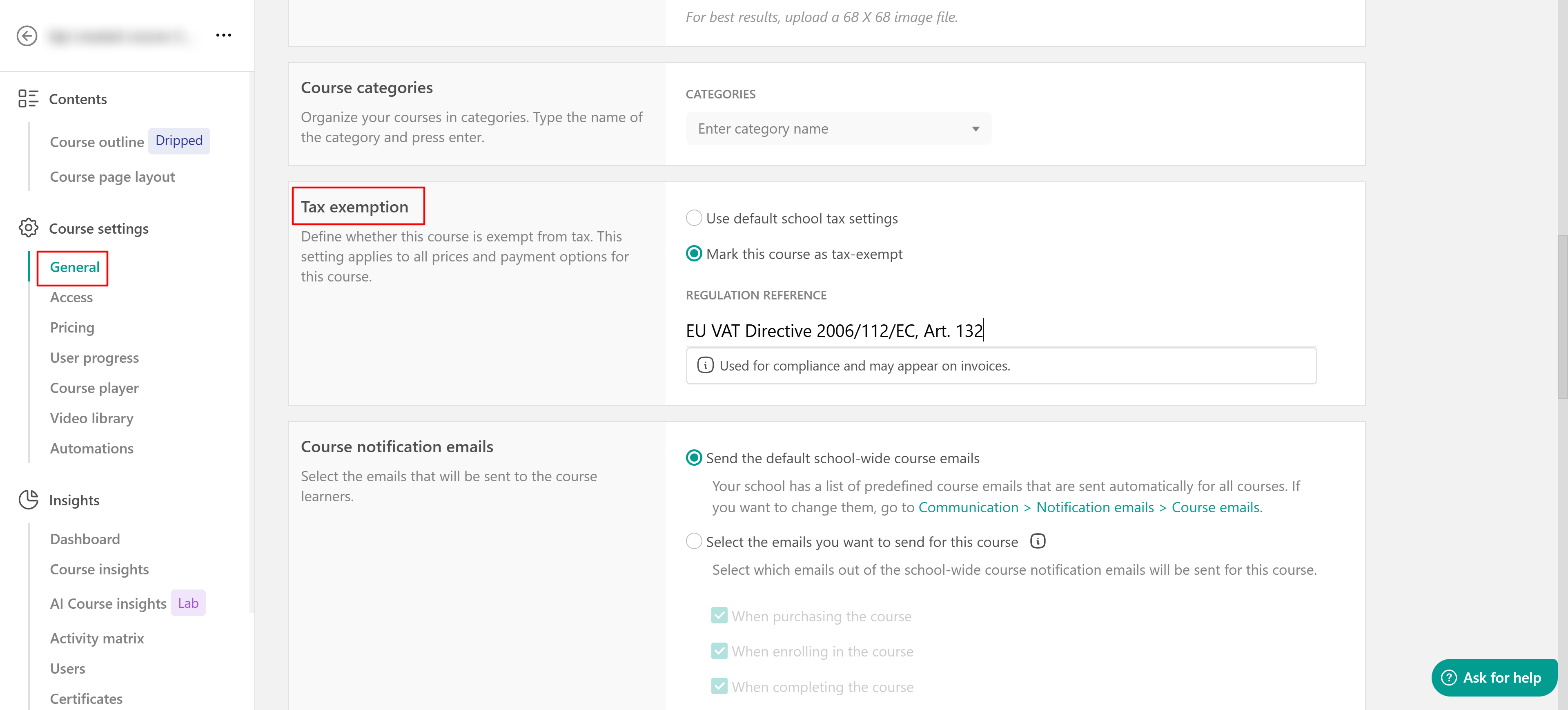
The Regulation reference is used for compliance and may appear on invoices. For example: §4 Nr. 21 UStG. If a course is marked as tax-exempt, the regulation reference should not be left blank.
How to mark a learning program as tax-exempt
1. Go to Courses & Programs → Learning Programs and open the learning program you want to configure.
2. Select Course settings.
3. Open the General tab.
4. Scroll to the Tax exemption section.
5. Choose one of the following options:
- Use default school tax settings
- Mark this learning program as tax-exempt
6. Enter the Regulation reference.
7. Click Save.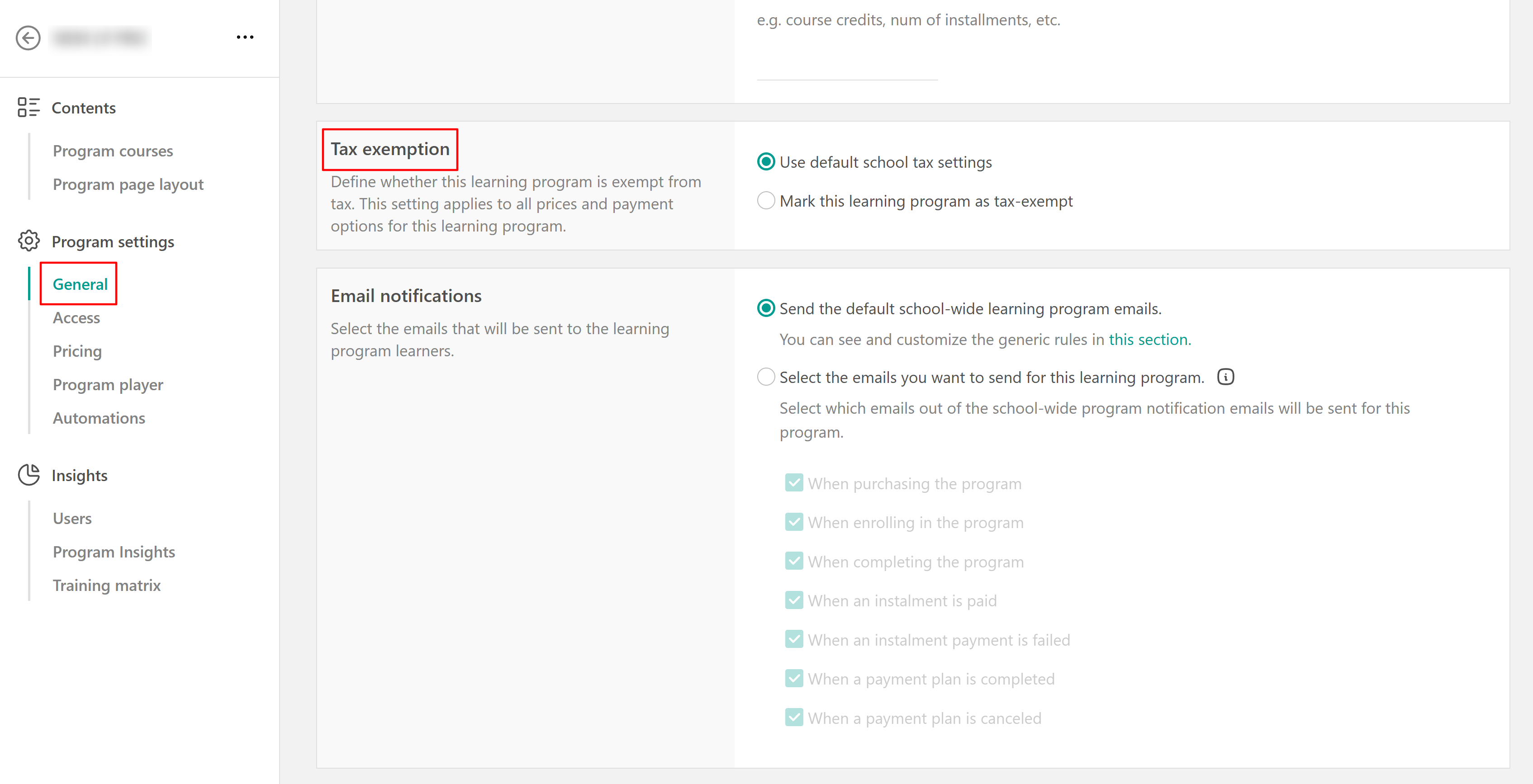
When a learning program is tax-exempt, the program-level tax treatment applies to the learning program purchase.
What learners see during checkout
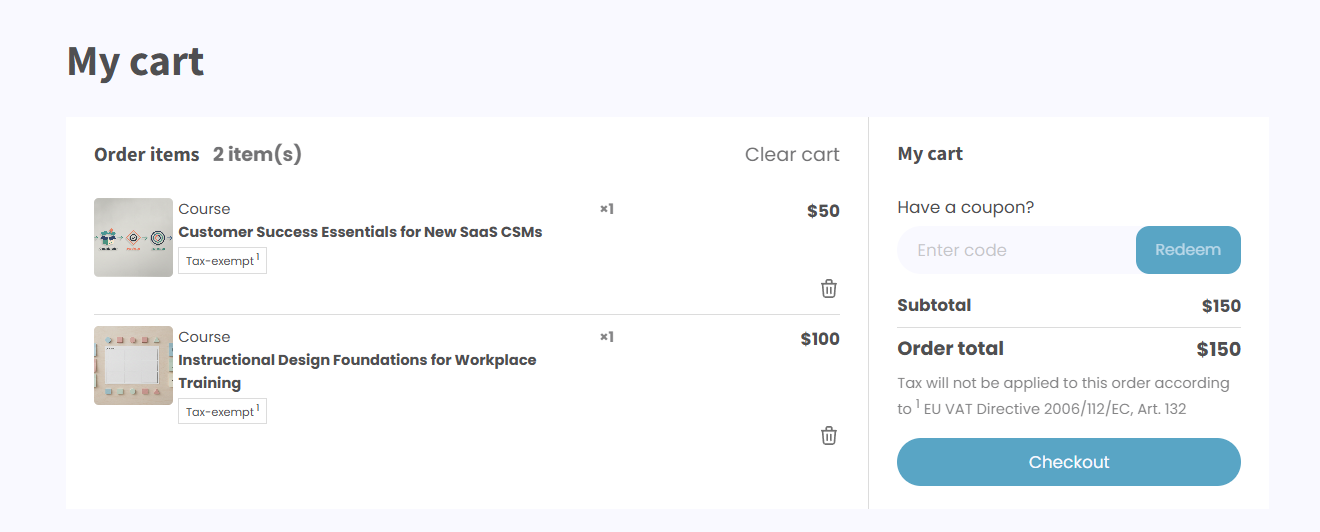
When a product is marked as tax-exempt:
- A Tax-exempt label appears next to the product in the cart and at checkout.
- Tax is calculated only for taxable products.
- Orders can include both taxable and tax-exempt products.
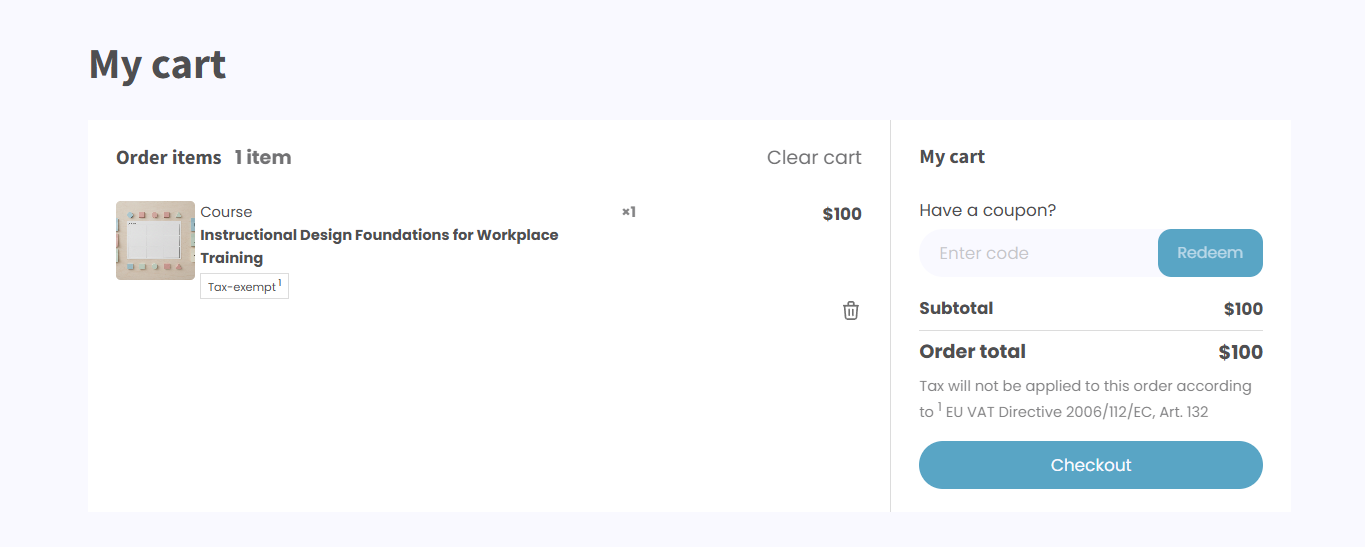
If all products in the order are tax-exempt:
- Every product displays the Tax-exempt label.
- No tax is added to the order total.
- The tax section displays Tax - exempt.
If the order contains both taxable and tax-exempt products:
- Only tax-exempt products display the Tax-exempt label.
- Tax is calculated only for taxable products.
- The tax summary reflects the tax applied only to taxable items.
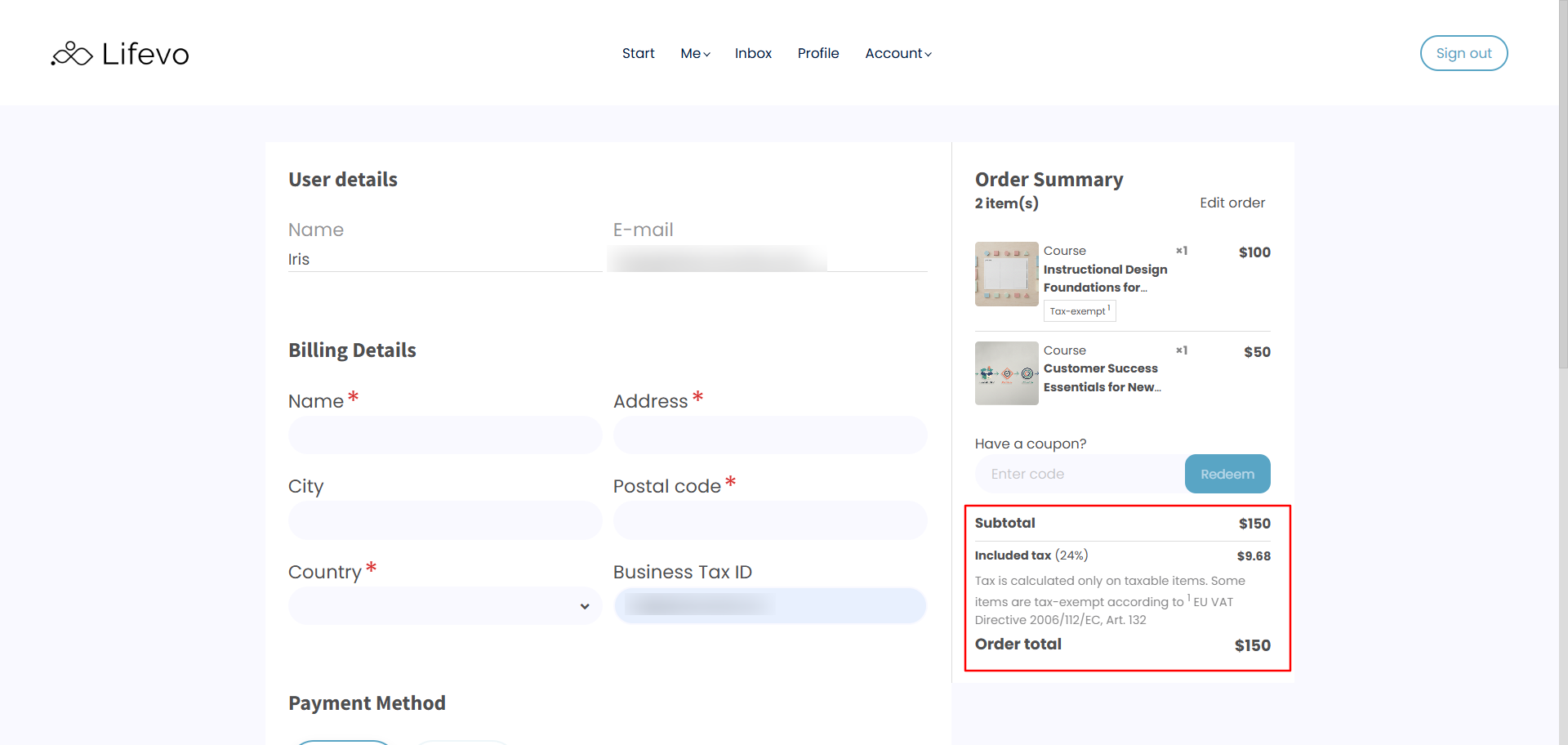
Tax is always calculated at the line-item level, so each product keeps its own tax treatment.
How tax-exempt products appear on invoices
Invoice details display one of the following tax statuses:
| Order type | Tax status |
| All products are taxable | Applied |
All items are tax-exempt | Exempt |
| Some items are taxable and some are tax-exempt | Mixed |
For tax-exempt invoices:
- Tax-exempt products are marked as Exempt.
- The regulation reference appears on the invoice when available.
For mixed invoices:
- Taxable products display the calculated tax amount.
- Tax-exempt products are marked as Exempt.
- The invoice displays the Mixed tax status.
For PDF invoices:
- Tax-exempt products are marked with a superscipt.
- A footnote identifies tax-exempt products.
- The applicable regulation reference is included in the footnote.
- The Taxable amount includes only taxable products.
Example footnote:
(*) VAT Exempt Item(s) according to §4 Nr. 21 UStG
If an invoice contains only taxable items, no tax-exemption asterisks or exemption footnotes are shown.
FAQs
- Does this change my school-level tax settings?
No. The school-level tax settings remain the default. Product-level tax exemption overrides the default only for the products that are marked as tax-exempt.
- Can I sell taxable and tax-exempt products together?
Yes. The cart and checkout can support mixed orders. Tax is calculated per line item, so taxable products are taxed and exempt products remain untaxed.
- Is the regulation reference required?
Yes. When a product is marked as tax-exempt, the legal or regulation reference should be provided so it can appear in invoice records and PDF invoice footnotes.
-Will buyers see the tax exemption before paying?
Yes. Buyers see the Tax-exempt label in the cart widget, cart page, and checkout. The order summary also explains when tax is not applied or when only some items are tax-exempt.
- Does LearnWorlds validate whether my product legally qualifies?
No. LearnWorlds does not validate eligibility for tax exemption. Your school remains responsible for confirming the correct legal treatment with a qualified tax or legal advisor.
- Does this work with Stripe or Quaderno?
The feature is designed to propagate product-level tax exemption data to integrated tax providers where supported. Availability may depend on the provider’s API capabilities and your school’s invoicing setup.