Welcome to the LearnWorlds Course Hub, a curated internal marketplace where LearnWorlds creators can license their existing courses to other LearnWorlds schools.
This onboarding checklist will guide you through the key steps to become a Hub Publisher and start earning revenue from your course content.
If you’re new to the Course Hub, check our full introduction here.
Why publish on the course hub?
Publishing your course on the course hub allows you to generate income from your existing content while keeping your materials protected.
As a Hub Publisher, you can:
- Unlock a new revenue stream by earning income per enrollment.
- Expand your reach by making your courses available to other schools across the LearnWorlds ecosystem.
- Protect your intellectual property, as Buyers cannot edit your course content, structure, or learning activities.
 Publishing on Course Hub is currently available to selected customers on the Learning Center plan and above. It will be available soon to all customers on the Learning Center and higher plans. Please note that submitted courses will go through a review process to provide our community with high-quality content. Make sure to contact your Customer Success Manager to check if you're eligible for early access.
Before you start: Connect Stripe
To publish a course in the Course Hub, you must first connect a Stripe account. Go to Courses & Programs → Course Hub → Settings → Connect Stripe account.
This Stripe connection is separate from your school’s main payment gateway. You cannot submit a course for review unless Stripe is connected. However, you can create listings and keep them in Draft without it.We recommend creating a new Stripe account specifically for the Course Hub, so you can receive payments for your licensed courses there.
Become a course hub publisher
Follow the steps below to become a Course Hub Publisher and start monetizing your existing content:
1. Navigate to Courses & Programs → Course Hub, click List a course and select one of your existing courses.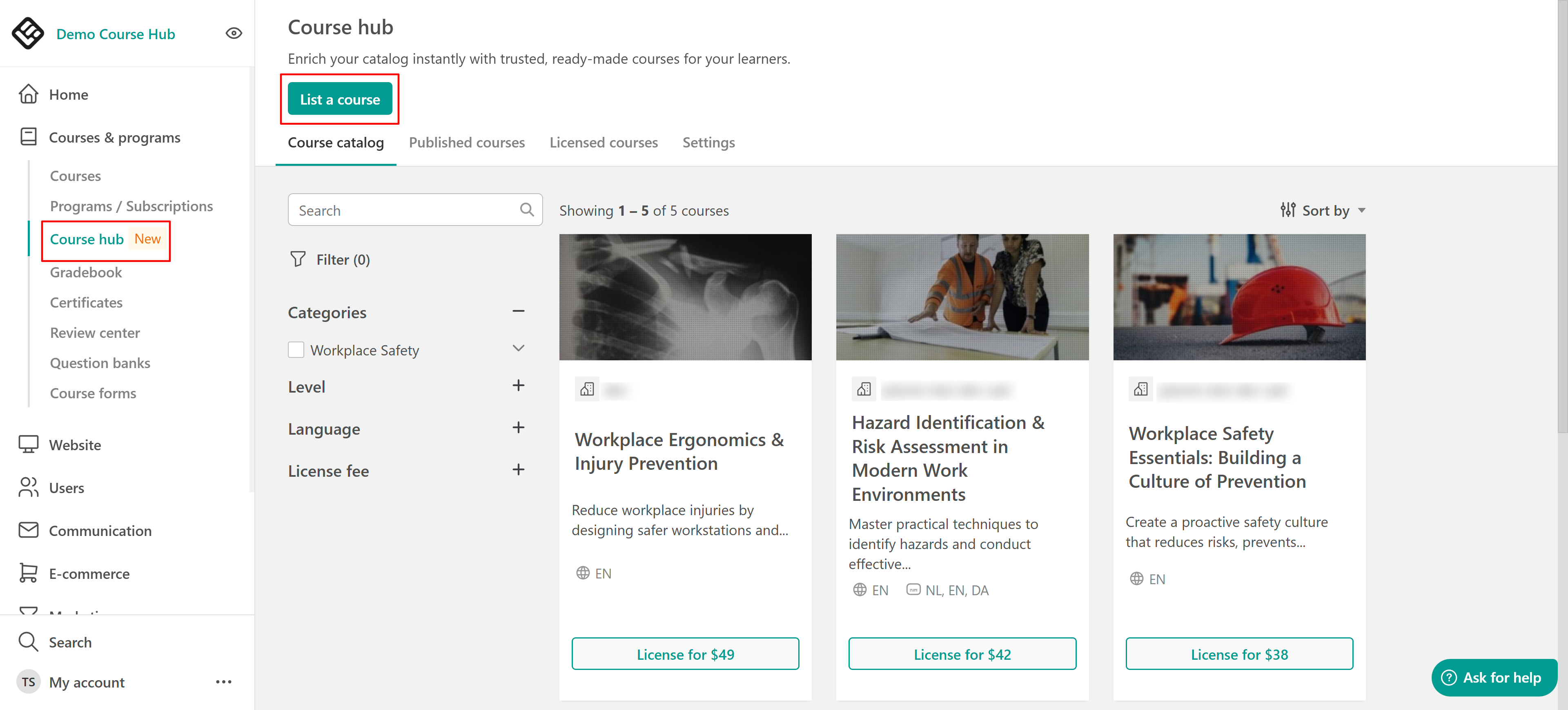
The listed version will be separate from your school’s original course. This allows you to make edits for the course hub listing without affecting the course in your school.2. Review the first directions, agree and continue.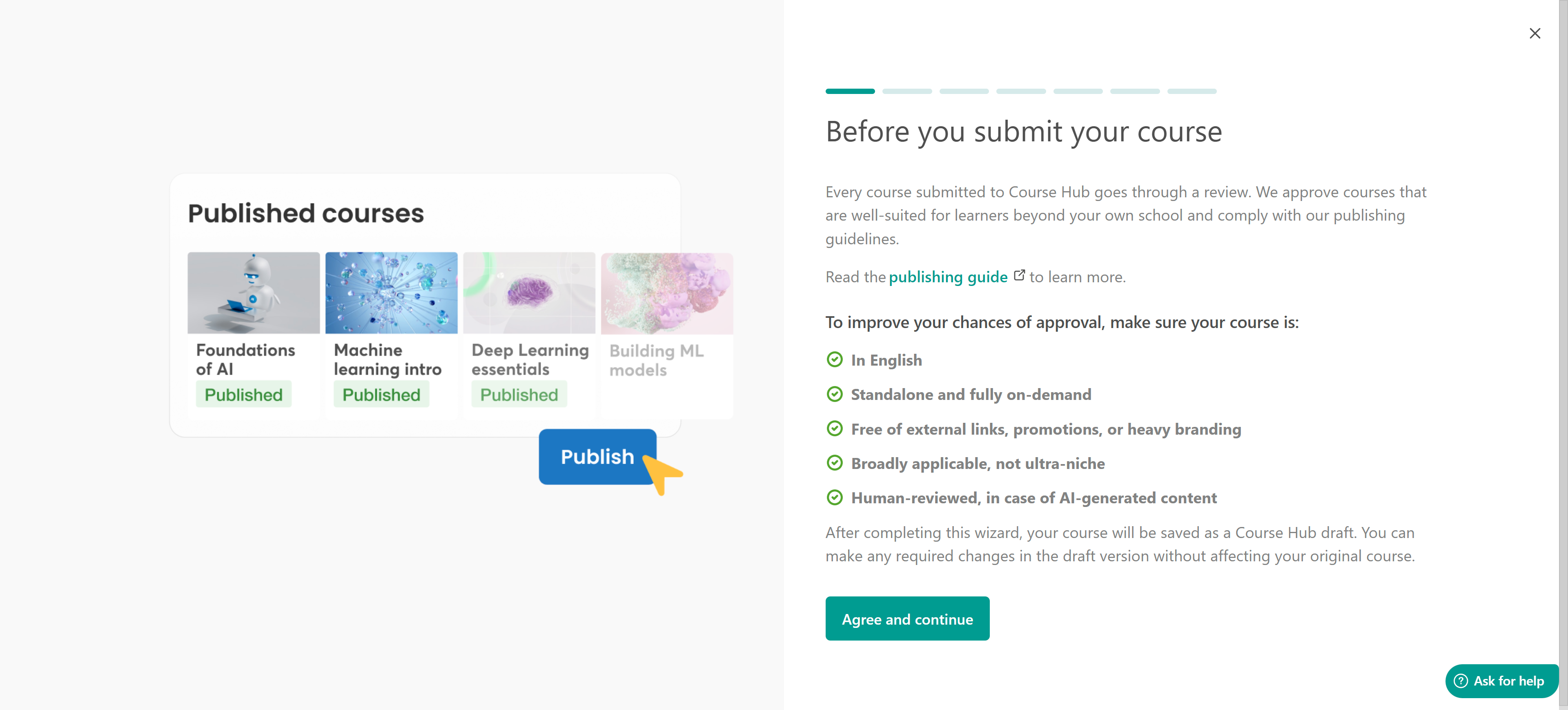
3. Select a course from the courses available in your course manager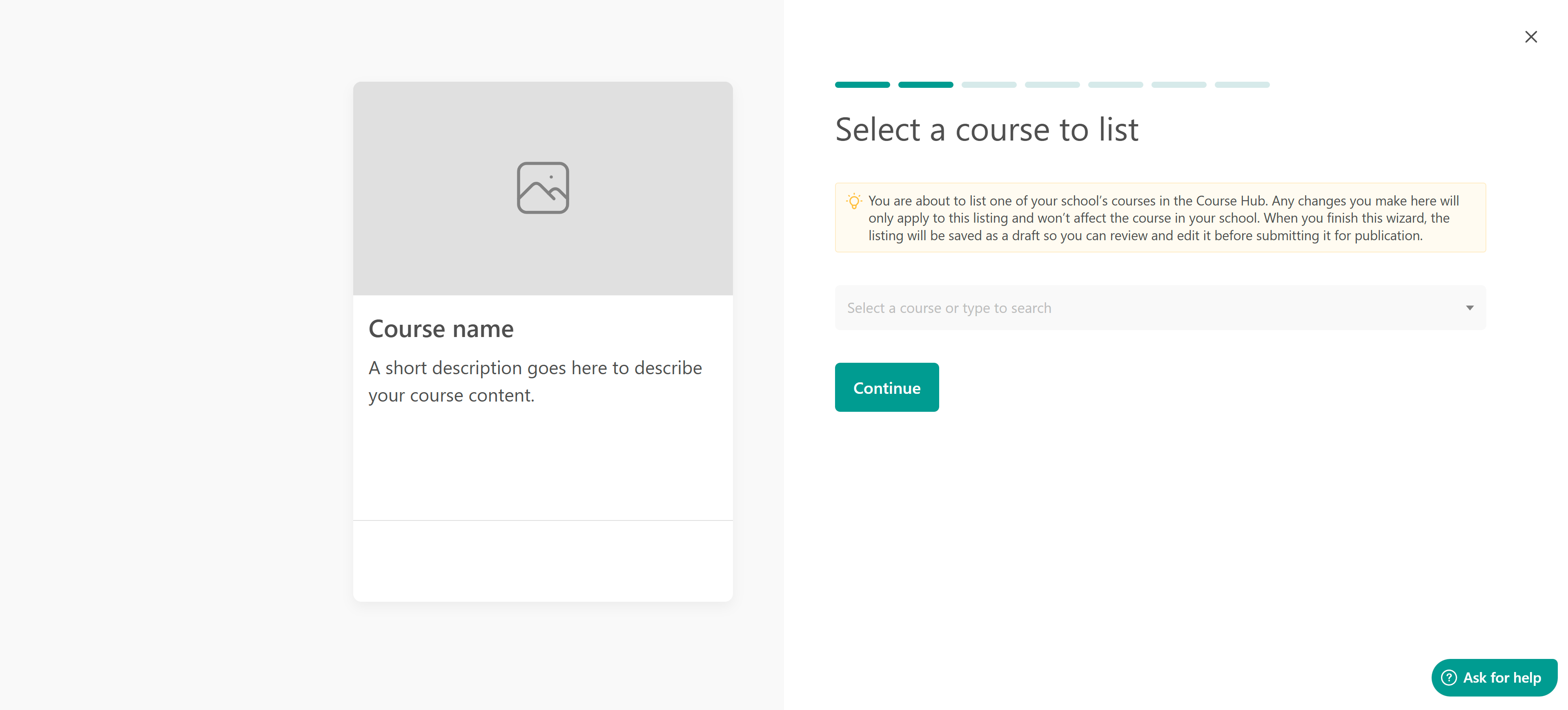
4. Customize your listing card
Rename the course, if you want, and write a clear, benefit-driven description explaining what the course covers, who it’s for, and what learners gain. These changes will only be reflected in your listing and not in the original courses.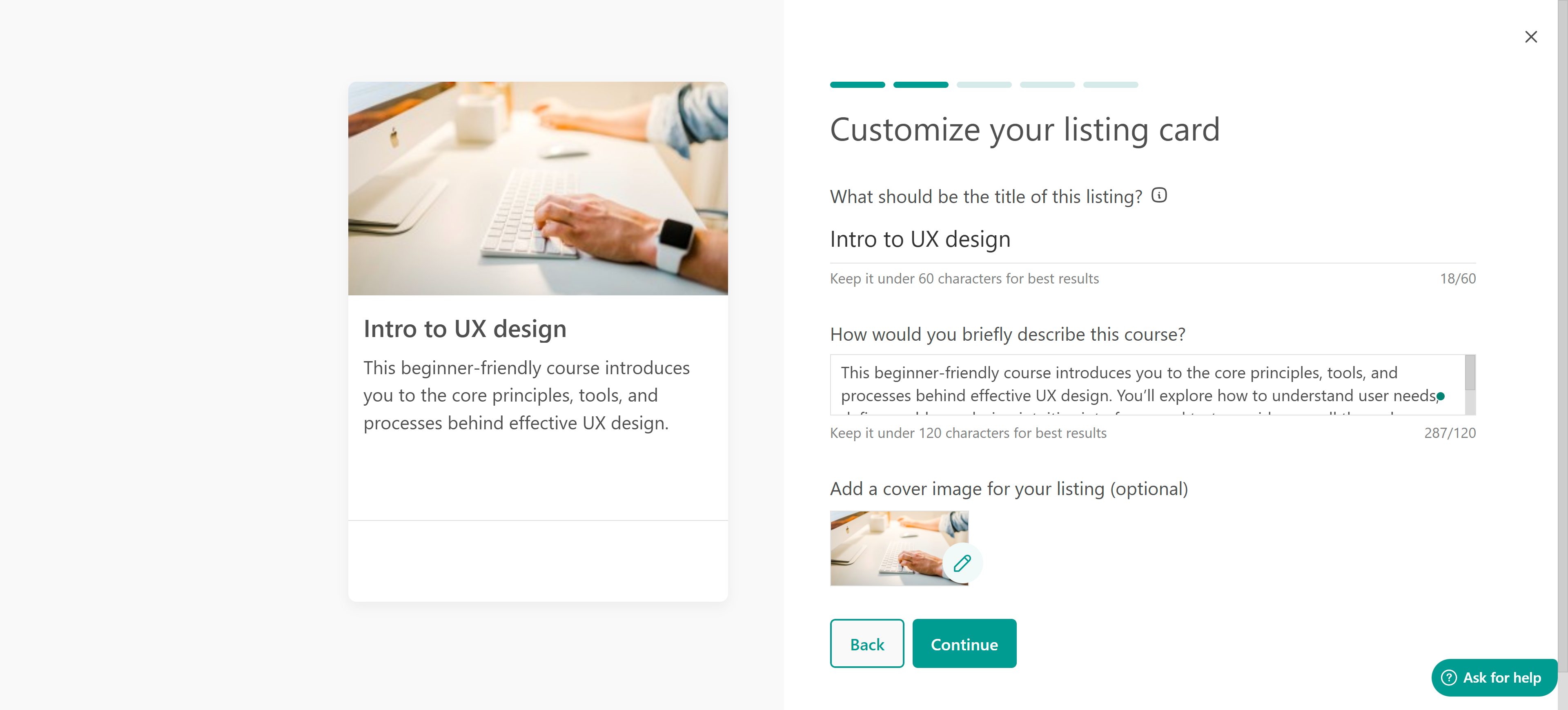
5. Add listing details
Write a strong course overview and a description for your course, or even add visual assets to show buyers the course’s style and value.
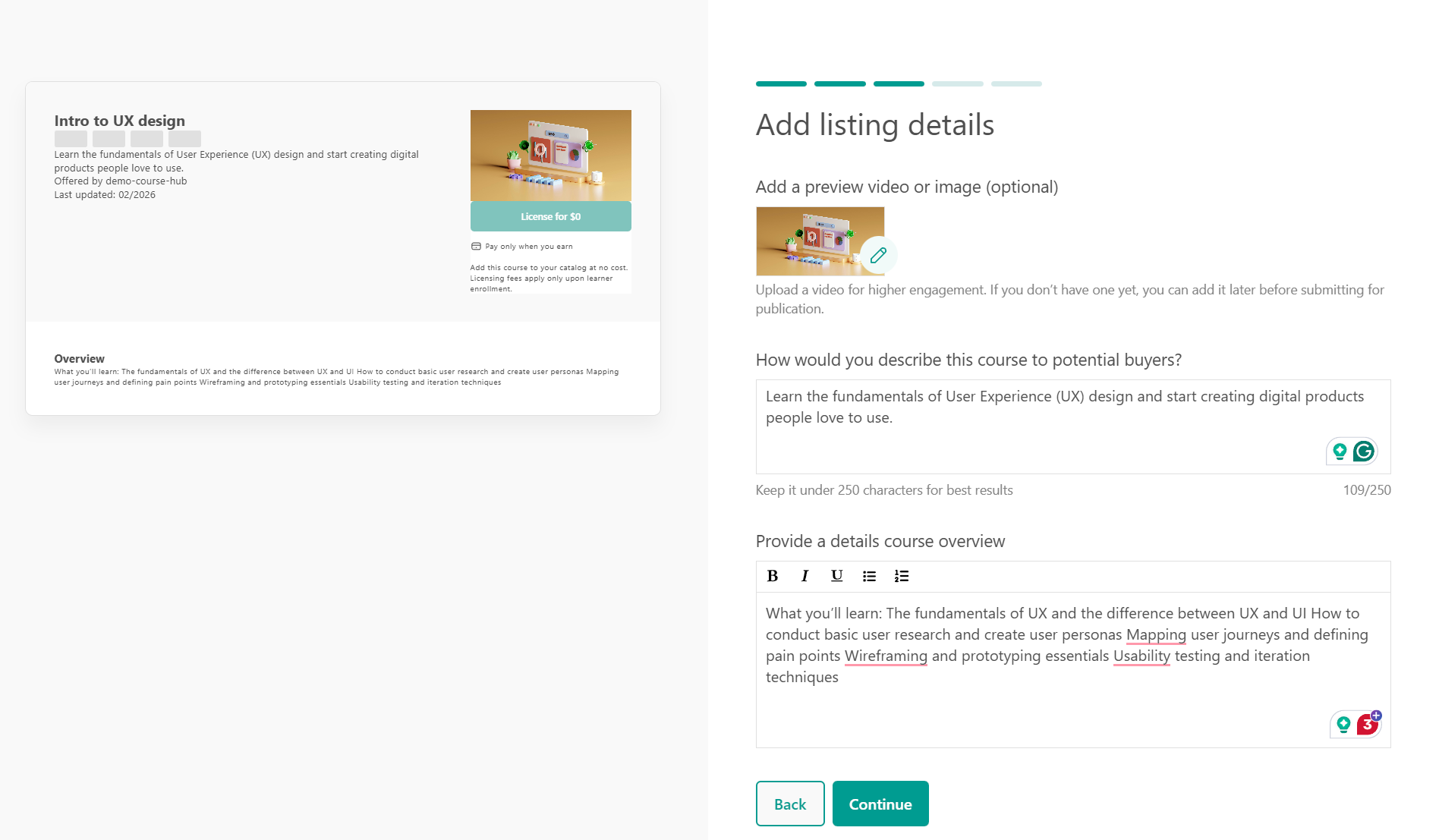
We suggest uploading a preview video for higher engagement.
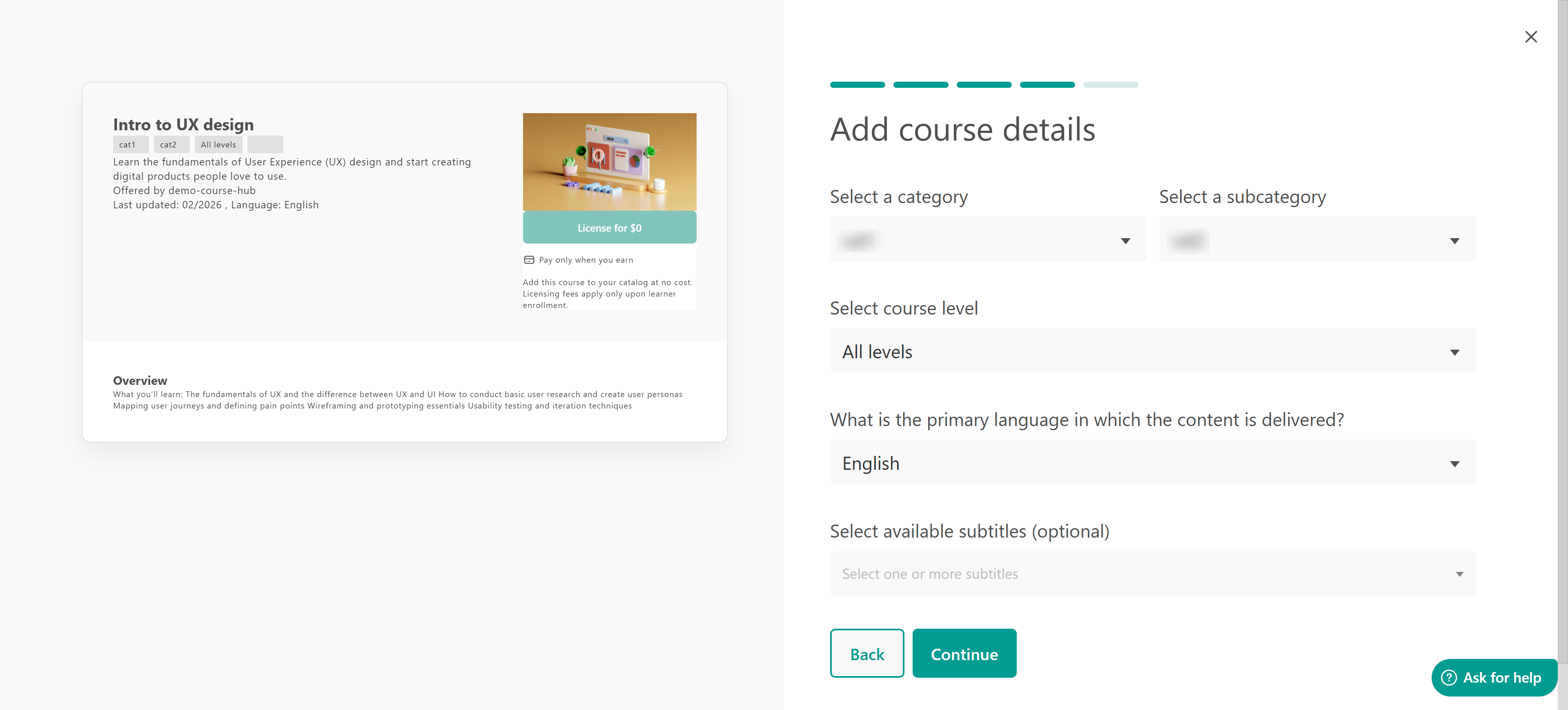
6. Set up Course Details
- Choose a category to list your course
- Select course level
- Specify the main language in which the content is delivered.
- Select available subtitles for course videos (optional)
7. Set pricing & licensing period
Set the license fee per enrollment (e.g. $25, $40, etc.) and choose the Licensing period (e.g. 6, 9, 12, 18, or 24 months). License fee per enrollment means that every time a Buyer enrolls a learner into your licensed course, they will be charged this amount.
Licensing period defines how long the Buyer can enroll new learners into the course.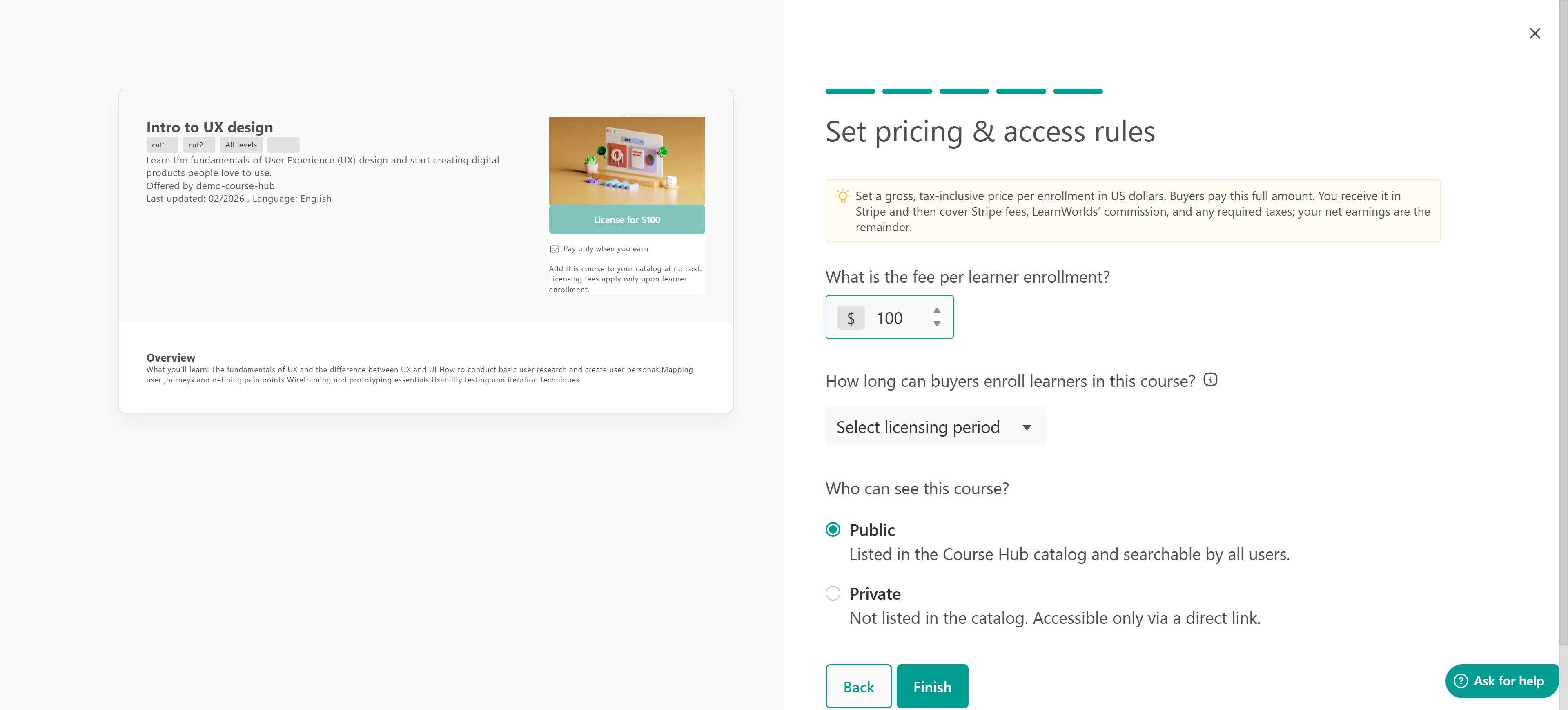 During the licensing period:
- The Buyer can enroll new learners (manually, automatically, or through bundles offers).
- The Buyer is billed monthly based on the number of enrollments made during that billing cycle.
After the licensing period expires:
- The Buyer can no longer create new enrollments into the course.
- Learners who are already enrolled keep access based on the Buyer school’s own access settings.
A learner only loses access if they are unenrolled by the Buyer’s school or if their enrollment expires based on the Buyer’s own course settings. Enrollment expiration is configured by the Buyer and is independent of the licensing period
The licensing period does not control how long your course stays listed in the Course Hub, and it does not automatically remove access for learners.You can also select who can discover this course:
- Set it as public so everyone in the Course Hub or
- Set it as private so it will be accessible only by sharing the link
You can switch between Public and Private at any time. Changing visibility only affects how easily Buyers can discover your course; it does not change existing licensing agreements or remove access for learners who are already enrolled.
- The price you set is the gross price per enrollment, and must be tax-inclusive. Buyers will always pay the full amount you set. From that amount, LearnWorlds applies its fee, and you remain responsible for any applicable taxes.
- All Course Hub license fees are displayed in USD.
- Stripe processing fees may apply.
- You are responsible for handling any applicable tax obligations.
8. Submit for Review
Check the final notes and the steps following and when you are ready confirm & add your course.
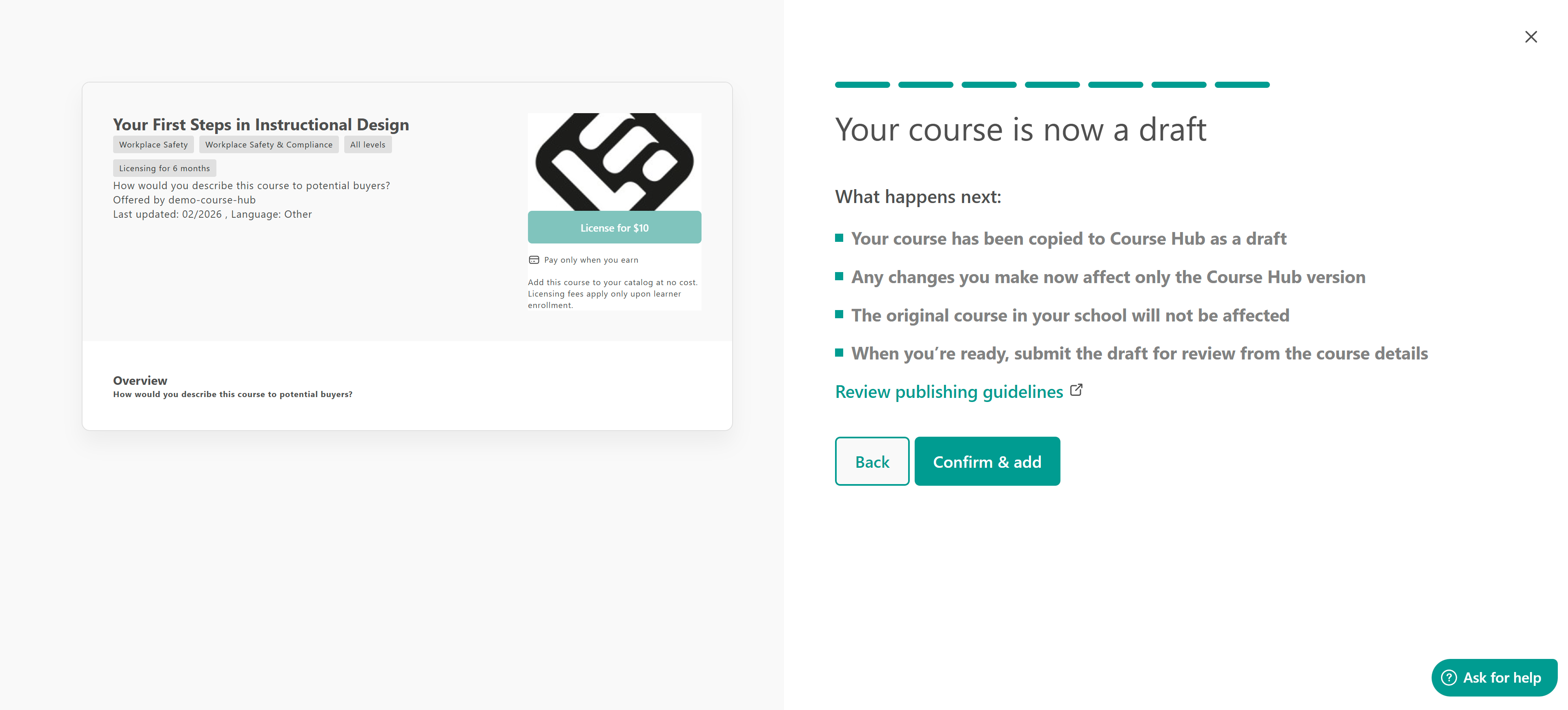
Your listing will appear as draft at first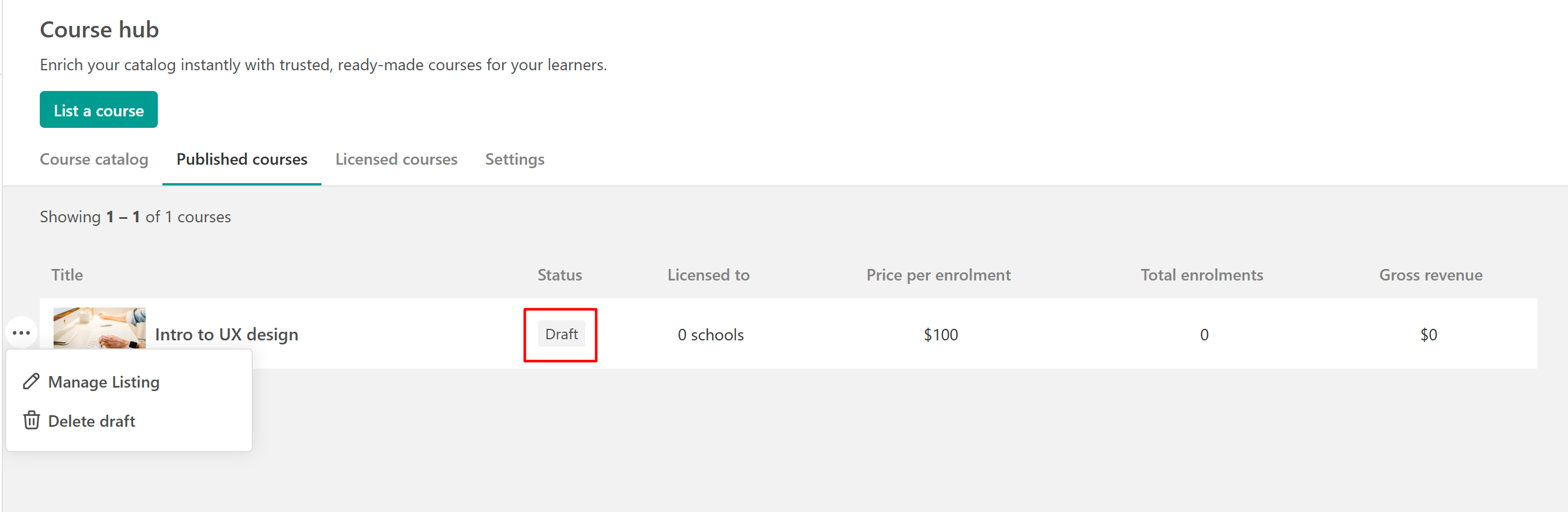
You can delete a course only while it is in Draft status.Course requirements
Courses listed on the Course Hub must not include:
- Live sessions (live classes or webinars)
- Legacy units.
- Certificates with external digital credentials (Accredible, Credly).
- Videos not hosted on LearnWorlds Wistia (for example, Vimeo or external Wistia embeds).
- Password‑protected learning activities.
- Drip feed schedules for course content.
- Synced imported activities or sections (where content is kept in sync with another course).
- Learning activities embedding external content using an LTI integration.
- Ebook widgets that depend on your school’s own systems, such as:
- Sign in / Sign up widgets.
- Marketing Forms widgets.
- Event Calendar widgets.
- Social Feed widgets.
All videos must be hosted on LearnWorlds.
If your course includes unsupported features, you can remove them in the Course Hub version without affecting your original course.Best practices for listing
To increase conversions:
- Use clear, outcome-focused titles (e.g., “Intro to Graphic Design for Beginners”).
- Add short preview videos.
- Write detailed descriptions; buyers cannot preview the full course.
Make it marketplace-ready
Your course should:
- Not include contact details (email, phone, social links)
- Not promote other programs or products
- Not depend on external communities or tools
- Be fully standalone and reusable by another school
- Since Buyers cannot edit your content, your course must work “as-is.”
Prepare your course for review
When you complete the Course Hub wizard and click confirm & add, your Course Hub version of the course is created in the Draft state. At this point:
- The course is not yet published in the Course Hub catalog.
- No Buyers can see or license it.
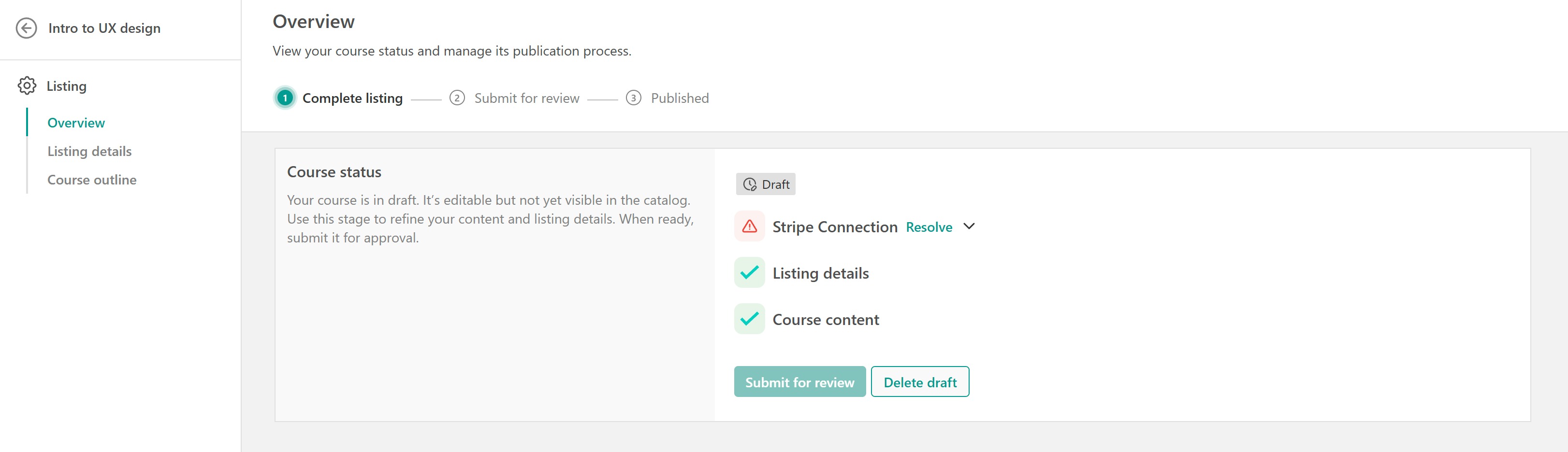
While the course is in Draft status, you can freely edit both the course content and the listing details. Click on Manage Listing or the course name to be redirected to a new page. There you can:
1. Review the course status. If there are any issues with your submission, they will be clearly indicated there.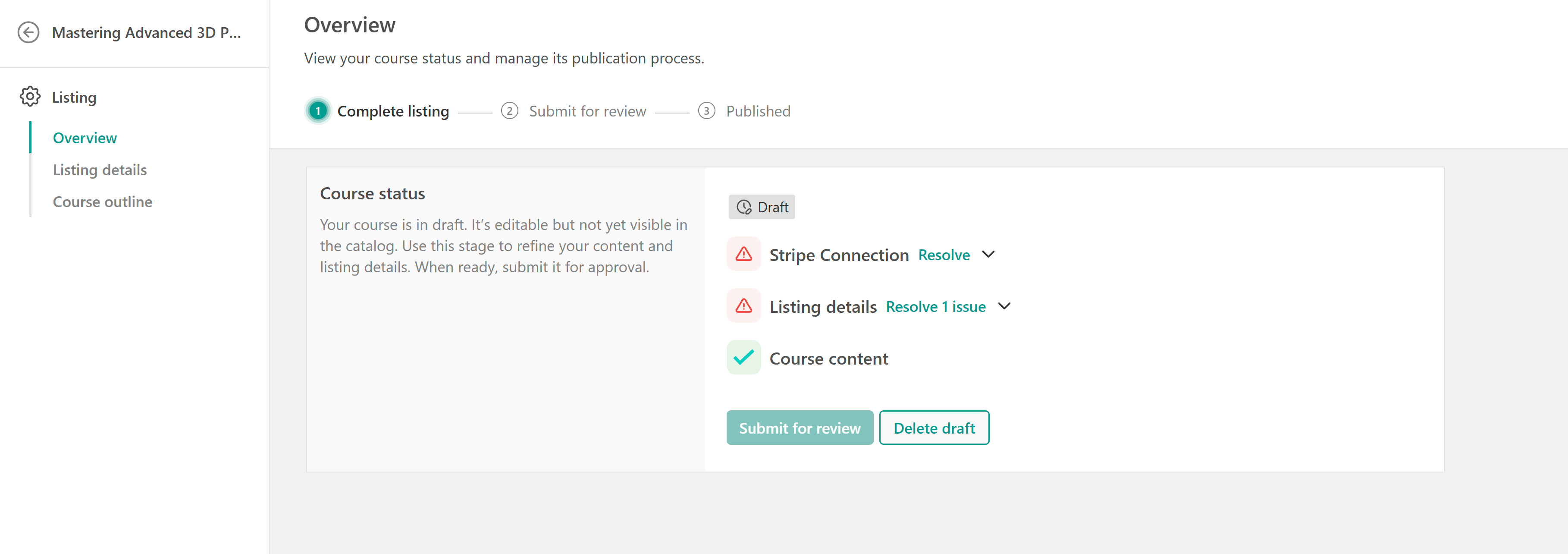
2. Check again your listing details and edit them if you wish.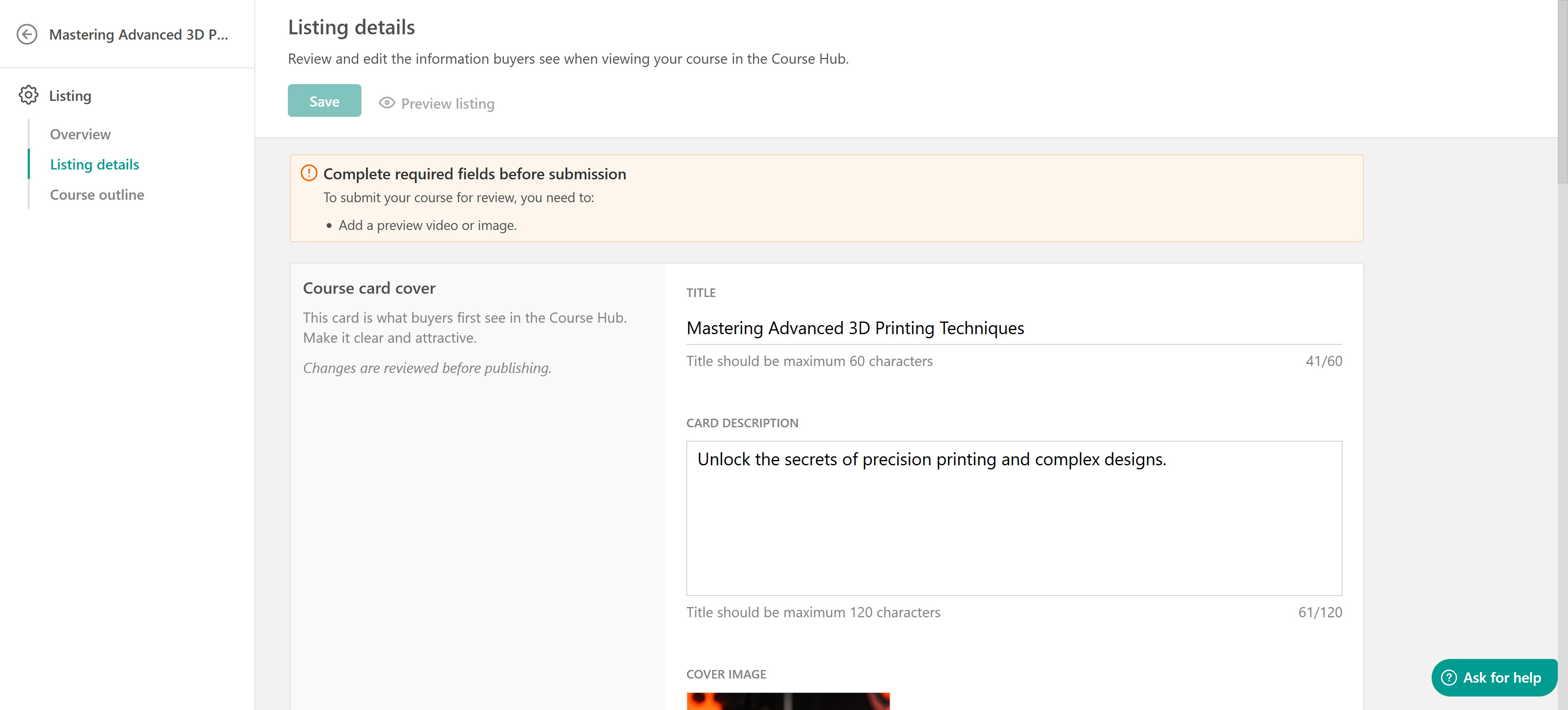
3. View and edit the course's outline and content.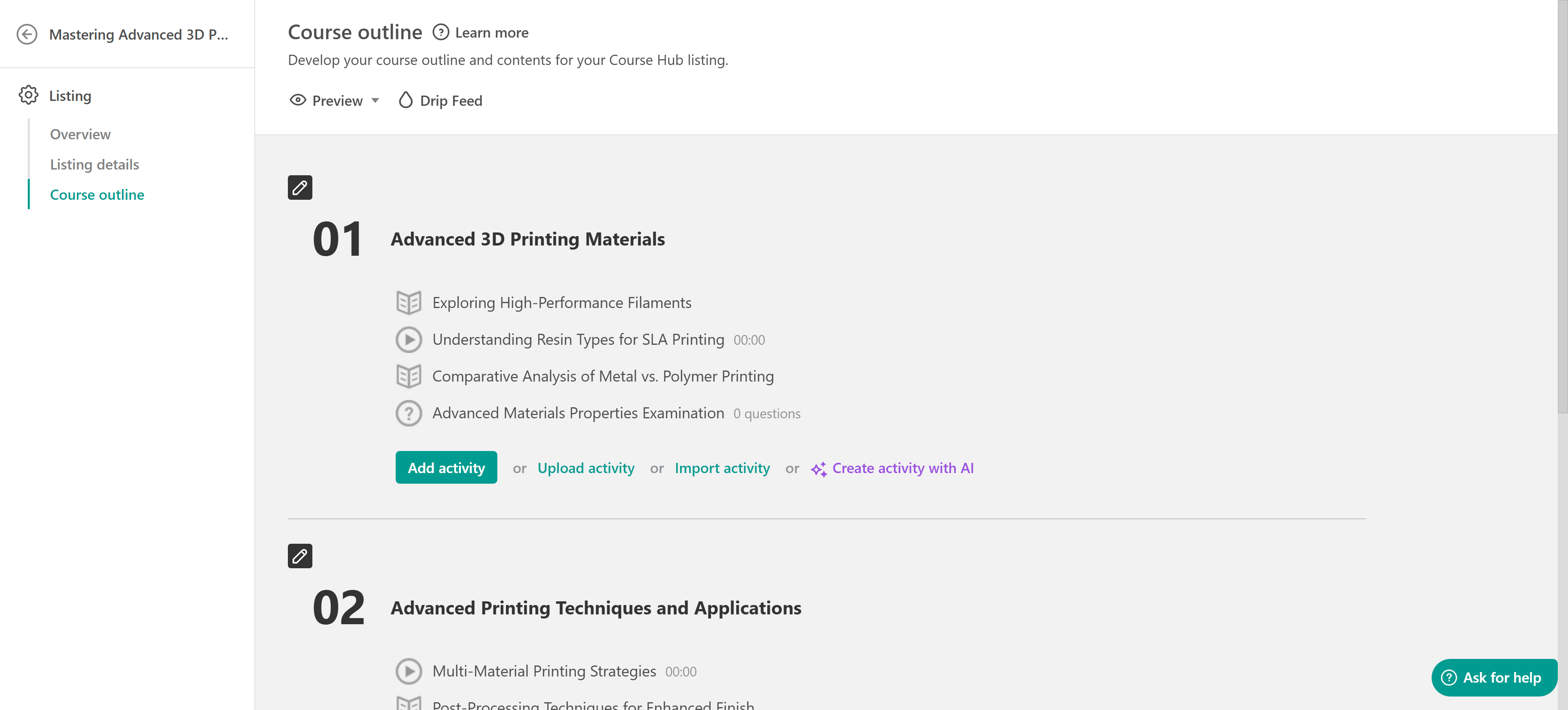
- All changes affect only the Course Hub copy of the course. Your original course in your school stays intact, so you don’t disrupt your existing learners or need to manage extra clones yourself.
- If you decide not to proceed with a Course Hub listing while it is still in Draft, you can delete the Course Hub course. Deleting the draft only removes the Course Hub version and does not affect your originalcourse or existing learners.
Once you’re happy with your content and listing, and you’ve fixed any validation issues, you can submit the course for Publication review. When you submit:
- The course moves from Draft to Under Review.
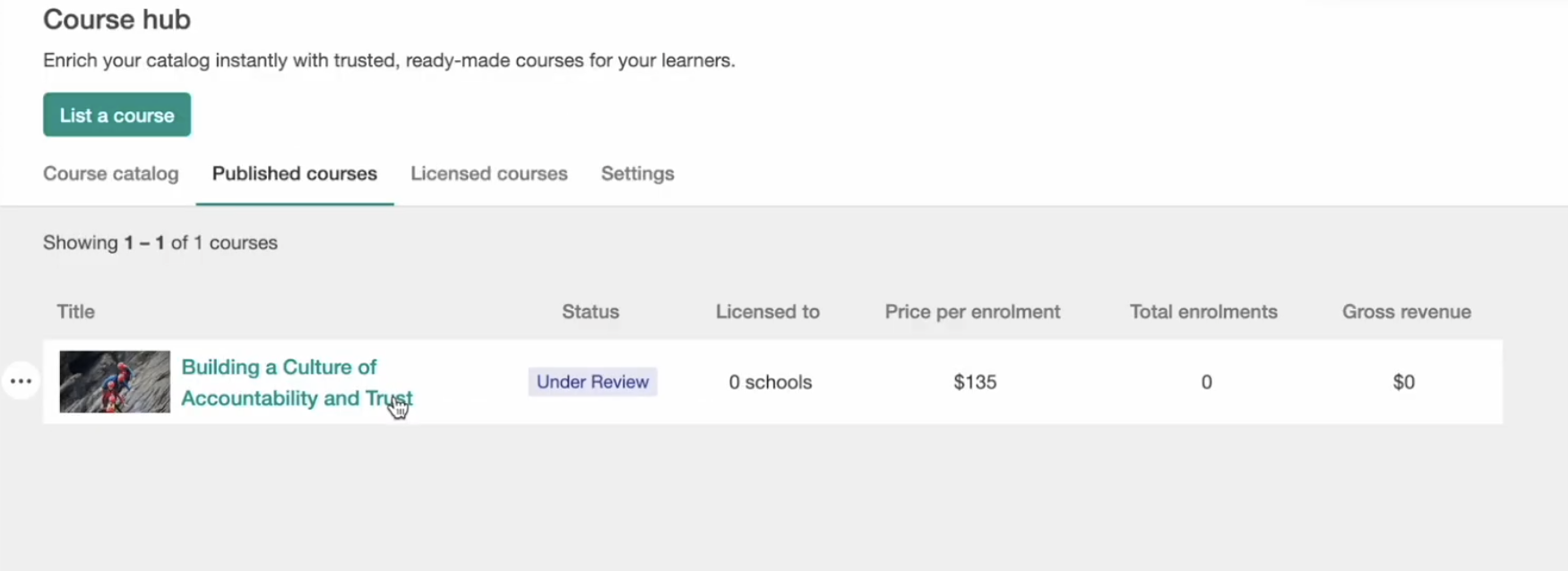
- Editing of content and listing details is temporarily locked while the LearnWorlds team reviews your submission.
- Our team checks that the course:
- Meets the Course Hub quality standards (structure, clarity, and learner experience), and
- Fits the types and subjects of courses we currently accept into the catalog.
When the review is complete you'll receive an email notification with the outcome.
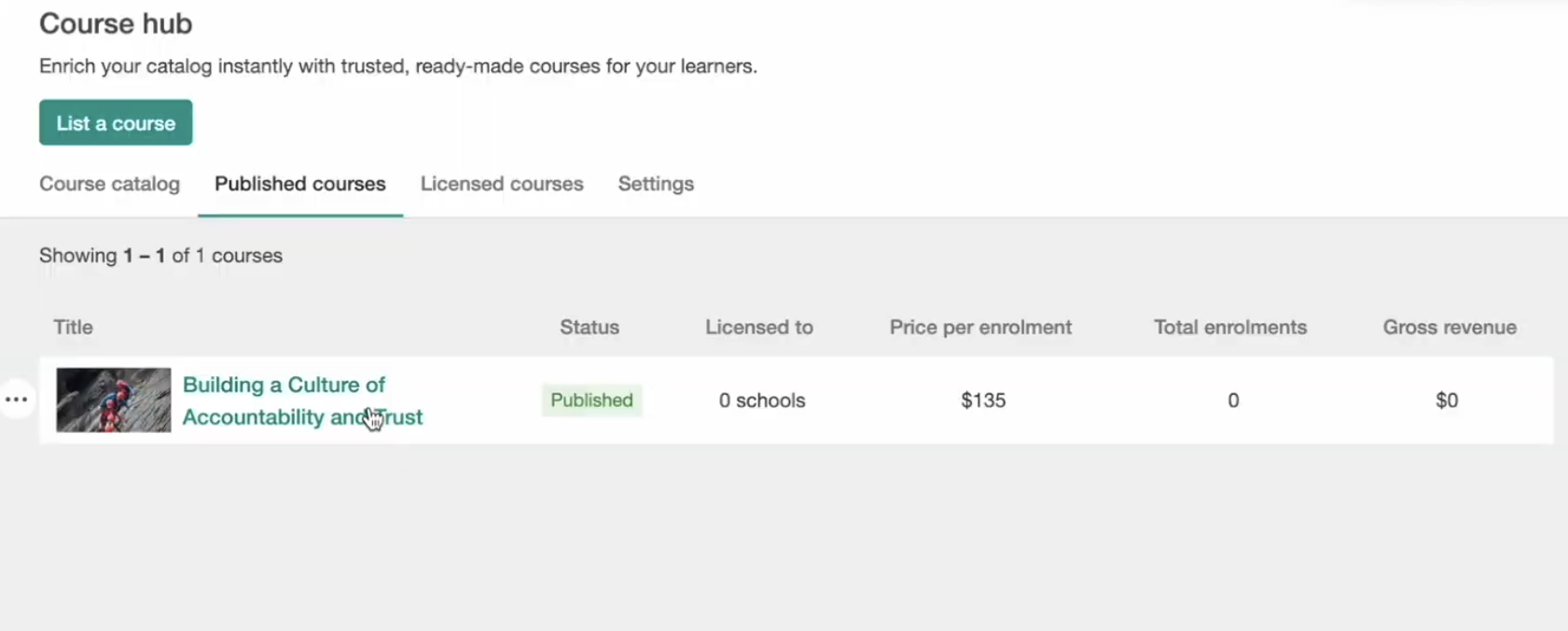
- If approved, your course is immediately Published to the Course Hub and becomes discoverable based on your visibility settings.
- If revisions are needed, you’ll receive clear feedback. Click Manage listing at any time to check the status of your course. If there’s an issue, it will be highlighted there. Once you address it, the status will automatically change back to Under review.