
User roles in LearnWorlds allow you to manage access levels and permissions for different users within your platform. Assigning appropriate roles ensures users have the necessary permissions to perform their tasks without compromising the security and integrity of your platform.
Once you have created custom user roles (available in our Learning Center plans or higher), you can assign these roles to your users. Additionally, you can assign predefined roles to your users, either with their original permissions or by further modifying them. This guide will walk you through the steps to assign user roles effectively.
Assign a role while creating a new user
You can assign a role directly in the process of creating a new user or while updating an existing user.
1. Assign a role while creating a new user in your school:
Navigate to Users → All Users → Add user. Add the username and email and choose the user role. If you want more information on how to create a new user, click here.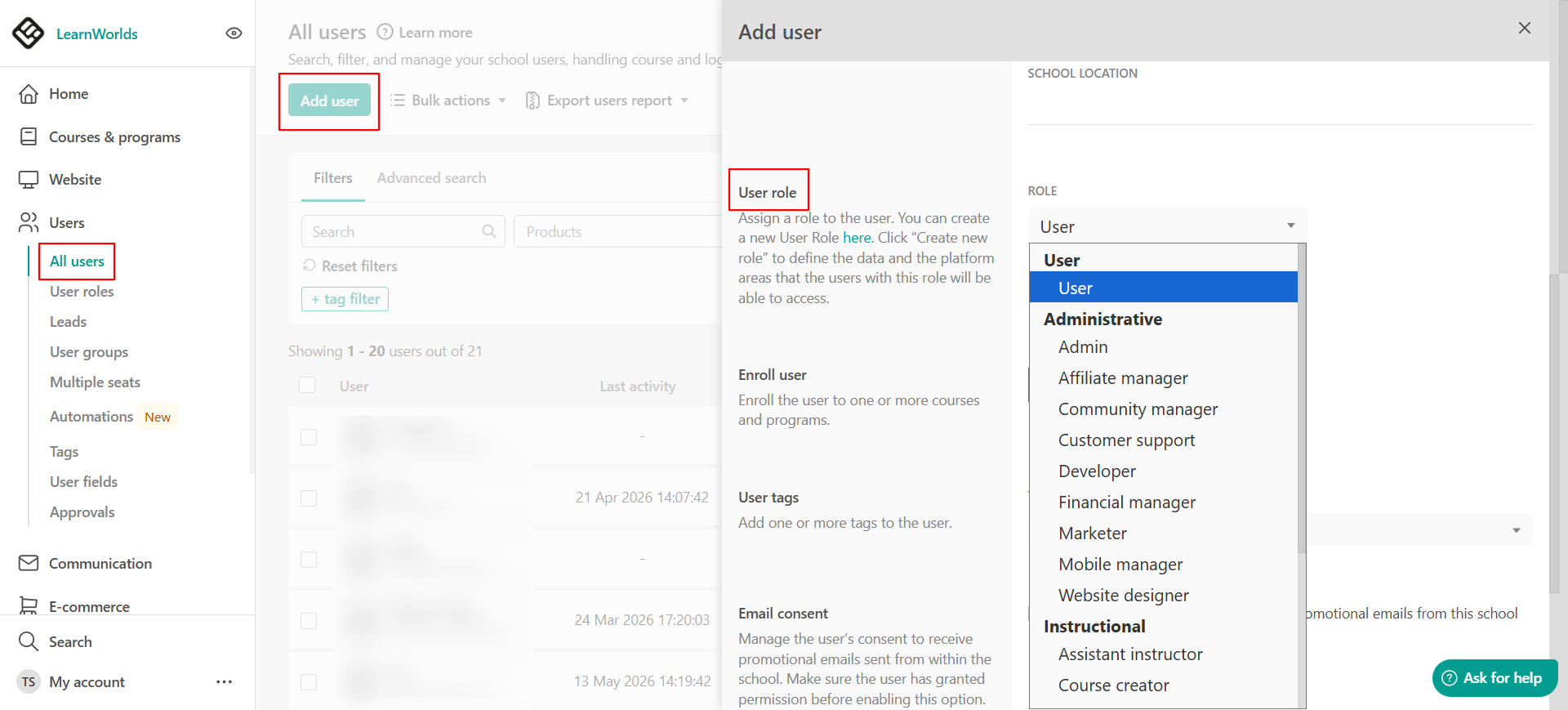
a. When assigning an Instructional Role, you need to select the assigned courses.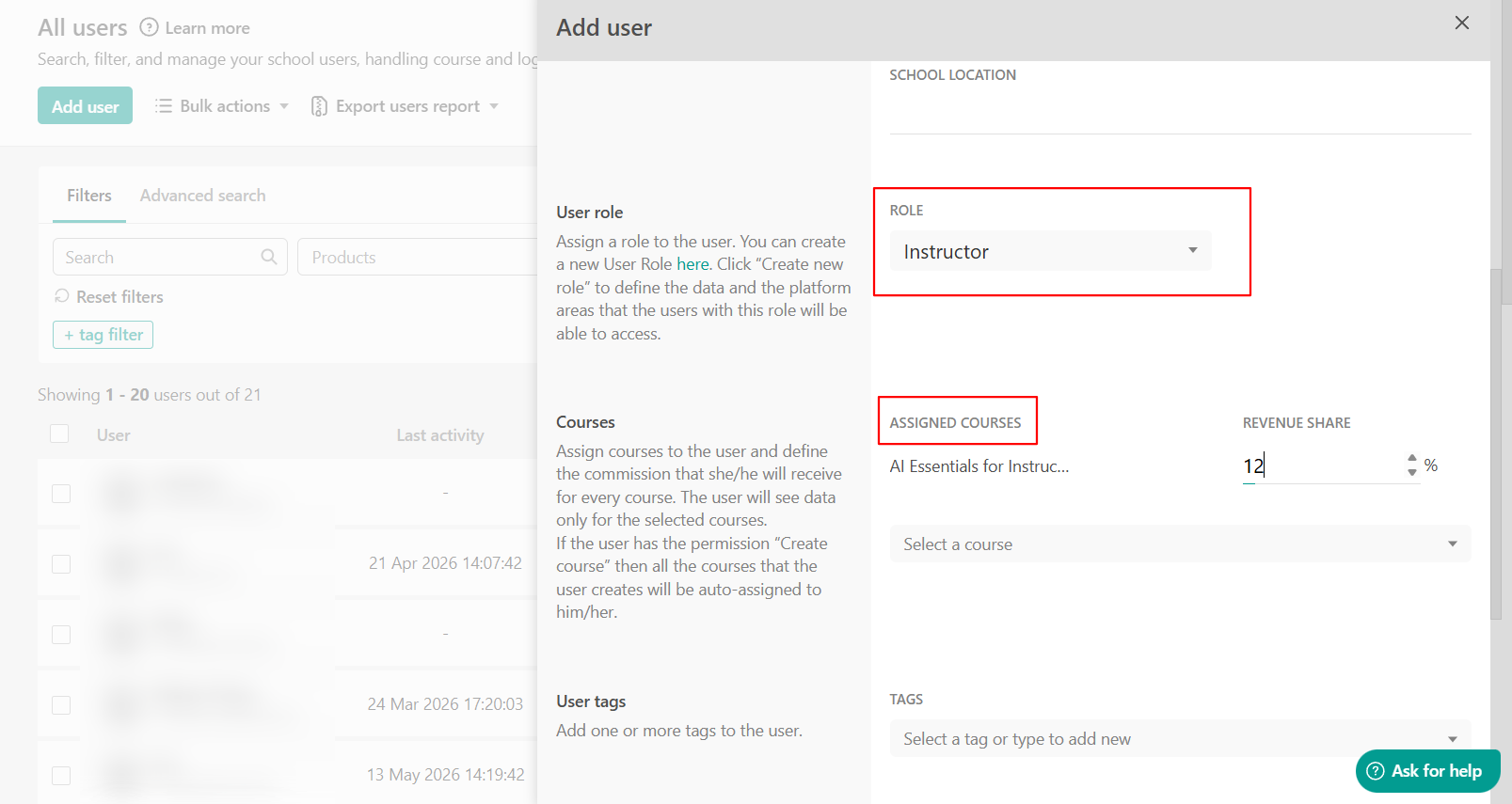
b. When assigning a Reporting Role, you need to select the assigned reporting segments and the courses for which the user will be able to edit the Gradebook, Assignments, and Certifications.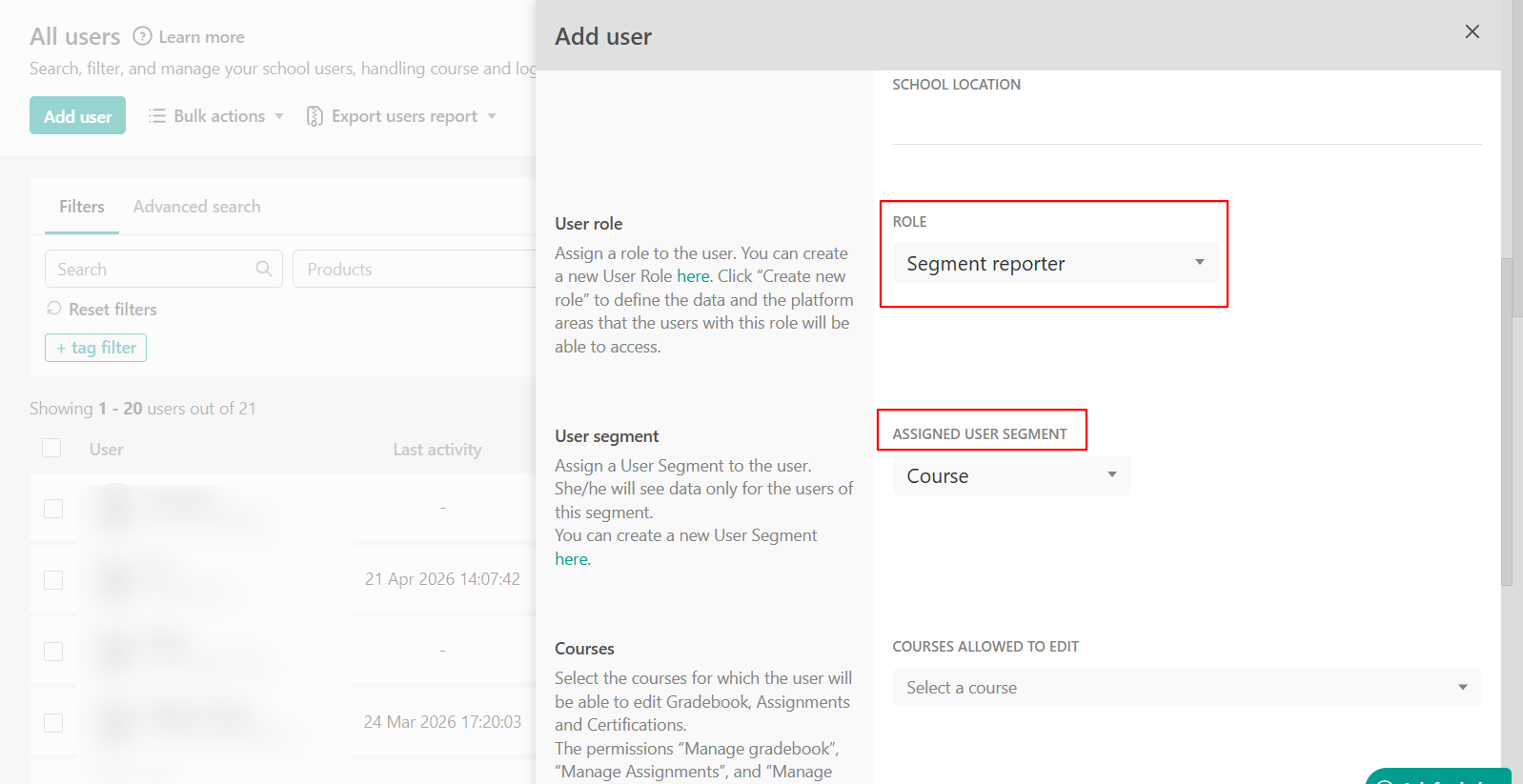
c. When assigning a Seat and/or User Group management role, you need to select the assigned Seat offerings or User Groups.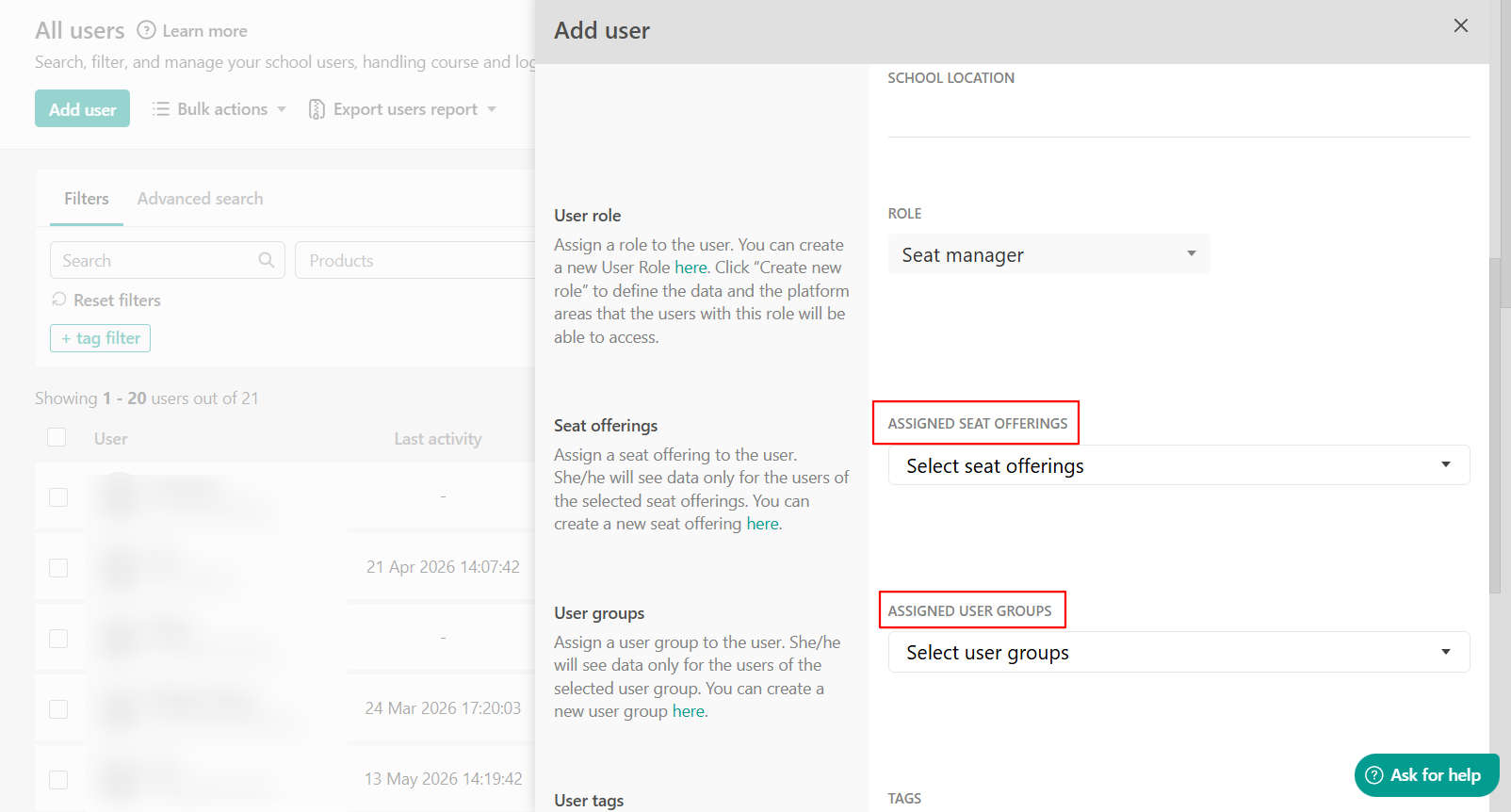
d. When assigning a Community space management role, you need to select the community spaces they will manage.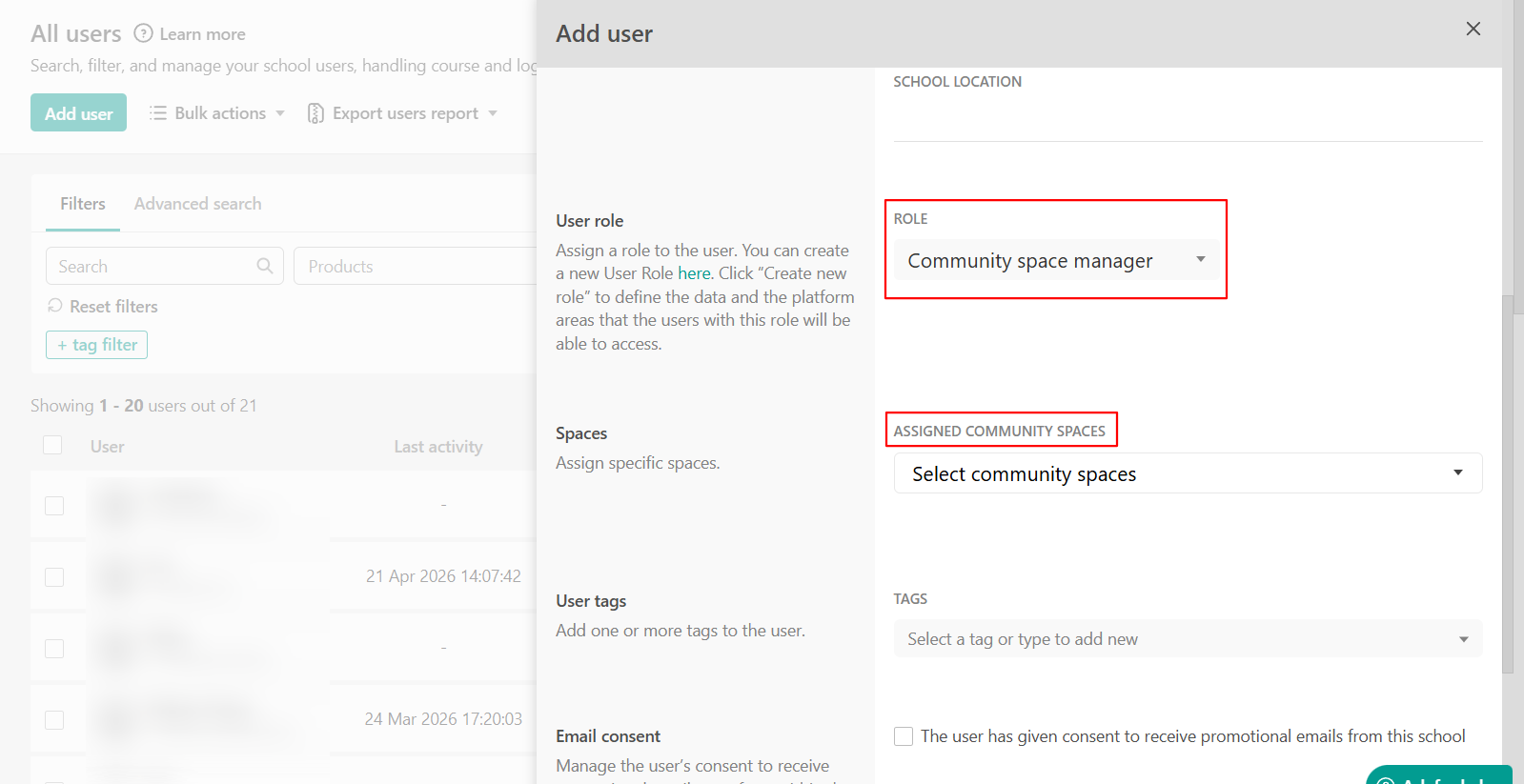
2. Assign roles from the user roles page
You can also assign Administrative, Instructional, Reporting, or Management roles directly from the User Roles area.
Navigate to Users → User roles → Select the desired role level and assign the relevant role to your users from there.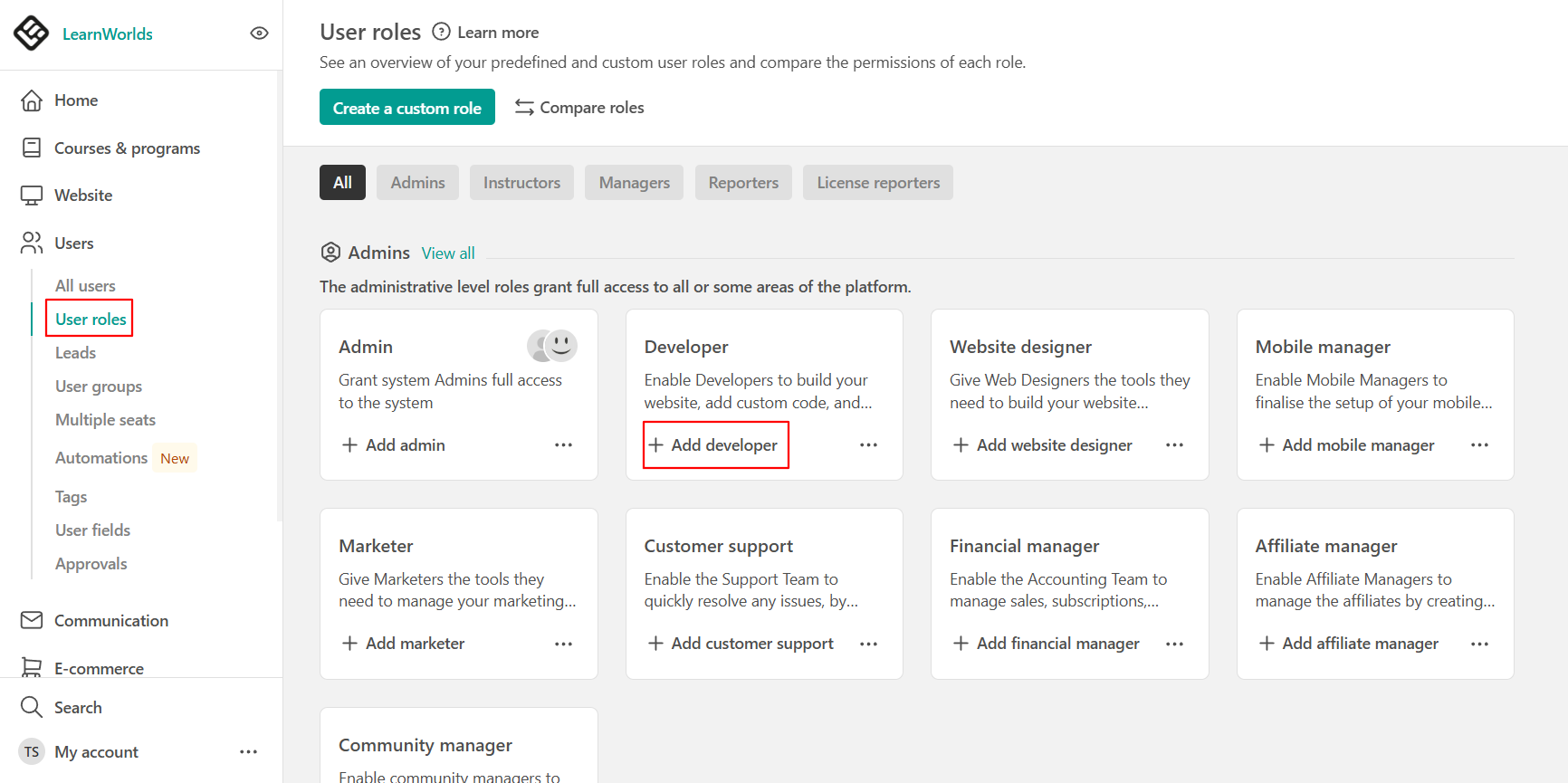
Assign a role while updating an existing user
To assign a role while updating an existing user:
1. Navigate to Users → All users, hover over the three dots next to the user you wish to assign a role and click Edit User.
2. A dropdown menu will appear with a list of available roles (Users, Administrative, Instructional, Management, Reporting). Choose the desired user role from the dropdown menu.
3. Click Save to apply the new role to the user.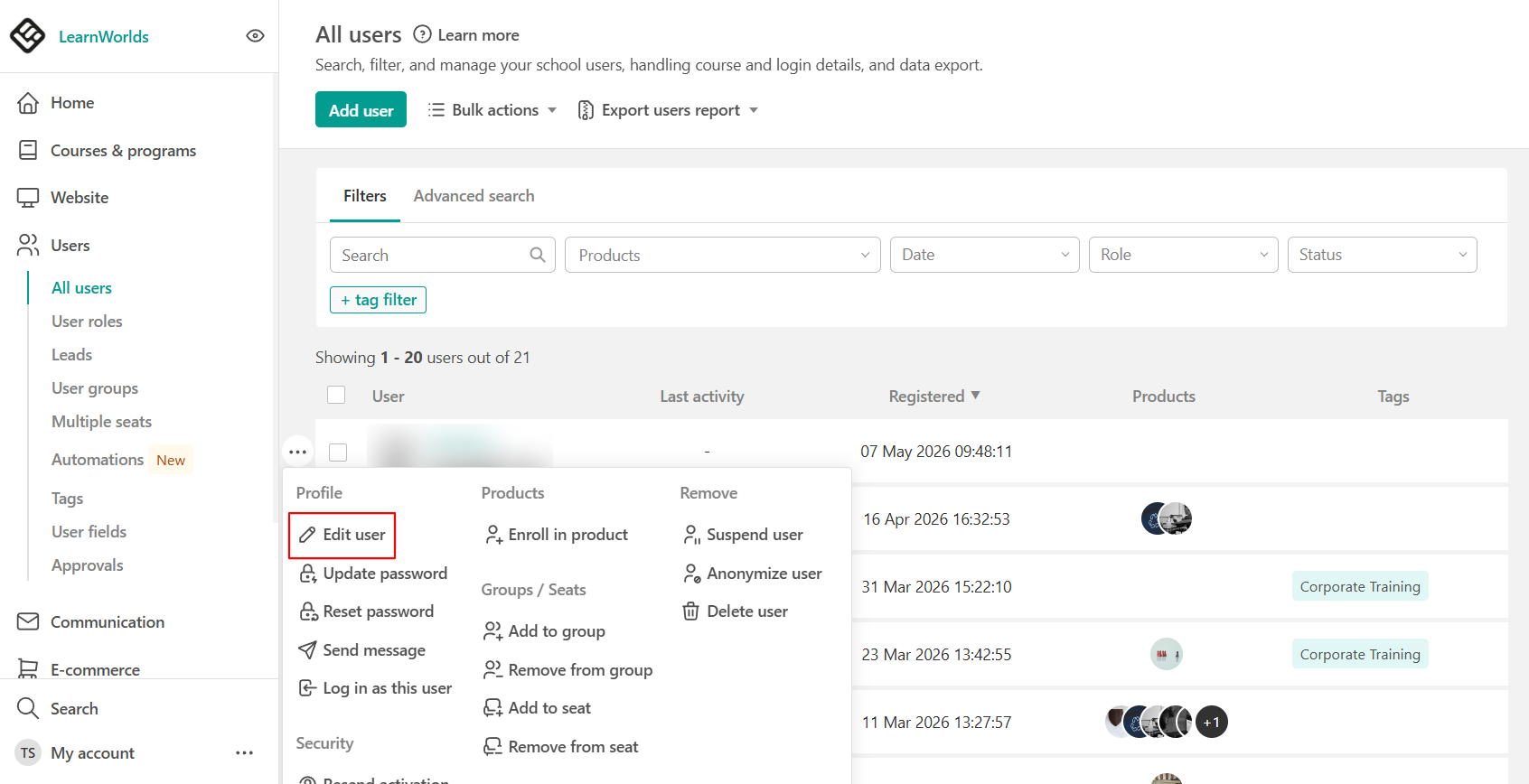
General Notes / Tips
- Double-check: After saving, ensure that the user’s profile now reflects the newly assigned role.
- Review Role Permissions: Before assigning roles, review the permissions associated with each role to ensure they match the user’s responsibilities.
- Custom Roles: If the predefined roles do not meet your needs, consider creating custom roles with specific permissions tailored to your requirements.
- Regular Audits: Periodically audit user roles to ensure that all users have appropriate access levels and to adjust roles as necessary based on changes in responsibilities or platform usage.