Vimeo is a professional video hosting platform that allows you to upload, manage, and share high-quality videos. By connecting your Vimeo account to LearnWorlds, you can upload videos directly to your school's Video Library and embed them in your courses.
To ensure smooth video playback on your LearnWorlds site, you must also configure the correct Vimeo privacy and player settings so the LearnWorlds interactive video player works properly.
Connect your Vimeo account
To connect your Vimeo account with your school:
1. Go to Settings → Video → Provider.
2. Select Vimeo, and click to Connect your account. 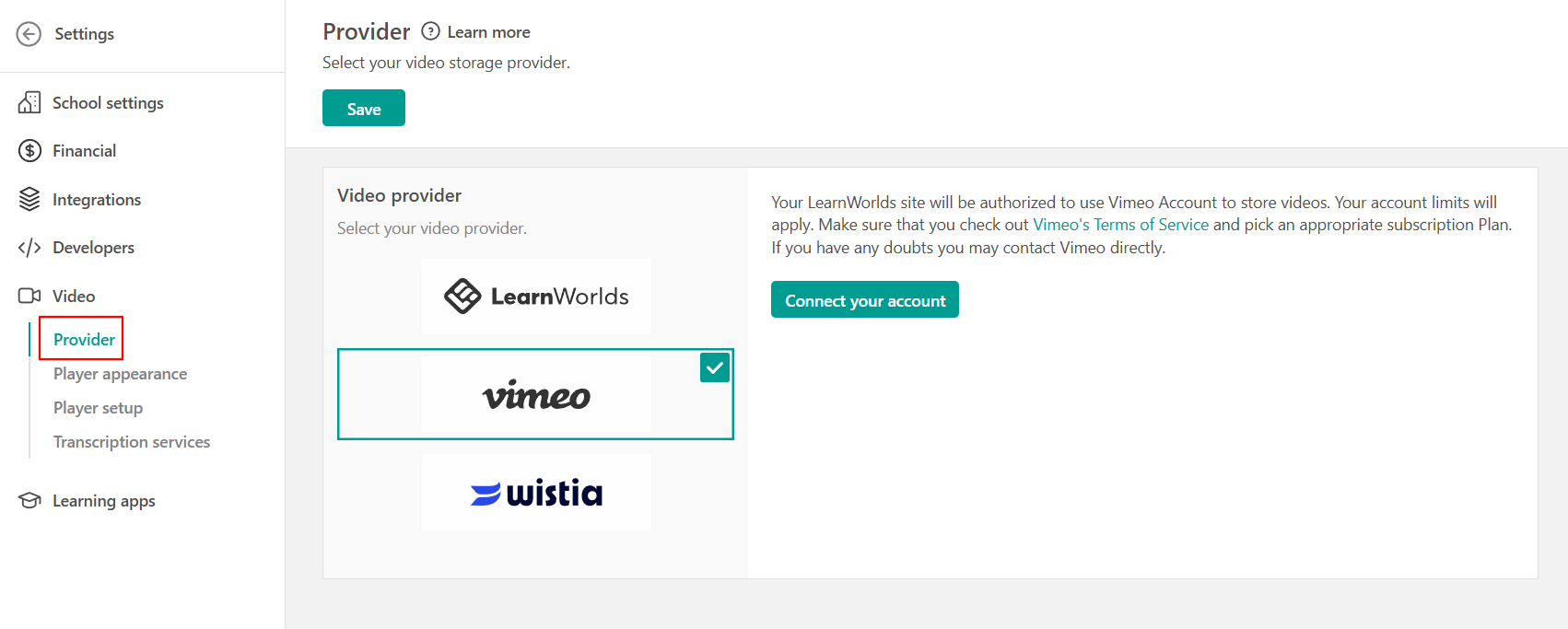
3. You'll be redirected to Vimeo. Log in if needed, and click Allow to authorize the connection.
Once connected, videos uploaded through the LearnWorlds Video Library will also be uploaded to your Vimeo account.

- Ensure that your Vimeo account settings are configured correctly to allow your videos to be played in your LearnWorlds courses.
- Vimeo applies upload limits based on your Vimeo subscription. Check the upload limits included in your plan to avoid interruptions when uploading videos from LearnWorlds
Vimeo account settings
Configure your Vimeo embed settings before uploading videos from LearnWorlds. This allows the videos to play correctly in your courses and through the LearnWorlds interactive video player.
First you need to create an embed preset.
1. Navigate to your Vimeo Account Settings from the drop-down menu of your Profile icon.
2. Go to Videos → Embed presets and +Add new Preset.
3. Enter a name for the preset, such as LearnWorlds settings, and click Continue.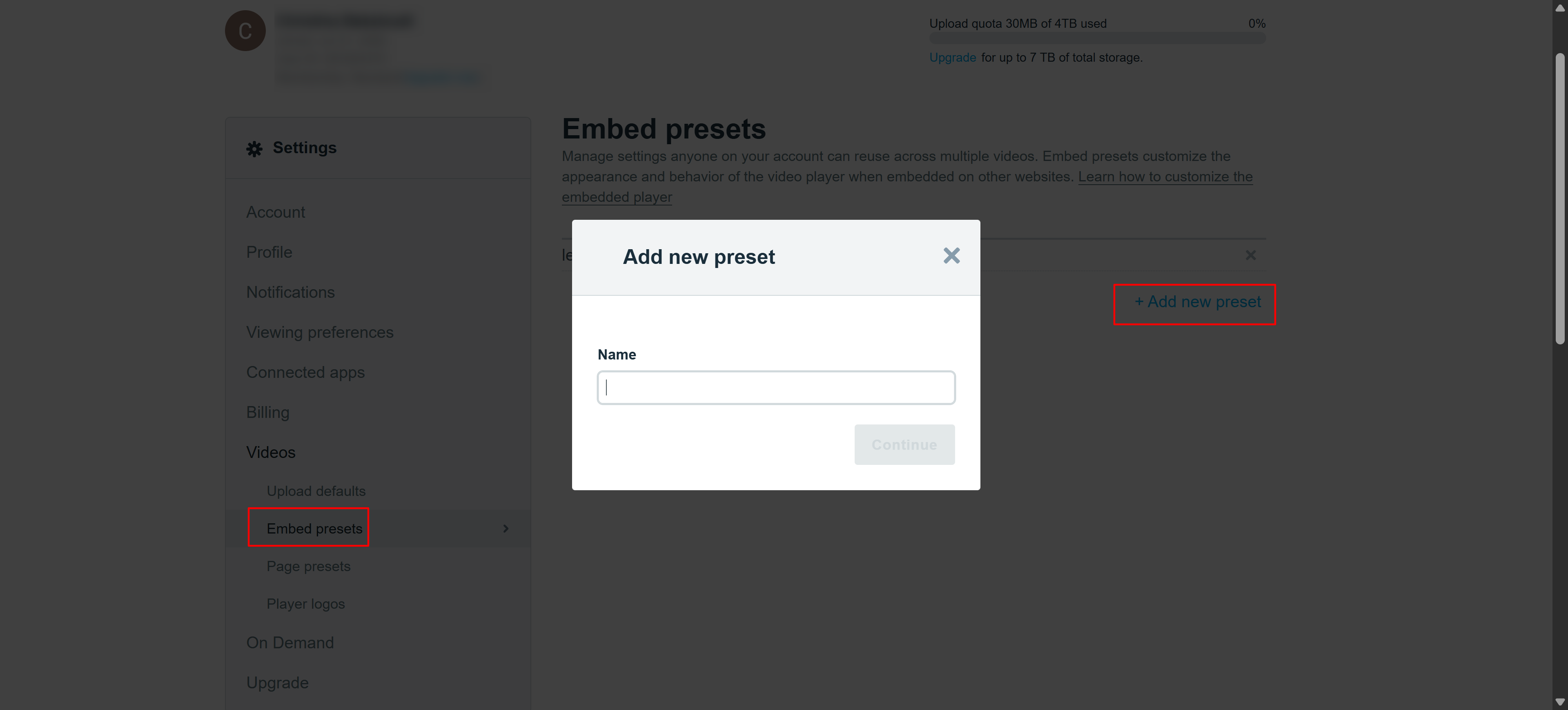
4. Scroll down to navigate to the settings of your preset. Keep unchecked the checkboxes, and select the option Empty in the After video field like the screenshot below: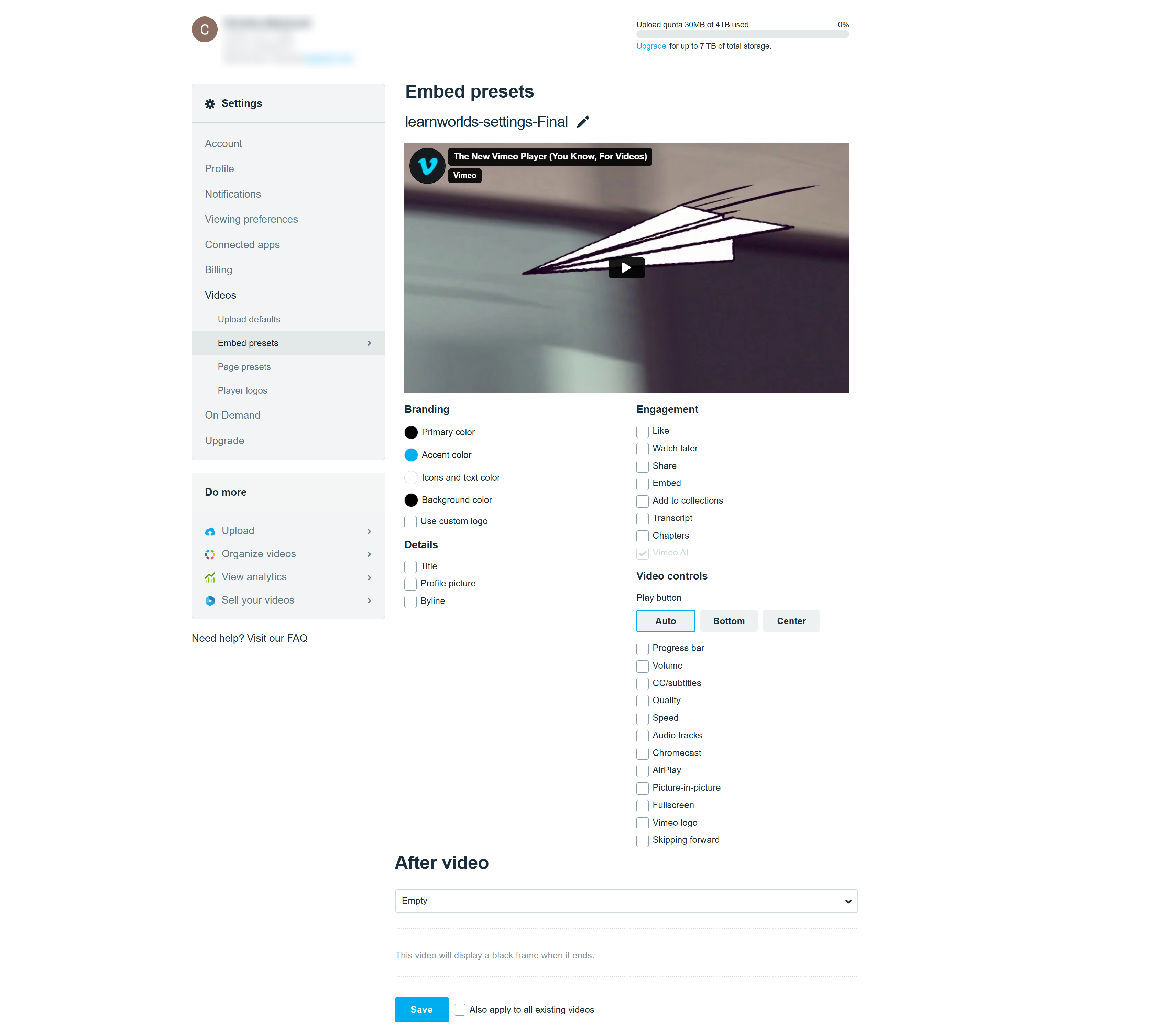
Next you need to apply the preset to your videos
1. Navigate to Videos → Upload defaults, and in the Choose embed preset to apply to your videos field, select the preset you have created for LearnWorlds. 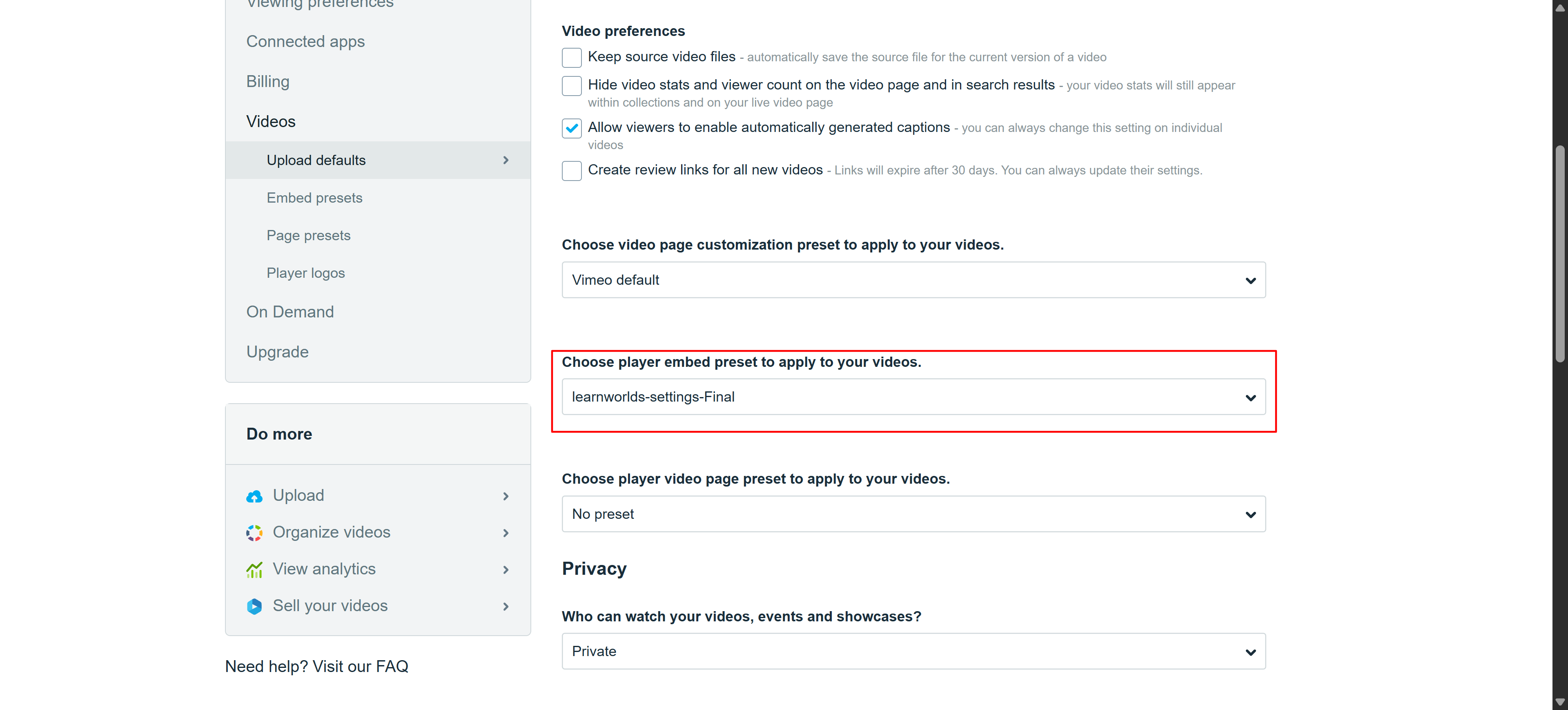
If you have already uploaded videos in your account that you would like to use in your LearnWorlds school, activate the checkbox Also apply to all existing videos under the Choose embed preset to apply to your videos field.If your school uses a custom domain, click Add domain in the Where can your videos be embedded field and enter your domain.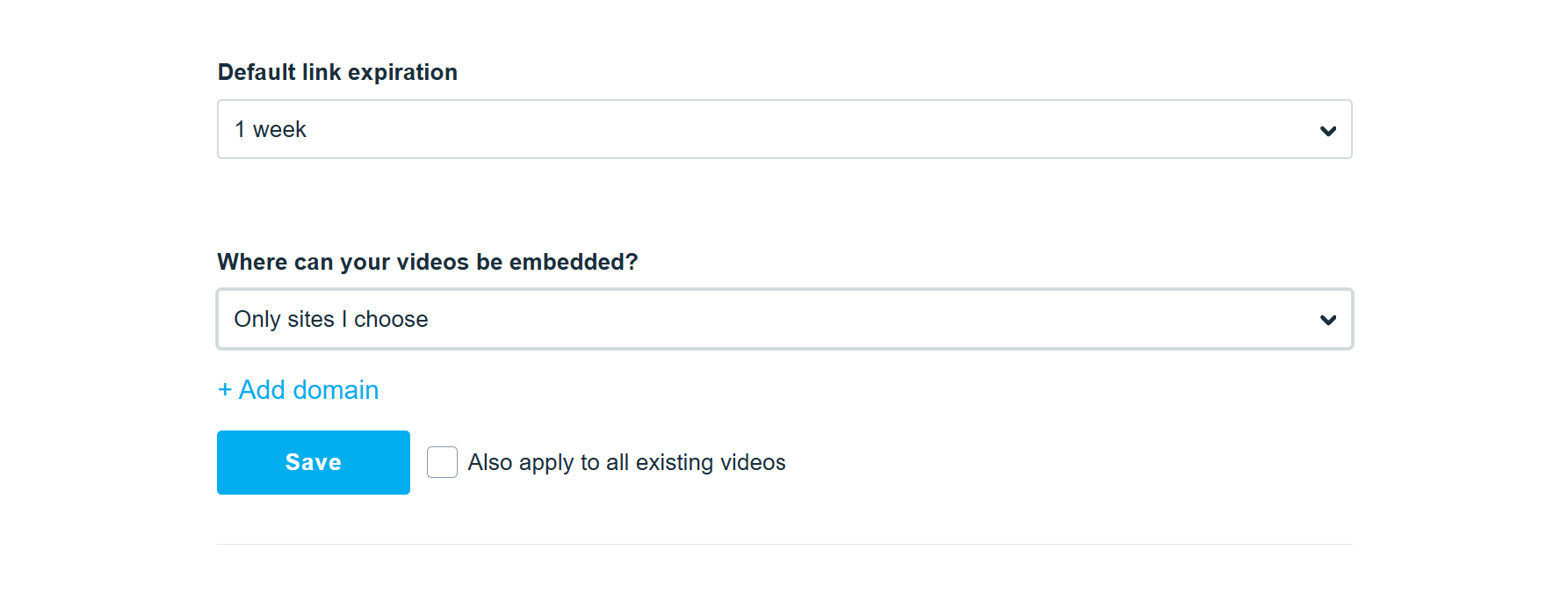
- If you uploaded videos before configuring these settings, you may experience playback errors. Apply the embed preset to your existing videos, or upload the videos again through the LearnWorlds Video Library.- For previously uploaded videos, you can either play the video using the Vimeo ID or re-upload them to your video library.
Add your Vimeo videos to LearnWorlds
To add an existing Vimeo video as a learning activity:
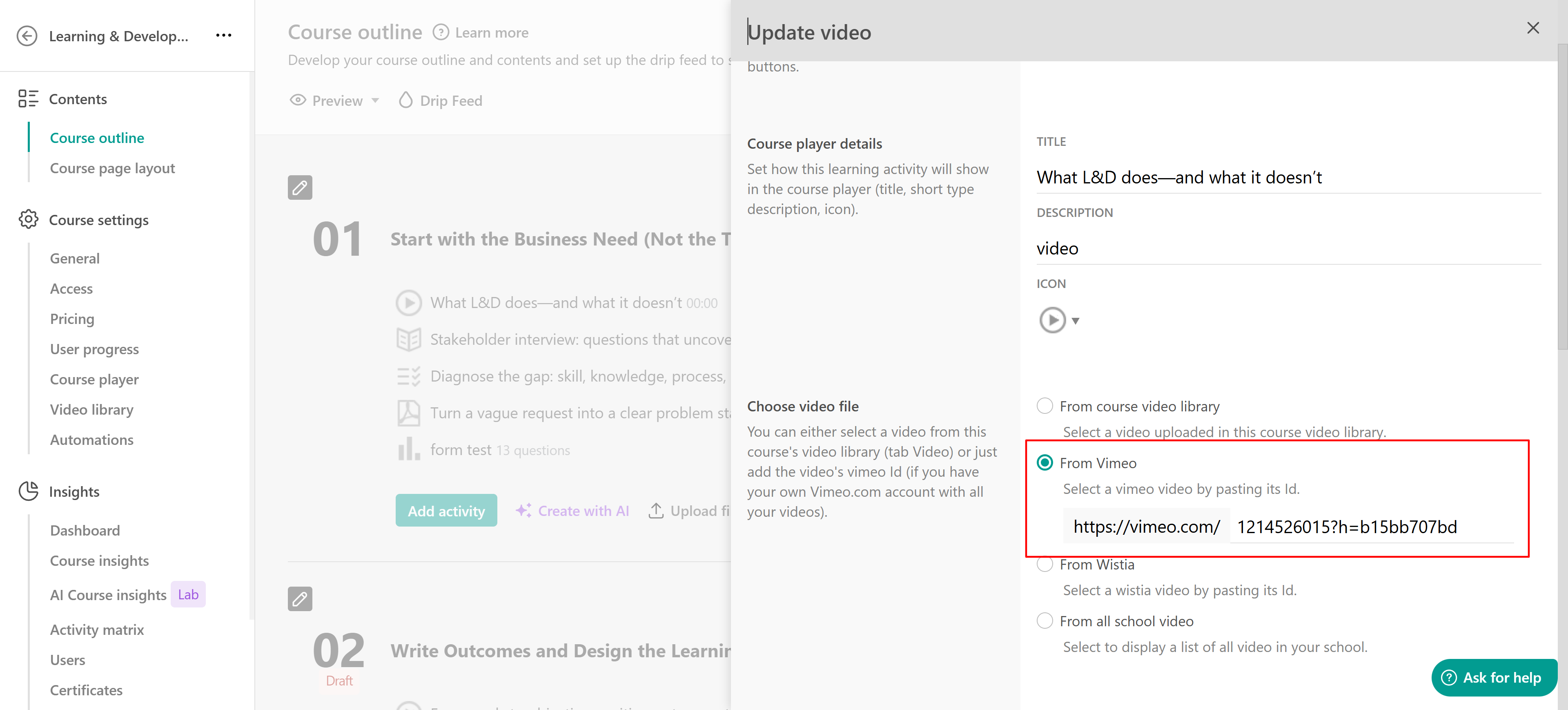
1. Add a video learning activity and choose From Vimeo.
2. Enter the Vimeo video ID.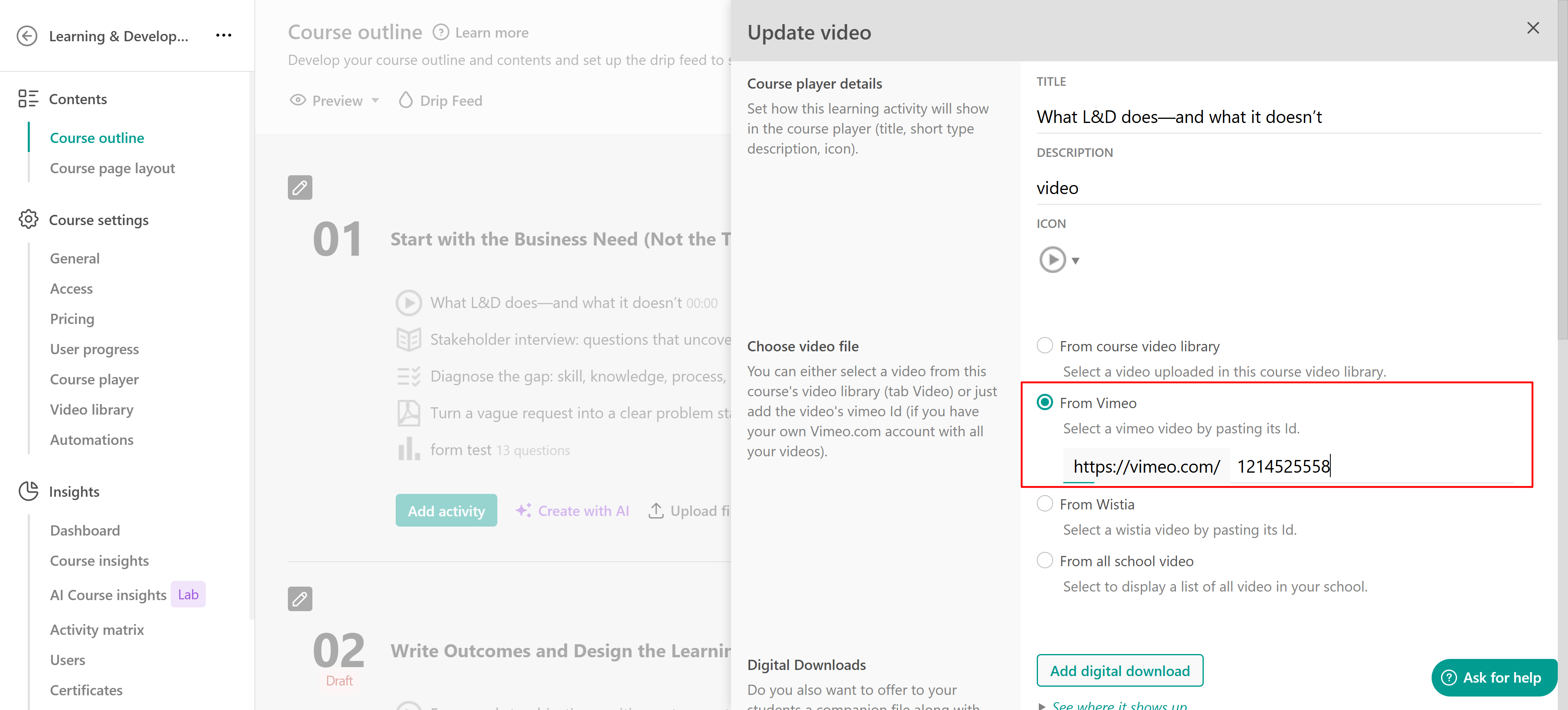
Ensure that your Vimeo videos are set to Public or embeded only in your Vimeo account settings, and then copy and paste the Vimeo ID into the relevant From Vimeo field.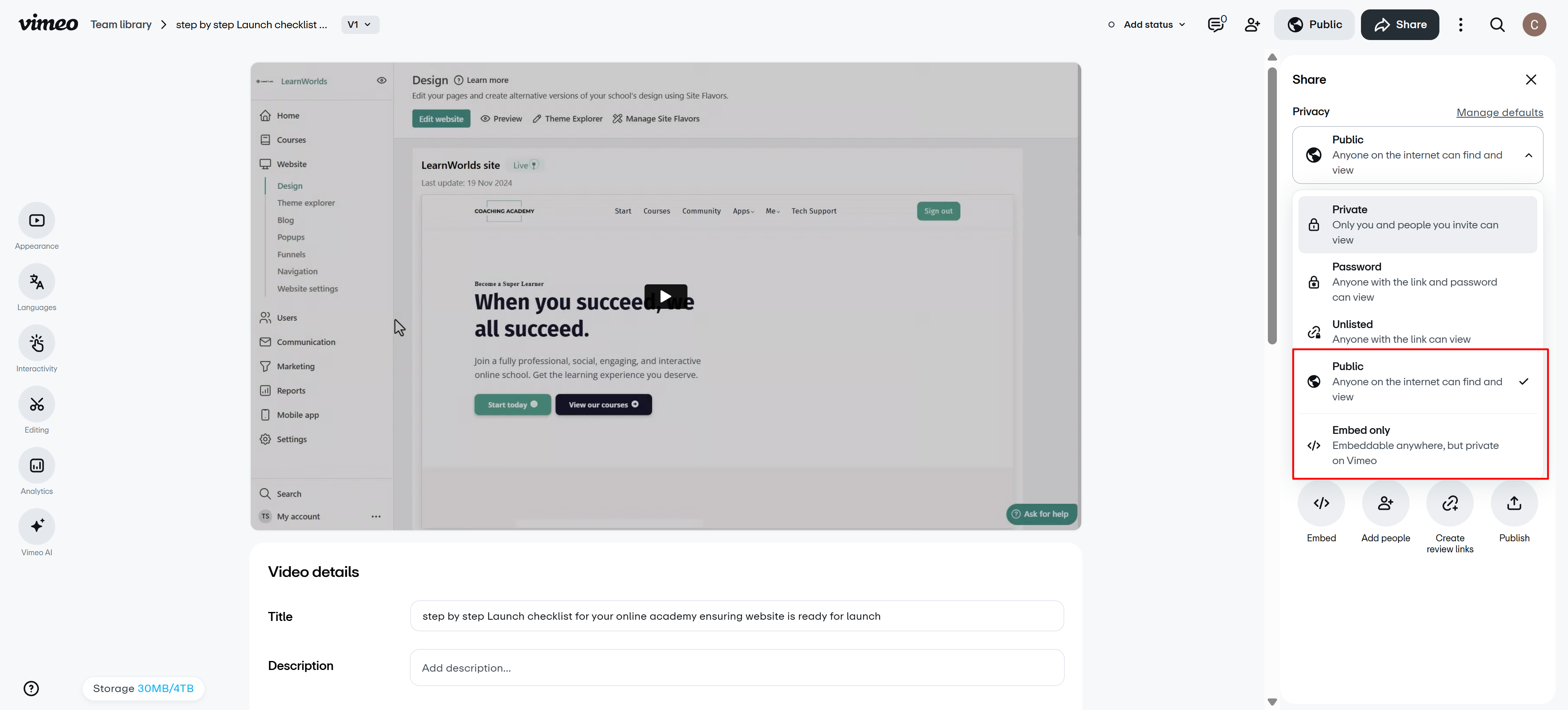
If your Vimeo video is set to Unlisted, you must also enter the privacy hash. Copy the video ID and the hash from the Vimeo URL. For example,
- If your Vimeo URL is https://vimeo.com/1234567890/b15bb707bd
- Enter the following in the From Vimeo field: 1234567890?h=b15bb707bd
The ?h= parameter is required for unlisted Vimeo videos to play correctly in LearnWorlds.