
Tiered subscription pricing allows you to sell a single Learning Program at multiple subscription levels, each with different prices and included courses. This gives you the flexibility to meet different learner needs while encouraging upgrades to higher tiers.
With tiered subscriptions, you can offer multiple options for the same Learning Program, such as Monthly / Yearly plans or Bronze / Silver / Gold tiers. Each tier can be priced differently and include a distinct set of courses.
Tiered subscription is a way to price your Learning Programs. Each tier has:
- The included courses (from the courses in the program)
- The subscription terms: price, billing interval, and optional trial days
Use cases
- Bronze, Silver, and Gold tiers: Offer different levels of access by including more courses in higher tiers.
- Monthly and yearly plans: Provide both monthly and yearly subscription options for the same learning program, allowing learners to switch between plans.
- All-access subscription: Package your entire course library into a single course-collection learning program and sell access through tiered subscriptions.
- Course libraries: Create scalable course libraries by combining collection-type learning programs with tiered subscriptions.
- Restricted access signup: Require users to register through a payment zone, granting access only after a subscription tier is purchased.
Create a tiered subscription Learning Program
From your admin dashboard, start creating a new Learning Program. In Select a payment option, choose Subscription plan, and in Select a subscription structure, select Tiered subscription.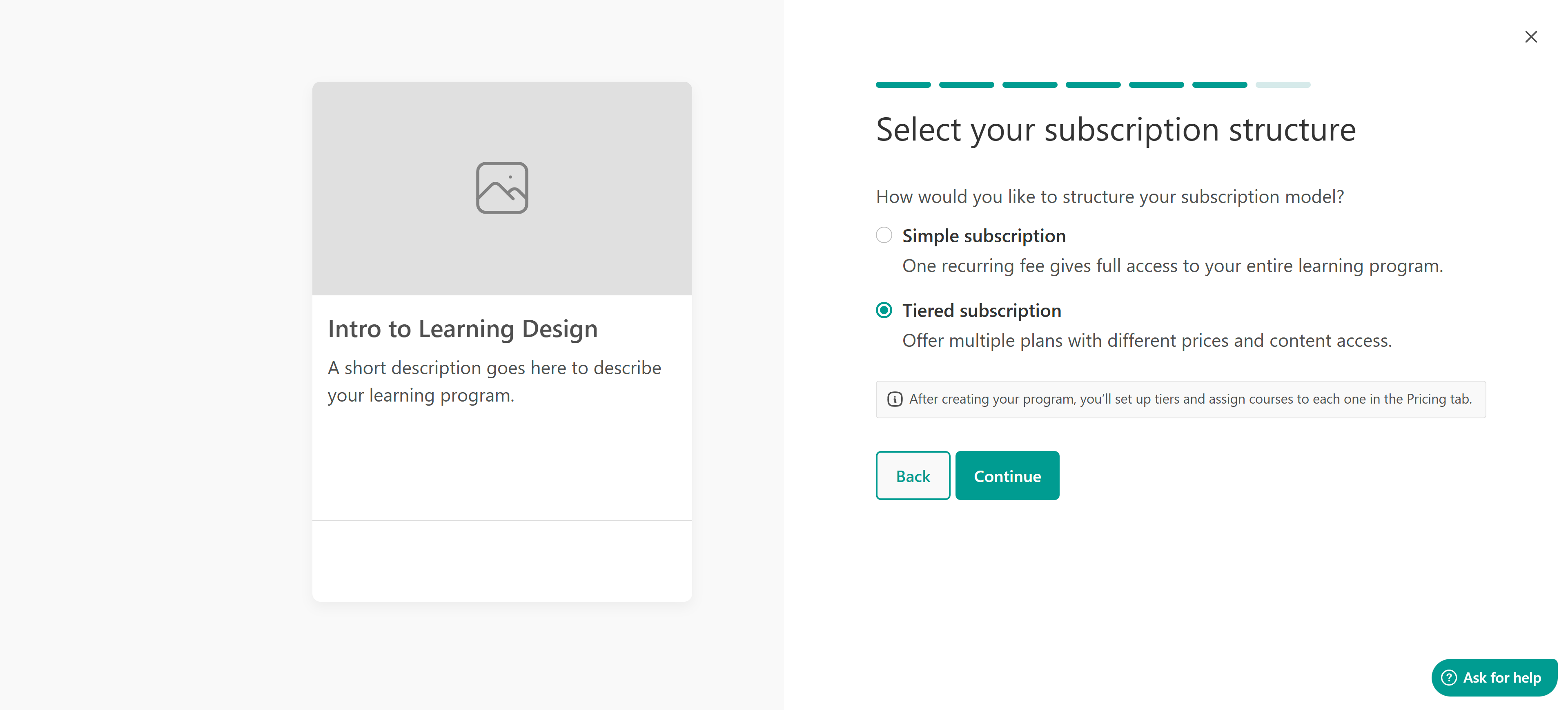
Continue through the wizard steps and click Finish.

- Once a program is set to Subscription, it cannot be changed to another payment option. If needed, you can always create a new program with a different payment option.
- Similarly, if you choose a tiered subscription, it cannot later be converted to a simple subscription. In this case, you’ll need to create a new program with the desired subscription type.
- Only Free, Paid, or Private courses can be included in subscriptions.
- Your school sends a set of notification emails related to subscriptions, but Stripe offers additional options you may find useful, such as managing free-trial messaging, preventing failed payments, handling failed payments, and managing disputed payments.
- If you decide to add more courses to the tier while users are subscribed, they will automatically gain access/synced to them.
Create tiers
After creating the program and adding your courses, you can add and manage tiers from the program’s pricing settings.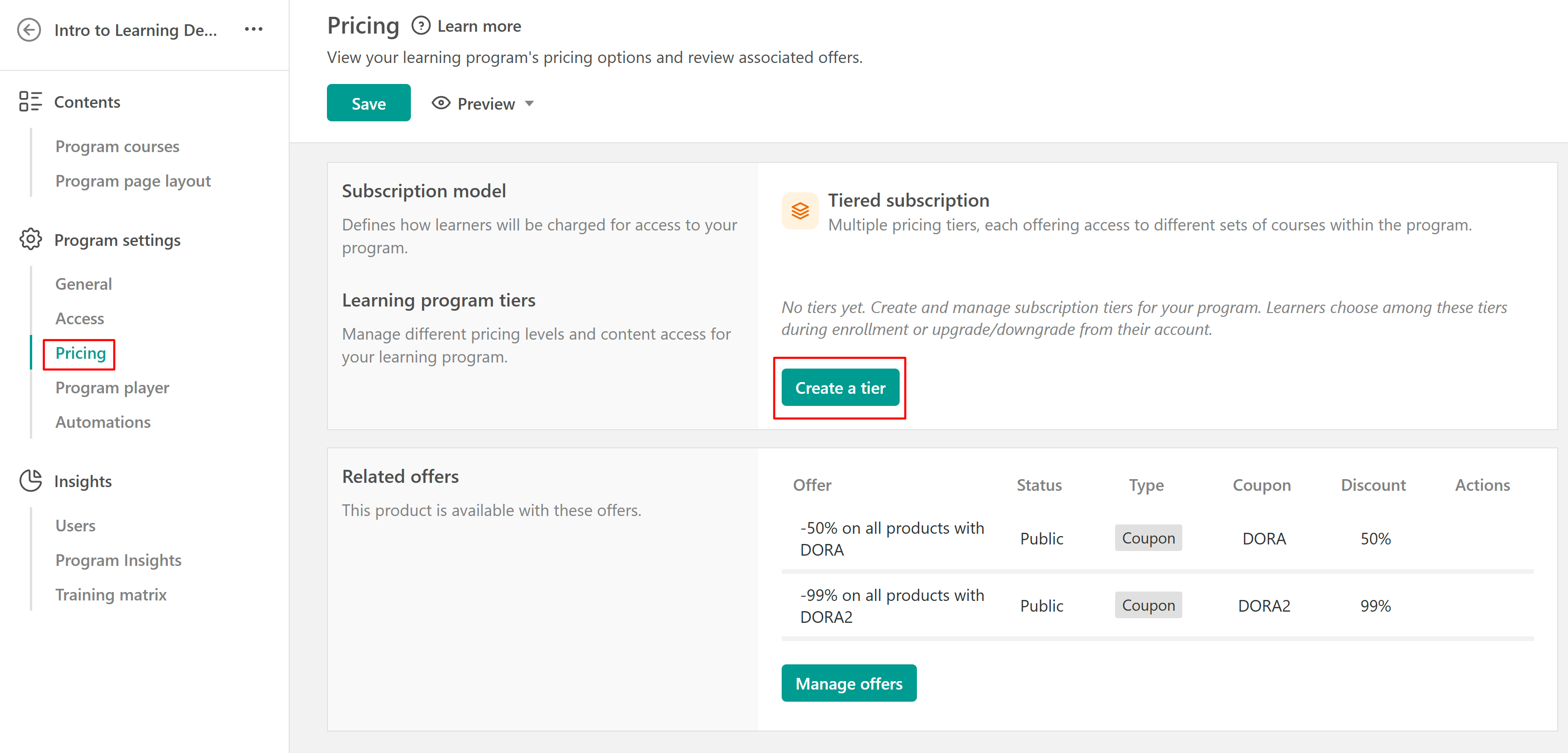
1. Click the create a tier button.
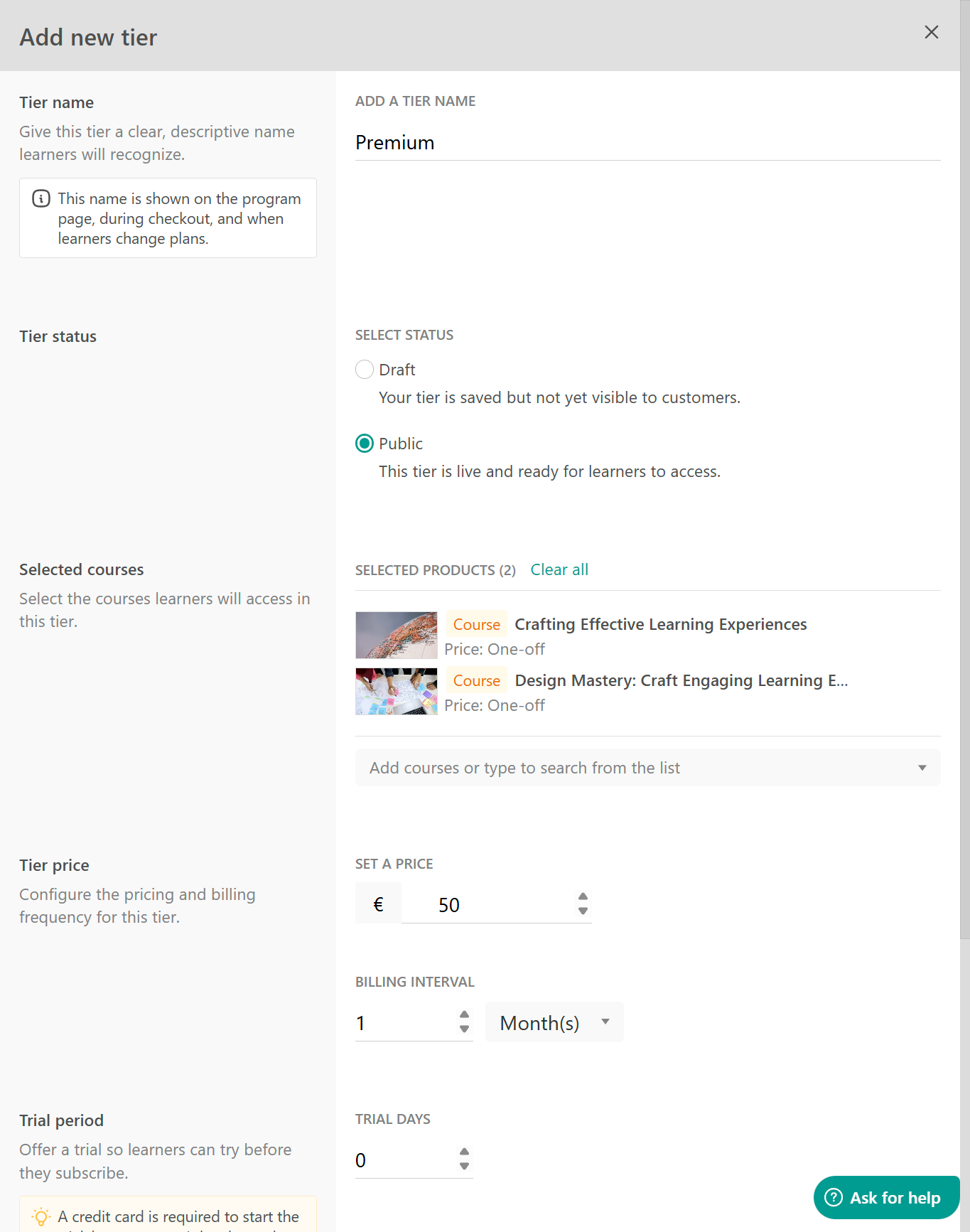
2. Add the following details:
- Tier name
- Tier status
- Included courses
- Price and billing interval
3. Click on Save.
- It's best to add at least two public tiers to enable tiered pricing.
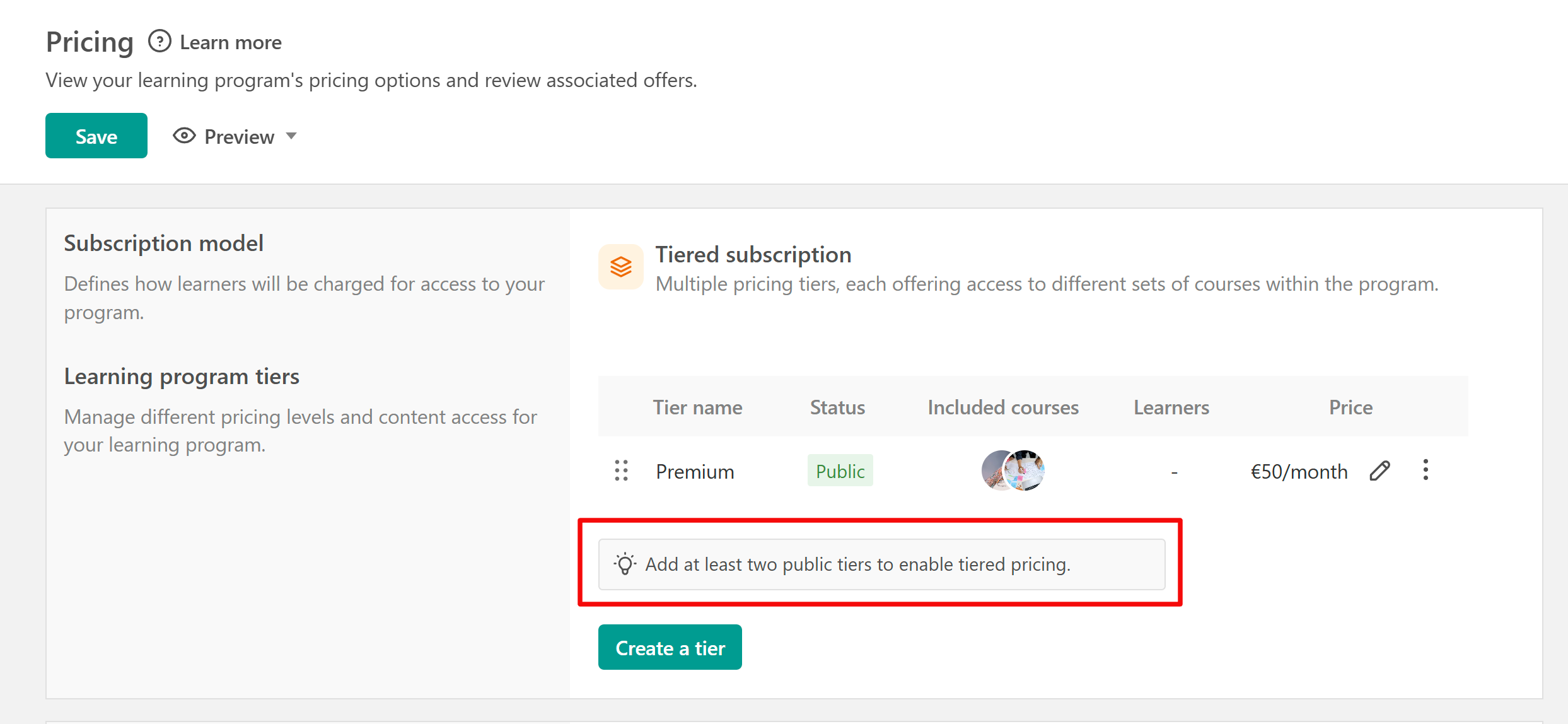
- The order in which tiers appear (for example, on the program page tier list and in /account when changing plans) is determined by their position in the Pricing tab table. The first tier is treated as the lowest, and the last as the highest.
This hierarchy is used when learners change their plan. For example, if a learner is on a Premium tier, moving to Standard is considered a downgrade, while moving to High Volume is considered an upgrade.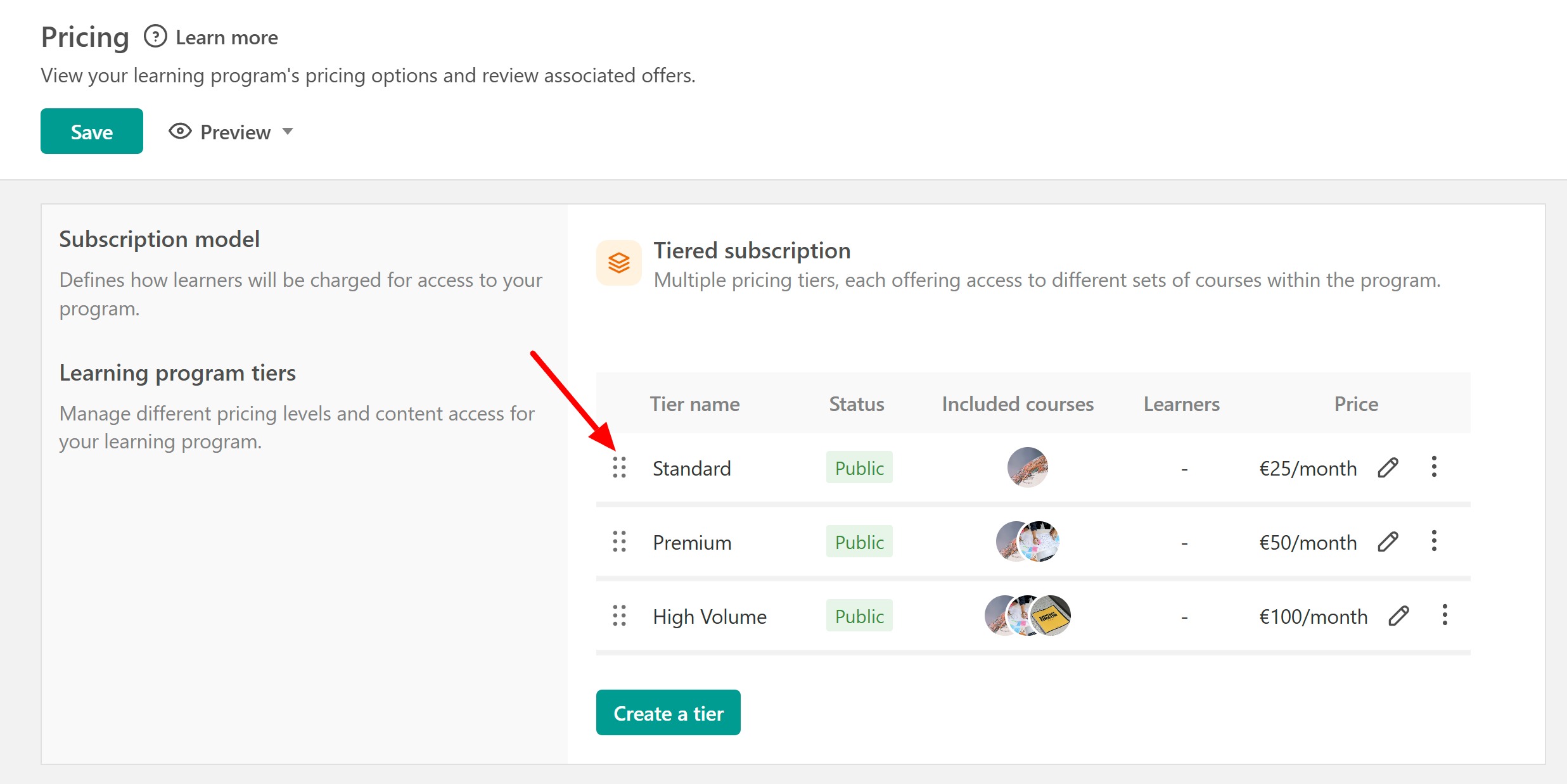
Manage tiers
In the Product settings → Pricing tab, you can see all tiers and their: name, status (public/draft), included courses, number of enrolled learners, and price.
You can edit a tier after it has been created by clicking the pencil icon. You can update its name, status, included products, price, billing interval, and trial period. In the same section, you can also find the checkout link for the tier.
You can also archive a tier. Archiving a tier works the same way as archiving simple subscription plans; this means that the tier is hidden from learners who don’t own it, while existing learners remain unaffected. This tier can’t be purchased, and archived tiers can’t be unarchived.
Finally, you can delete a tier only if there are no learners enrolled in it. If learners are already enrolled, it’s recommended to archive the tier.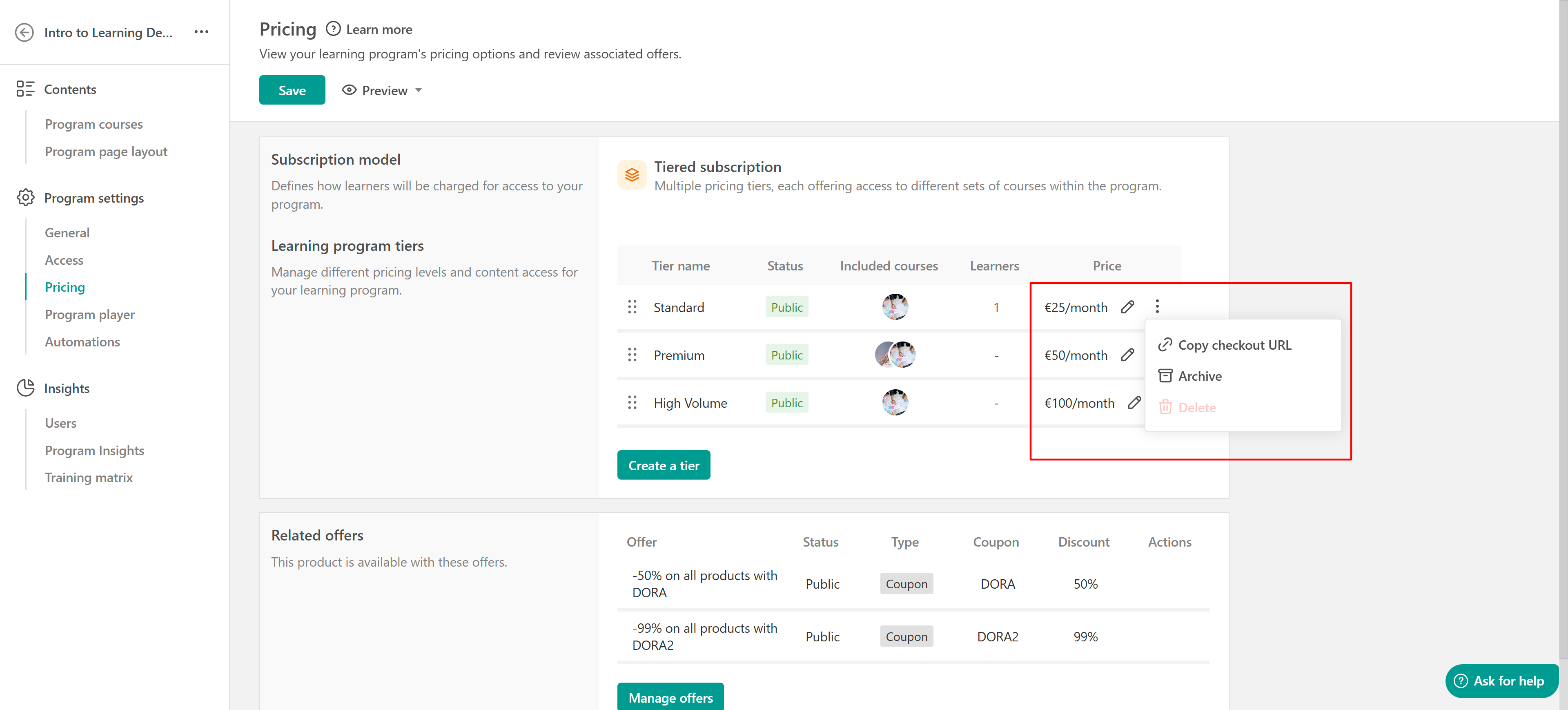
- You can have up to 9 active (public) tiers per Learning Program. If you need more, make sure to contact us explaining your use case.
- If a program has no Public tiers (no tiers, or all tiers are Draft/Archived), the program card and automatic enrollment button are hidden for new learners until you publish a tier.
- If you change the number of trial days, price, and/or interval of a subscription, this will not affect the learners already subscribed.
How tiers work with program courses
Courses can belong to one or more tiers. In the program’s course list, you can easily see which tiers include each course.
Below each course, the tiers it belongs to are displayed. If a course is not included in any tier, a corresponding message will appear.
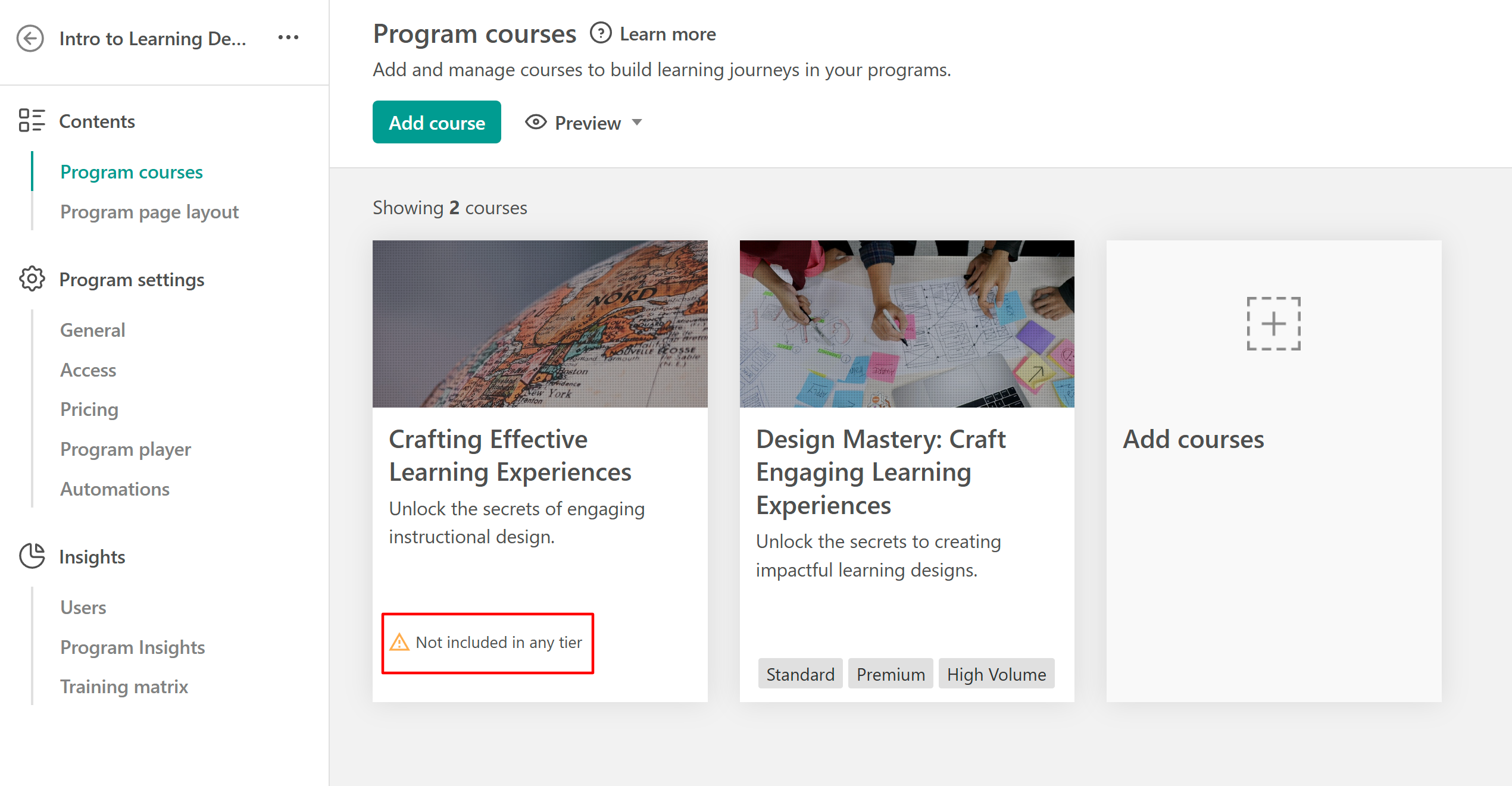
- When you add a new course to the program, it’s excluded from all tiers by default. Add it to the tiers where you want it included.
- When you remove a course from the program, it’s removed from all tiers that include it, and all learners enrolled in this tier lose access.
- Course drip feed is currently not available for tiered subscriptions.
Learner experience
Before checkout, learners see the starting price on program cards. By opening the drop-down menu, they can view all available tiers.
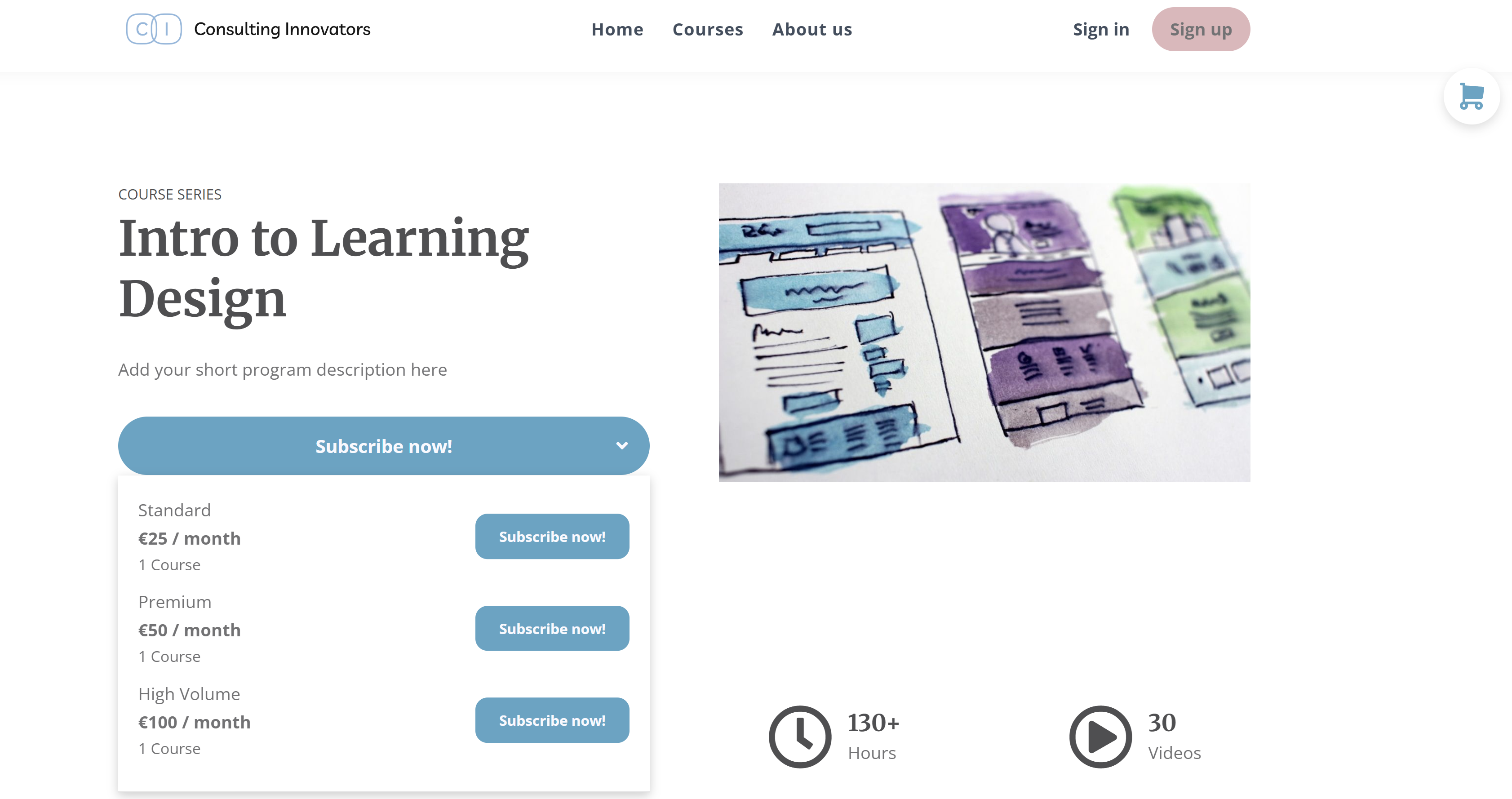
When viewing the program catalogue, tiered subscriptions will display pricing such as “from $100/month.”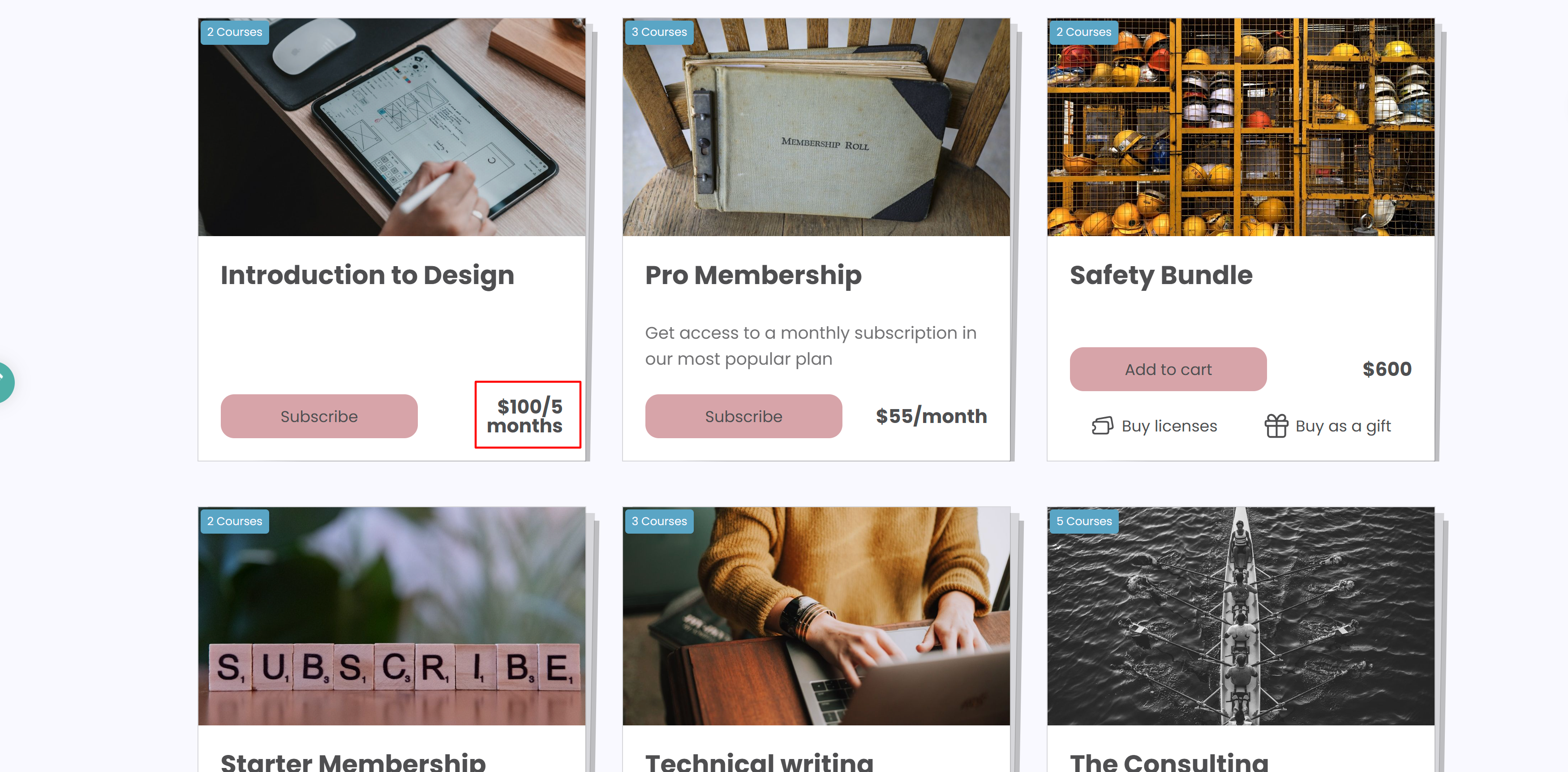
They can select the tier that best fits their needs and proceed to the payment page. During checkout, they can change the selected tier from the Subscription drop-down menu before completing the payment.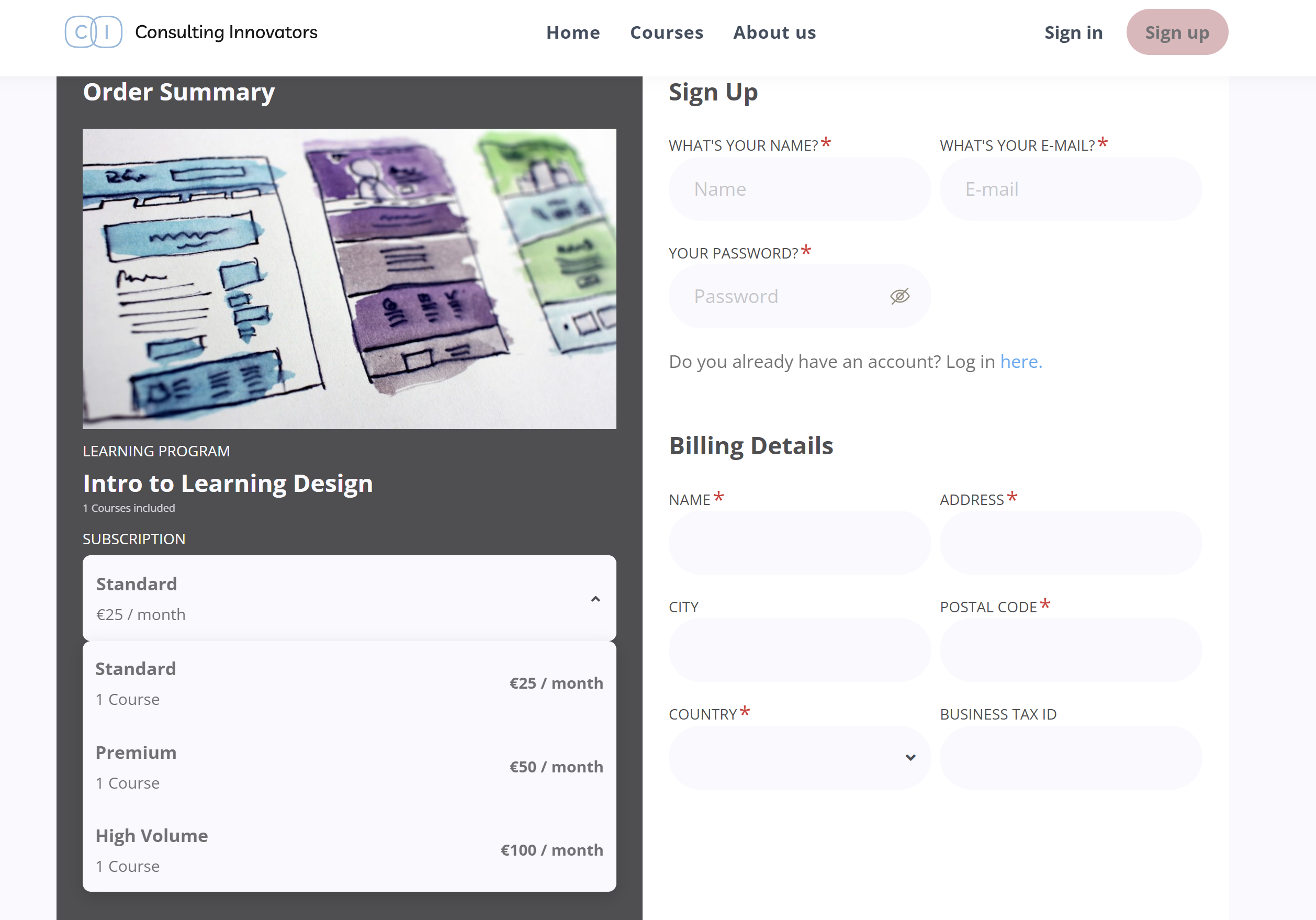
- Offers can be used with tiered subscriptions in the same way as with simple subscriptions.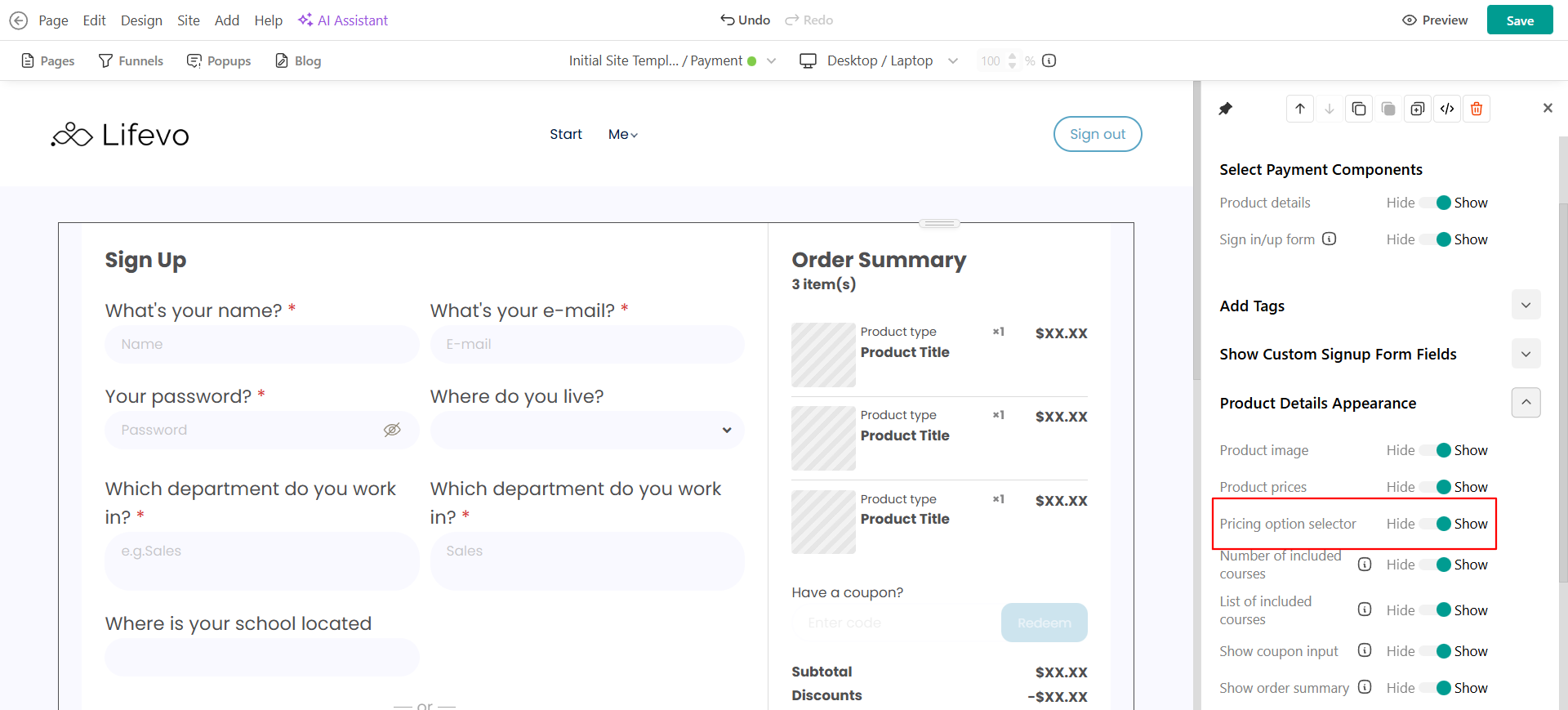
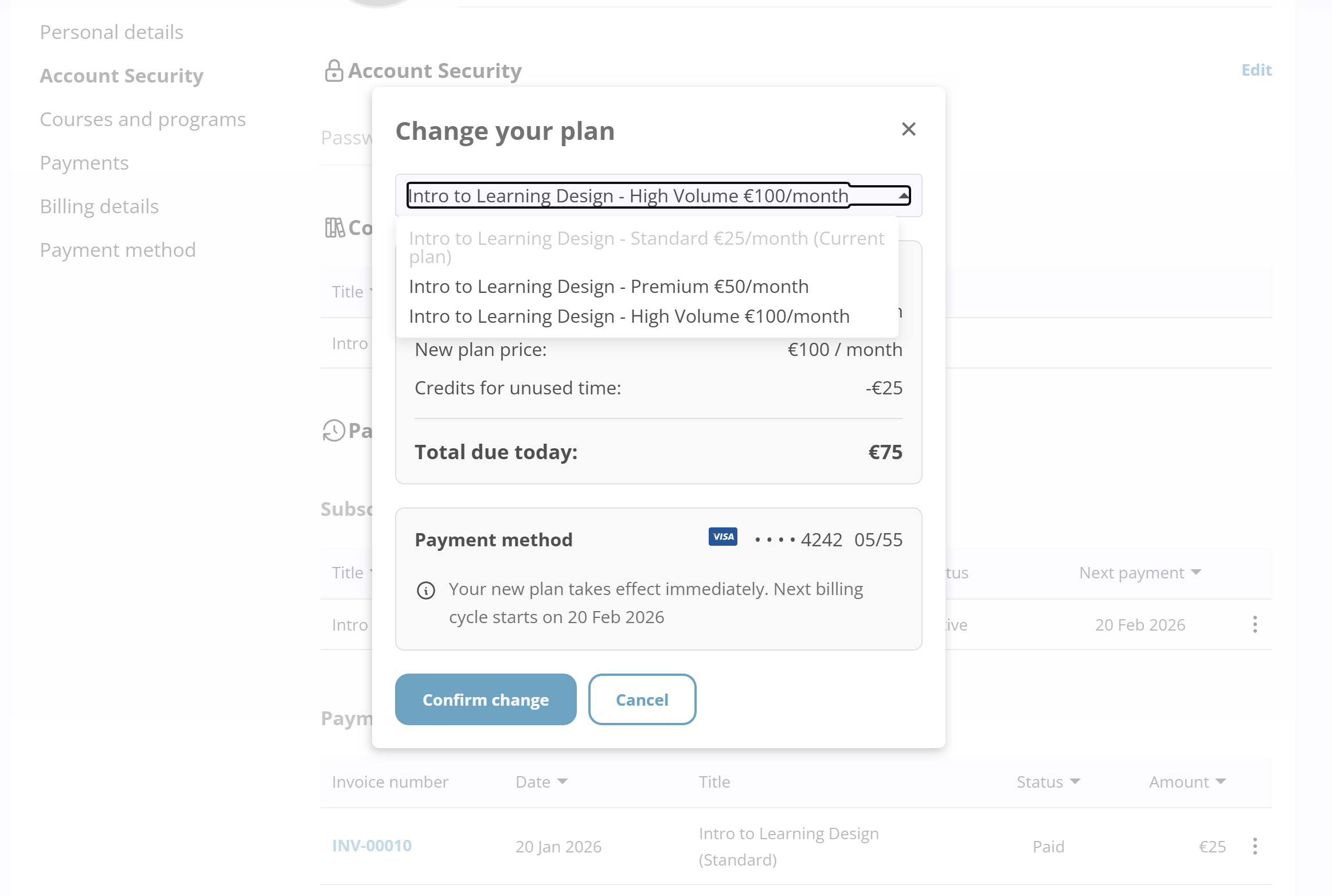
After completing their purchase, learners can also change their tier or cancel at any time. To do so, they can navigate to Account → Subscriptions & installment plans and click Change plan/ Cancel plan.
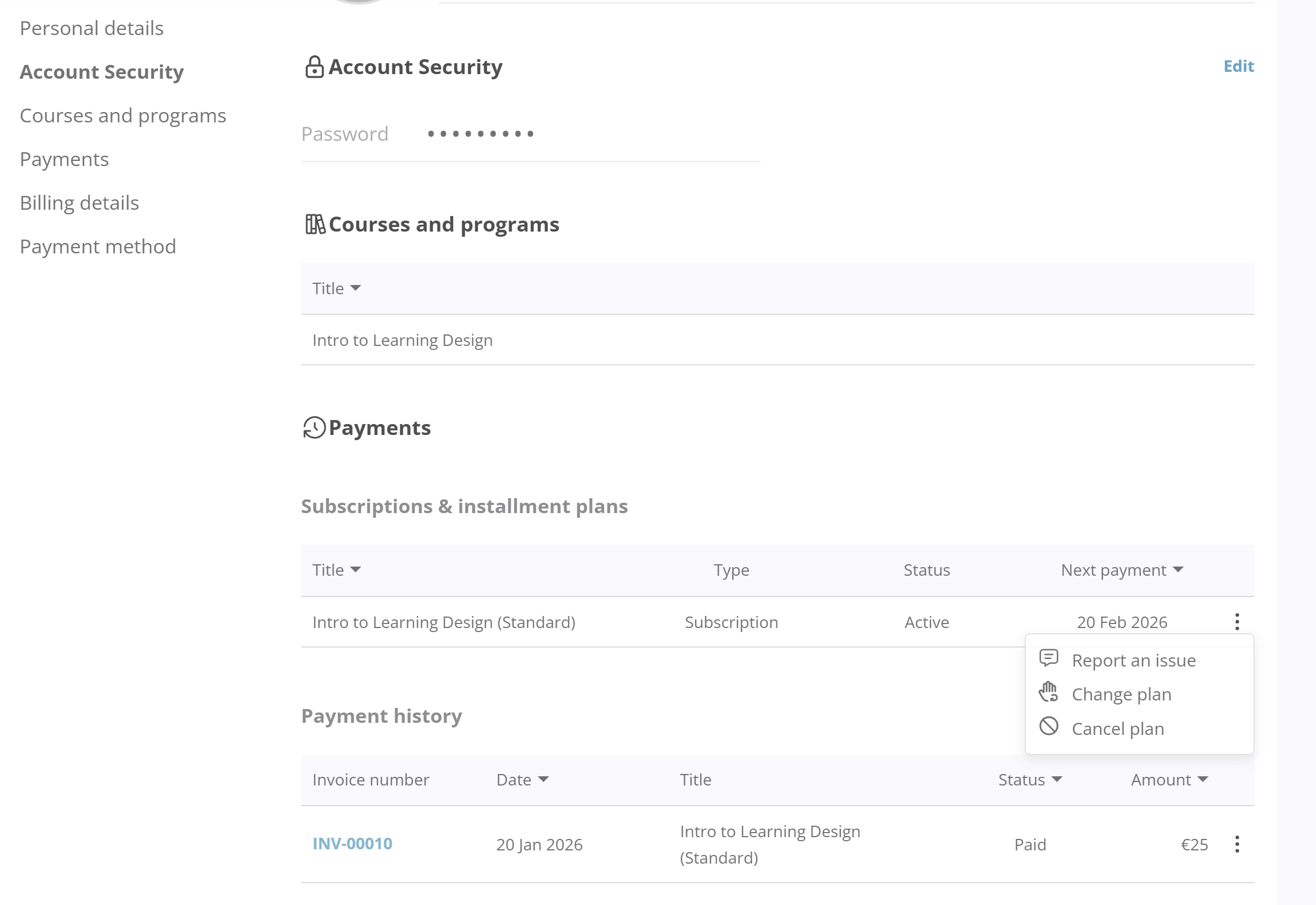
A pop-up window will appear, allowing learners to finalize their action.
If they choose to change their plan, they can either upgrade or downgrade:
- If they downgrade and have already paid a higher amount, the remaining balance is saved as credit in their account and applied to the next payment.
- If they upgrade to a higher-priced tier, they are charged only the price difference.
The change takes effect immediately. Any available credits are stored in the learner’s account and can be used for future subscription payments or upgrades.
If a learner’s tier does not include a specific course, that course appears as locked, along with a prompt to upgrade.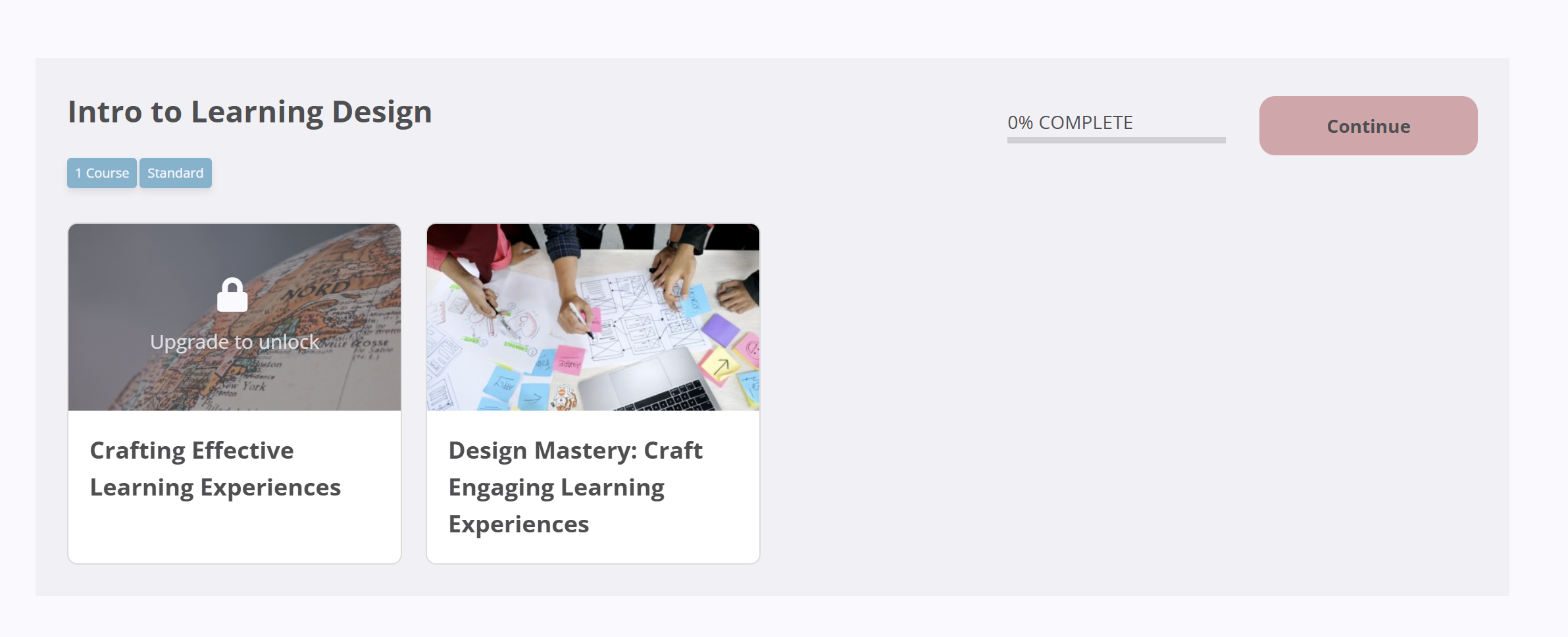
Manage Subscription Plans
The Plans tab in your admin dashboard gives you a complete overview of all active subscriptions and installment plans across your school. In the plans page, you can monitor, review, and manage user payment plans directly from LearnWorlds; no need to log into Stripe.
Refer to this article for detailed steps on managing your subscription plans.
Make sure to check this guide for key tips and best practices around subscriptions.