


Reusable Sections are a powerful tool that allows you to save any section you’ve created and reuse it across different pages in your Site Builder or chapters in your eBooks. Instead of rebuilding the same content from scratch each time, you can create it once, save it, and use it wherever needed.
Using Reusable Sections helps you work more efficiently, maintain design consistency, and manage content updates from one place.
In this article, we will learn how to save a section as a reusable Template or Linked Section, insert reusable sections into pages or eBooks, and edit linked sections across your content.
Use Cases
Here are some common ways to use reusable sections:
- Linked Section: Announcement banner shown on the homepage and course pages.
- Linked Section: Promotional offer used across homepage, product, and checkout pages.
- Linked Section: Repeating lesson instructions in each eBook chapter.
- Template: Chapter summary reused at the end of eBook sections.
- Template: Testimonial carousel used on marketing and course pages.
How to Use Reusable Sections in Site Builder
Navigate to your Site builder, hover over the section you want to reuse, and click the Save as icon on the toolbar.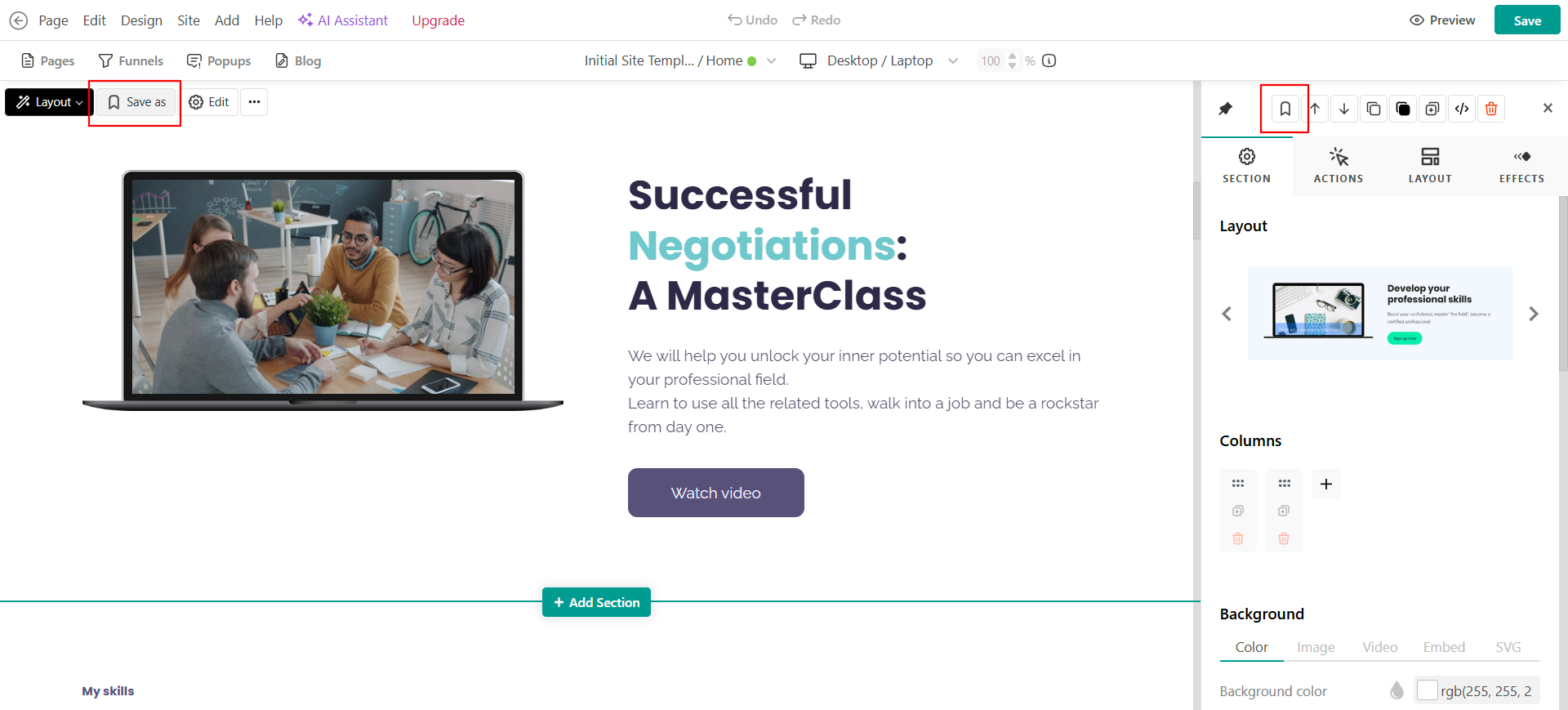 You can save this section as either of the following:
- Template: Creates an independent copy of the section, saved in the Section Library. You can reuse it on other pages, and any changes made later will not affect the original section.
- Linked Section: Saves the section in the Section Library and keeps it synchronized with the original. Any edits made to one linked section will automatically update all other instances where it’s used.
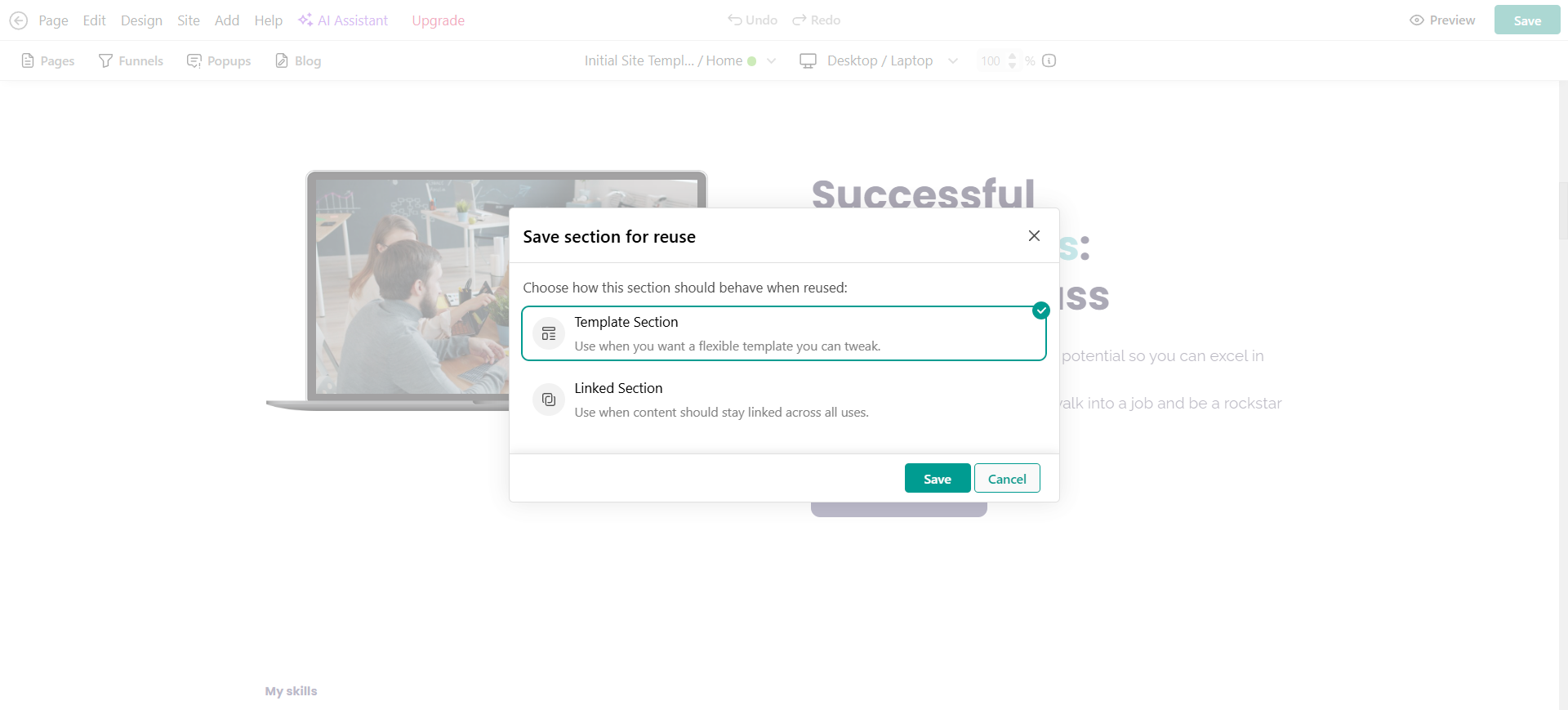
Your section is now saved in a Section Library.
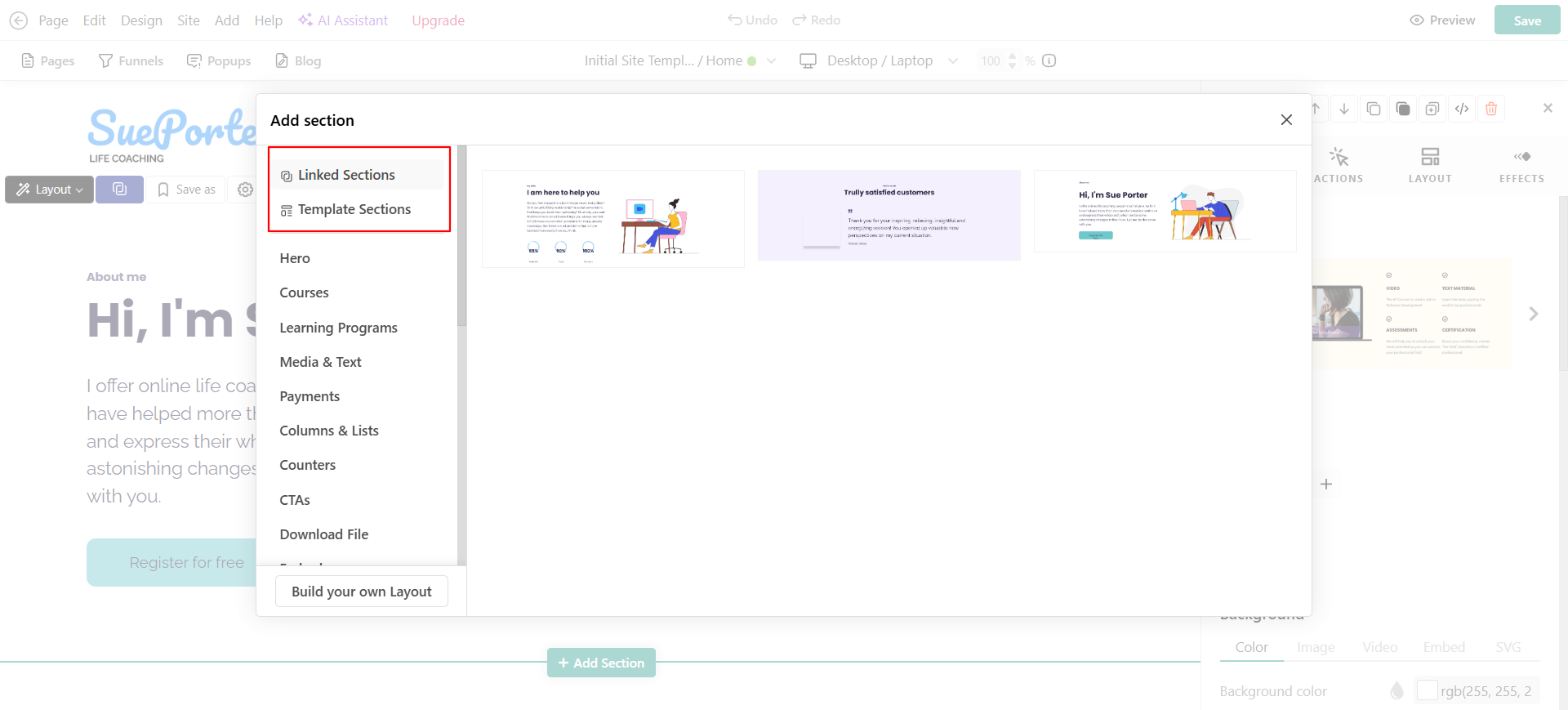
When you are ready to use such a section, hit the add section button to locate the section library.
- Choose either the Templates or Linked Sections tab.
- Find the section you want and add it to the page.
 Linked Sections display a special icon and a purple banner in the right sidebar to indicate they stay synchronized.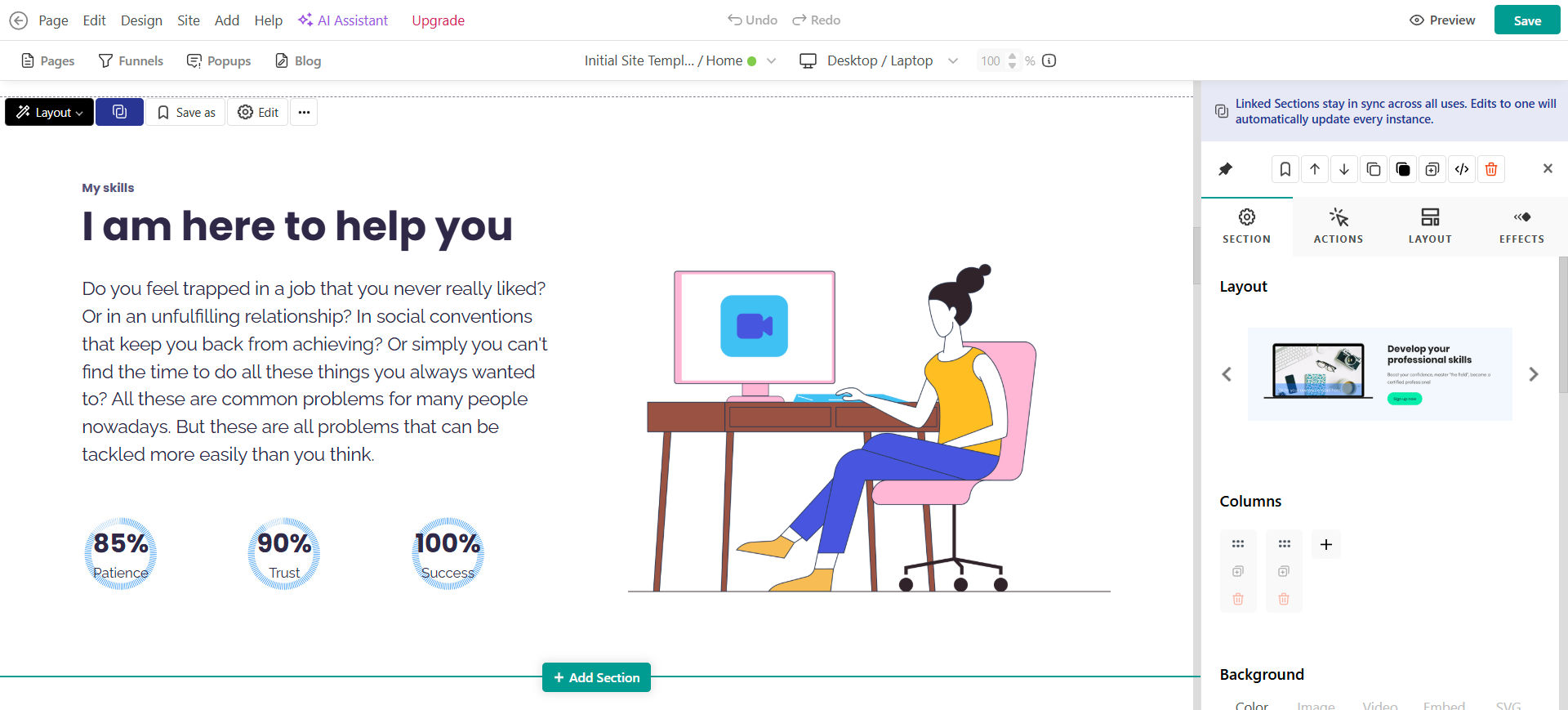
To edit a linked section, hover over it on your page and click Edit, just like you would with any other section. Make your changes, and when you’re ready, click Save. A pop-up message will appear, letting you know that saving will update all instances of this section across your site.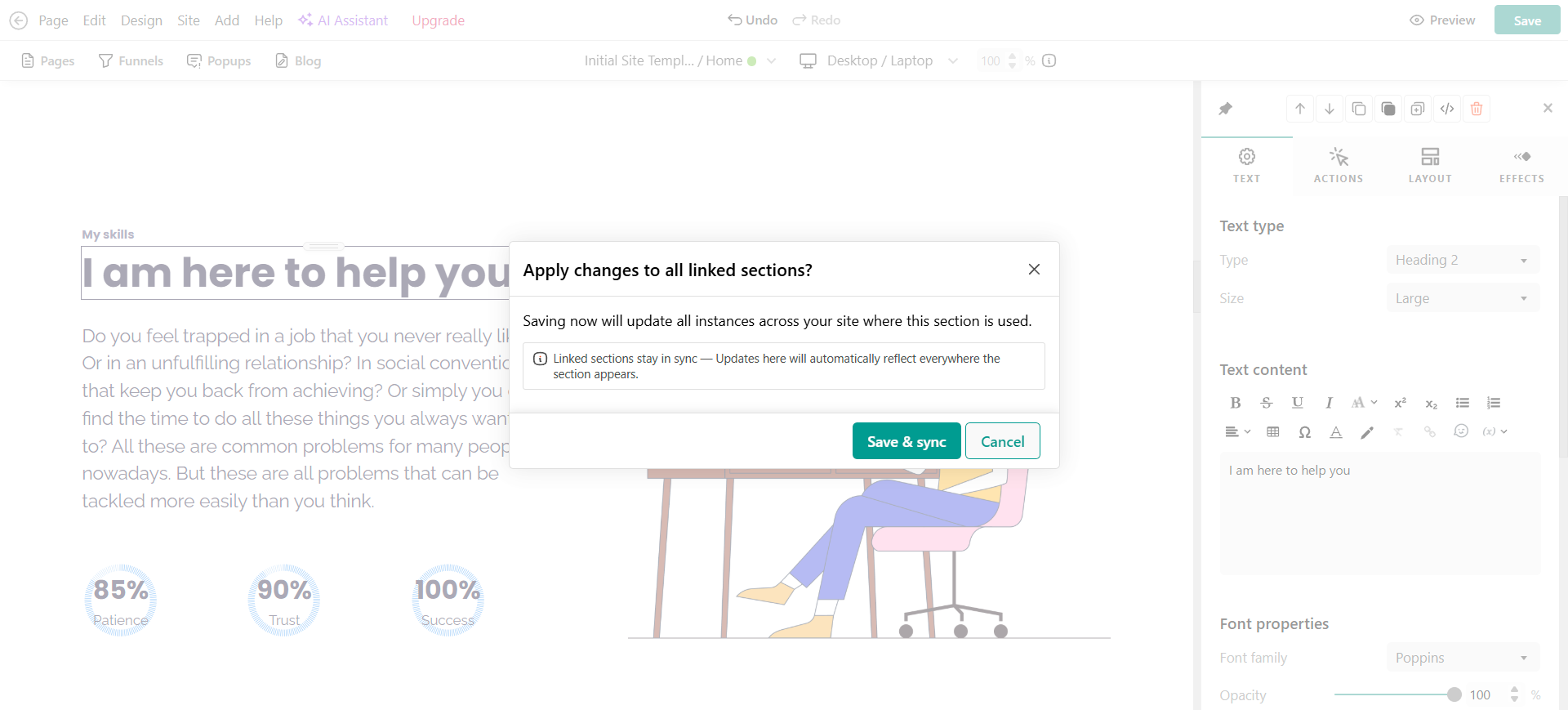
If you want to completely delete a section, open the Section Library, hover over the section, and click the Delete icon.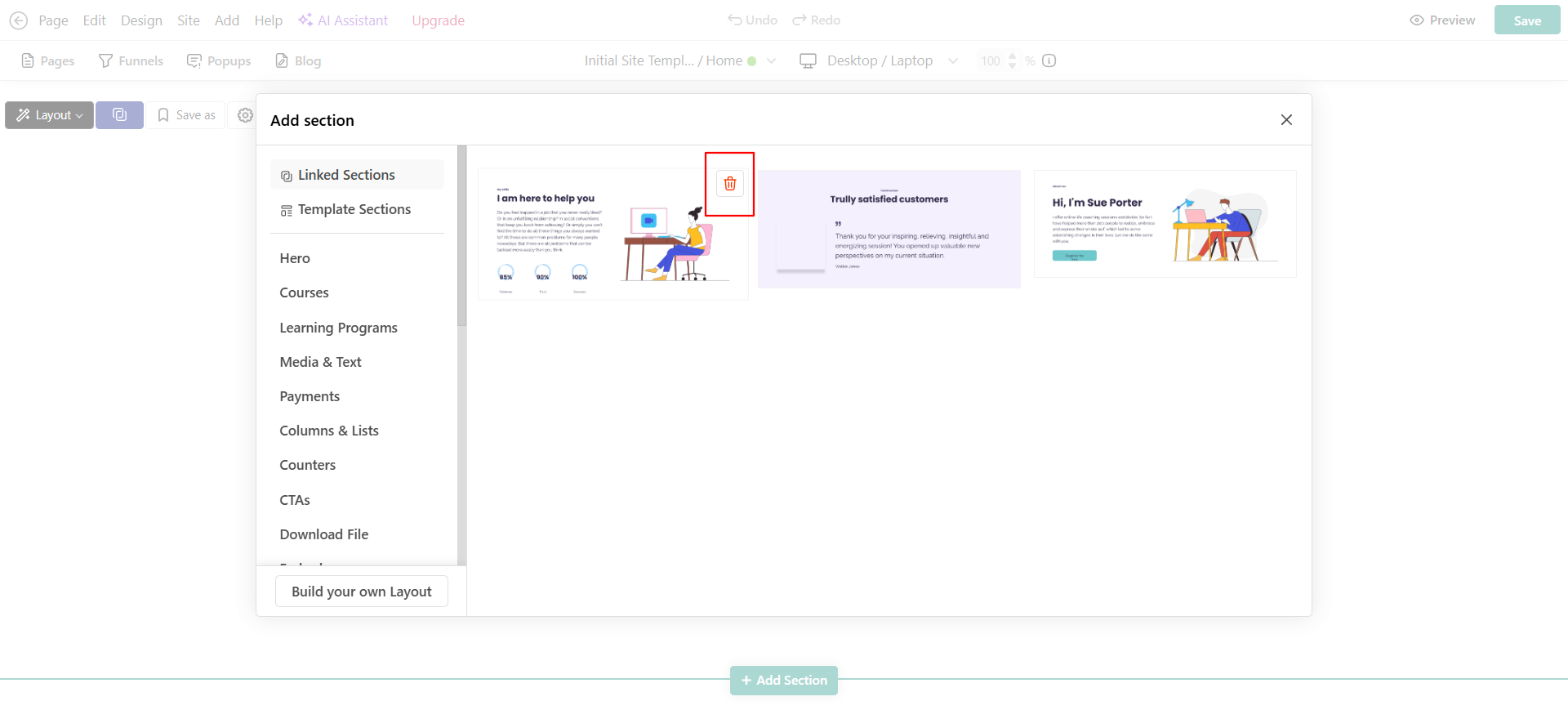
- Deleting a Template from the Section Library only removes it from the library; existing inserted copies stay on your pages.
- Deleting a Linked Section from the Section Library removes it from every page it was used.
How to Use Reusable Sections in eBooks
You can also add Reusable Sections within your eBooks, following the same steps as in the Site Builder.
While inside an ebook, to save a section for reuse:
- Hover over the section you want to save and click the Save as icon on the toolbar.
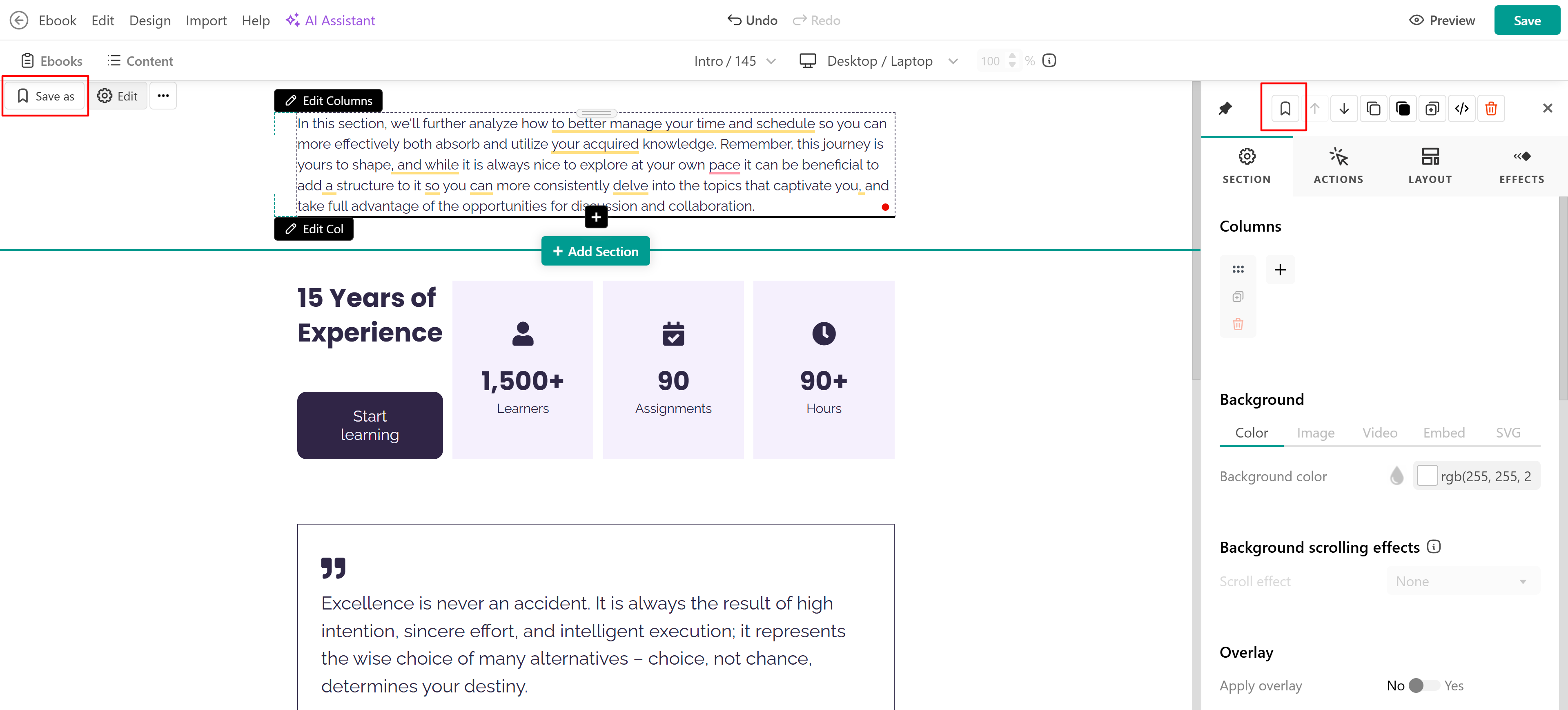
- Choose either:
- Template: Creates a separate copy of the section.
- Linked Section: Keeps it synchronized across multiple eBooks.
Your section is now saved in the Section Library.
When you’re ready to use a reusable section in an eBook:
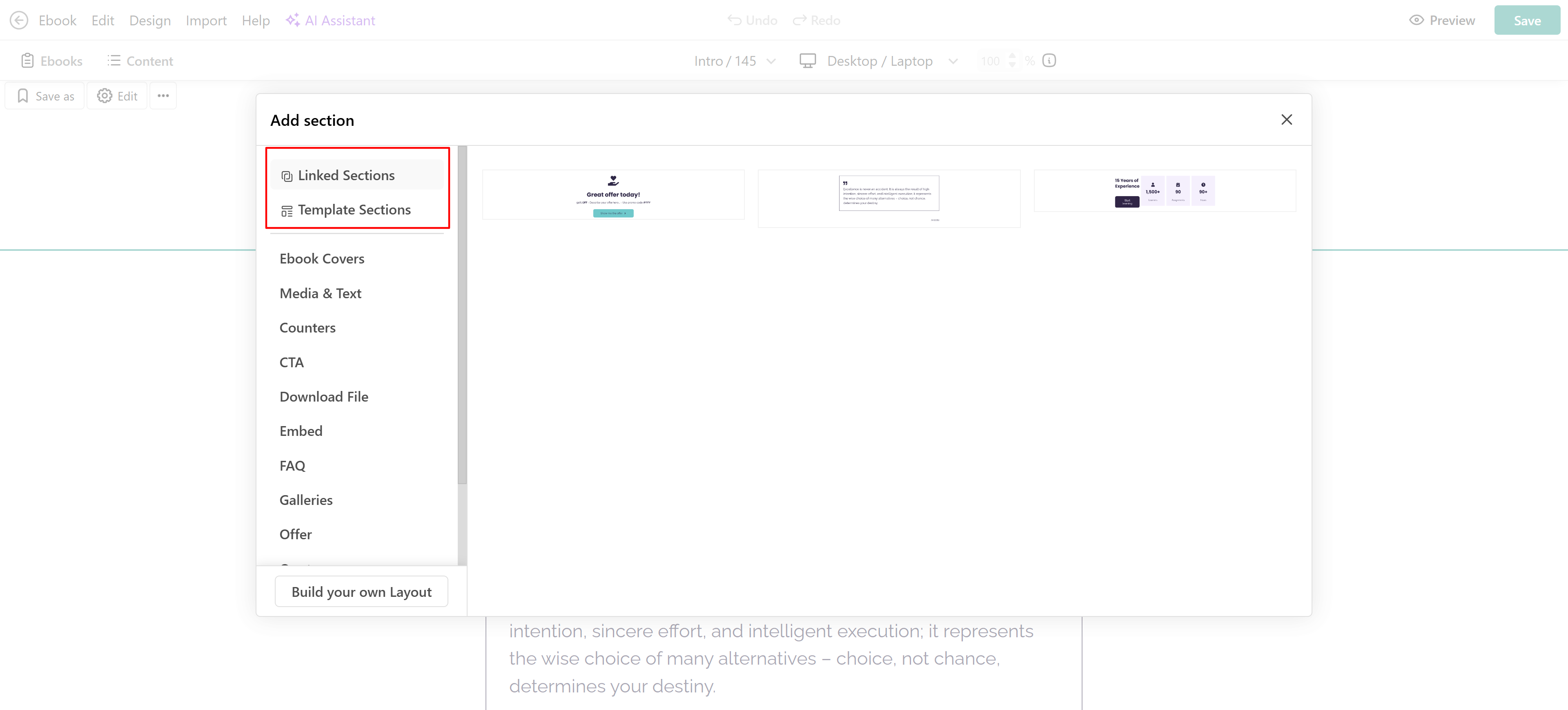
- Click the Add section button to open the Section Library.
- Choose either the Templates or Linked Sections tab.
- Find the section you want and add it to your eBook.
- If you use Linked Sections, any changes you make in one eBook will automatically update all other eBooks where that section is used.
- If you use Templates, each instance is independent; changes in one will not affect others.
Important Notes
- Use Templates when you'll customize the layout for each page.
- Use Linked Sections when the content should stay identical across pages.
- Saved templates or linked sections created within the Site Builder can only be used inside the Site Builder, they cannot be added to an eBook, and vice versa.
- Be careful when editing Linked Sections; changes apply everywhere they’re used.
- Section Templates or Linked sections are not supported in the Assessment Builder or Mobile Apps.
- These features only work with entire sections, not individual widgets
- When you copy or sync a Linked Section to another school, it becomes a regular, independent section. Updates in one school will not affect others.
- Copying sections between builders (e.g., from Site Builder to eBook) creates a detached copy. This means sections saved in the Site Builder will not appear in the eBook’s Section Library.
- Larger or more complex sections may take slightly longer to update.