
When constructing your website, integrating external content through embed codes can significantly enhance its functionality, usability, and effectiveness in engaging visitors. Embedding various codes allows you to incorporate third-party tools, widgets, multimedia content, and interactive elements seamlessly into your web pages.
In this article, we will learn how to add embed codes into your school's pages.
What is an embed code
An embed code is a snippet of HTML or JavaScript code that allows external content or tools to be displayed directly on your website page. It is commonly used to integrate videos, forms, calendars, maps, widgets, and other third-party content.
Add embed Code
1. Copy the embed code from the external third-party resource.
2. Navigate to Website → Design → Edit Website.
3. Choose any page to edit from the Page Manager.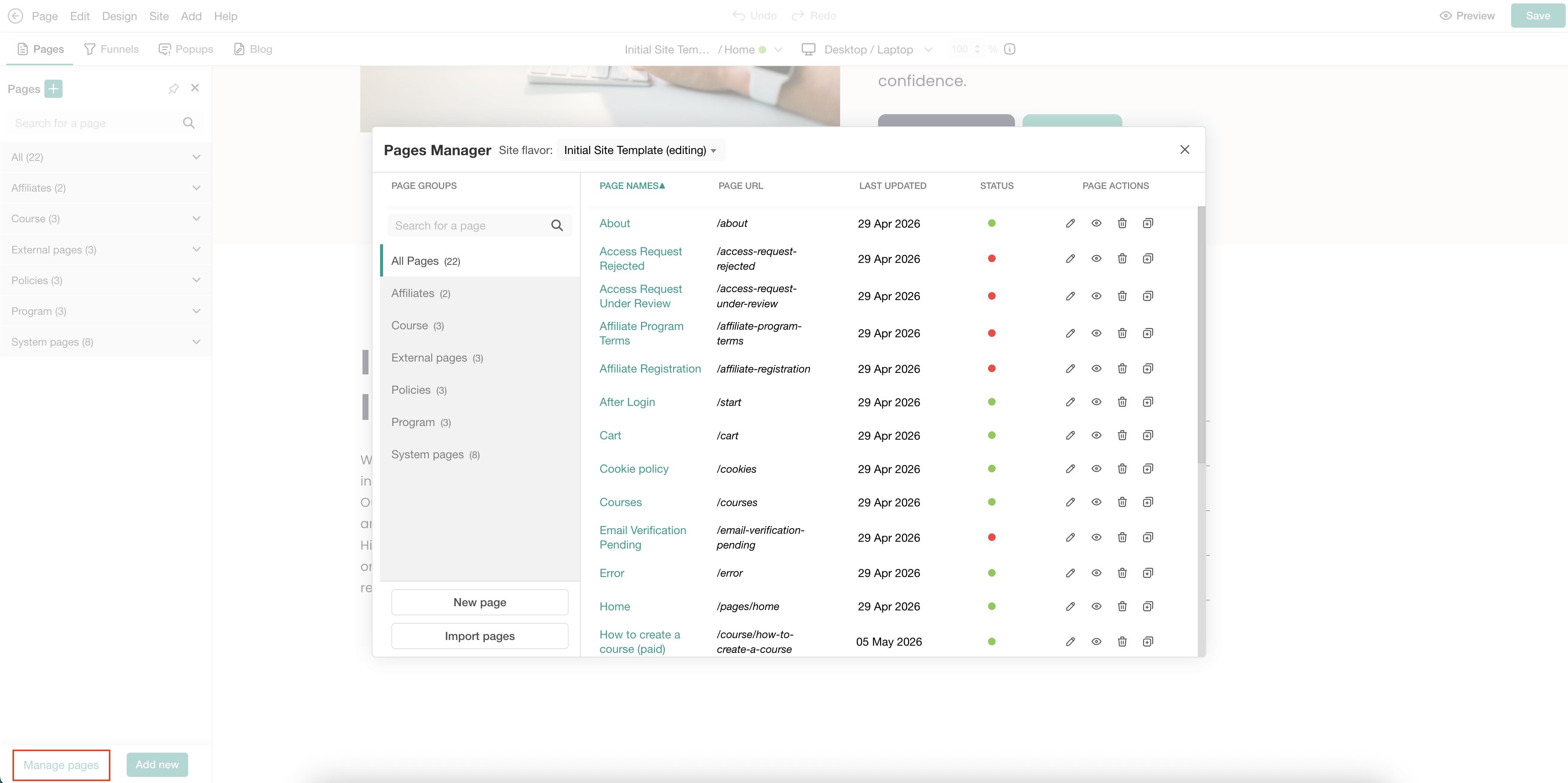
4. Hover over the page and click on the (+) icon to add a section.
5. Select the Embed category. Click Add to insert the preferred section.
6. Click on the added element and paste the embed code to the Embeddable script box of the sideform.
7. Hit Update.
8. Click Save to save changes on the page.

- Embeds are rendered only when pages are updated or when previewing. You can find useful information about your Page Structure here.
- When embedding files such as PDF files or videos from external drives (e.g., Google Drive), make sure the file access is not restricted and that the file is publicly shared so it can be displayed correctly on your pages.