


When you create a product (course or learning program) in LearnWorlds, a public URL (slug) is automatically generated for it. This URL is used to access and share your product page with users.
In this article, you will learn how to customize and change your product’s public URL (slug).
When to change product URL
- Rebranding your product with a new name
- Updating the product to reflect new content or structure
- Simplifying the URL for easier sharing
- Creating a more SEO-friendly URL
- Adjusting the URL to better match a new audience or market
Change product URL
1. Navigate to Courses & Programs.
2. Click on the product you want to update (course or learning program).
3. Navigate to Access.
4. Edit the Public URL and click on Save.
5. A confirmation pop-up will appear. Click Change URL to confirm changes.
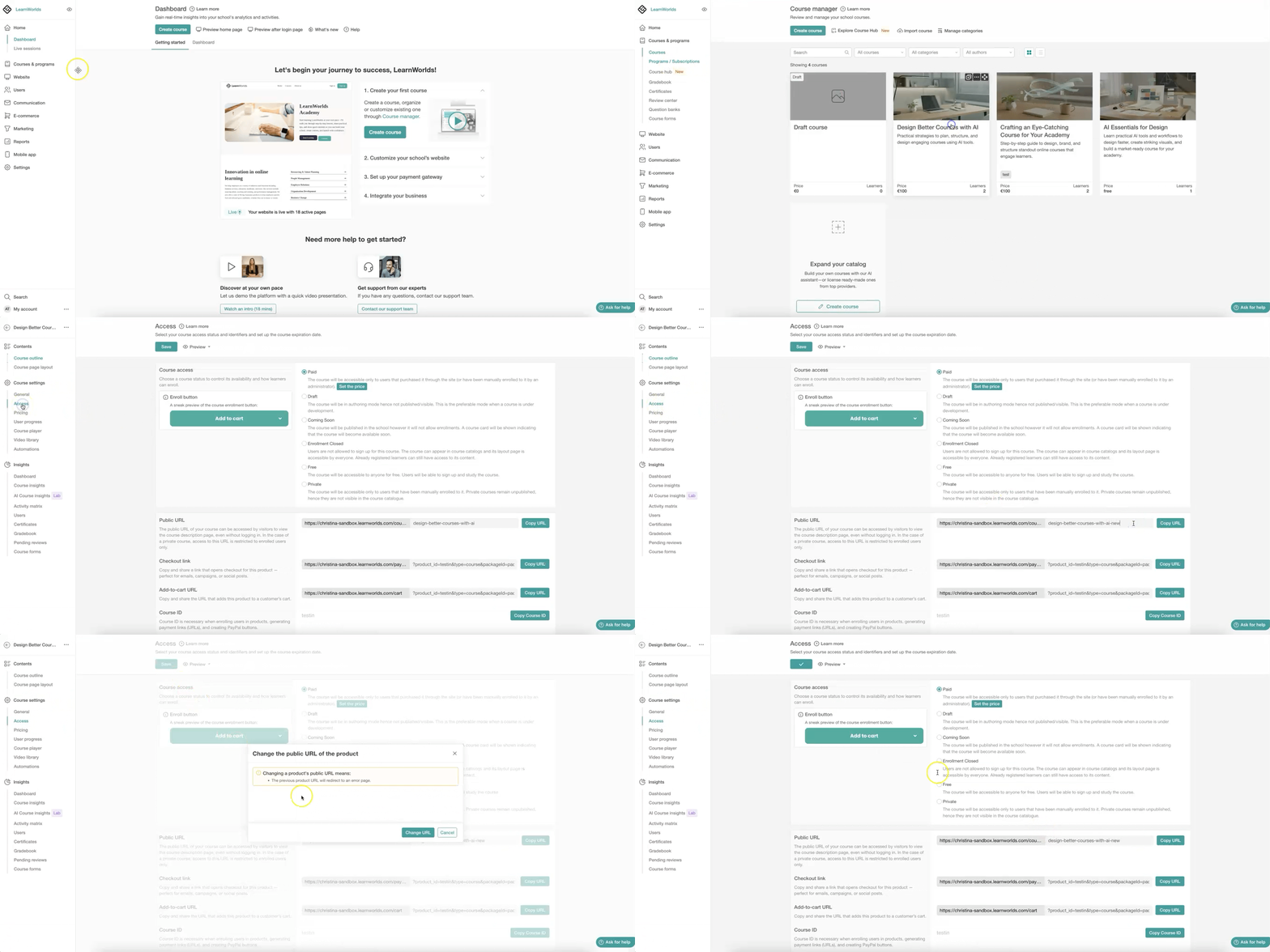
- Once a product URL (slug) is changed, the previous URL becomes inactive, and users attempting to access it will see an error page.
- The original product ID is permanent, cannot be changed, and is not visible to school users. It is used internally for actions such as enrolling users in products, generating payment links, and creating PayPal buttons. Even if you update the product slug or public URL, the original product ID remains the same.